
The device alerts list tab is accessible under Assets → Vulnerabilities.
This page contains CVE violations of all devices in the system.
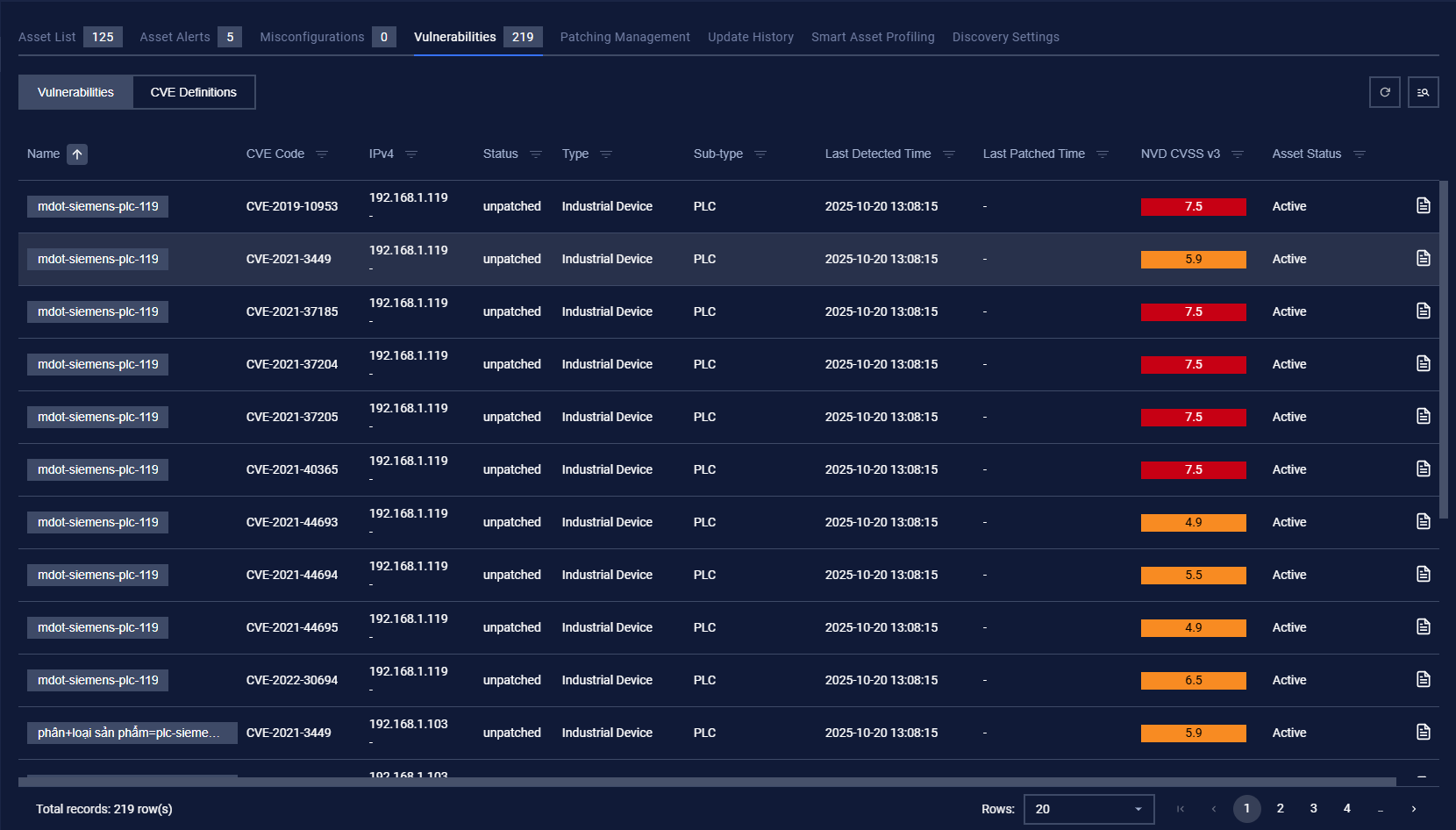
Each record contains:
Basic information of that device, such as Name, IP, Type, and Sub-type.
CVE information: CVE code, status (unpatched, patched, potential), last detected and patched time.
Vulnerability score: Common Vulnerability Scoring System and severity score. The color will be changed based on the score level. (low/medium/high)
Note: You can sort a field in ascending or descending order by clicking on its name.
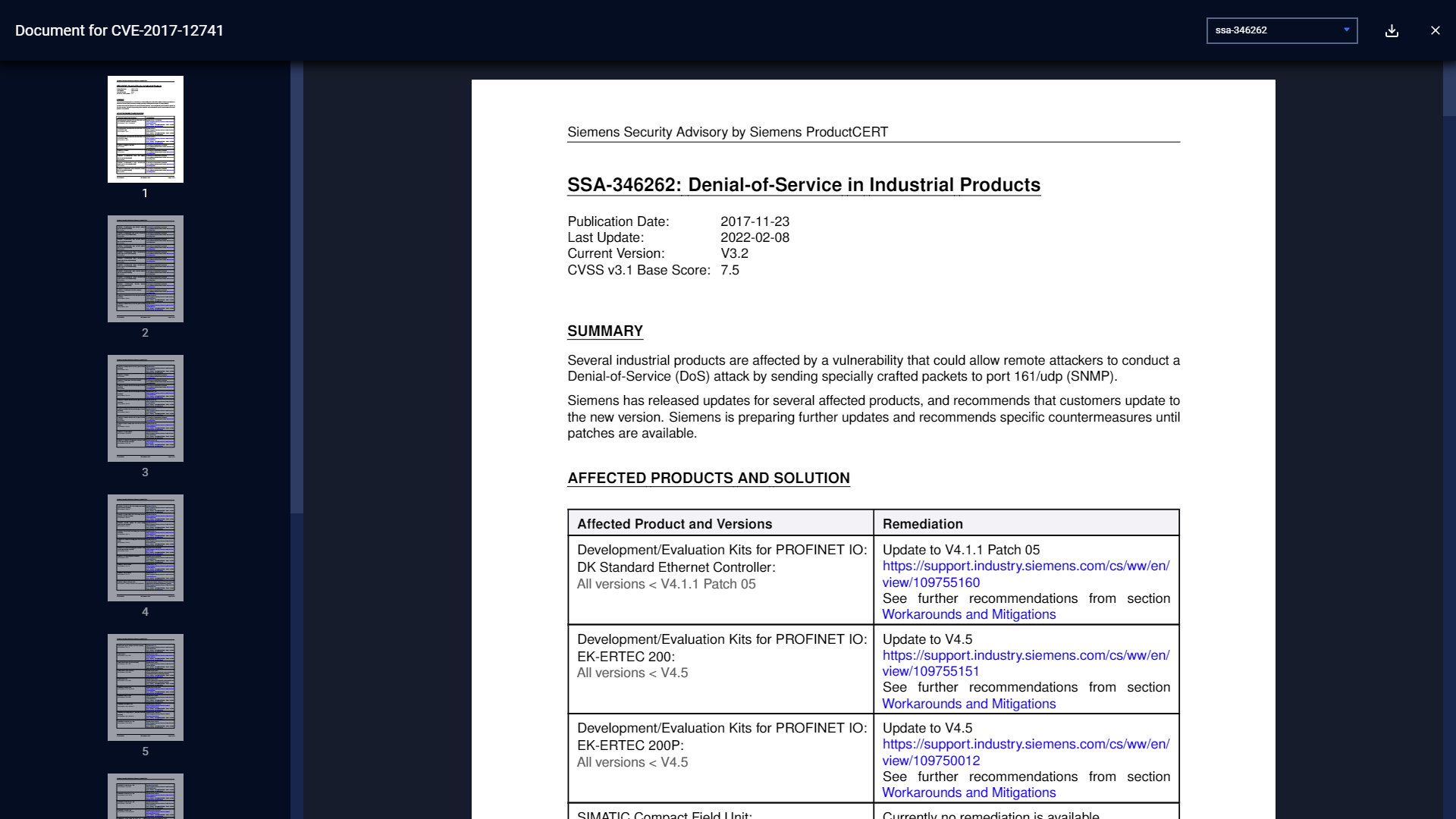
CVE document
The user can click on the button at the end of each row to open the detailed documentation for a specific CVE code. We support many versions of the document; users can select the suitable version for their lab.
Filter
We support searching and filtering on the device vulnerabilities list:
You can enter a value for one or more fields, and the result list and the number of total records will be updated according to the value(s) you entered.
Index | Field | Data type | Type of input | Support multi-input | Note |
|---|---|---|---|---|---|
1 | Name | Text | Input text | No | |
2 | IP | Number | Input number in IP address format (e.g. 192.168.1.102), IP netmask format (e.g.192.168.1.0/24) | No | |
3 | CVE Code | Text & Number | Input number and text in CVE code (e.g. CVE-2017-12741) | No | |
4 | Type | Text | Select from drop-down list | Yes | |
5 | Sub-type | Text | Select from drop-down list | No | |
6 | NVD CVSS v2 | Float Number | Input range from-to | No | |
7 | NVD CVSS v3 | Float Number | Input range from-to | No | |
8 | OPSWAT CVSS | Float Number | Input range from-to | No | |
9 | Last seen open | Date time | Select from pop-up calendar and clock | No | |
10 | Last seen close | Date time | Select from pop-up calendar and clock | No |
We support searching and filtering on the misconfiguration list:
You can enter a value for 1 or more fields, and the result list and the number of total records will be updated according to the value(s) you entered.
You can change the order of the fields displayed on the list by clicking "..." -> “Filter preference”, then drag and drop the fields and arrange them in the desired order.
You can choose to show/hide the fields in the list by clicking "..." -> “Filter preference” and ticking/unticking the box on the left of the field name. If you choose more than 10 fields to be displayed on the list, a horizontal scroll bar will appear; just scroll it to the right to see more fields.
You can save a custom filter for your convenience when you need to reuse it in the future. Enter values into the fields to filter, then select "..." -> "Create filter", and give a name for your filter. Every time you come back, click on "..." → Your saved filter to apply it.
You can update your saved custom filters by editing/adding values to the fields and selecting "..." then "Save filter”.
You can delete a saved custom filter by selecting the "…" → "X" button on the saved filter.