
Overview
The Discovery Settings page allows you to configure device discovery settings and manage BYOD (Bring Your Own Device) in the Neuralyzer system. This page is divided into two main sections: Define Subnets for BYOD and Discovery Processing Settings.
The Discovery Settings tab is accessible under Assets → Discovery Settings.
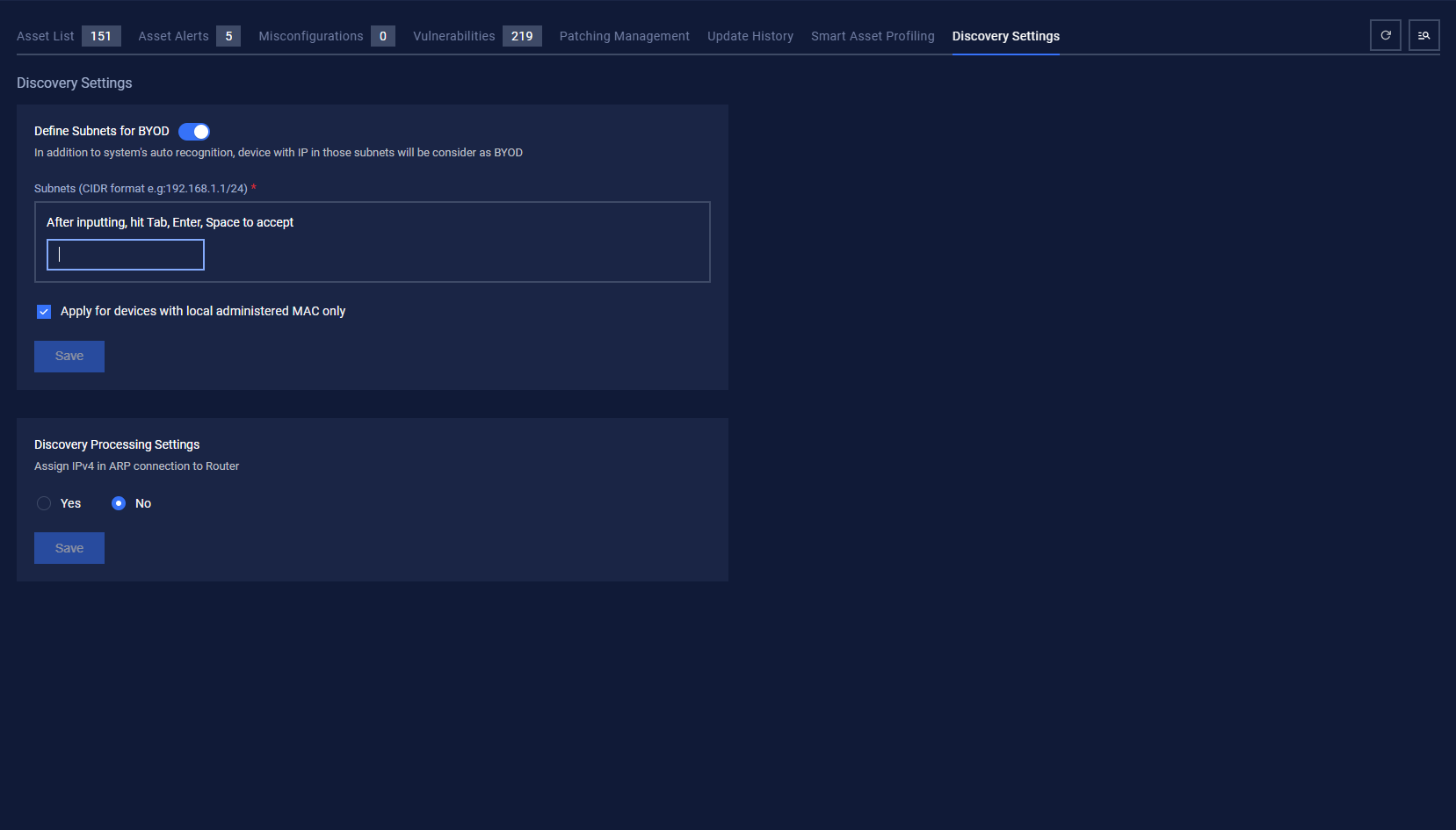
Section 1: Define Subnets for BYOD
Purpose
This section allows you to define subnets for the system to automatically recognize BYOD devices.
Components
1.1 Toggle Switch - Define Subnets for BYOD
Location: Toggle switch at the top of the section
Current Status: ON (blue color)
Function: Enable/disable the subnet definition feature for BYOD
How to use:
Click the toggle to enable/disable the feature
When ON: The system will use defined subnets to recognize BYOD devices
When OFF: The system will only use automatic recognition
1.2 Subnet Input Field
Label: "Subnets (CIDR format e.g:192.168.1.1/24) *"
Format: CIDR (Classless Inter-Domain Routing)
Examples: 192.168.1.0/24, 10.0.0.0/8, 172.16.0.0/16
Required: Yes (asterisk *)
How to enter subnets:
Enter the subnet address in CIDR format
After entering, press one of the following keys to accept:
Tab
Enter
Space
Valid examples:
192.168.1.0/24 - Subnet for 192.168.1.x network
10.0.0.0/8 - Subnet for 10.x.x.x network
172.16.0.0/16 - Subnet for 172.16.x.x network
1.3 Checkbox - Apply for devices with local administered MAC only
Location: Below the subnet input field
Current Status: Checked (blue checkmark)
Function: Apply settings only to devices with locally administered MAC addresses
Explanation:
Checked: Only devices with locally administered MAC addresses will have BYOD settings applied
Unchecked: All devices in the subnet will have BYOD settings applied
1.4 Save Button
Location: End of the Define Subnets for BYOD section
Color: Blue
Function: Save changes in this section
How to use:
Configure the desired settings
Click the "Save" button
The system will display a confirmation message
Section 2: Discovery Processing Settings
Purpose
This section allows you to configure how the system processes discovered devices.
Components
2.1 Configuration Question
Question: "Assign IPv4 in ARP connection to Router"
Purpose: Decide whether to assign IPv4 addresses in ARP connections to Router
2.2 Radio Buttons
There are two options to answer the above question:
"Yes" option:
Status: Not selected
Function: Assign IPv4 addresses in ARP connections to Router
"No" option:
Status: Selected (blue dot)
Function: Do not assign IPv4 addresses in ARP connections to Router
How to change:
Click on the desired radio button
The selection will be updated immediately
2.3 Save Button
Location: End of the Discovery Processing Settings section
Color: Blue
Function: Save changes in this section
Navigation Bar and System Information
Overview Statistics
The navigation bar displays important statistics:
Asset List: 151 (Asset list)
Asset Alerts: 5 (Asset alerts)
Misconfigurations: 0 (Misconfigurations)
Vulnerabilities: 219 (Vulnerabilities)
Navigation Tabs
Patching Management: Patch management
Update History: Update history
Smart Asset Profiling: Smart asset profiling
Discovery Settings: Discovery settings (currently selected)
Utility Buttons
Refresh: Refresh page
Search/Filter: Search and filter
User Profile: User profile
Recommended Workflow
1. Configure BYOD Subnets
Ensure the "Define Subnets for BYOD" toggle is in ON state
Enter CIDR subnets in the input field
Decide whether to apply to devices with locally administered MAC addresses
Click Save to save the settings
2. Configure Discovery Processing
Select "Yes" or "No" for the IPv4 assignment in ARP connection question
Click Save to save the settings
3. Verify Settings
Review the configured settings
Monitor confirmation messages from the system
Check device discovery activity in the Asset List
Important Notes
CIDR Format
Use standard CIDR format: IP_address/subnet_mask
Example: 192.168.1.0/24 means subnet from 192.168.1.0 to 192.168.1.255
Ensure IP address and subnet mask are valid
MAC Address Local Administered
Only applies to devices with locally administered MAC addresses
Helps distinguish between personal and corporate devices
Saving Settings
Each section has its own Save button
Need to save each section after making changes
System will display confirmation message when saved successfully
Troubleshooting
CIDR Format Error
Check if the input format is correct
Ensure subnet mask is valid (e.g., /24, /16, /8)
Cannot Save Settings
Check network connection
Ensure you have admin privileges to change settings
Try refreshing the page and re-entering
Devices Not Discovered
Check if subnets are defined correctly
Verify devices are within the configured subnet
Check if BYOD toggle is enabled