
File Tagging is only available for Amazon S3, S3-compatible storage units (where supported) and Google Cloud Platform.
Google Cloud does not support applying tags directly to files; however, it does support metadata. Therefore, we treat metadata as tags and apply them in the same way as we apply tags in Amazon S3 and S3-compatible.
Metadata is preserved only when moving files between Google Cloud storage units.
Configuring File Tagging
From the left-side navigation menu, go to Workflows
Select the workflow for which you wish to configure File Tagging post action
Select which tags to be added by checking/unchecking the boxes. (Note: at least one tag should be enabled if File Tagging is on)
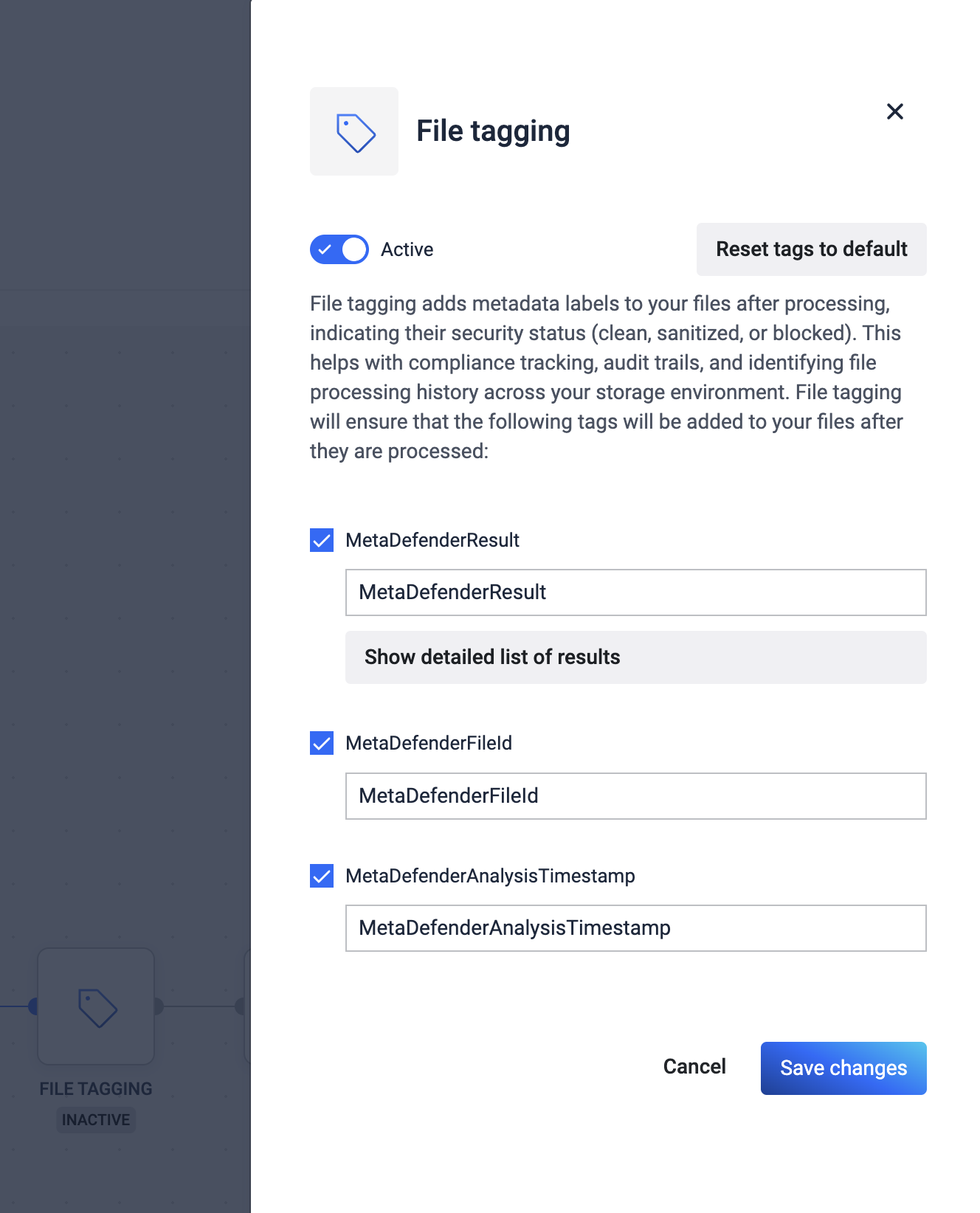
Customize file tags
There are three tags which can be customized and added to the file:
1. MetaDefenderResult
2. MetaDefenderFileId
3. MetaDefenderAnalysisTimestamp
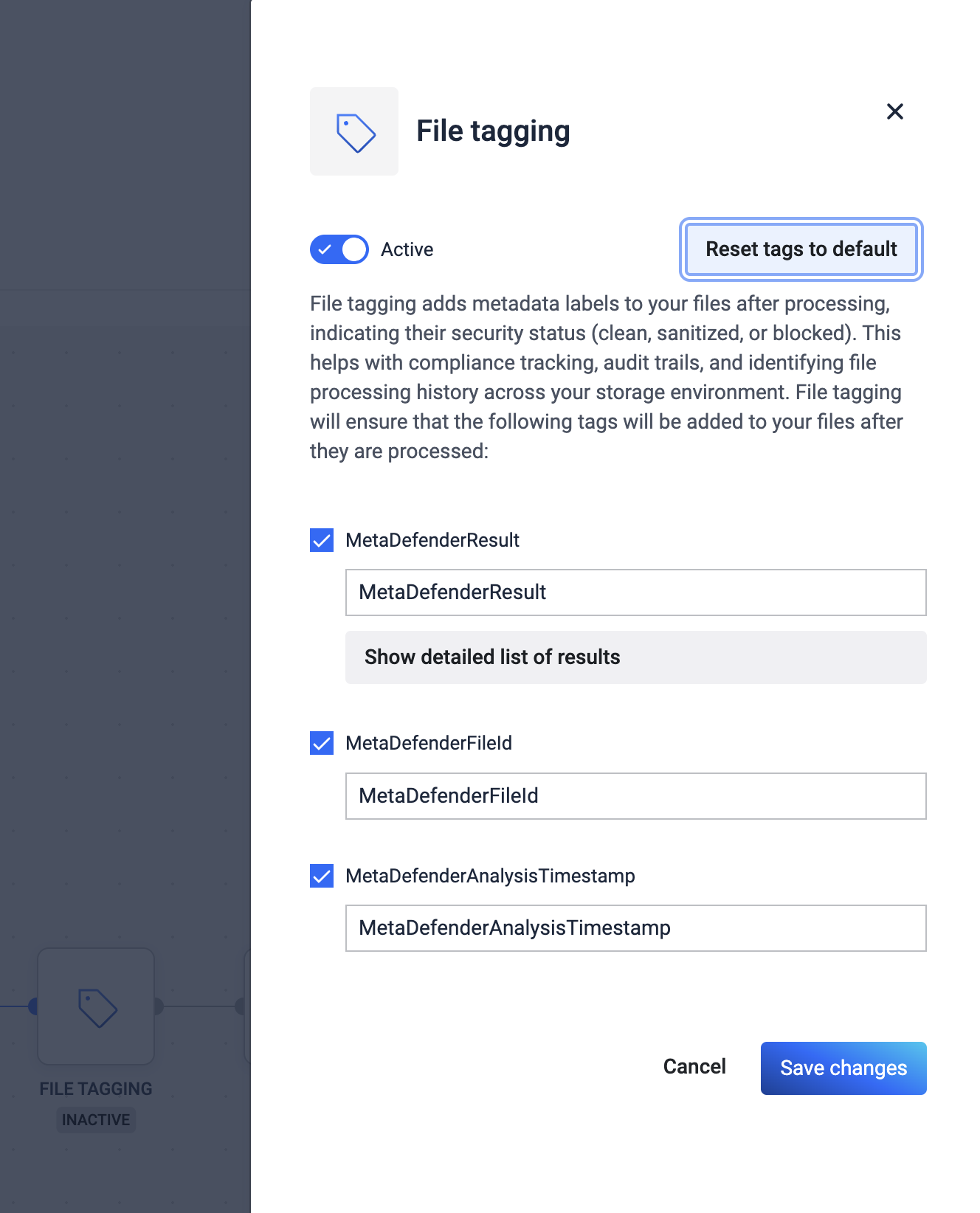
To customize the key of a tag, please modify the values and if you want to keep it as a default value, click on the reset tags to default button.
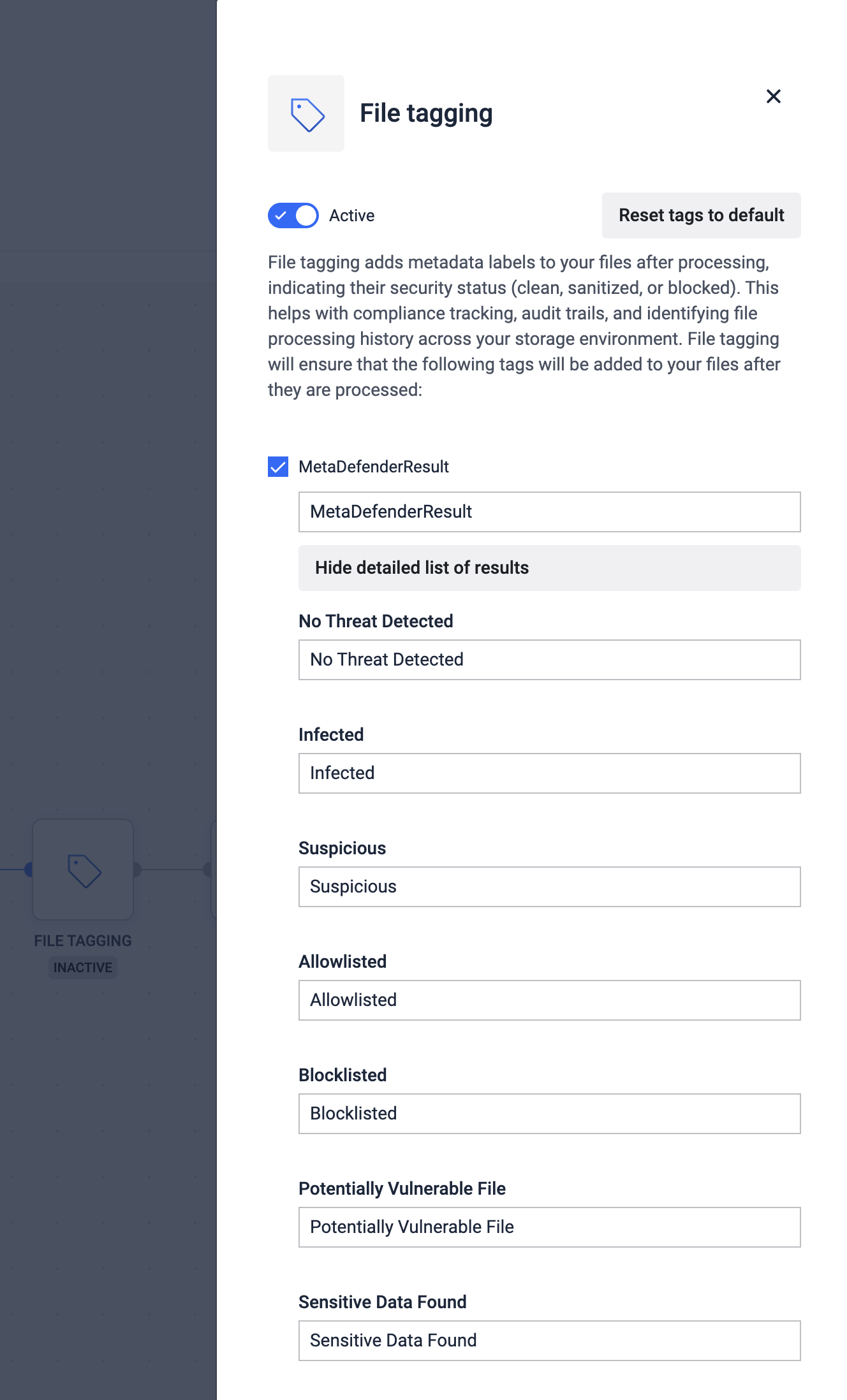
For the MetaDefender Result you can view the detailed list of customizable values. Below are some examples for the keys and the values of the tags.
Name | Value | Description |
|---|---|---|
MetaDefenderResult (or the customized key associated with this name) | No Threat Detected / Infected etc (or the customized value associated with each result) | The final result of the processing |
MetaDefenderFileId (or the customized key associated with this name) | 5e7e15f132efdd0006b0e132 | A unique file identifier that can be used for further REST API queries |
MetaDefenderAnalysisTimestamp (or the customized key associated with this name) | 2020-03-28T21:43:40.1500000Z | Date and time in UTC format when file processing has started |