
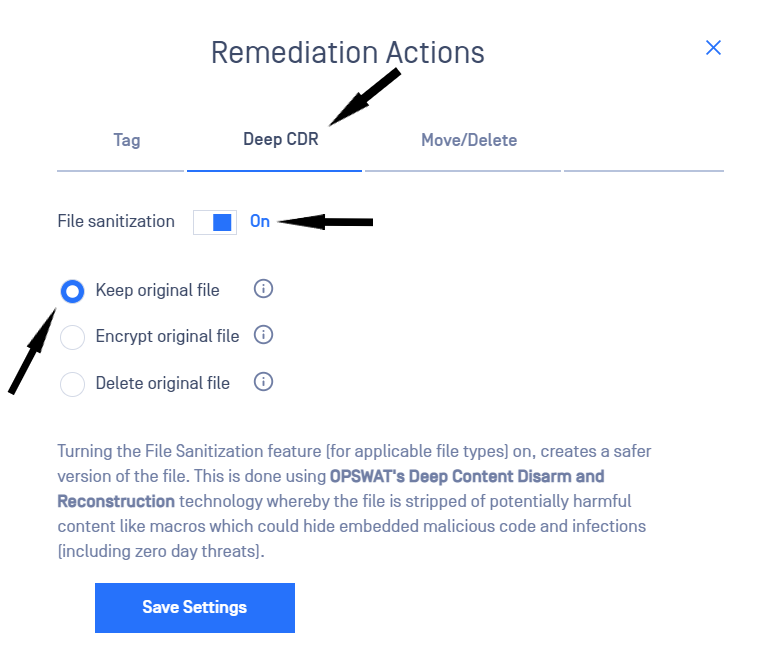
Turning the File Sanitization feature on creates a safer version of the file by stripping it of potentially harmful content. This is done using OPSWAT’s Deep Content Disarm and Reconstruction technology.
To learn more about how to configure Deep CDR, please check the Deep CDR user guide.
Enable Deep CDR
From the left-side navigation menu, go to Storage units
Select the storage for which you wish to enable Deep CDR
Click on Remediation actions in the actions dropdown

Go to Deep CDR tab in the Remediation Actions menu
Toggle File sanitization
Choose how the original file should be treated after sanitization by selecting one of the three available options
Keep original file - the original file will be retained as is
Encrypt original file - the original file will be encrypted and retained as a backup. This is useful because later you could decrypt it and revert to the original file if needed
Delete original file - the original file will be deleted and only the sanitized version will be available to users (NOTE: You will not be able to revert to the original file anymore)
Find out more about OPSWAT’s Deep CDR technology by navigating to the following link: https://www.opswat.com/technologies/data-sanitization
Using the ‘Encrypt original file’ option gives you the possibility to revert the Deep CDR process for specific files. Find the file that you wish to revert in the report and then click the ‘Revert encryption’ button to do this.