
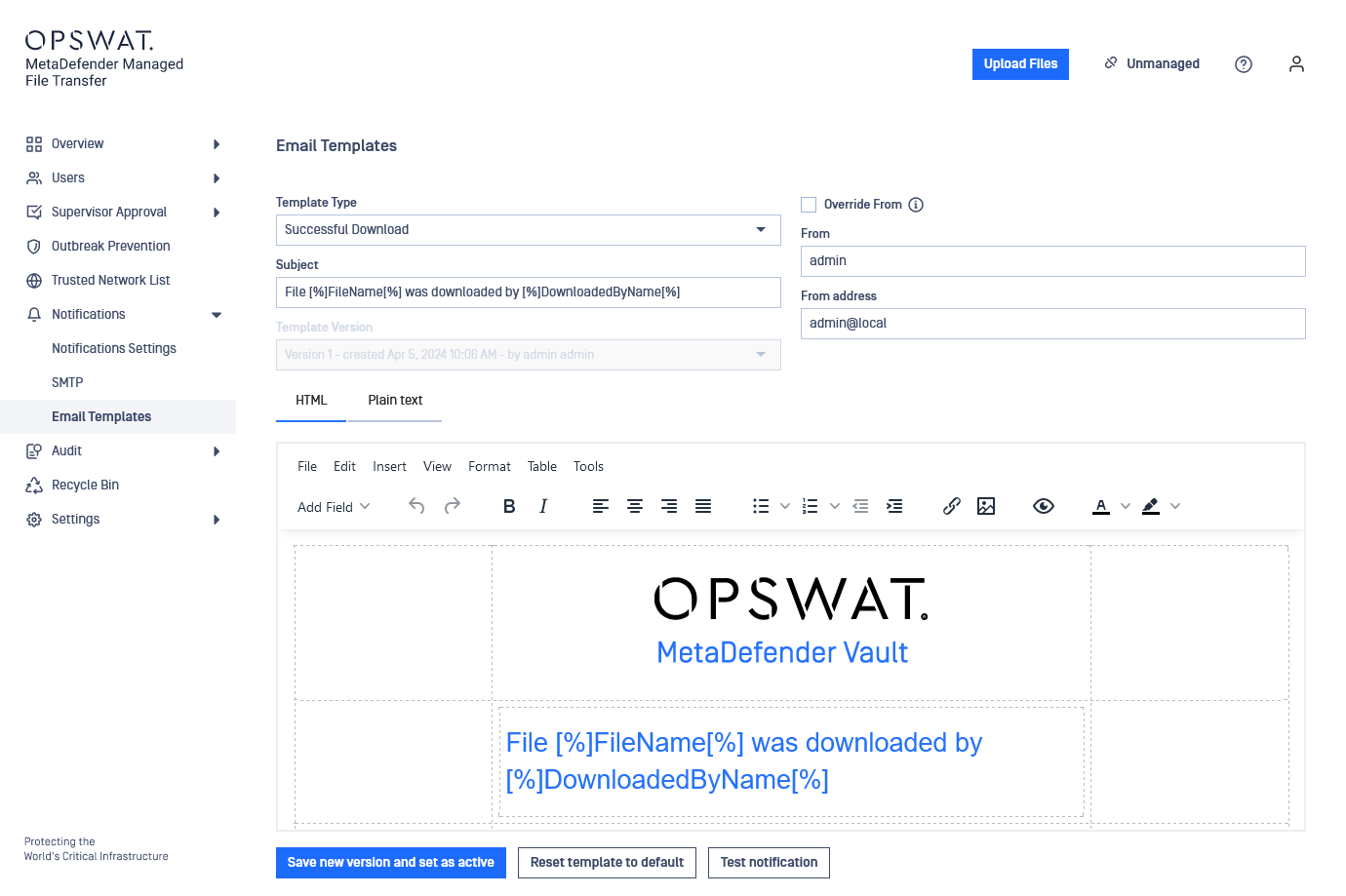
Field | Description | Example |
|---|---|---|
Template Type | The type of the template you wish to change | Files Shared |
From address | Insert sender's email address in the "From address" field | |
Override from address | Send emails from your personal company address | E.g., John is sharing a file with Martha via his john@company.com email address. Leave the option unchecked to send it as administrator@company.com. |
From | Insert name in the "From" field of the email | Administrator |
Override from | Select to add your own name as sender | Check this option to share files via email as John. Leave the option unchecked to share as Administrator. |
Subject | The subject of the email notification | Files have been shared with you |
CC | Send copy to other recipients
|
Email Templates
MetaDefender Managed File Transfer comes with a number of notification email templates.
Recipient | Template Type | Description |
|---|---|---|
Administrator | Generic Admin Notification | Template for various alerts sent to administrators such as unexpected errors or license-related notifications |
Administrator | Failed Upload | Notification of a failure to upload or process a specific file |
Supervisor | File Pending Approval | Notification that a file is awaiting supervisor approval |
End User | Upload Successful | Notification that a file has been successfully uploaded by the user |
End User | Upload Via Kiosk Successful | Notification that one or more files have been successfully uploaded via Kiosk |
End User | Successful Download | Notification that a file shared by the user has been downloaded by another user |
End User | Successful Download Anonymous | Notification that a file shared by the user using No Authentication has been downloaded anonymously |
End User | File Blocked | Notification that a file shared by the user has been blocked by MetaDefender Core |
End User, Administrators, Automation Coordinator | File Blocked Bundled | Notification that contains a list of files which were blocked by Metadefender Core |
End User | Signature | Company/user signature that can be inserted into other templates |
End User | Files Shared | Notification that one or more files have been shared with you and are available for download |
End User | File Unshared | Notification that a file is no longer shared with the user |
End User | File Unlock Successful | Notification that a file shared by the user has been unlocked |
End User | File Approved | Notification that a file shared/uploaded by the user has been approved by a supervisor |
Owner | File Partial Approve | Notification that a file shared/uploaded by the user has received partial approval from a supervisor |
End User | File Rejected | Notification that a file shared/uploaded by the user has been rejected by a supervisor |
End User | Delegate Supervisor | Notification that the user has been delegated as a supervisor by another supervisor |
End User | Folder shared | Notification that one or more folders have been shared with the user and are available for download |
End User | Folder Unshared | Notification that a folder is not shared with you anymore |
End User | Folder Updated | Notification that a folder shared with the user has been updated |
End User | File Supervisor Comment | Notification that a supervisor has added a new comment to a file |
End User | User Welcome | Notification that the user has been added to MetaDefender Managed File Transfer™ as a new user by the administrator |
End User, Guest Creator | Guest User Welcome | Notification that the user has been invited to MetaDefender Managed File Transfer™ as a new guest user |
End User, Guest Creator | Guest Welcome To Site | Notification that the user has been invited to MetaDefender Managed File Transfer™ and Site MFT as a new guest user (only sent in Multi-MFT) |
Supervisor | File Owner Comment | Notification that the file owner has added a new comment for the supervisor |
You can customize the content and style of the email notification templates. Style options include: bold, italic, underlined, font, font size, font color, fill, align left, align middle, align right, justify, bullets, numbered lists, decrease indent, increase indent, format style, insert link, and insert image.
In the "File Blocked Bundled template," the text between the two [Repeat] will be multiplied for every related file.
Click "Save new version**..."** to save your changes. To change back to default, simply click "Reset template to default."
Merge Fields
A merge field is a placeholder that gets dynamically replaced with specific information before a notification is sent. For instance, if you insert the [%]DateAndTime[%] merge field into your template, it will be replaced with the actual date and time before the email notification is sent.
Not all merge fields are available for every template. Ensure you use only the fields that are applicable for the specific template.
The following merge fields can be used (depending on the email template):
Field name | Field Description | Available in the following templates |
|---|---|---|
[%]InitialSenderName[%] | Sender name | Failed Upload, Successful Download, Successful Download Anonymous, File Blocked, Files Shared, File Unlock Successful File Approved, File Rejected, Delegate Supervisor, File Partial Approve, Folder Shared, Generic Admin Notification, File Blocked Bundled |
[%]DateAndTime[%] | Date and time of the transfer sent | Generic Admin Notification, Failed Upload, Upload Successful, Upload Via Kiosk Successful, Successful Download, Successful Download Anonymous, Files Shared, File Unshared, File Unlock Successful, File Pending Approval, File Approved, File Rejected, File Owner Comment, File Partial Approve, File Supervisor Comment, Folder Shared, Folder Unshared |
[%]OptionalFileList[%] | List of optional files in the transfer | Upload Successful, Upload Via Kiosk Successful, Files Shared, Folder Updated |
[%]OptionalFileListNoLinks[%] | List of optional files in the transfer with no links | Upload Successful, Upload Via Kiosk Successful, Files Shared, Folder Updated |
[%]OptionalFolderList[%] | List of optional folders in the transfer | Folder Updated |
[%]OptionalFolderListNoLinks[%] | List of optional folders in the transfer with no links | Folder Updated |
[%]FileName[%] | File name | Failed Upload, File Pending Approval, Successful Download, Successful Download Anonymous, File Unshared, File Unlock Successful, File Approved, File Rejected, File Blocked, File Owner Comment, File Partial Approve, File Supervisor Comment, File Blocked Bundled |
[%]DownloadedByName[%] | Name of person who downloaded the file | Successful Download |
[%]Signature[%] | Contains the company/user signature as configured in the Signature template under Notifications → Email Templates | Supported by all templates |
[%]ScanResult[%] | The result of the file scan | File Blocked, File Pending Approval, File Blocked Bundled |
[%]IsScanActionDeleteFile[%] | Flag indicating that the blocked file has been deleted | File Blocked, File Blocked Bundled |
[%]NotificationTopic[%] | The topic of the notification | Generic Admin Notification |
[%]NotificationMessage[%] | The notification message | Generic Admin Notification |
[%]MFTUrl[%] | Managed File Transfer URL path | Upload Successful, Upload Via Kiosk Successful, Files Shared |
[%]BlockedReason[%] | The reason for the file being blocked | File Blocked, File Blocked Bundled |
[%]FileState[%] | The state of the file | Failed Upload |
[%]ApprovalAdminName[%] | The name of the administrator responsible for approving/rejecting the file | File Approved, File Partial Approve, File Rejected |
[%]UnlockEta[%] | Estimated duration of a file being unlocked | Upload Successful, Upload Via Kiosk Successful, Files Shared |
[%]OptionalUsersFileSharedWithList[%] | The list of users the file has been shared with | Upload Successful, Upload Via Kiosk Successful |
[%]Unsharer[%] | The user unsharing the file | File Unshared, Folder Unshared |
[%]RequesterName[%] | The name of the uploader of an unapproved file | File Pending Approval, File Owner Comment, File Supervisor Comment |
[%]StartDate[%] | Date of user's delegation as supervisor | Delegate Supervisor |
[%]OriginalSupervisor[%] | The supervisor who delegated another user as supervisor | Delegate Supervisor |
[%]EndDate[%] | End date of delegation as supervisor | Delegate Supervisor |
[%]SupervisorMessage[%] | Supervisor's comment | File Approved, File Partial Approve, File Rejected, File Supervisor Comment |
[%]OwnerMessage[%] | File owner's comment | File Owner Comment |
[%]FileApprovalCount[%] | The approval count of the file | File Partial Approve |
[%]FileSupervisorApprovalState[%] | The approval state of the file | File Partial Approve |
[%]UploadReason[%] | The reason for uploading the file | File Pending Approval |
[%]FolderName[%] | Name of folder | Folder Shared Folder Unshared |
[%]DownloadFolderLink[%] | The download link to the folder | Folder Shared, Upload Successful, Upload Via Kiosk Successful |
[%]IpAddress[%] | The downloader's IP address | Successful Download, Successful Download Anonymous |
[%]DownloadAuthenticationMode[%] | The authentication type required for file download | Failed Upload, Files Shared |
[%]FromName[%] | The name of the user sharing the file | Files Shared |
[%]FileList[%] | The list of the files | Files Shared, Upload Successful, Upload Via Kiosk Successful, File Unlock Successful |
[%]OptionalMessage[%] | The comment added to the file | Files Shared |
[%]DateWhenTransferExpires[%] | The expiration date of the file | Files Shared, Upload Successful, Upload Via Kiosk Successful |
[%]Delegated[%] | The name of the delegated user | File Approved, File Rejected, File Supervisor Comment, File Partial Approve |
[%]FolderLink[%] | The link to the folder | Folder Updated |
[%]ProductName[%] | OPSWAT Metadefender Managed File Transfer | User Welcome, Guest User Welcome |
[%]DisplayName[%] | The name of the new user/creator of the guest user | User Welcome, Guest User Welcome |
[%]LinkToService[%] | The link to Managed File Transfer login page | User Welcome, Guest User Welcome |
[%]GuestIdentifier[%] | The identifier of the guest user | Guest User Welcome |
[%]UserExpiresDate[%] | The expiry date of the guest user access | Guest User Welcome |
[%]NrOfFiles[%] | The number of the blocked files | File Blocked Bundled |
[%]CurrentYear[%] | The current year | Supported by all templates |
Merge Field Value Clarifications
Field name | Possible values | Clarification |
|---|---|---|
[%]DisplayName[%] | FirstName LastName OR username OR active directory login name | The first non-empty value from the list to the left evaluated in order Only for the "Guest User Welcome" message_;_ the name refers to the user who created the guest user |
Recipient Clarifications
Template Type | Recipients | Clarification |
|---|---|---|
Guest User Welcome | Guest's email address Creator's email address OR guest owner's email address OR all active administrators | The guest creator is cc'd If the creator does not have an email address, notification is sent to all administrators |
Guest Welcome to Site | Guest's email address Creator's email address OR guest owner's email address OR all active administrators | The guest creator is cc'd If the creator does not have an email address, notification is sent to all administrators |
Licensing Notifications
Email notifications regarding licensing are sent under the following conditions:
Successful activation
Upcoming license expiration (16, 11, 6, and 1 day before the expiration date)
License expiration (on the expiration day and 5 days later)
Import/Export Template
To import a custom HTML notification template:
Go to the "File" menu
Select "Import Template"
Choose the desired HTML file
To export a notification template:
Go to the "File" menu
Select "Export Template"
Note that the design might not render accurately in the rich text editor.
For plain text notification templates, use the "Import Template" and "Export Template" options in the toolbar.
Importing a template loads the content into the rich text editor. To save the imported template, click "Save new version" and set as "active."
Email Template Versions
When modifying and saving a template, a new version is automatically generated to track changes. Manage template versions using the "Template Versions" dropdown menu.
Each template type can store up to 25 versions. When this limit is reached, the oldest version is automatically deleted when a new one is added.
Load a version into the editor to:
Edit and save it as a new version
Activate it with a single click using the "Set as active" button
If an administrator who created an email template is deleted, the template version remains, and the creator name is reassigned to the earliest created local administrator.
Resetting Email Templates to Default
Any email template can be reset to its default version. To do this:
Click the "Reset template to default" button to load the default template into the editor
Click the "Save new version" and "set as active" buttons to activate it
Updating templates after upgrading MetaDefender Managed File Transfer™
Default templates may change with new versions of MetaDefender Managed File Transfer™. After upgrading, use the "Reset template to default" button for each template to get the latest versions.
Note: Resetting to the default will remove any custom changes.
Testing Email Templates
To preview how an email notification will appear:
Click the "Test Notification" button
In the popup modal, change the recipient email address if needed (defaulted to the saved email address)
Click "Send Test Notification" to send the preview to the specified email address