Use this type of job to automatically push files to a file share on a remote host using the SMB protocol.
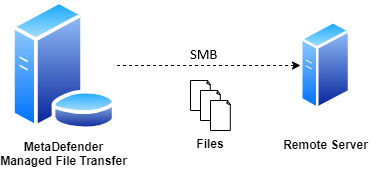
During the automated file transfer, only files with Available and Sanitized states in the source folders will be transferred.
Configuration
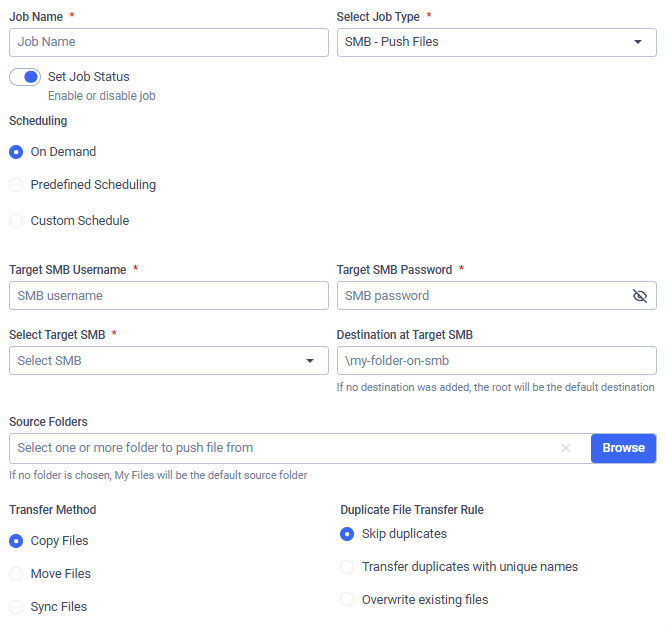
Target SMB Username
The username used to authenticate via the SMB protocol on the selected host.
Target SMB Password
The password used to authenticate via the SMB protocol on the selected host.
In case of editing or duplicating a previously saved job, the password needs to be re-entered.
Select Target SMB
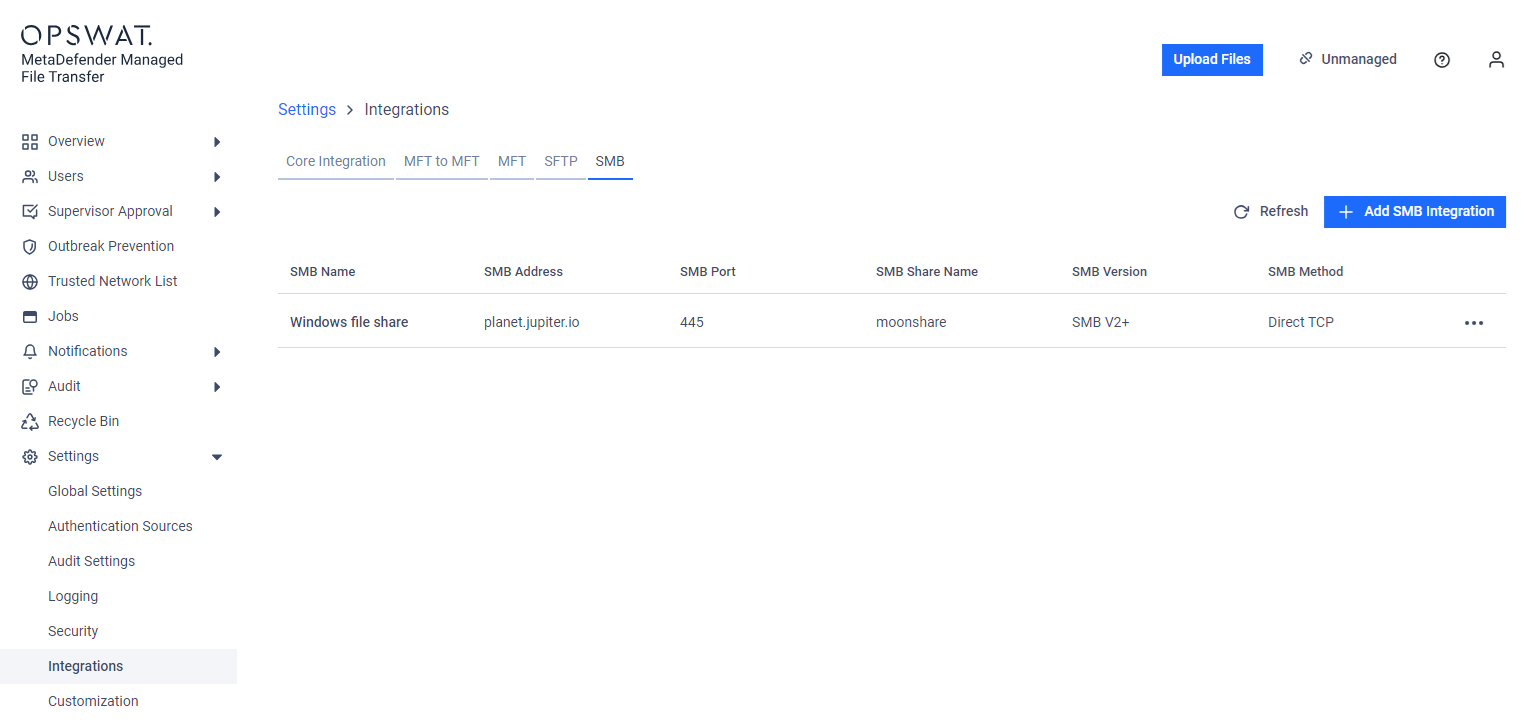
Select the SMB integration to use. Files will be pushed to the selected file share. See: SMB Integration.
Provide Source Path(s)
Provide paths to recursively collect and push files from MetaDefender Managed File Transfer. Any number of paths can be configured. If no path is defined, the root ('/') will be the default source path.
Destination at Target SMB
The destination path on the remote file share. If the path does not exist, it will be created automatically.
Transfer Method
Decide what to do with the original files on MetaDefender Managed File Transfer:
Copy Files: Files successfully pushed will remain on MetaDefender Managed File Transfer.
Move Files: Files successfully pushed will be removed from MetaDefender Managed File Transfer.
Sync Files: Keeps a remote destination folder identical to a local source folder.
If multiple source paths point to the same file, the file will only be deleted from the local instance if it is successfully pushed from all listed source paths.
For example, if move is enabled and there is a file located at /data/logs/log.txt and source paths /data and /data/logs are configured with the destination \push, it will only be removed from the local instance if pushing is successful for both \push\logs\log.txt and \push\log.txt.
Duplicate File Transfer Rule
Decide what to do if a file with the same absolute path exists in the remote file share.
Skip duplicates: The file from MetaDefender MFT is not pushed to the destination.
Transfer duplicates with unique names: The existing destination file is kept. The new file from MetaDefender MFT is pushed and saved at the destination with a unique name.
Overwrite existing files: Push the file to the remote host, overwriting the existing one.
The Overwrite existing files option does not perform any pre-check on the local or remote file; it simply overwrites the remote file with the local one, even if they contain the same data. This means if a file does not change on the local instance, the same file will be pushed repeatedly.
Sync Behavior for Deleted Files
Decide on the course of action if the selected transfer method is Sync Files.
Delete from destination: If a file or folder is deleted from the source, it will also be deleted from the destination on the next job run. This ensures the destination remains an exact mirror of the source.
Retain on destination: If a file or folder is deleted from the source, it will not be deleted from the destination. This option is useful when you want to use Sync to transfer new and updated files but need to prevent any data from being automatically removed from the destination.
Example
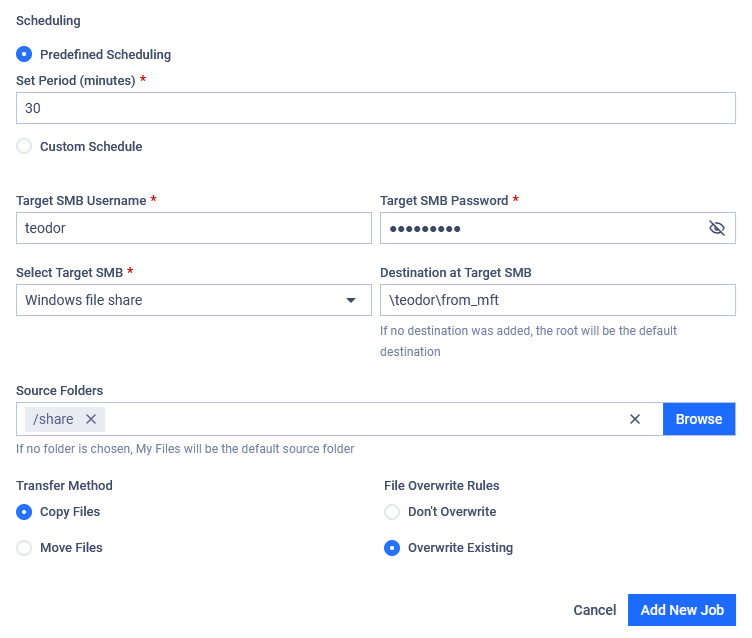
I want to push files to my remote Windows file share from MetaDefender Managed File Transfer. I only want to push files in the share folder of my root directory, and I want this to be done every 30 minutes. My username is teodor and my password is pass%123! on the remote host.
My Windows share can be reached via the FQDN planet.jupiter.io, where the SMB (version 2.0+) file share named moonshare is available and accessible on port 445. I want my files to be copied from my folder to the folder /teodor/from_mft on my Windows share. If a file already exists there, I want to overwrite it.