
To enhance the security and integrity of MFT-to-MFT integrations, you can place a data diode such as MetaDefender NetWall® between systems. This creates a unidirectional network path that streamlines and hardens data flow.
MetaDefender Managed File Transfer™ Configuration Example
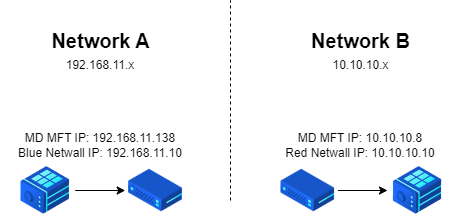
This example shows how to route MFT-to-MFT traffic through a MetaDefender NetWall® Stream so transfers cross the data diode using a diode-facing address. Before you begin, make sure you have the diode-facing IP address (from the Stream configuration) and the destination MFT API key.
Before configuring MetaDefender Managed File Transfer™, consult the MetaDefender NetWall®'s Managed File Transfer Stream documentation for guidance.
Configure the remote endpoint so MetaDefender Managed File Transfer™ connects to the diode-facing IP address provided by MetaDefender NetWall®.
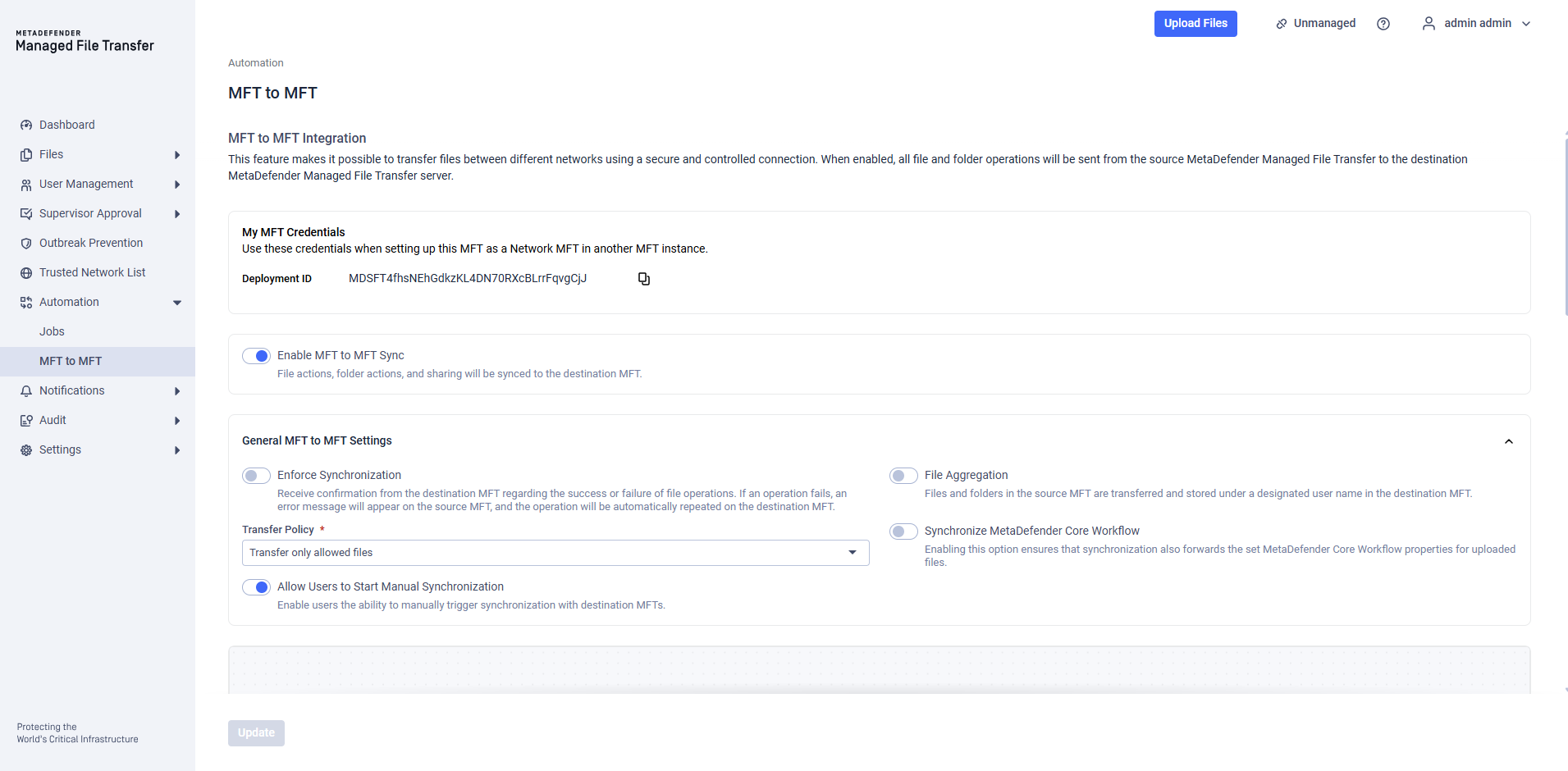
Enable MFT to MFT.
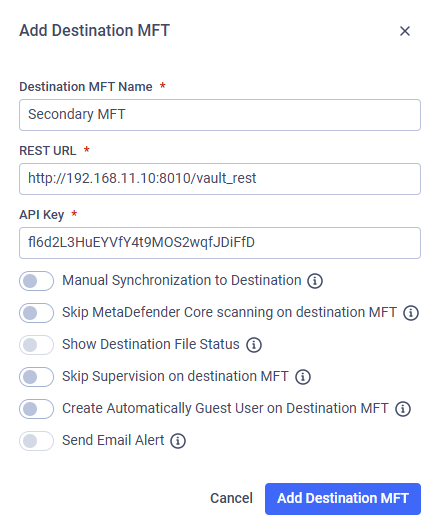
Add a destination MFT:
Host/IP: the diode-facing IP address from MetaDefender NetWall®
API key: the destination MFT API key
Notes: Keep this endpoint pointed at the diode-facing address (not the real destination-side address) so all traffic traverses the Stream.
Limitations
When a data diode sits between two MetaDefender Managed File Transfer™ instances, Enforce Synchronization cannot be used because it requires bidirectional communication.
If you need synchronization guarantees, use a design that supports return traffic (or validate transfer completion through one-way acknowledgements/log review outside of MetaDefender Managed File Transfer™ synchronization).
MetaDefender NetWall® supports a maximum of 20 TCP connections per Stream. To ensure optimal performance and functionality, configure the source MFT based on the steps below.
Configurations
In order to have the most effective communication in this setup, and since MetaDefender NetWall® supports a maximum of 20 TCP connections per Stream, cap concurrency on the source MFT should be set to avoid connection exhaustion.
Open
opswat.vault.processor.service.exe.configin theServicesfolder under the installation directory.
Default path:
C:\Program Files\OPSWAT\MetaDefender Managed File Transfer\Services\
Update these settings (example values shown):
Save the file and restart the relevant MetaDefender Managed File Transfer™ service(s) to apply the changes.
If you increase maxConcurrentTransferConnections, increase forwardRequestsThrottle only up to the same value, and keep the total comfortably below 20 to leave headroom for retries and bursts.