This applies to Kiosk Desktop 4 units with front-facing USB ports. On these units, some hardware-encrypted USB drives fail to mount when plugged into the front ports. The drive never appears in the Kiosk interface and can't be scanned. Many encrypted drives work normally, so check your model in the compatibility table below first.
You are not affected if:
You use standard (non-encrypted) USB drives. These work normally.
You use Kiosk Desktop 3 (no front-facing ports). Encrypted drives work normally.
Your encrypted drive is listed below as Fully compatible.
Hardware-encrypted drives have an on-device encryption controller. They usually need a keypad or unlock step before their storage can be accessed.
Compatibility of tested hardware-encrypted drives
OPSWAT tested the following hardware-encrypted drives on the front-facing USB ports of Kiosk Desktop 4.
# | Manufacturer / Brand | Model | Works at USB 3.x without a workaround? | Compatibility with Kiosk |
1 | Kingston IronKey | IKKP200-128GB | Yes | ✅ Fully compatible |
2 | DataLocker | Sentry 5 managed USB FIPS 8GB | Yes | ✅ Fully compatible |
3 | DataLocker | Sentry K350 | Yes | ✅ Fully compatible |
4 | SecureData | SU-BT-BU-64 | Yes | ✅ Fully compatible |
5 | InnoPlus | IN-US-USB-64-GY | Yes | ✅ Fully compatible |
6 | InnoPlus | IN-US-ABS-Red-32G | Yes | ✅ Fully compatible |
7 | Kanguru | Defender Elite 30 | Yes | ✅ Fully compatible |
8 | Apricorn | ASK3-NX-8GB | No | ⚠️ Only with the USB 2.0 workaround |
9 | iStorage | IS-DA2-256-500-B | No | ⚠️ Only with the USB 2.0 workaround |
10 | iStorage | datAshur PRO2 | No | ⚠️ Only with the USB 2.0 workaround |
Fully compatible: the drive is detected and can be scanned at full USB 3.x speed on the front ports. No extra steps are needed.
Only with the USB 2.0 workaround: the drive is detected once the port runs at USB 2.0. See Choose the workaround that fits your use case below.
Other drives reported as affected include Apricorn Aegis Fortress L3 and Kobra VS. Other keypad or hardware-encrypted drives not listed here may behave the same way.
What's happening
The front-facing USB ports on Kiosk Desktop 4 use a USB hub component. Some hardware-encrypted drives don't enumerate correctly through it at full USB 3.x speed. These drives are detected reliably at USB 2.0 speeds, and non-encrypted drives are unaffected. OPSWAT has identified the root cause and a permanent fix is in progress. Until then, the workarounds below let you keep using affected encrypted drives.
Choose the workaround that fits your use case
These workarounds are only needed for drives marked Only with the USB 2.0 workaround in the compatibility table. There are two supported paths. Pick based on whether transfer speed for encrypted media or keeping the convenient front ports matters more to you.
Option 1 — Software (fastest to apply, keeps front ports)
Available in MetaDefender Kiosk 4.8.5.9455 and later. The software offers two ways to make encrypted drives work at the front ports:
• Fixed USB 2.0 mode — a setting that keeps the ports at USB 2.0 until you switch them back. Encrypted drives are always detected, with no per-use action.
• Dynamic switching — no setting required; the Kiosk automatically steps the port down to USB 2.0 the first time it detects an encrypted drive being unlocked, then you unlock again and continue. Everyday non-encrypted media stays at full USB 3.x speed.
Pros: Applied in minutes. No hardware change. Front ports stay in use.
Cons: Encrypted drives run at USB 2.0 speeds only (slower transfers and scans for encrypted media).
Option 2 — Remove the front frame (full speed for encrypted media)
Temporarily removing the Kiosk's front frame exposes the underlying native USB ports, which are fully compatible with hardware-encrypted drives at USB 3.x speeds for both encrypted and non-encrypted media.
Pros: Encrypted drives run at full USB 3.x speed.
Cons: Front ports are no longer available; media is inserted at the rear, which is less convenient.
Quick guidance
Your situation | Recommend option | Why |
Your encrypted drive is marked Fully compatible | No action needed | The drive is detected at full USB 3.x speed on the front ports |
Mainly encrypted drives, need fast transfers/scans | Remove the front frame | Only option giving encrypted drives full USB 3.x speed |
Use encrypted drives, but speed isn't critical | Software — Fixed USB 2.0 mode | Ready in minutes, always detects encrypted media, no hardware change |
Mix of encrypted and non-encrypted drives | Software — Dynamic switching | Full speed for non-encrypted, automatic step-down for encrypted |
Mostly non-encrypted, occasional encrypted | Software — Dynamic switching | Everyday transfers stay fast with no manual steps |
Must keep front-port access | Software (either mode) | Preserves front-port convenience; no physical change |
Need the quickest deployment | Software (either mode) | Ready in minutes vs. a physical modification |
About the USB 2.0 limiting adapter
The USB 2.0 limiting adapter described in earlier guidance is no longer required on Kiosk 4.8.5 and later — everything it achieved is now covered by the software's USB 2.0 modes, with nothing extra to ship or install.
Step-by-step instructions
Fix with software (Kiosk 4.8.5)
You can use the software workaround in either of two ways.
Method 1 — Fixed USB 2.0 mode (permanent setting)
Use this if you want encrypted drives to work at the front ports at all times, without any per-insertion step.
1. Open the Kiosk admin console.
2. Go to Configuration → Advanced → Encrypted USB.
3. Turn on Force OPSWAT USB Hub to use USB 2.0 mode.
4. Insert and unlock your encrypted drive as usual — it will now be detected and can be scanned.
Note: This option appears only on OPSWAT MetaDefender Kiosk hardware. While it is on, the ports run at USB 2.0 for all drives; turn it off to return to USB 3.x speeds for non-encrypted media. |

The “Force OPSWAT USB Hub to use USB 2.0 mode” toggle under Configuration → Advanced → Encrypted USB.
Method 2 — Dynamic switching (no setting required)
Use this if you want non-encrypted drives to stay at full USB 3.x speed and only step down when an encrypted drive is used.
5. Leave the Force OPSWAT USB Hub to use USB 2.0 mode setting off.
6. Insert your hardware-encrypted drive and attempt to unlock it (enter your PIN) as usual.
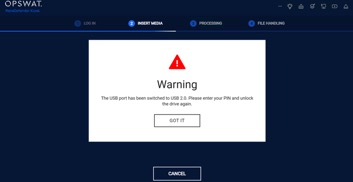
7. On the first unlock attempt, the Kiosk automatically detects the encrypted drive and switches the port to USB 2.0. You'll see the message: “The USB port has been switched to USB 2.0. Please enter your PIN and unlock the drive again.”
8. Select GOT IT, then unlock the drive again.
9. The drive is now detected and can be scanned.