
Check Your Version:
This article applies to all MetaDefender Kiosk version
Issue
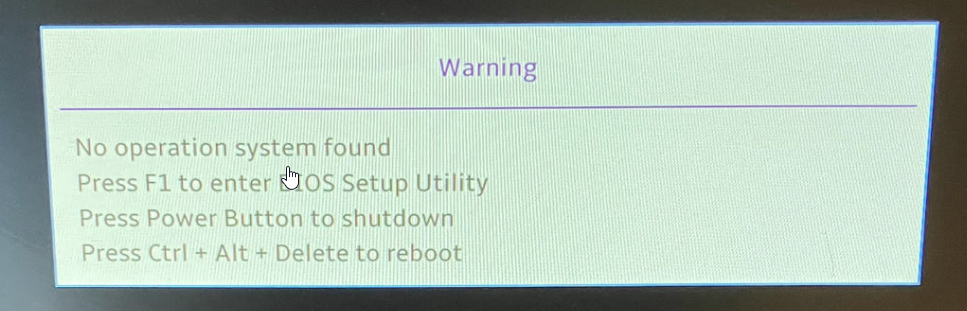
The kiosk displays the following warning during startup: No operating system found
Possible causes
This usually means the kiosk is unable to locate or boot from the Windows boot partition.
This issue may be caused by one or more of the following:
Incorrect boot sequence in BIOS.
Windows Boot Manager is missing or not listed in the BIOS boot options.
Corrupted boot configuration data, also known as BCD.
Fast Startup or an unexpected shutdown causing the system to boot from a previous failed state.
Missing or damaged boot partition.
Faulty storage drive or other hardware issue.
Resolutions
Please try the following steps.
1. Power Cycle the Kiosk
Power off the kiosk.
Unplug the power cable.
Wait for a few minutes.
Reconnect the power cable.
Power on the kiosk and check whether the issue is resolved.
2. Check the BIOS Boot Sequence
Restart the kiosk.
Enter the BIOS setup menu. This is usually done by pressing Del, F2, F12, or Esc during startup, depending on the kiosk model.
Locate the Boot Sequence or Boot Order settings.
Confirm that Windows Boot Manager is listed.
Make sure Windows Boot Manager is at the top of the primary boot sequence.
Save the BIOS changes and reboot the kiosk.
3. If Windows Boot Manager Is Listed
If Windows Boot Manager is listed but is not the first boot option:
Move Windows Boot Manager to the top of the boot sequence.
Save the BIOS settings.
Reboot the kiosk.
Confirm whether the kiosk can boot successfully.
4. If Windows Boot Manager Is Missing
If Windows Boot Manager is not listed in BIOS, the Windows boot configuration may be corrupted.
This can happen after an unexpected shutdown, power interruption, failed reboot, or other system-level issue.
Please confirm whether the kiosk experienced any unexpected shutdowns, forced reboots, or power loss before the issue occurred.
For Lenovo kiosks, there may be multiple boot sequence options. Please verify that Windows Boot Manager is present in all applicable boot sequence sections.
5. Disable Fast Startup
Fast Startup may sometimes cause the system to resume from a previous failed boot state.
If the kiosk can still boot into Windows intermittently, disable Fast Startup:
Open Control Panel.
Go to Power Options.
Select Choose what the power buttons do.
Click Change settings that are currently unavailable.
Uncheck Turn on fast startup.
Save the changes.
Restart the kiosk.
6. Reimage the Kiosk
If the boot configuration is corrupted and the kiosk cannot boot into Windows, reimaging the kiosk may be required.
Please follow the standard kiosk reimaging procedure for your environment.
7. Check for Hardware Issues
If the issue persists after checking the BIOS boot order and reimaging the kiosk, the storage drive or another hardware component may be faulty.
In this case, OPSWAT Support may need to proceed with hardware replacement or RMA after further verification.
Information to Provide to OPSWAT Support
To help us investigate further, please provide the following information:
A photo of the error message.
Photos of the BIOS boot sequence screens.
Confirmation whether Windows Boot Manager is listed in BIOS.
Confirmation whether the kiosk had any unexpected shutdown, power loss, or forced reboot before the issue started.
Kiosk serial number.
Whether reimaging was attempted and the result.
Support: If Further Assistance is required, please proceed to log a support case or chatting with our support engineer.