
This section provides instructions for administrator to configure Microsoft Entra ID with SSO OIDC for authenticating to KIOSK UI.
Prerequisites
Kiosk version 4.7.5 or later
Microsoft Entra ID with pre-configured app to use OpenID Connect (OIDC) and users have been assigned to the application
If the Application hasn't been created, please refer to Step 1 and 2 in this Microsoft Entra ID Integration - MetaDefender Kiosk Windows
To streamline the SSO-login process between Kiosk and MFT (3.9.0 or later), please ensure both are connecting to the same Entra ID application and protocol (OIDC)
Kiosk version 4.7.6 (and older) does not support domain name with hyphen "-", e.g User@domain-abc.com
Instruction
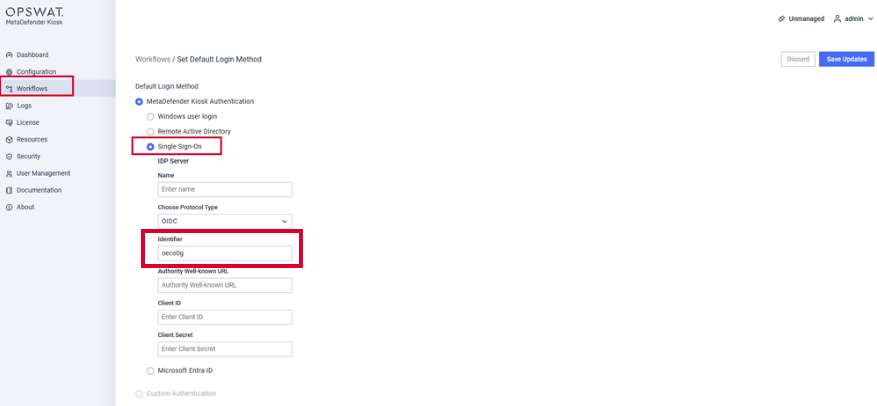
In order to authenticate with Entra ID (OIDC) in Kiosk UI, we need to configure the SSO settings under Kiosk Console, navigate to Workflows > Employee Workflow > Set Default Login Method > Single Sign-On > Select OIDC
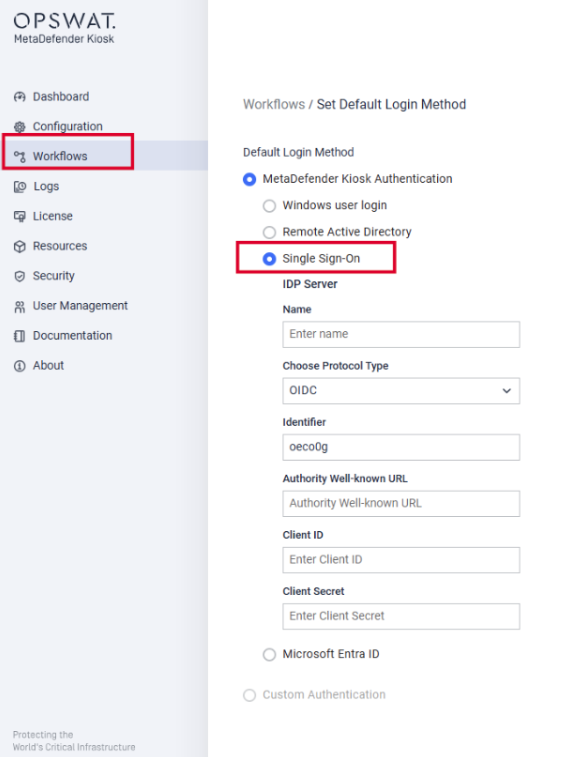
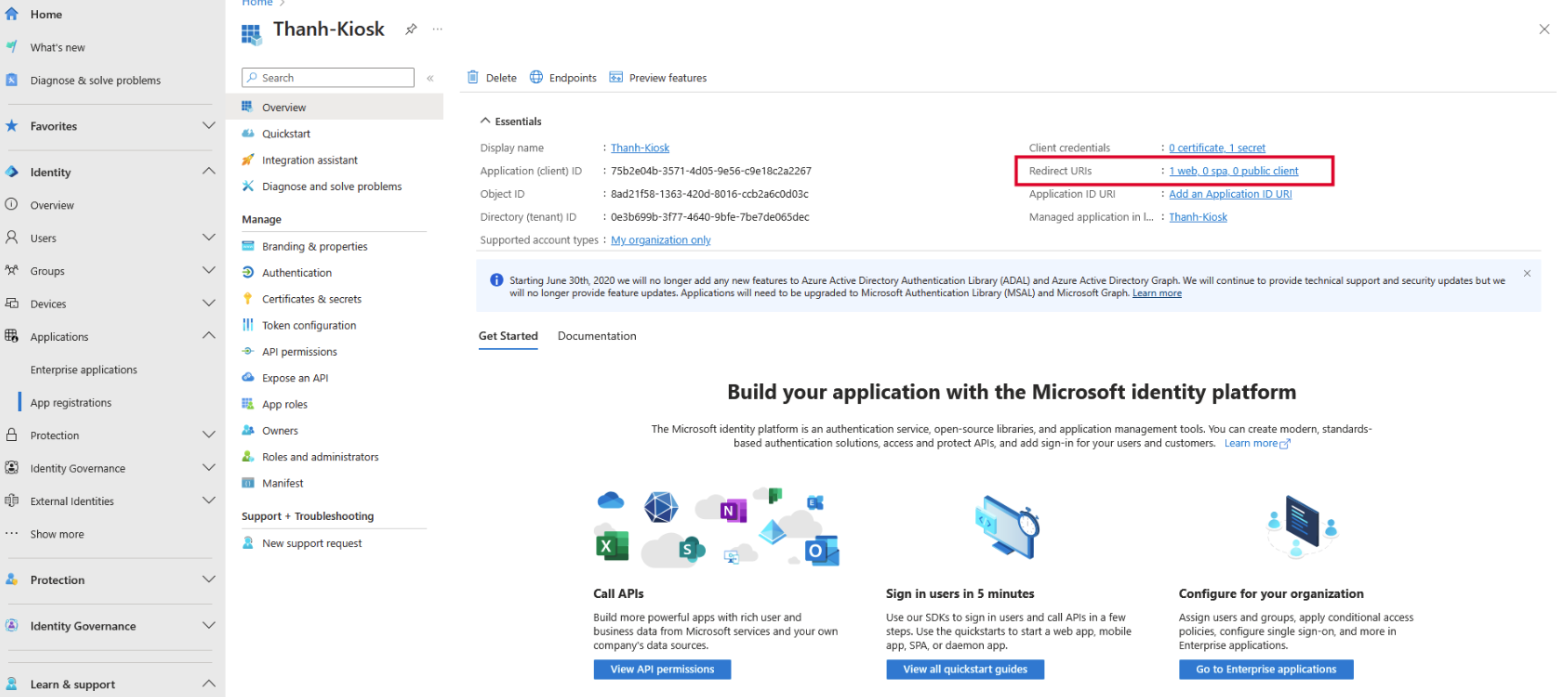
The 3 fields (Authority Well-known URL, Client ID, Client Secret) can be found in Entra ID App Registrations settings
Select the application that you have already created
Within the Application, copy Client ID
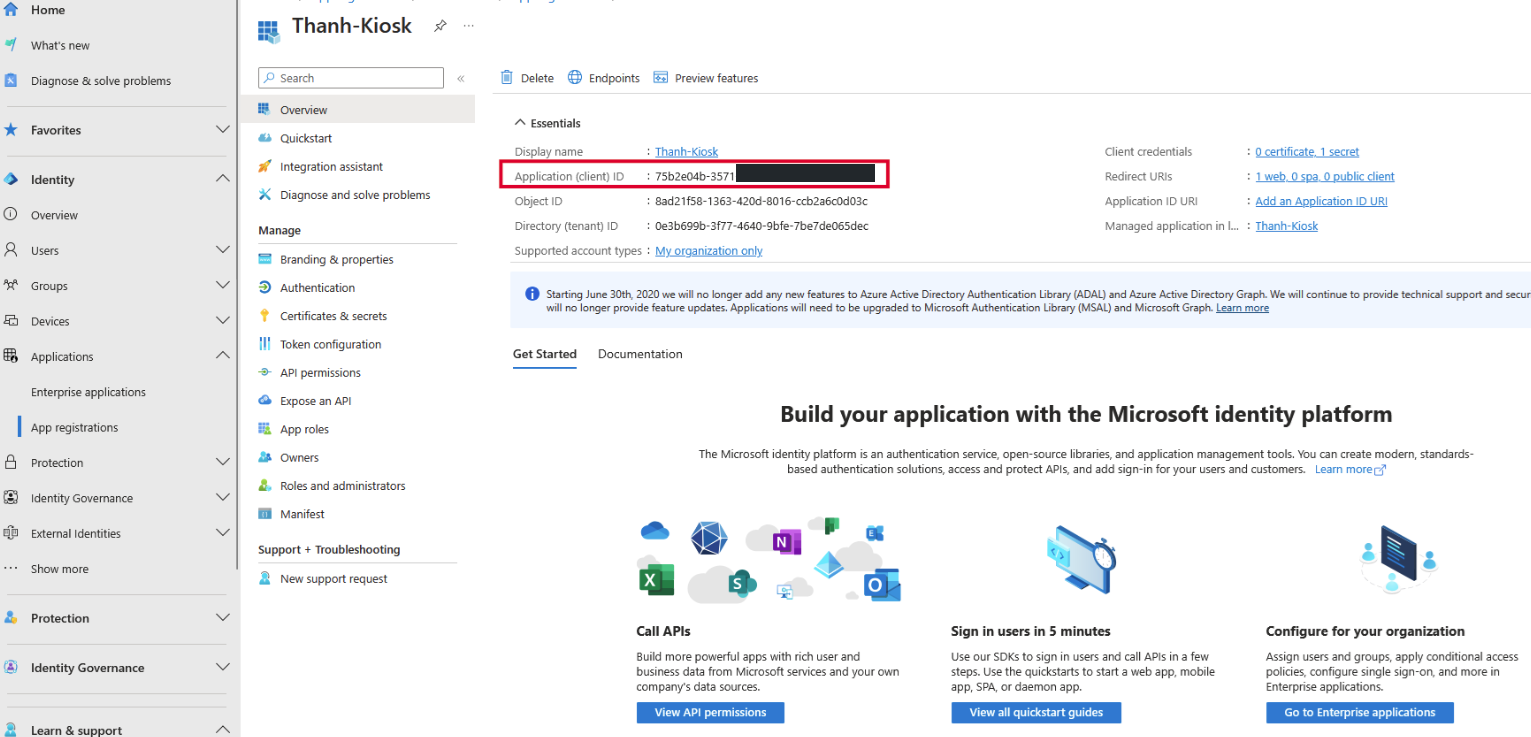
Then click on Endpoints to get Authority Well-known URL
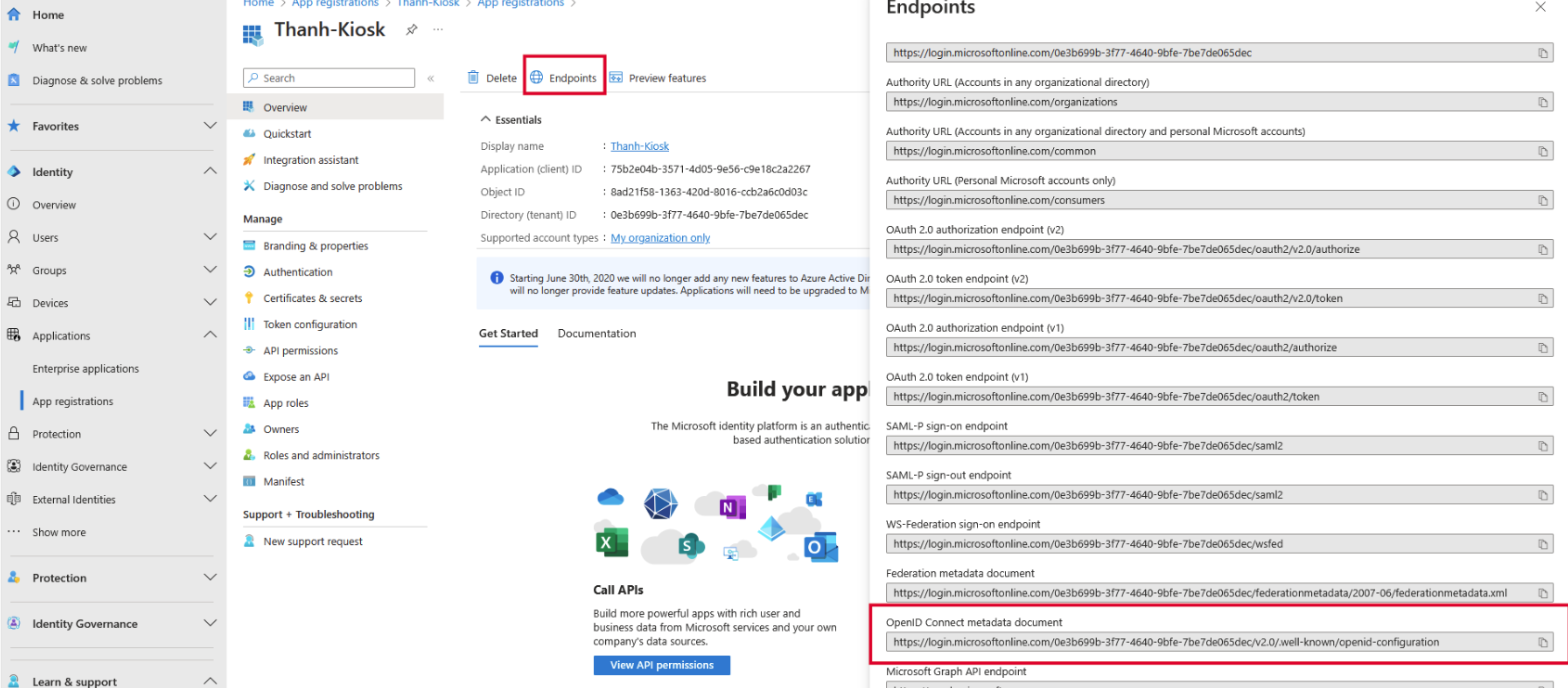
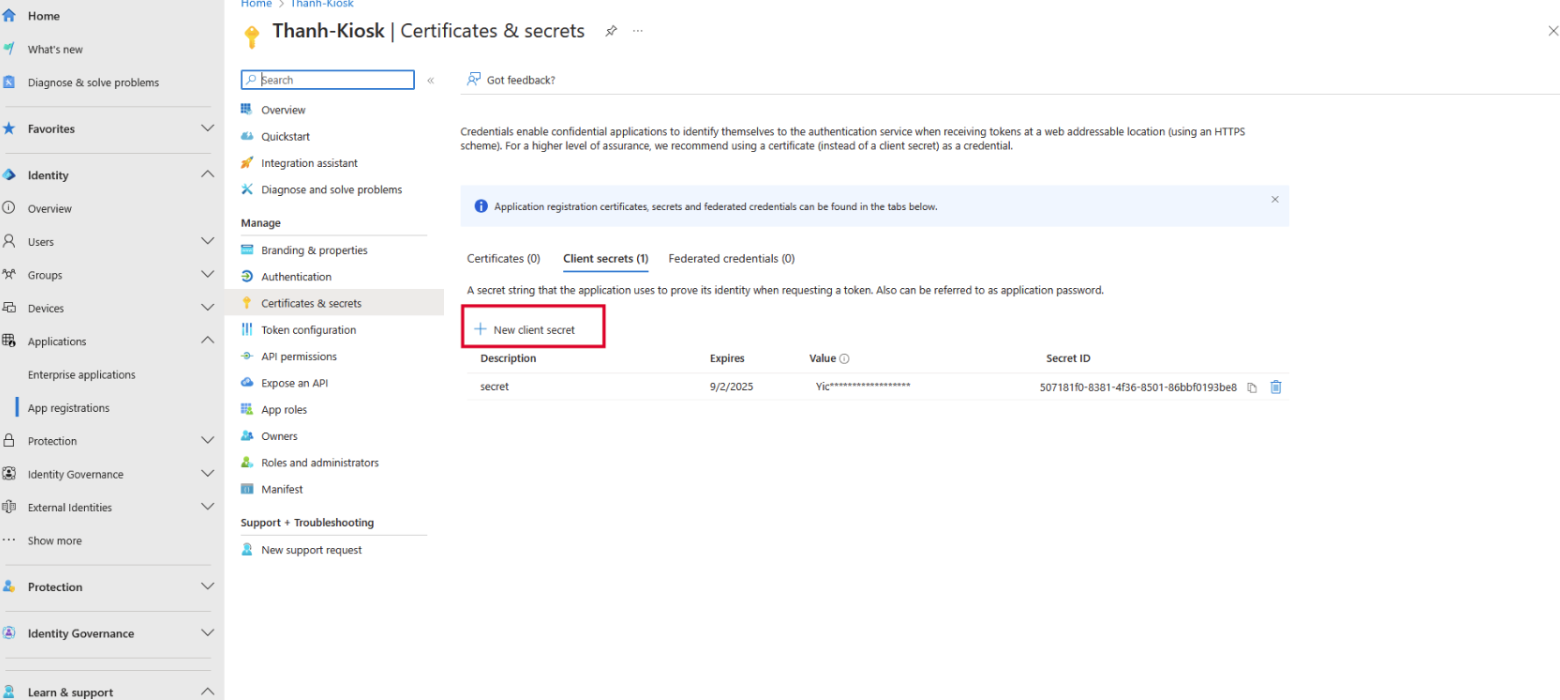
Then click on Client Credentials to create a new Client Secret
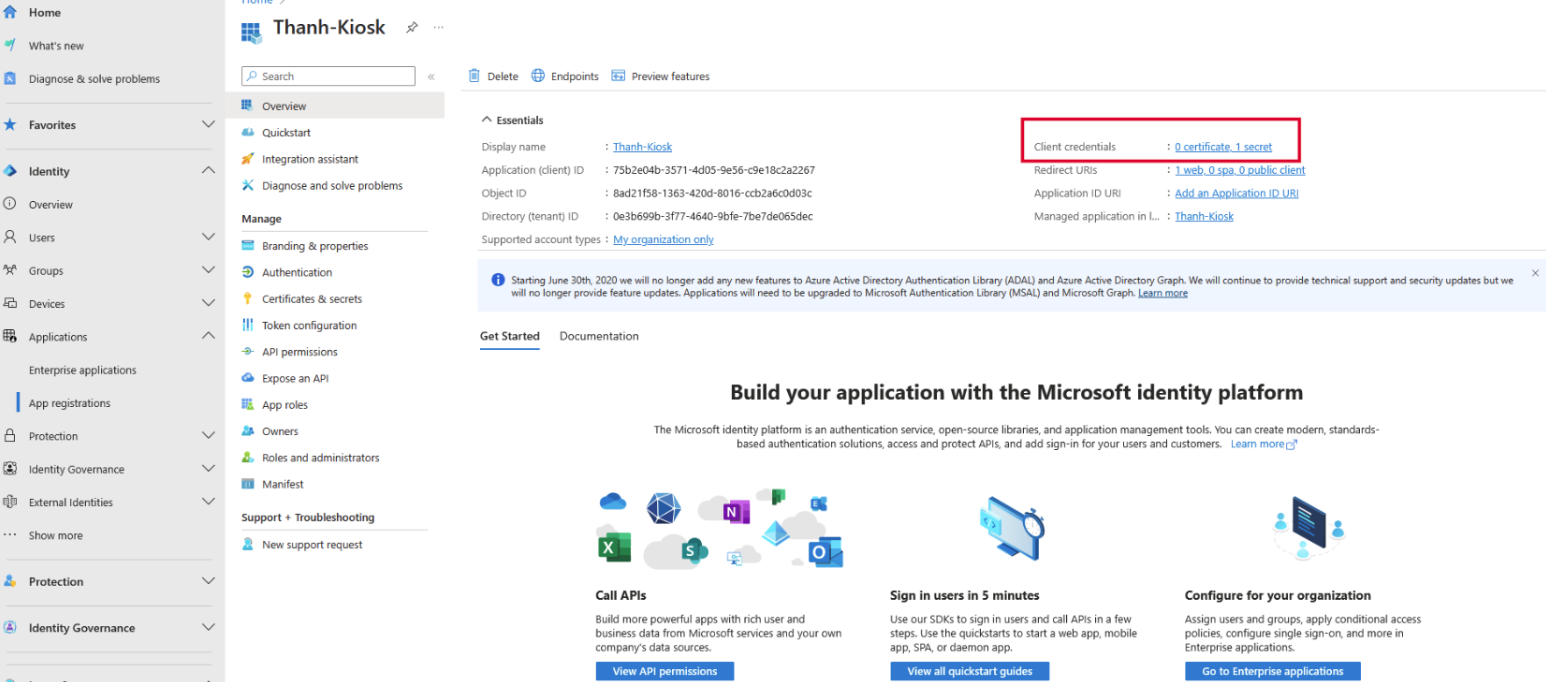
Finally, click on Redirect URIs to register another endpoint represent the Kiosk
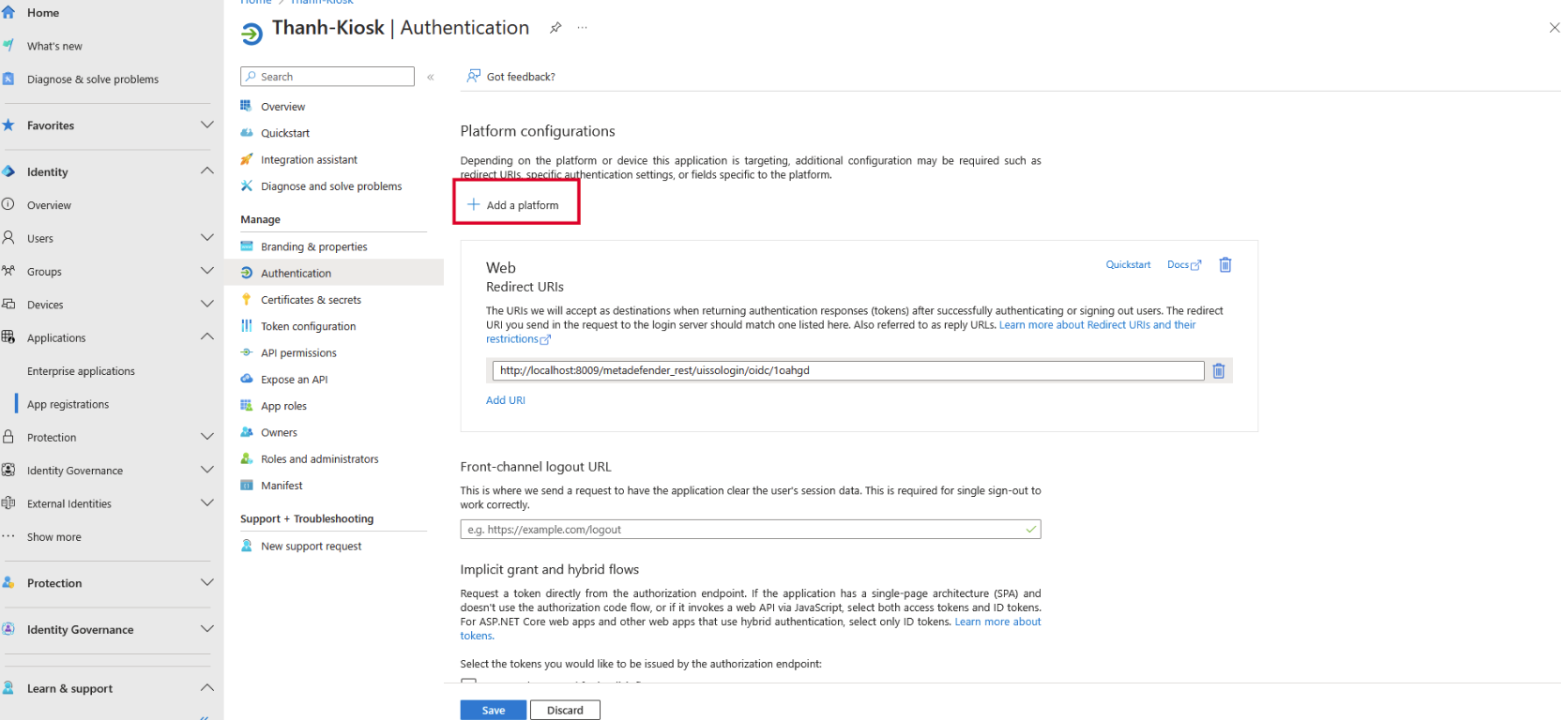
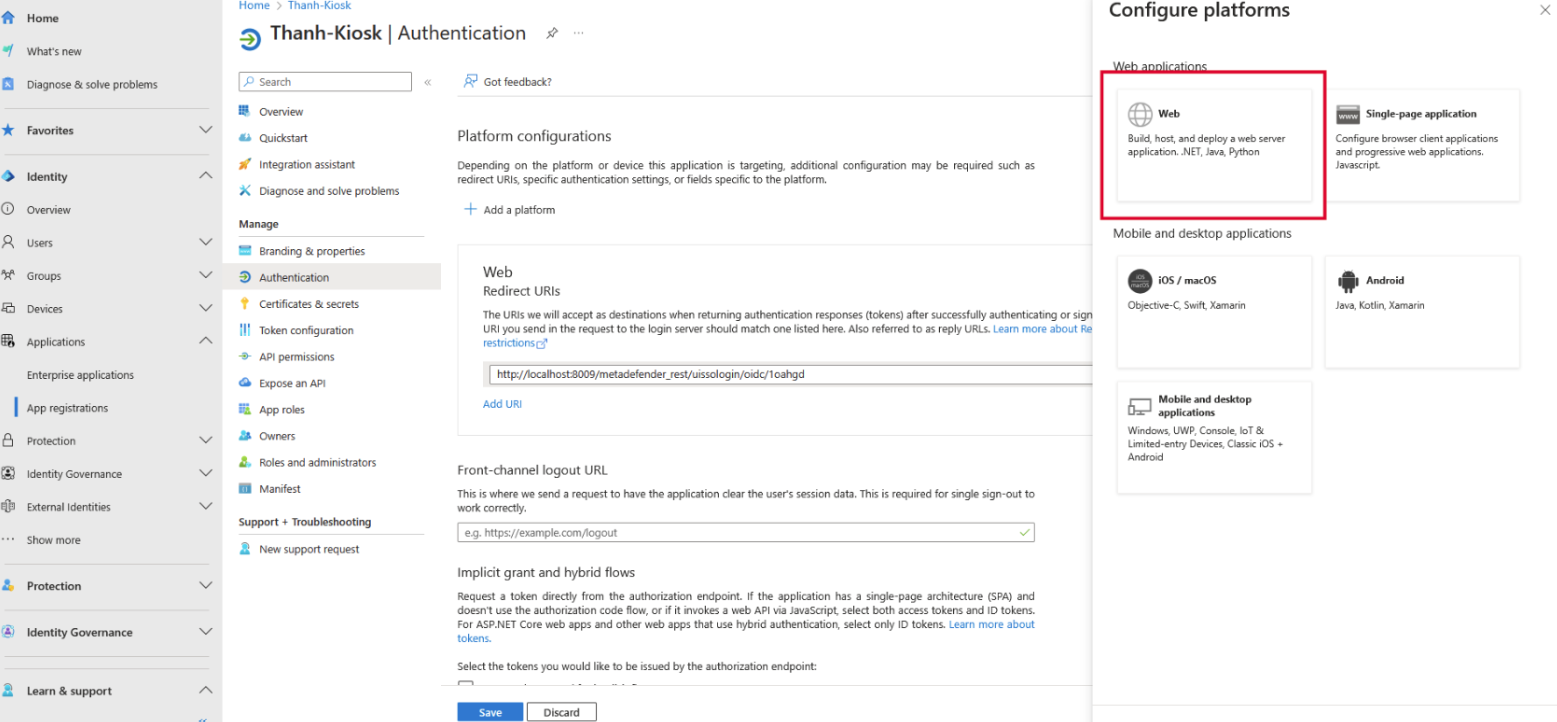
In the Redirect URIs textbox, please enter the following format, replace all placeholders with the value reflecting your Kiosk system. <http/https>://localhost:<port>/metadefender_rest/uissologin/oidc/<identifier>
<http/https> : whether the Kiosk WebMC is running on http or https.
<port> : the port number you are using to access the Kiosk WebMC (default to 8009).
<identifier> : unique string you can get from the Kiosk WebMC
Enable group claims (required for group-based workflow or role assignment)
By default, Entra ID's OIDC token only identifies the signed-in user — it does not include which groups that user belongs to. If you plan to assign Kiosk workflows or roles based on Entra ID group membership, you must explicitly enable group claims on the application:
In the Azure portal (or Microsoft Entra admin center), go to Microsoft Entra ID → App registrations → [Your App] → Token configuration.
Click + Add groups claim.
Choose which group types to include (for example, Security groups, Directory roles, or All groups) based on how your organization's groups are structured.
Choose the claim value format. Group ID is recommended.
Click Save.
Without this step, Kiosk only ever sees the signed-in user's individual identity — group membership will not be available for workflow or role assignment, even if group-based assignment is otherwise configured correctly on the Kiosk side.