
Kiosk UI language display
Purpose: change the default language for better localized user experience
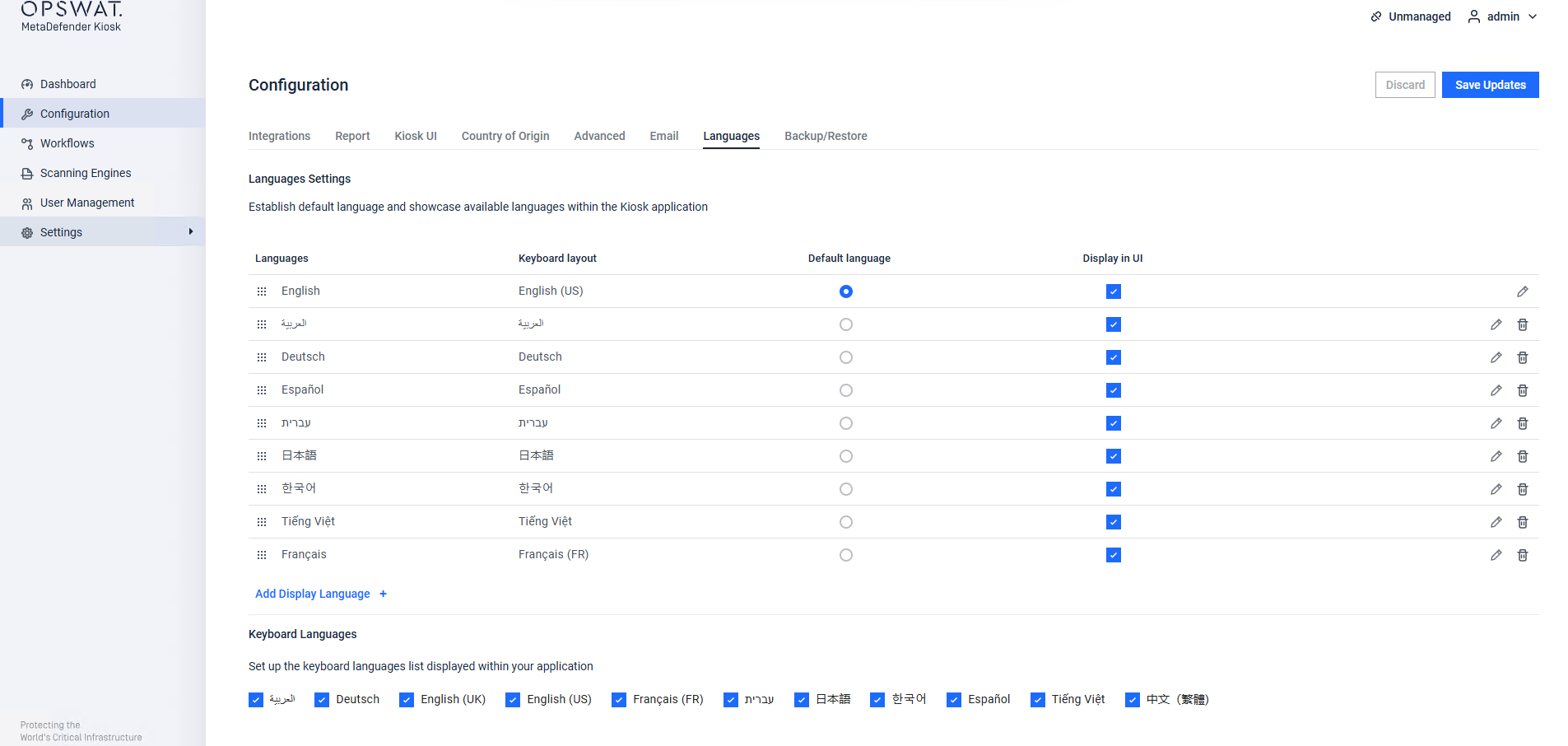
The language displayed in MetaDefender Kiosk can be changed from the Configuration > Languages
The default languages included are:
English
Arabic
French
German
Hebrew
Japanese
Korean
Spanish
Vietnamese
Edit a language
Click on Add Display Language if you wish to add a language or edit existing languages displayed on the Kiosk UI.
Central Management Policy Behavior
If this Kiosk instance is managed by a Central Management policy, the policy's Languages settings — including the default language — normally apply to every instance that uses the policy. If you need a particular instance to keep its own default language instead (for example, so each site boots into its own local language even though multiple sites share the same policy), the policy can be configured to stop overwriting the default language for instances that use it.
In the Central Management policy's Languages settings, enabling the option to exclude the default language stops the policy from pushing a default-language value to instances that use it. Each instance then keeps whatever default language is already configured on it locally. The rest of the policy's Languages settings — the list of available display languages and keyboard languages — continue to apply as normal.
Note: This option is only available when editing a Central Management policy, not when editing an individual Kiosk instance directly. If an instance's current default language is later removed from the languages the policy makes available, that instance's default language automatically falls back to English.
Add a language
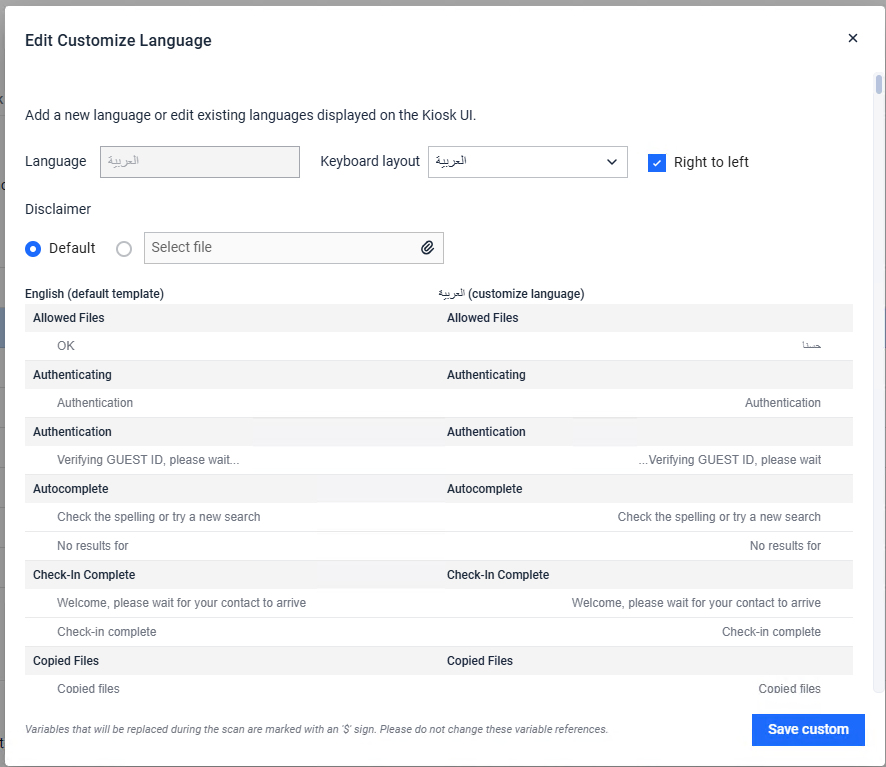
Click Add Display Language to add a new language, then type in the desired language name. On the following page, create translations for the text to be displayed in MetaDefender Kiosk. Each string has a max limit of characters to avoid any display issues on the UI. It is recommended to keep messages as concise as possible.
If the language you are adding reads right to left, make sure to check
Right to leftoptionLanguages can be either disabled or enabled through the Management Console. Disabled languages will not be available to Kiosk users as options.
The
Language Ordervalue will determine the order in which languages are displayed to Kiosk users when they are selecting a language in the Kiosk user interface. Lower numbers will be displayed first.Upload Disclaimervalue will show the corresponding disclaimer HTML file of that language. By default, the Opswat's EULA in English will be used. However, you have the option to browse and upload your own customized disclaimer file to replace it. For more detailed information, please refer to Disclaimer Screen Customization
Once finished, click Save at the bottom of the page and the language will now appear in the Choose Language drop down.
Export and Import
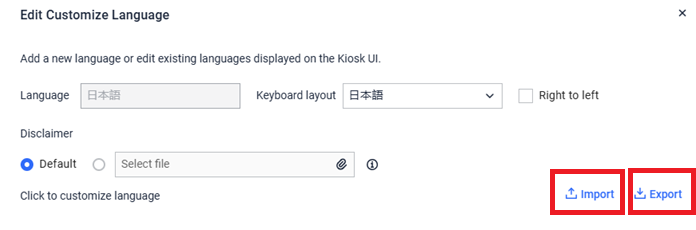
Starting with Kiosk version 4.7.9, administrators can now easily manage the translated language packs by exporting and importing them. This feature simplifies deployment across multiple kiosks by allowing language configurations to be reused, shared, or backed up. Administrators can export existing language packs to a file and later import them into another Kiosk
To export or import the languages, select a language, click on Export or Import
Allow users to select languages
Configuration -> Advanced Configuration -> Allow user to select languages controls whether users can select which language to use from the UI. If the option is deselected, the current active language will be locked in and users will not be able to modify the language to display.
Kiosk UI On-screen keyboard
MetaDefender Kiosk includes an on-screen (virtual) keyboard for touch input. Administrators control which keyboard languages are available, and end users can switch languages from the on-screen keyboard while typing.
Supported keyboard languages
Kiosk support the following languages for on-screen keyboard:
العربية
Deutsch
English (UK)
English (US)
Eesti
Français (FR)
Français (CH)
עברית
日本語
한국어
Русский
Español
Tiếng Việt
中文(繁體)
Enable/disable keyboard languages
Open Management Console
Go to Configuration → Languages
In Keyboard Languages, check/uncheck the languages you want available in the kiosk.
Click Save Updates to apply (use Discard to revert unsaved changes).

End user: How to switch the keyboard language
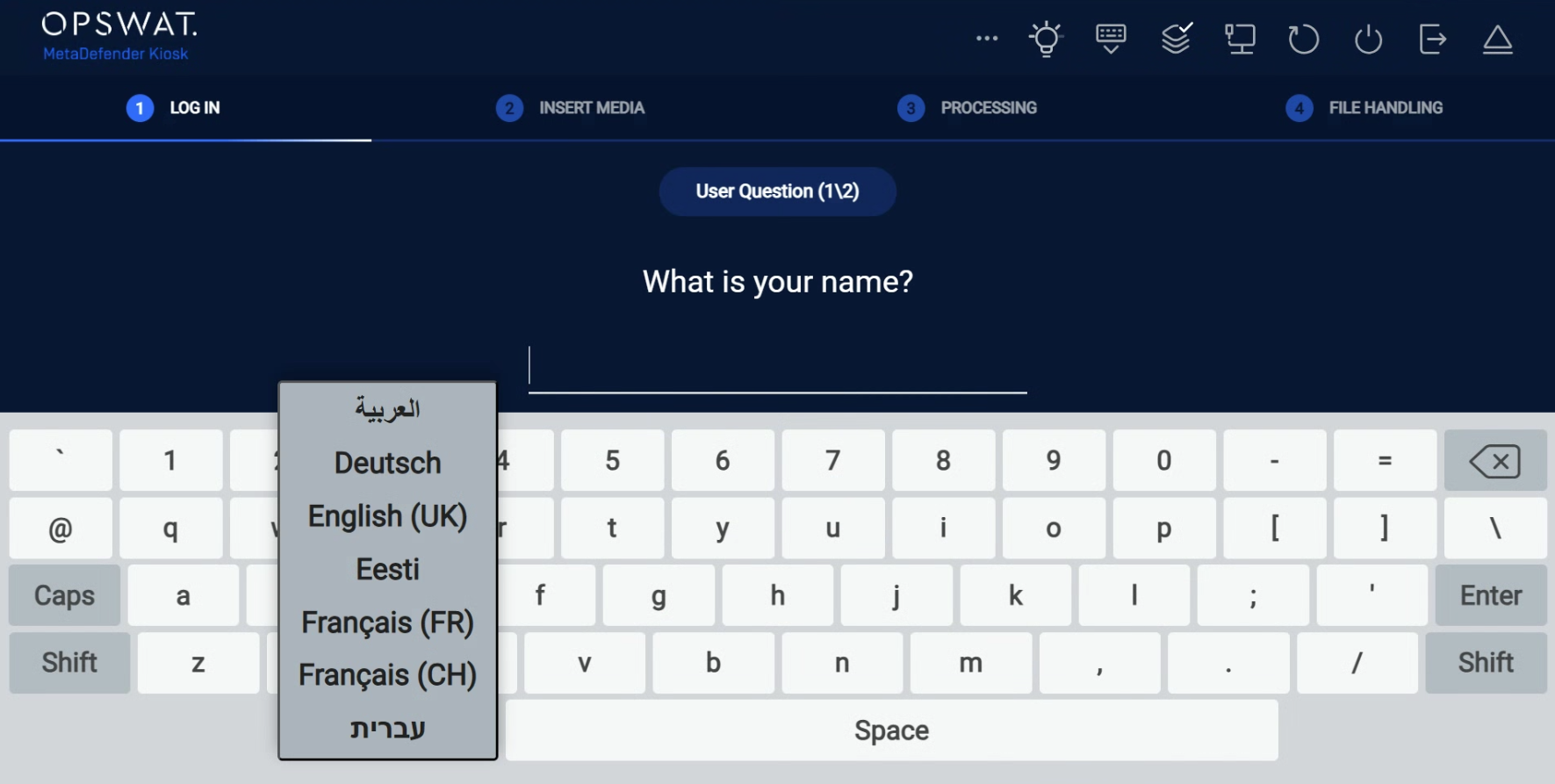
Tap any text field to open the on-screen keyboard.
On the keyboard, open the language selector (the language/keyboard option on the keyboard UI).
Select the desired language/layout from the list.
Notes:
If a language is missing from the selector, it likely isn’t enabled under Configuration → Languages → Keyboard Languages.
Keyboard language (input layout) is separate from the app/UI display language.