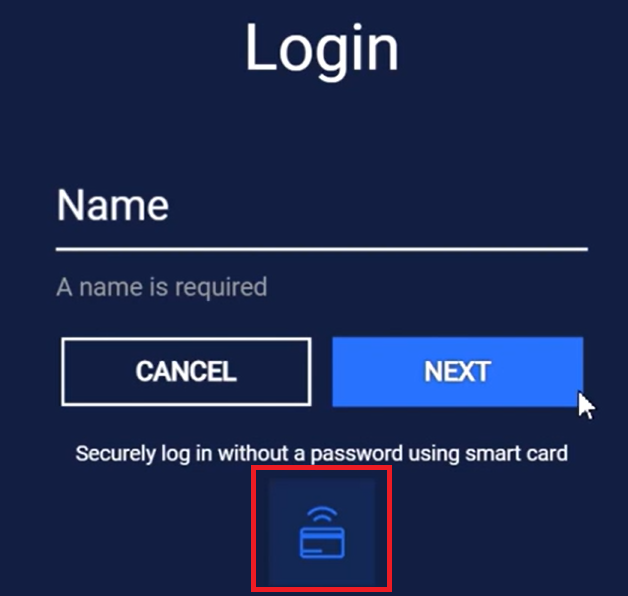
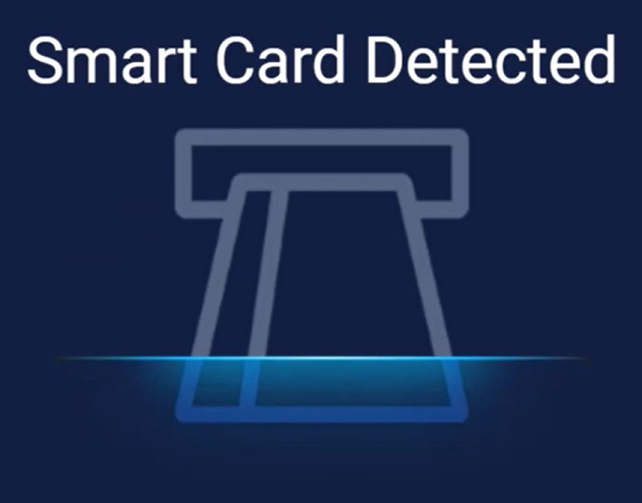
The purpose of this guide is to demonstrate the process of setting up a smart card for authentication in MetaDefender Kiosk. In this example, we use a Yubikey smart card. Please note that this guide is for reference only, for the most accurate instructions, refer to the setup documentation provided by your smart card providers.
Smart card authentication requires proper setup and configurations on Domain Controllers, Active Directory and Kiosk.
Root Certificate Authority (CA) certificate must be created
Domain Controllers must be configured and trust the root CA certificate
Kiosk host machine must join the domain
The instruction bellow assumes requirements mentioned above have been met. Configuring these requirements are out of the scope of this document.
Kiosk 4.7.2 or later should support all ISO 7816-compliant microprocessor-based and FIPS 201 standard smart cards such as PIV smart card.
If Further Assistance is required, please proceed to log a support case or chat with our support engineer.
1. Certificate Template configuration
Step 1. Open Certificate Template
Press Win + R, type mmc, and open it with Administrator permissions
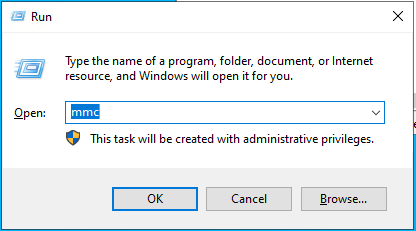
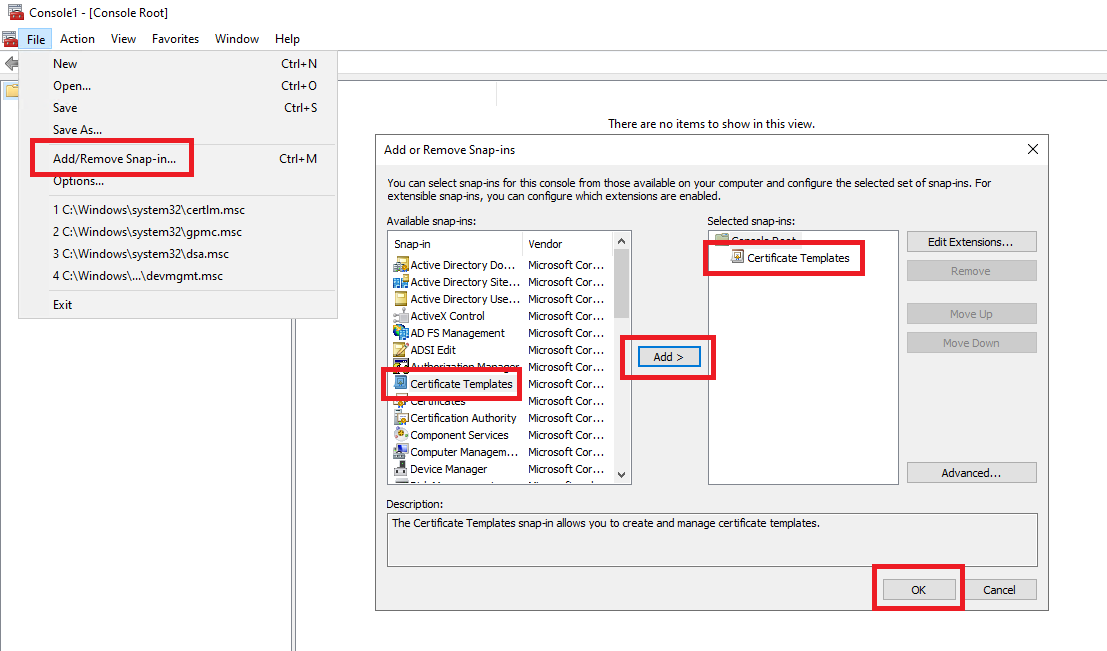
In the MMC window, select File, select Add/Remove Snap-in. From the list, select Certificate Template and click Add. Then, click OK.
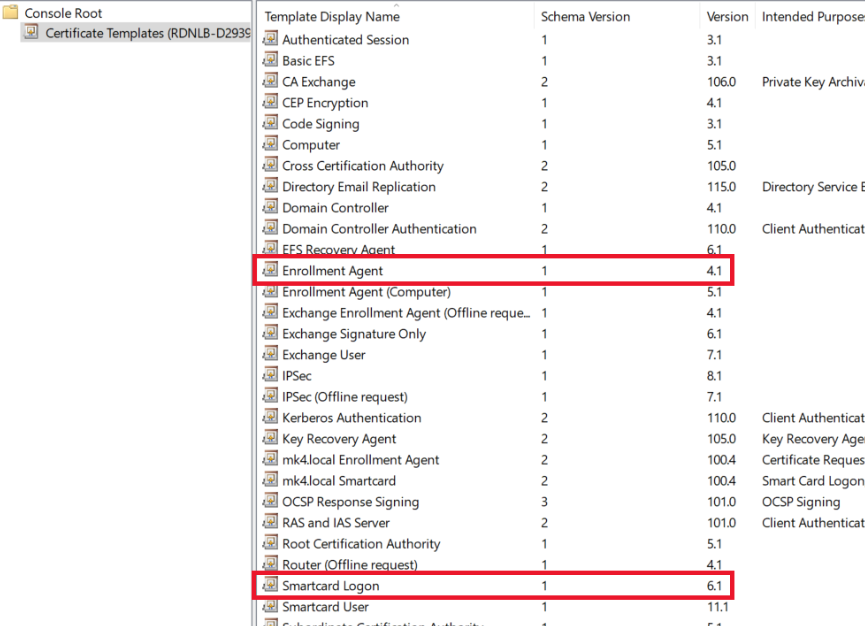
Step 2. Duplicate two highlighted certificate templates (Enrollment Agent and Smartcard Logon) to create your own Smartcard certificate Template.
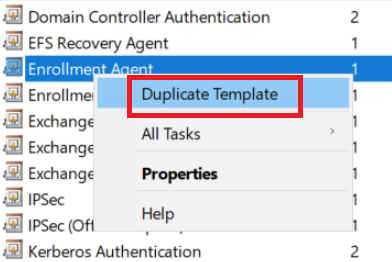
Right-click on each of these templates. Select Duplicate Template.
Step 3. Setup for Enrollment Agent template
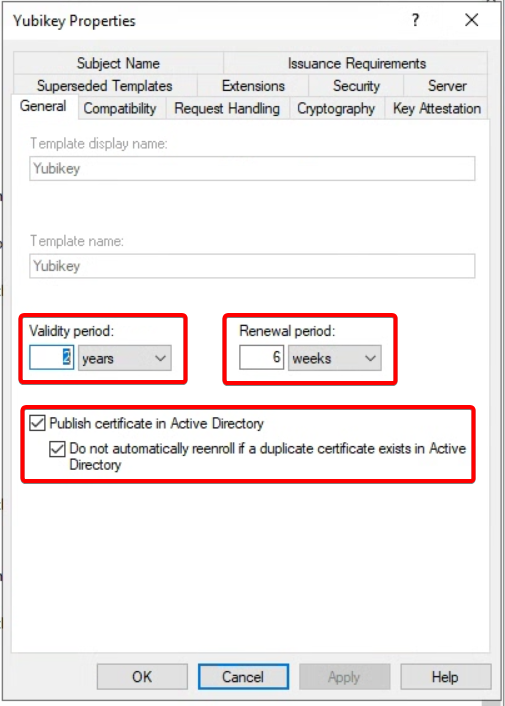
Go to General tab:
Change Template display name to <domain-name> Enrollment Agent. e.g Yubikey
Set Validity period to 2 years
Set Renewal period to 6 weeks
Enable Publish certificate in Active Directory
Enable Do not automatically reenroll if a duplicate certificate exists in Active Directory
Go to Security tab
Add Read, Write and Enroll permissions to Authenticated Users
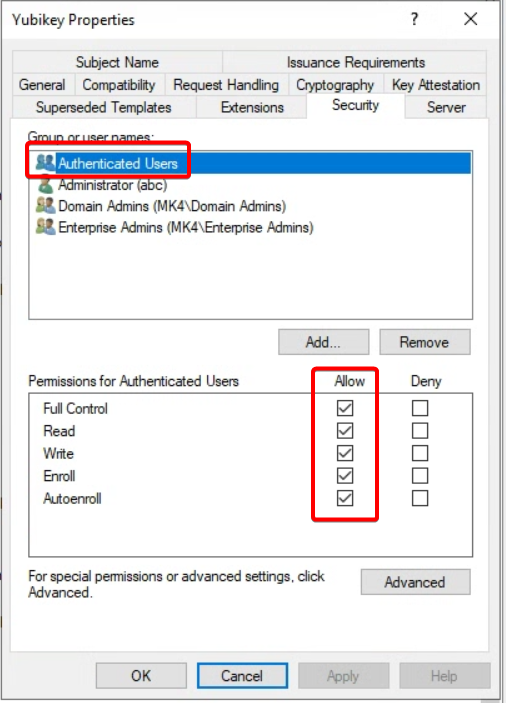
Click OK to duplicate the template
Step 4. Setup for Smartcard Logon template
Duplicate Smartcard Logon template
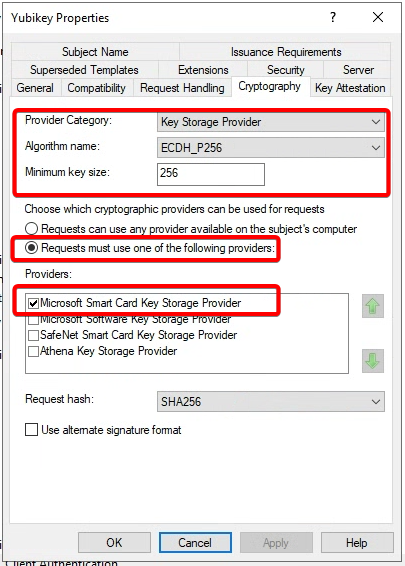
Go to Cryptography tab
Set the following values
Provider Category to Key Storage Provider
Algorithm name to ECDH_P256
Minimum key size to 256
Select Requests must use one of the following providers, and enable Microsoft Smart Card Key Storage Provider
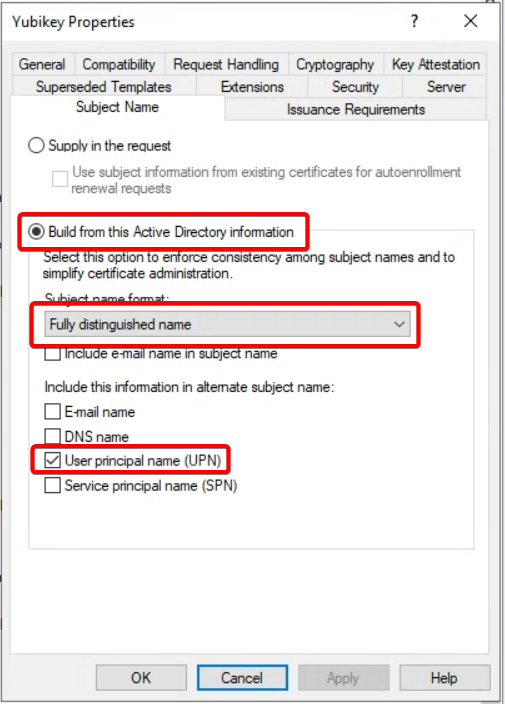
Go to Subject Name tab
Select Build from this Active Directory information. Under Subject name format, select Fully distinguished name and enable User principal name (UPN)
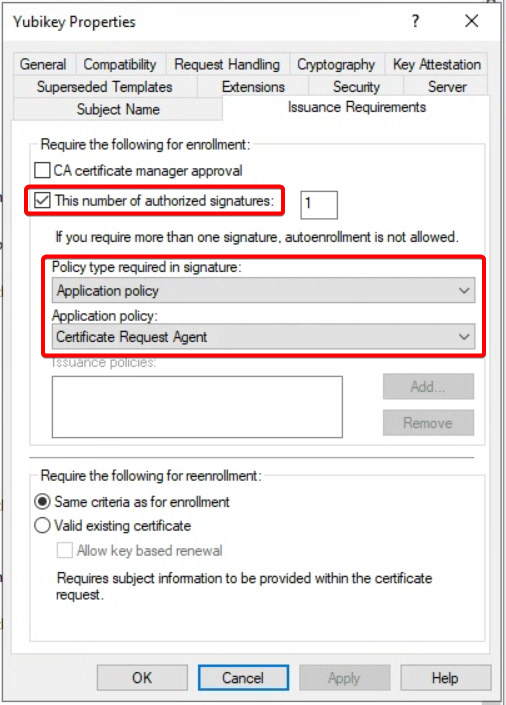
Go to Issuance Requirements tab
Enable This number of authorized signatures, and set value of 1
Under Policy type required in signature, select Application policy
Under Application policy, select Certificate Request Agent
Go to Request Handling tab
Under purpose, select Signature and encryption, and enable For automatic renewal of smart card certificates, use the existing key if a new key cannot be created
Select Prompt the user during enrollment
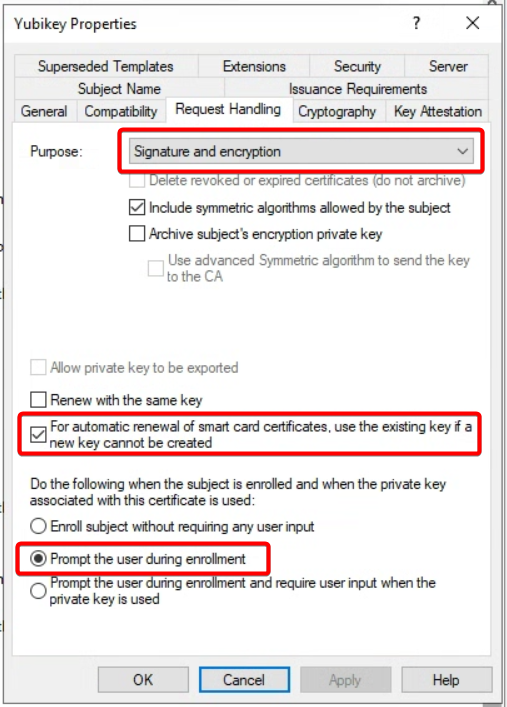
Click OK to duplicate the template
2. Enrollment Agent certificate
Step 1. Open Certificate Manager
Press Win + R, type certmgr.msc, and open it with Administrator permissions
Step 2. Request new certificate
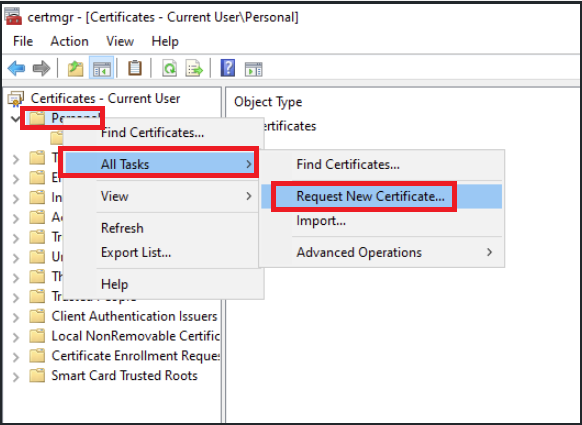
Under Certificate Manager, right-click on Personal, select All Tasks, select Request New Certificate
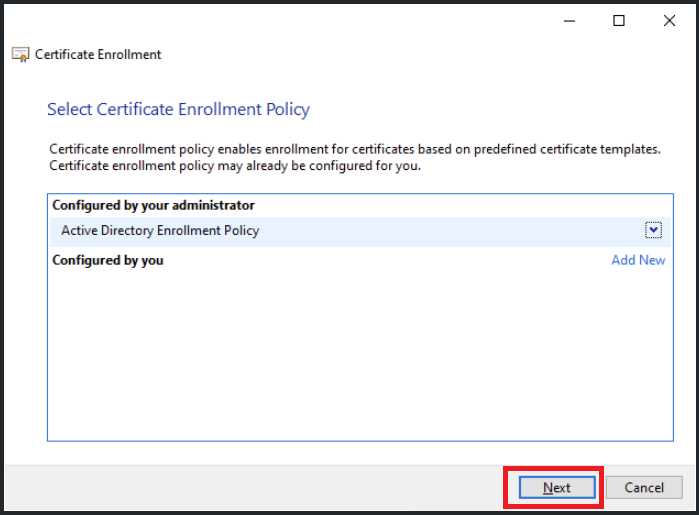
in Certificate Enrollment Policy, select Next to continue
Select <domain-name> Enrollment Agent created in previous steps, click on Properties
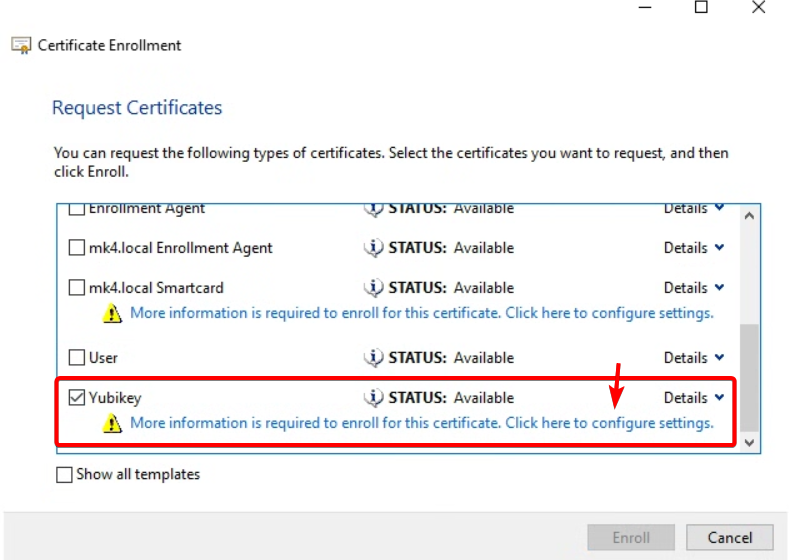
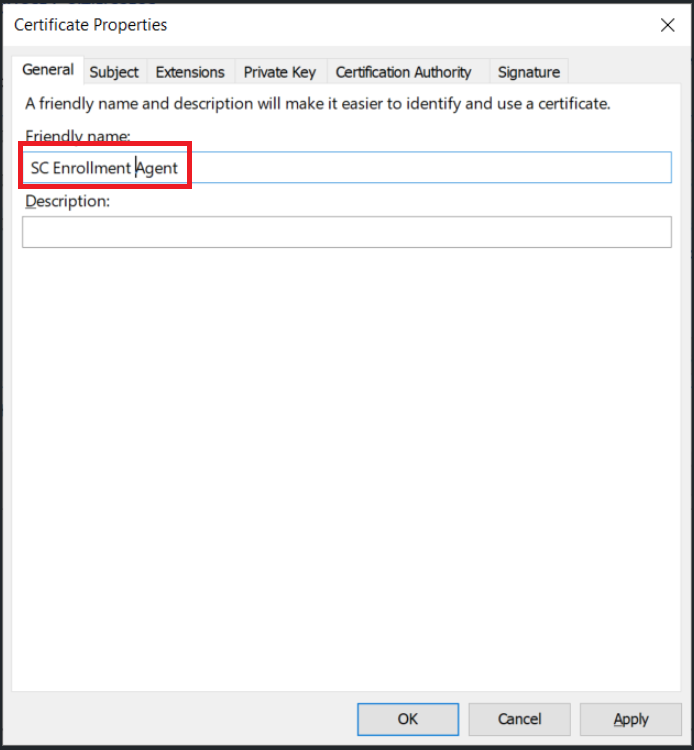
Provide a friendly name for this certificate, click Apply, then click OK
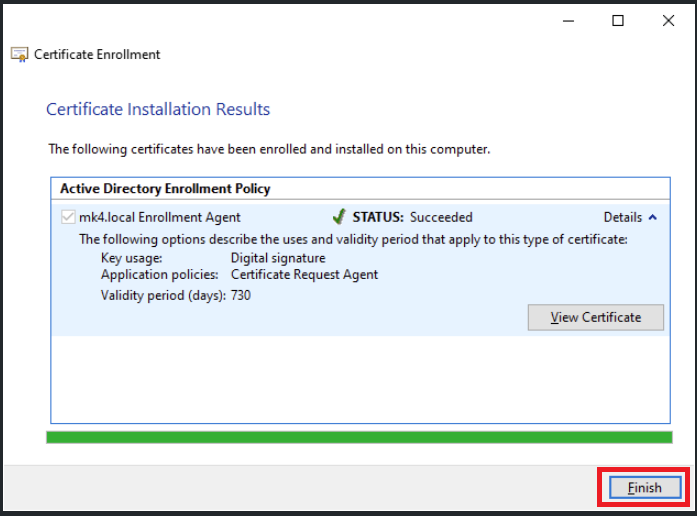
Click Finish to end the process
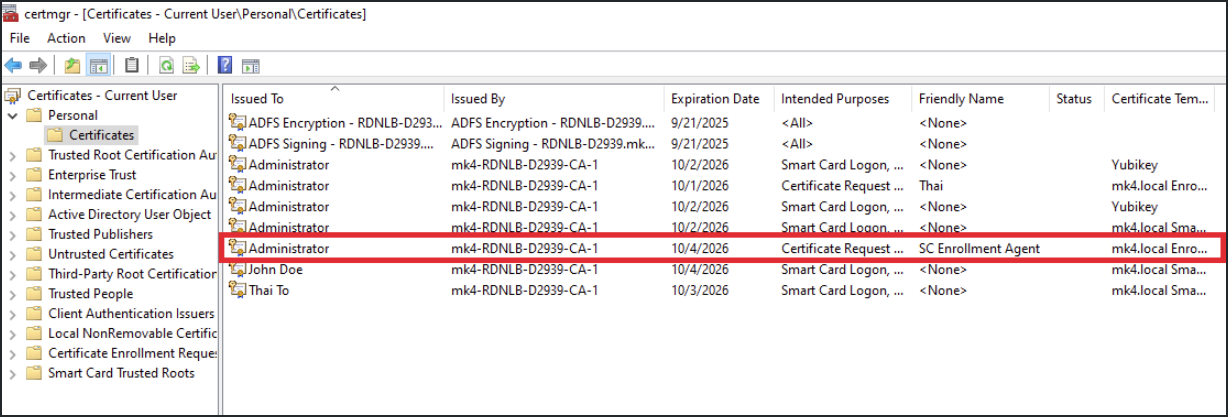
A new Enrollment Agent certificate is now created and shown under Certificate section.
3. User Enrollment
Step 1. Open Certificate Manager
Press Win + R, type certmgr.msc, and open it with Administrator permissions
Step 2. Enroll Users
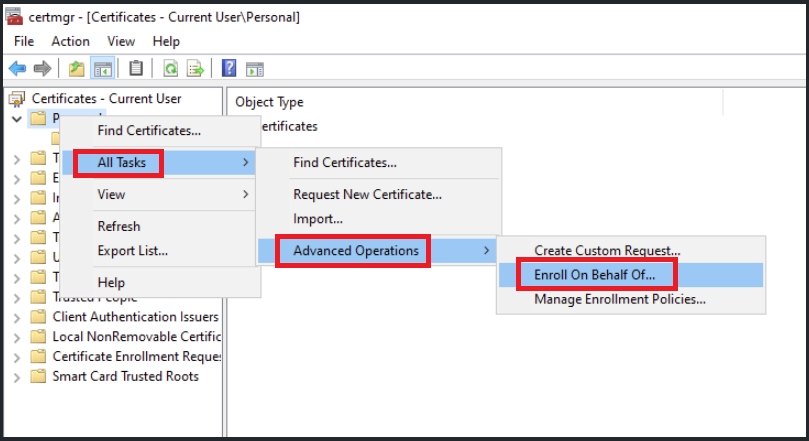
In Certificate Manager, Right-click on Personal, Select All Tasks, Select Advanced Operations, Select Enroll on Behalf of...
Keep default settings and click Next until Select Enrollment Agent Certificate. Click Browse. Select a certificate for Enrollment Agent
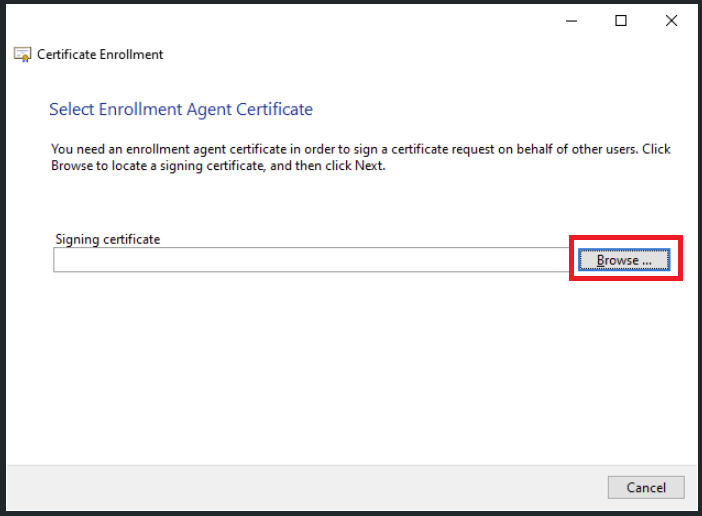
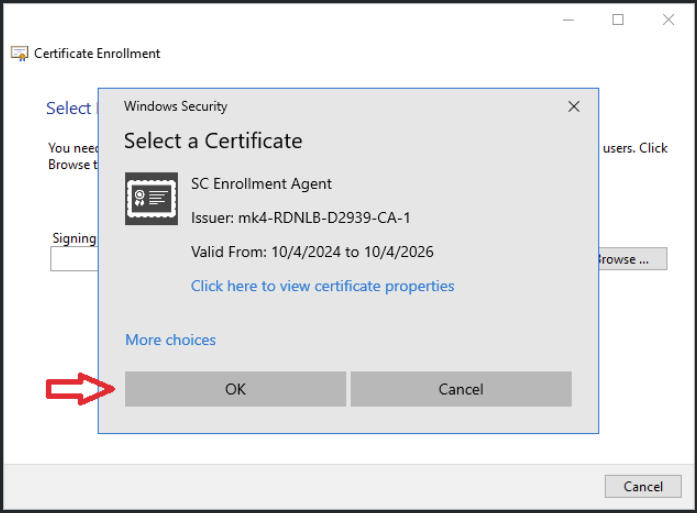
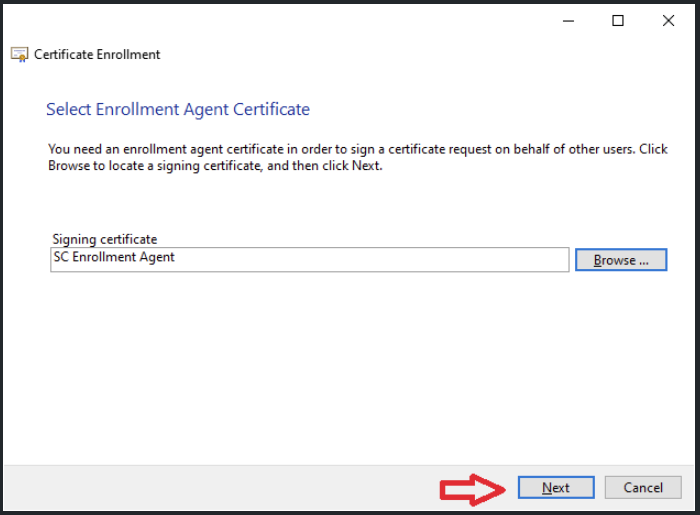
Select <domain-name> Smartcard template created from previous steps. Click Next
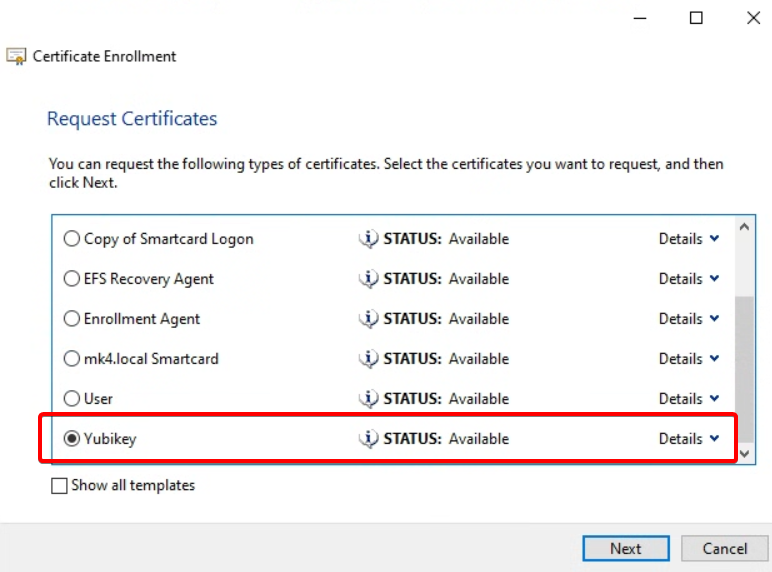
Click Browse and select the user to enroll it to smart card. Click Enroll to finish the process
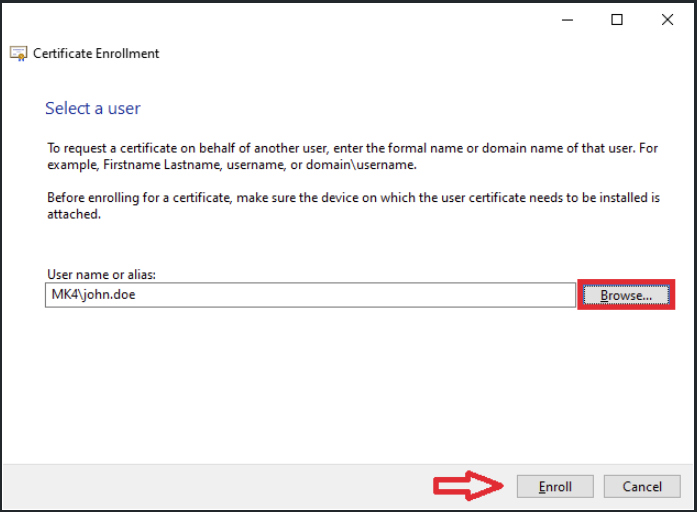
Insert the Yubikey to the computer
Enter the PIN and click OK
Wait for the enrollment to finish and click Close to exit, or click Next user to enroll another user
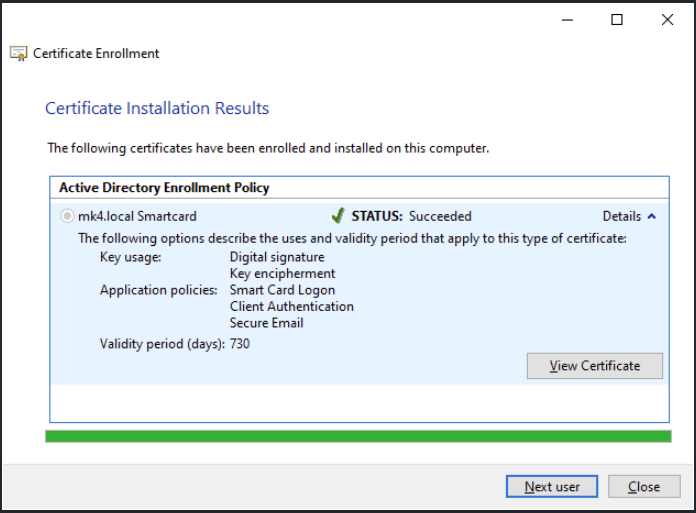
When multiple users were enrolled to the smart card, Kiosk will only grant access to the most recent enrolled user.
4. Install Smart Card Reader driver on the Kiosk machine
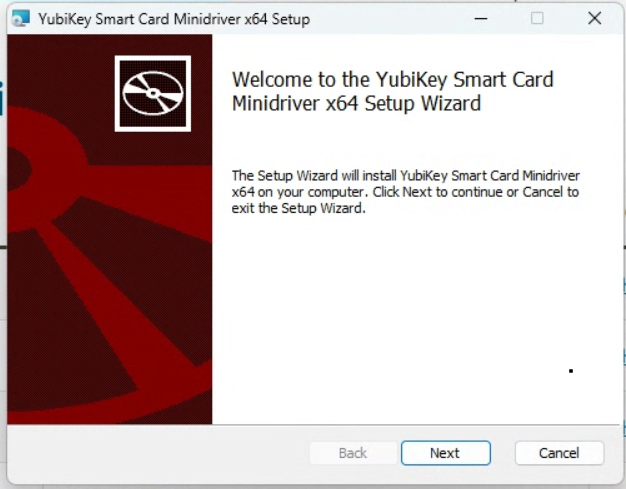
On the Kiosk machine, it is essential to install the appropriate drivers for your smart card Reader
Go to the provider website to download the driver required for your Kiosk machine Smart Card Drivers and Tools | Yubico
Please follow the provider's instruction to install the driver properly.
5. Enable smart card detection on Kiosk configuration
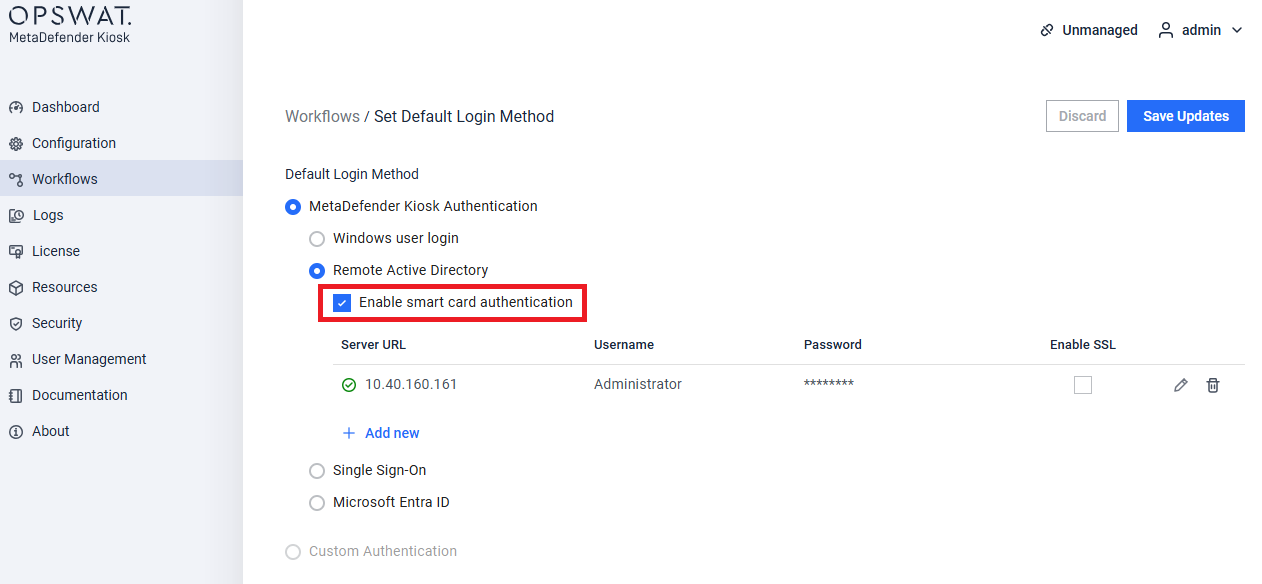
From Kiosk Management Console, navigate to Workflows, click on Set Default Login Method. Select MetaDefender kiosk Authentication, select Remote Active Directory, check Enable smart card authentication.
To use smart card authentication, Active Directory must be enabled and configured.