
1. What the Feature Does
Peripheral Media Protection helps protect your Mac from threats introduced through removable and peripheral media devices, such as USB drives and other connected storage devices.
To use Peripheral Media Protection feature on macOS devices to enable protection against peripheral media threats, users must allow the required system extension and grant Full Disk Access beforehand.
2. Why Do I Need to Grant These Permissions?
macOS protects system resources and user data by restricting applications from accessing certain system-level functions and protected files.
For the protection to work correctly, macOS requires you to approve the system components that provide device-level protection and grant the application the necessary access to files and system resources.
The required permissions allow MetaDefender Endpoint to:
Permission | Why it is required |
|---|---|
System Extension | Enables device-level monitoring and control of connected peripheral media. |
Full Disk Access | Enables the application to access protected files and locations required for security scanning and protection. |
NOTE
System Extension approval and Full Disk Access are separate macOS permissions. Both must be enabled for the protection features to work as intended.
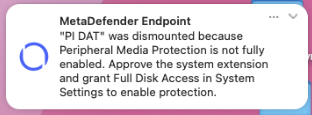
If either permission is missing, some protection capabilities may not work correctly as all peripheral devices will be disconnected/dismounted from the endpoint.
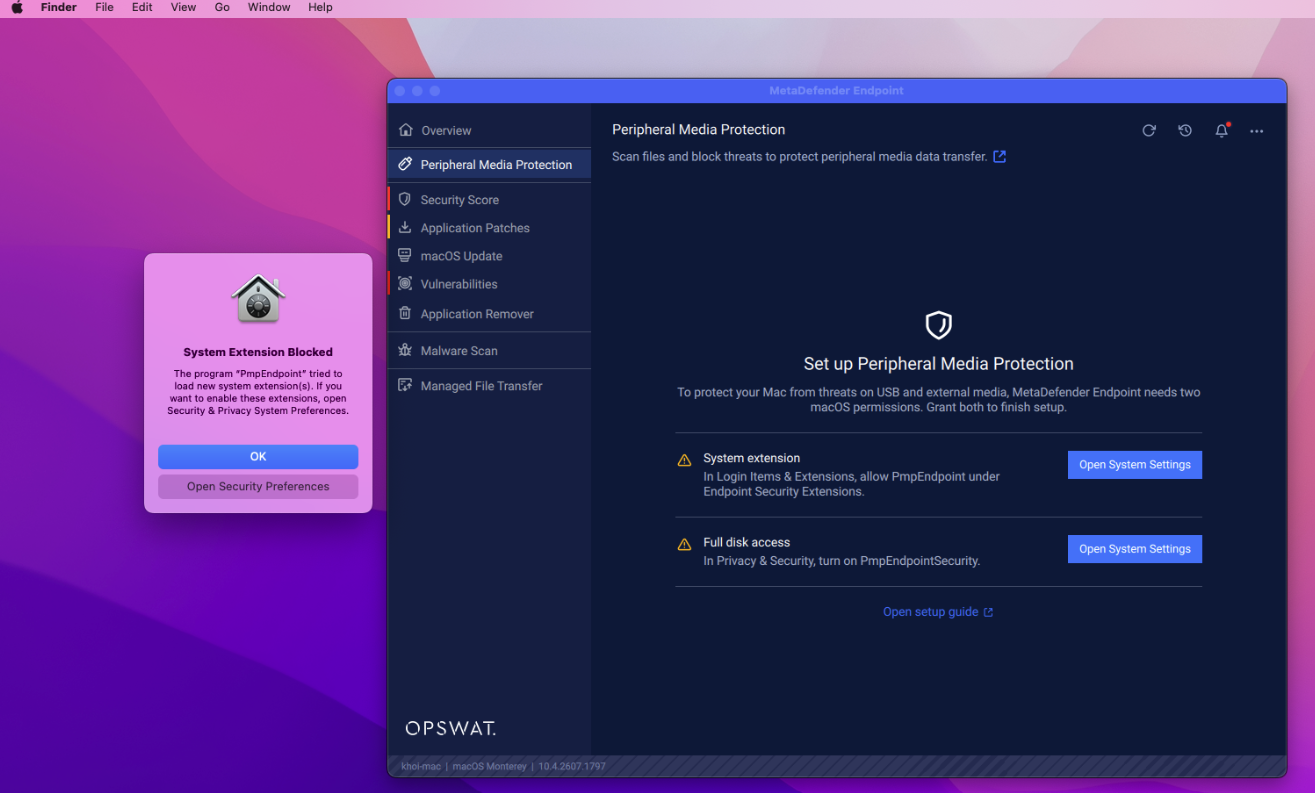
User will also receive a pop-up notification if these permissions are missing
3. How to Enable the Required Permissions
Follow these steps to approve the system extension and grant Full Disk Access.
There are 2 ways users can navigate to the setting
Through operating system
Open Apple menu > Settings.
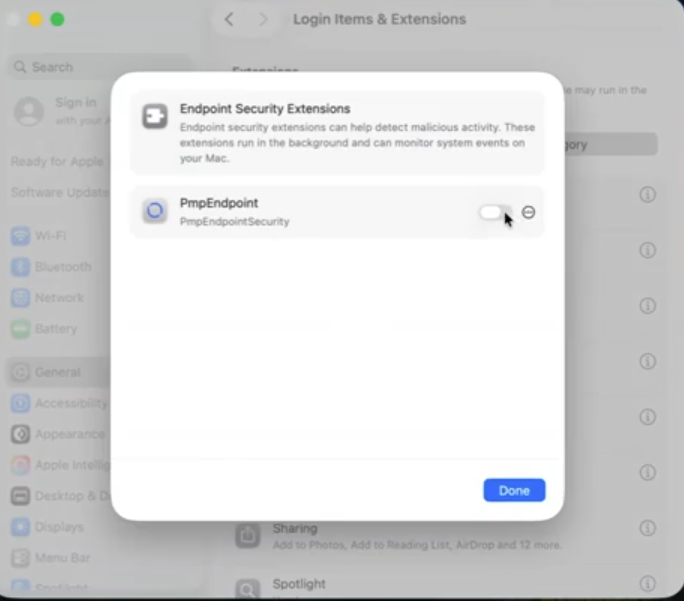
Select General > Login items & Extensions
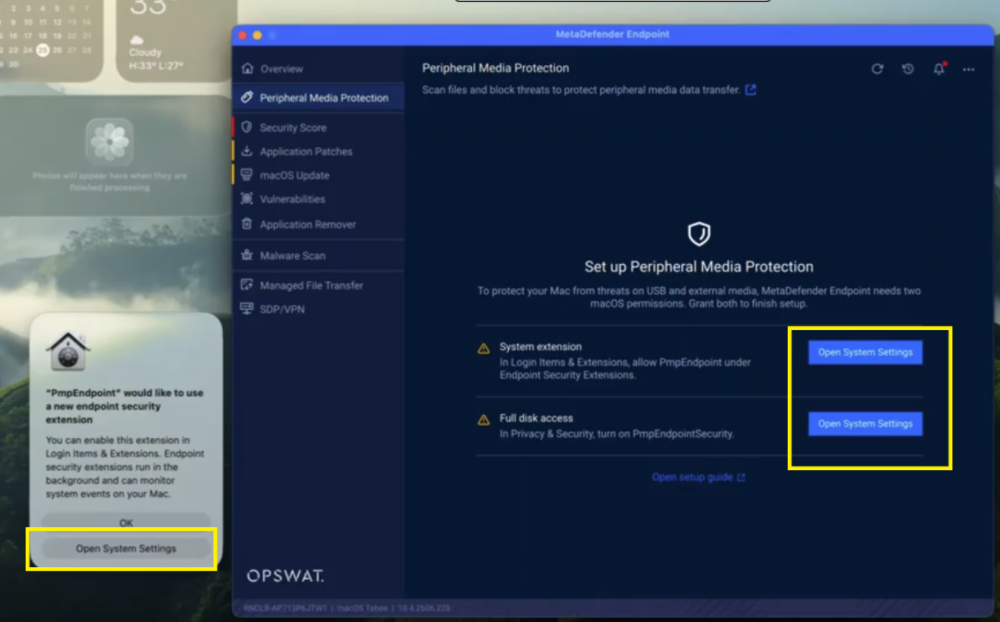
Through the on-screen popup / user interface of MetaDefender Endpoint
Click Open System Settings.
Toggle the button to enable the PmpEndpoint extension
Step 3: Grant Full Disk Access
Go to System Settings > Privacy & Security
Select Full Disk Access
Locate the OPSWAT application in the list
Turn on PmpEndpointSecurity
Authenticate if prompted
Troubleshooting
If the protection feature is still unavailable after granting both permissions:
Verify that the system extension is approved
Verify that Full Disk Access is enabled for the correct OPSWAT application
Restart the Mac if the system extension was recently approved
Contact your administrator if the required settings are managed by your organization's Mobile Device Management or security policy