Issue:
You continue experiencing a problem with MetaDefender Drive.
Solution:
Please generate a support package or clone an image of the Drive and send us.
1. Generate Support Package with the built-in keys combination
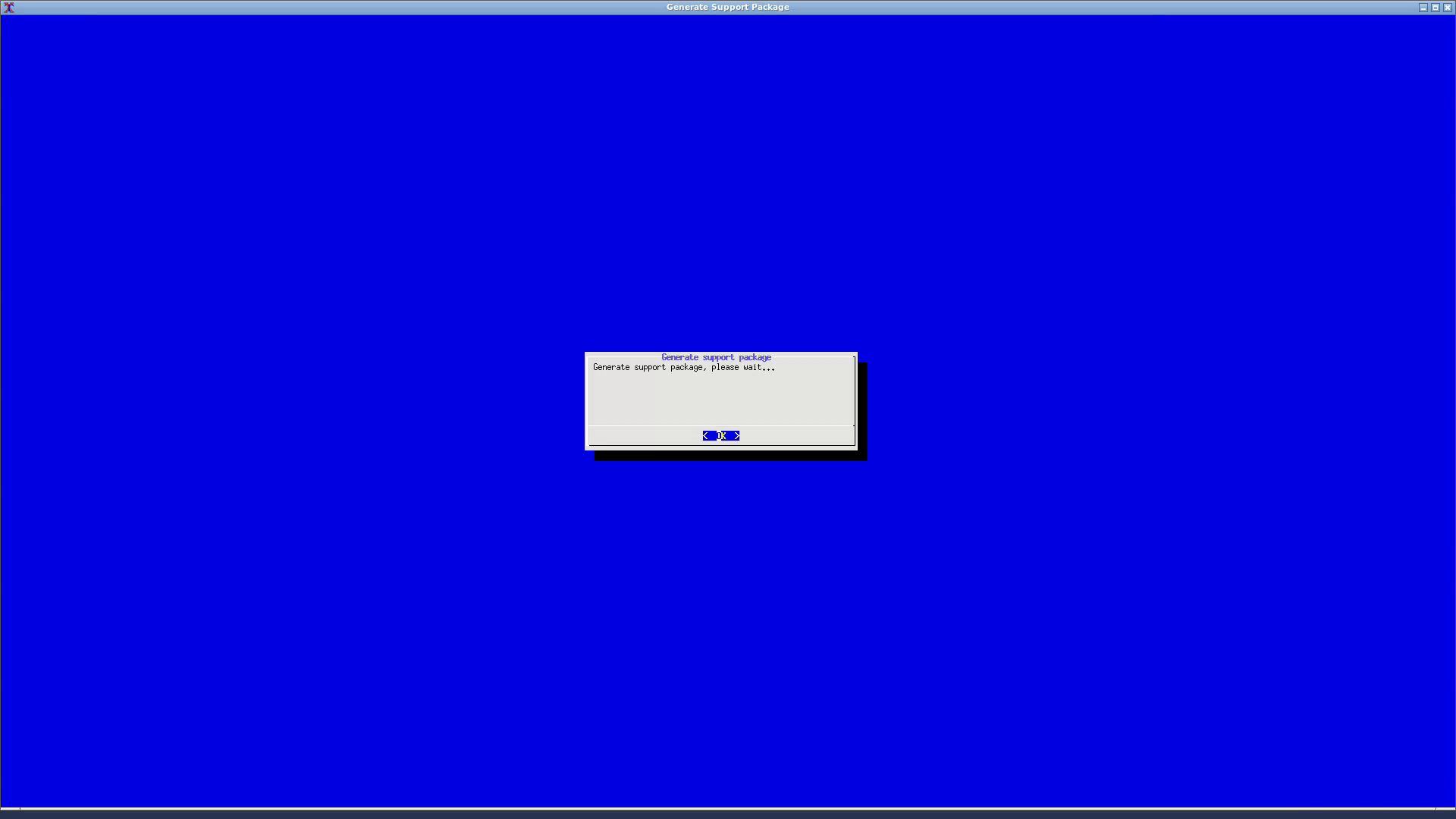
Whenever there is an issue with using Drive, you can press and hold the combo ALT-SHIFT-F3 for 5s**.** A blue screen will appear telling that the SupportPackage is being generated and will disappear when the task is finished after a moment.
2. Generate Support Package with the built-in GUI function
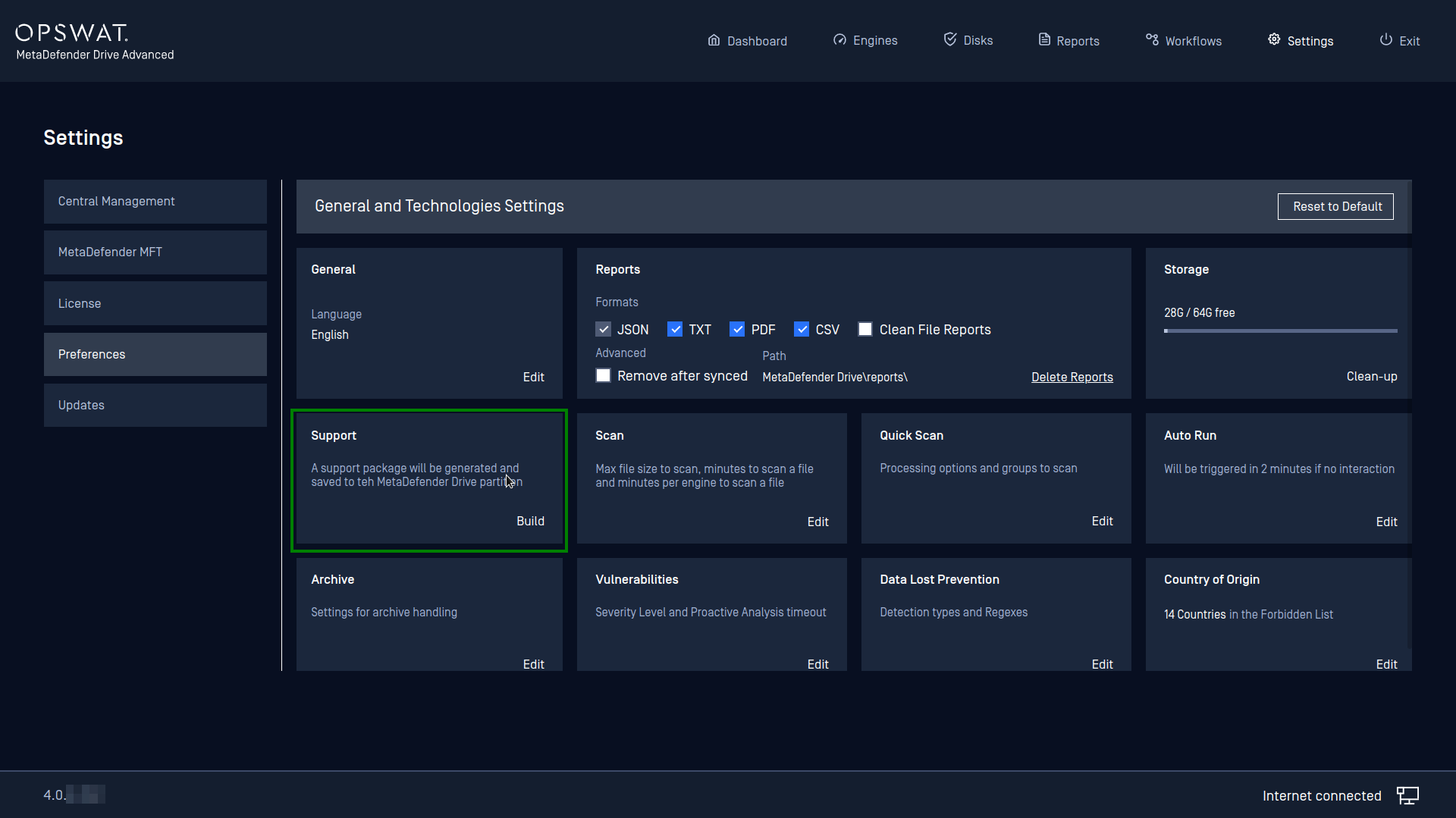
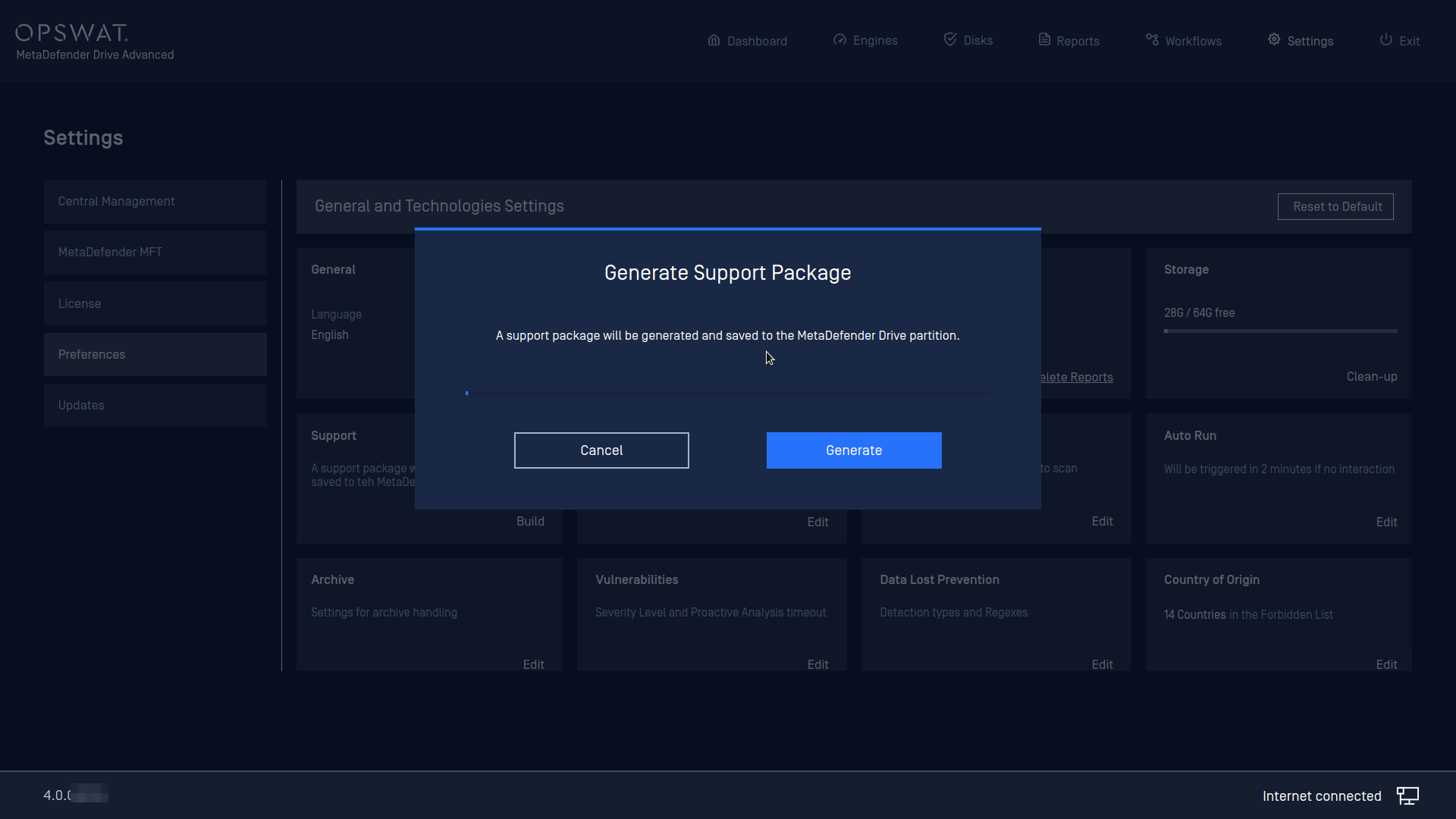
You can also create the Support Package by going to Preferences --> General --> Support, you will see the function names "Generate Support Package". By clicking Build, it will take a moment and generate a Support Package file on the MetaDefender Drive partition.
3. Generate a full image of MetaDefender Drive for Windows users
Download the portable version of rufus from https://rufus.ie/en_US/ (you can download and install the installer if you want but the portable version is good enough for 1-time-use)
Plug the MD Drive USB that you want to clone into your Windows machine
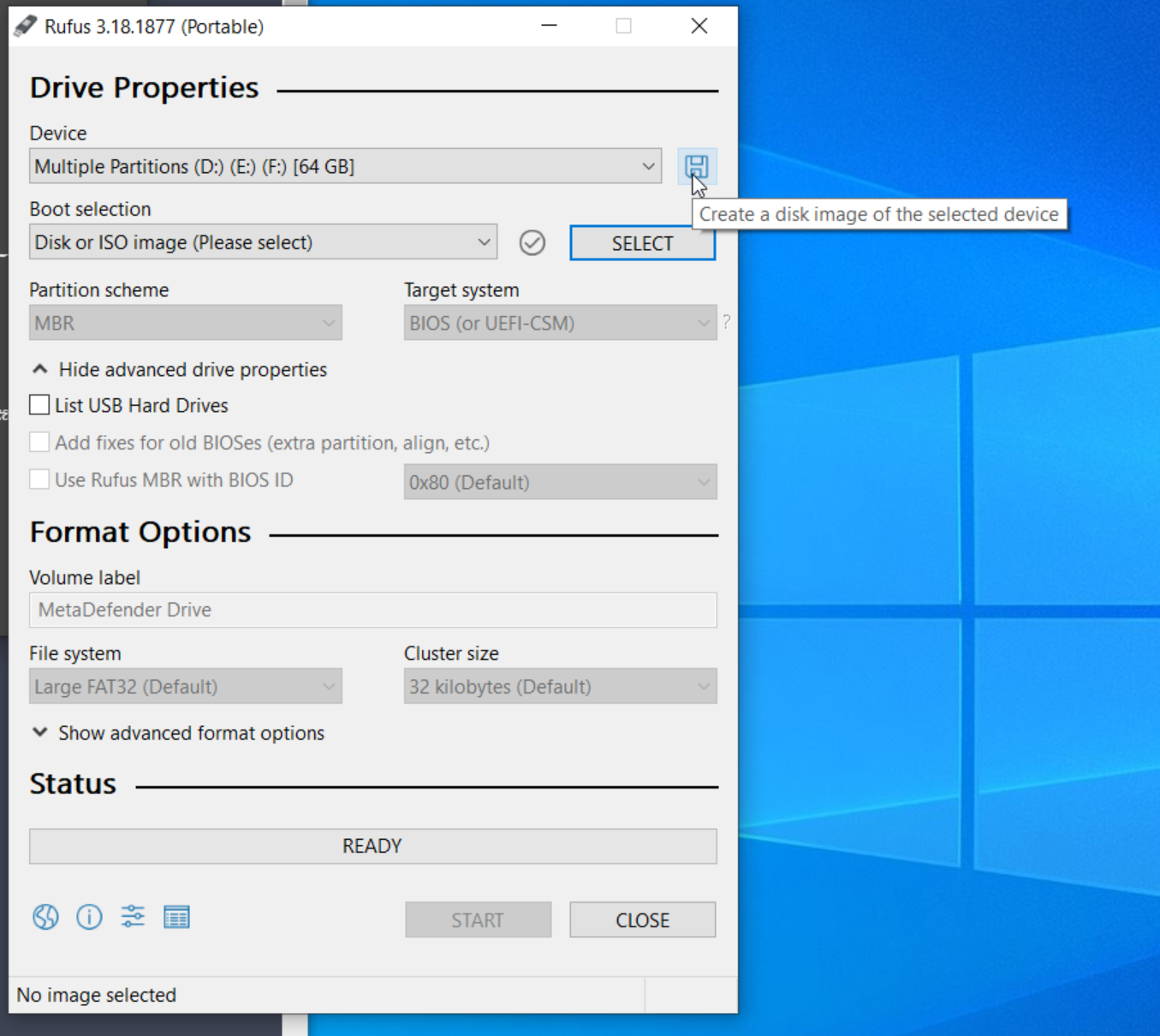
Launch Rufus then select “Show advanced drive properties”
Click the "Save" icon to create a disk image of the selected device then save it to a place with sufficient space
4. Generate a full image of Metadefender Drive for Linux users
Plug the MD Drive USB that you want to clone into a linux machine
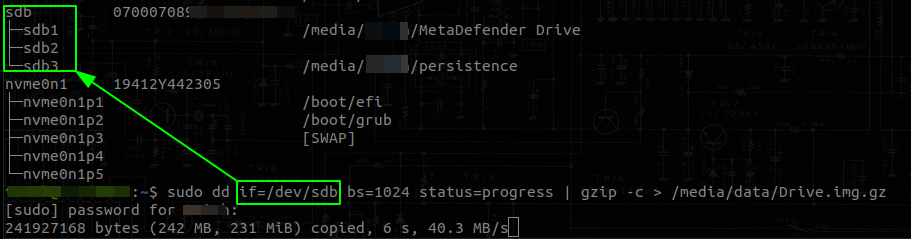
Launch the terminal, type in the command lsblk -o name,serial,mountpoint
Take note of the serial and the node of the USB you want to clone. In my example, the USB that needs to be cloned is
/dev/sdb(highlighted in the green box).Type in the command sudo dd if=/dev/sdx bs=1024 status=progress | gzip -c > /path/to/the/place/Drive.img.gz