Configuring the Scan
MetaDefender Drive provides three different scan options, aim at different dataset and different engines and technologies configuration
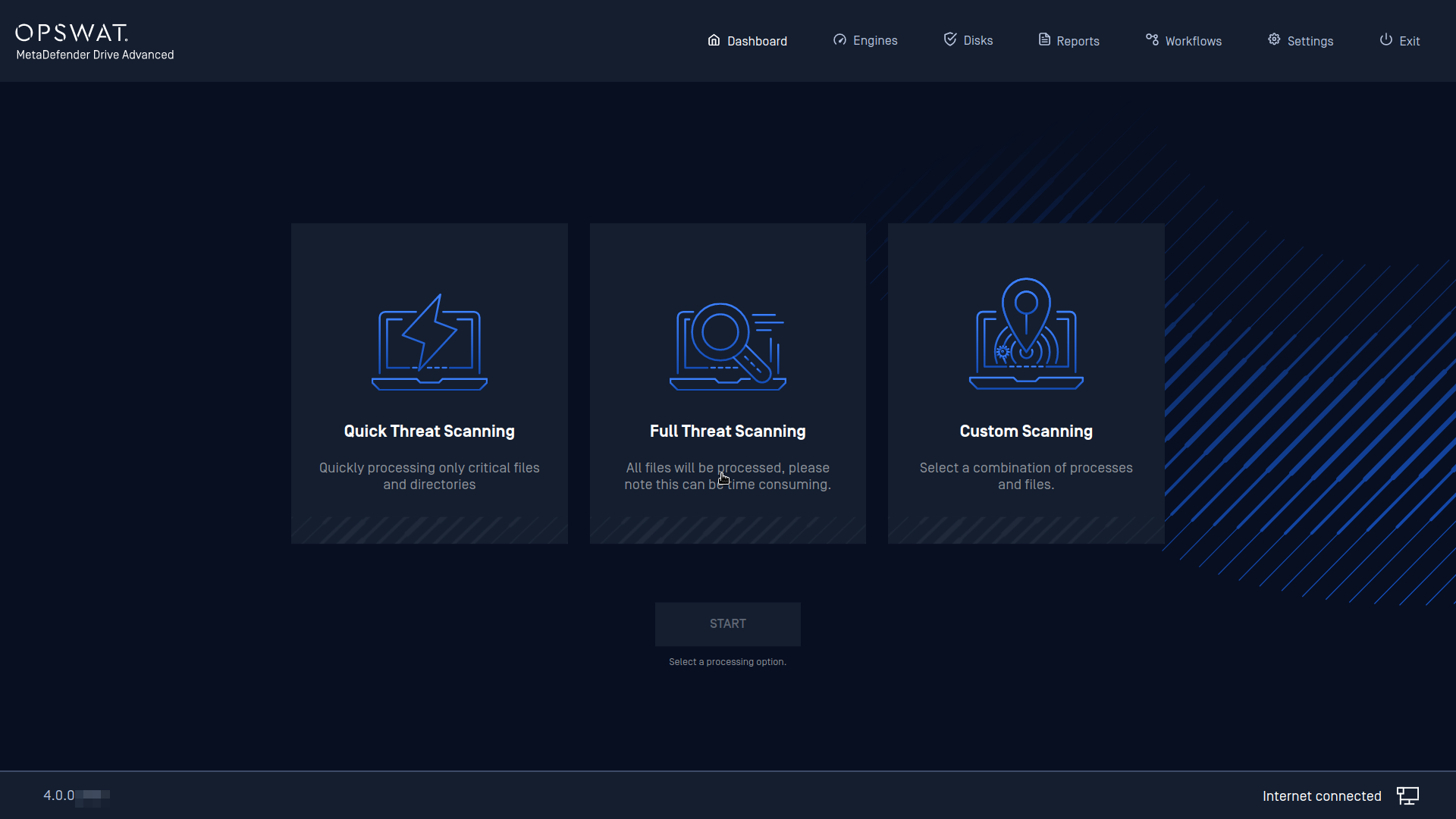
Quick Threat Scanning scans the most critical paths with malware engines only to save the time. The quick scan paths can be configured in Settings/Quick Scan tab (Drive is supporting Windows paths first, other operating systems will be supported later.)
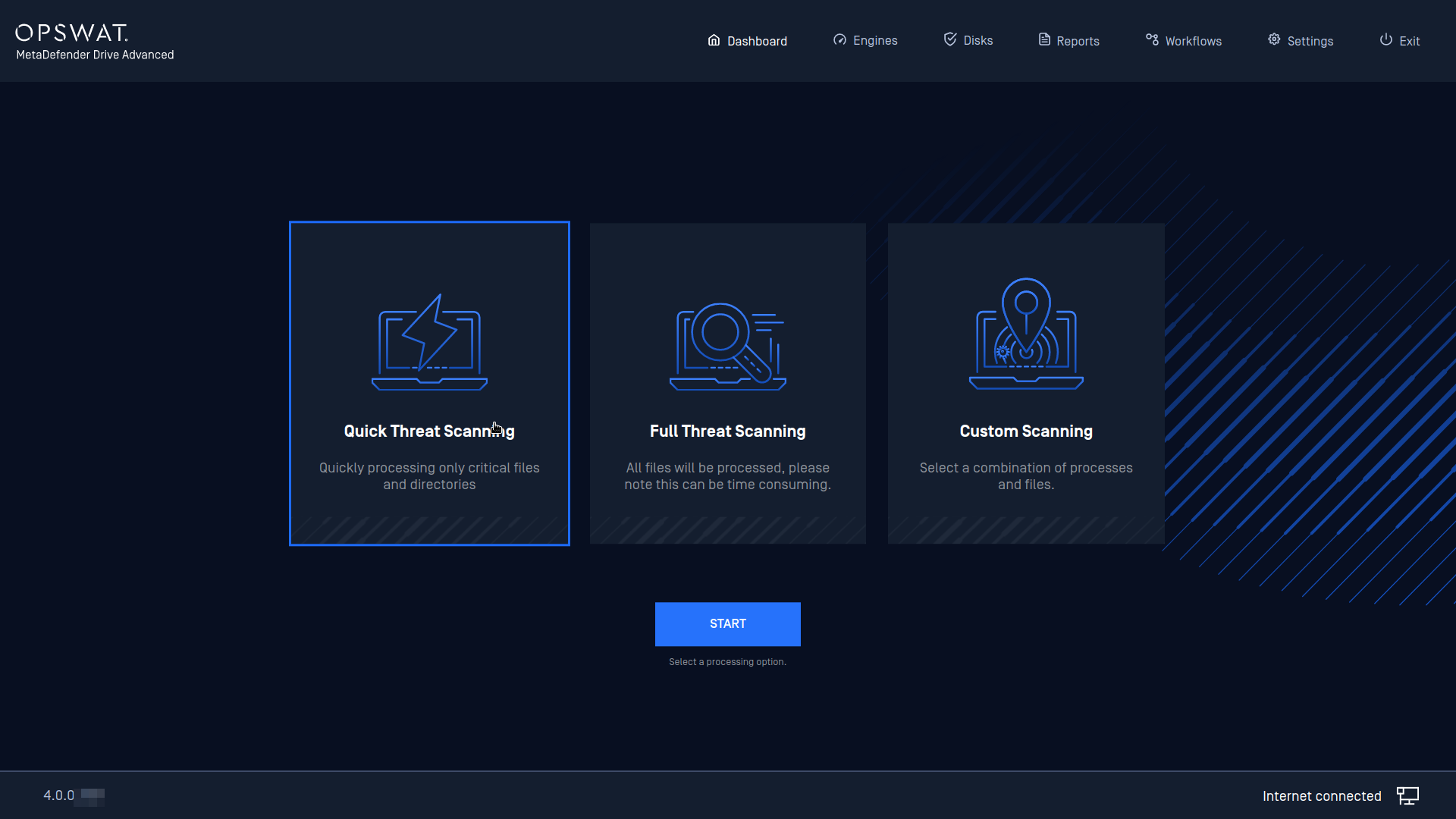
Full Device Processing scans all disks that are mounted and unlocked with all enabled engines and technologies. Press the Start button to immediately begin processing your device.
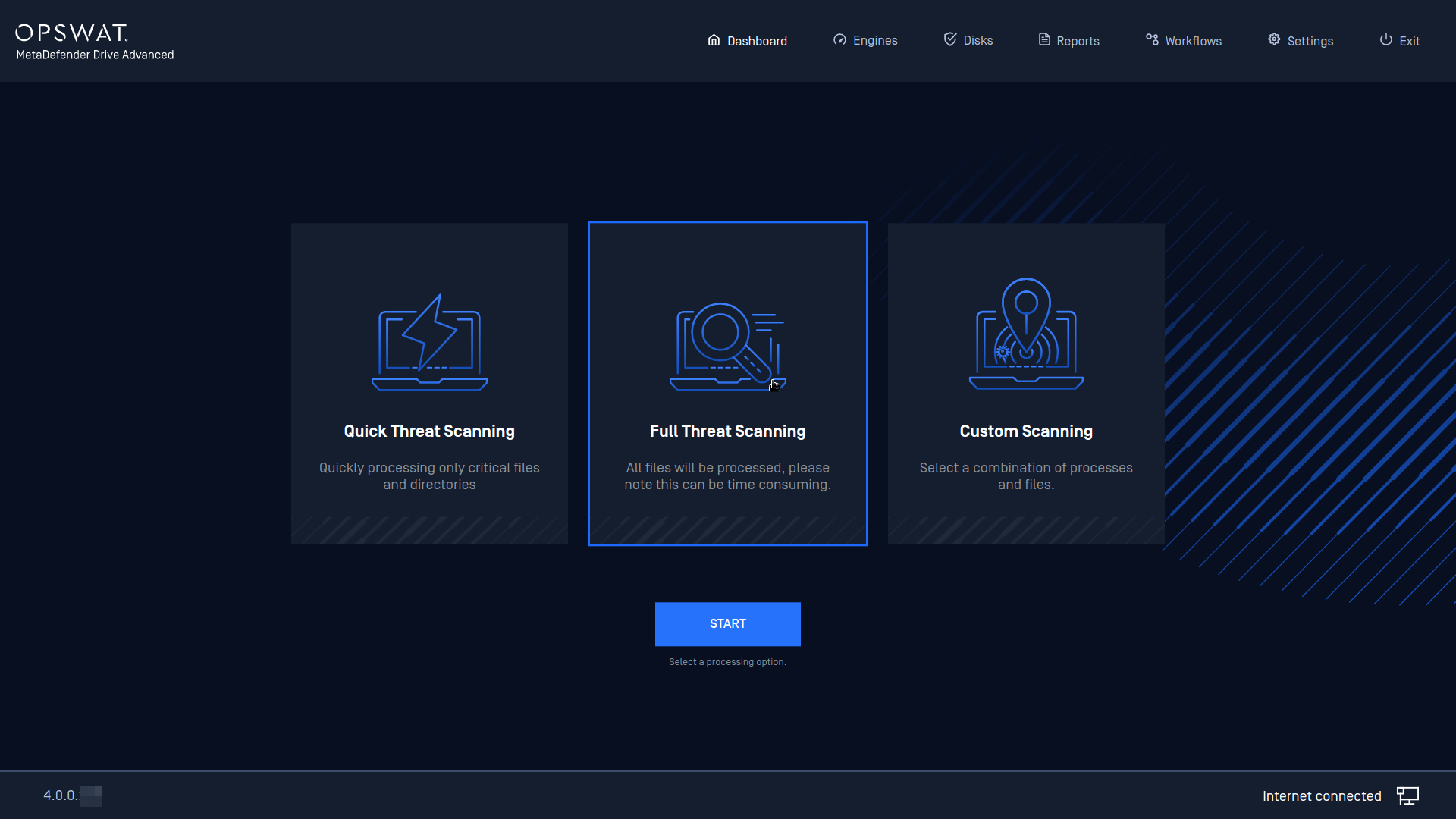
Please note that the total engines and technologies included for a full device scan depend on if engines or technologies are enabled under Settings Preferences.
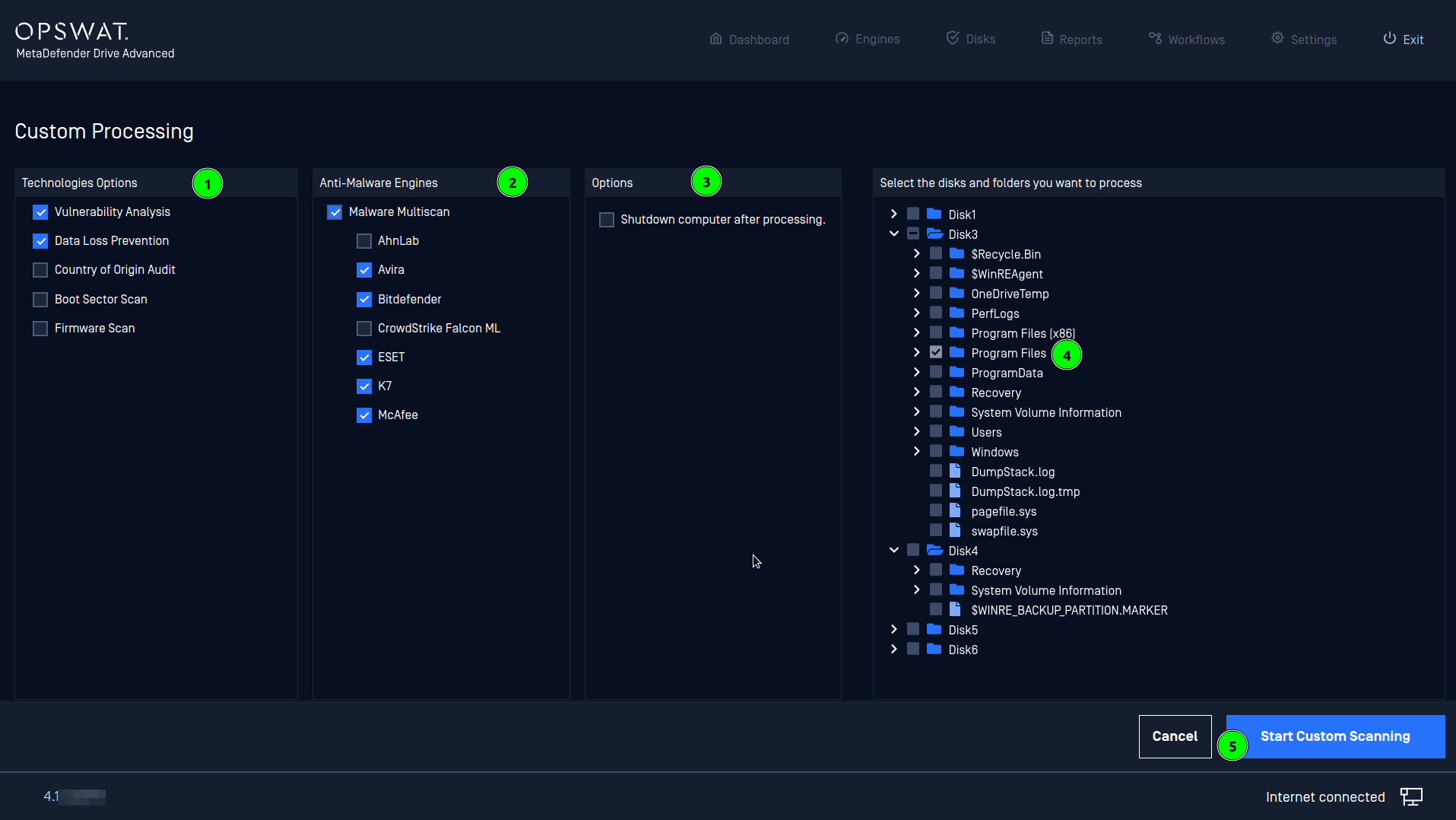
Custom Processing enables quicker operation with user-defined selections.
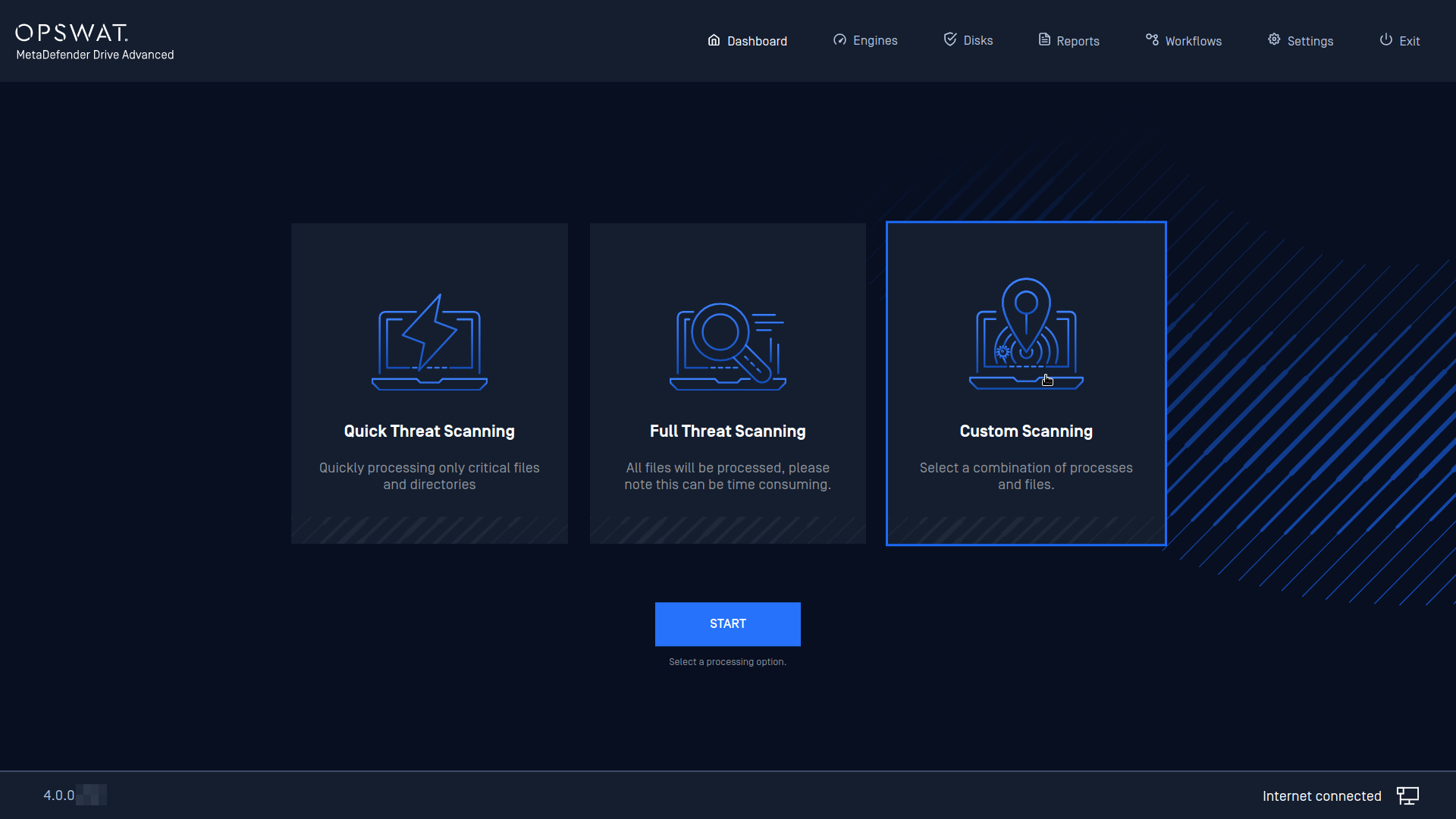
Press the Custom scan card to choose:
a subset of files to scan
a subset of processing (i.e. malware analysis of choice, vulnerability analysis, potential data leak detection, country of origin…)
when some engine is not ready to use (being updated, initialized...) it will be grayed out and not able to select for the scan
Scan in Progress
The MetaDefender Drive processes every file on the underlying system (assuming encryption keys have been provided, and no other access barriers are present).
Each file is submitted to the embedded MetaDefender system on the MetaDefender Drive to process the file with a variety of antivirus, vulnerability, and utility engines. Time Remaining is a best guess based on the previous rate of processing, and file size, and may update as processing continues. Once the scan has finished the user may click on View Report and see the scan results.
This stage can take from several minutes to several hours depending on the hardware specs of the target machine as well as the data being scanned. Please take a look at the performance measurement for your reference https://docs.opswat.com/mddrive/process/performance-measurement.
If the target machine is equipped with 4GB of memory or less, please consider selecting LightMode when prompted or using Custom Scan with Malware Multi Scanning only for the best performance.
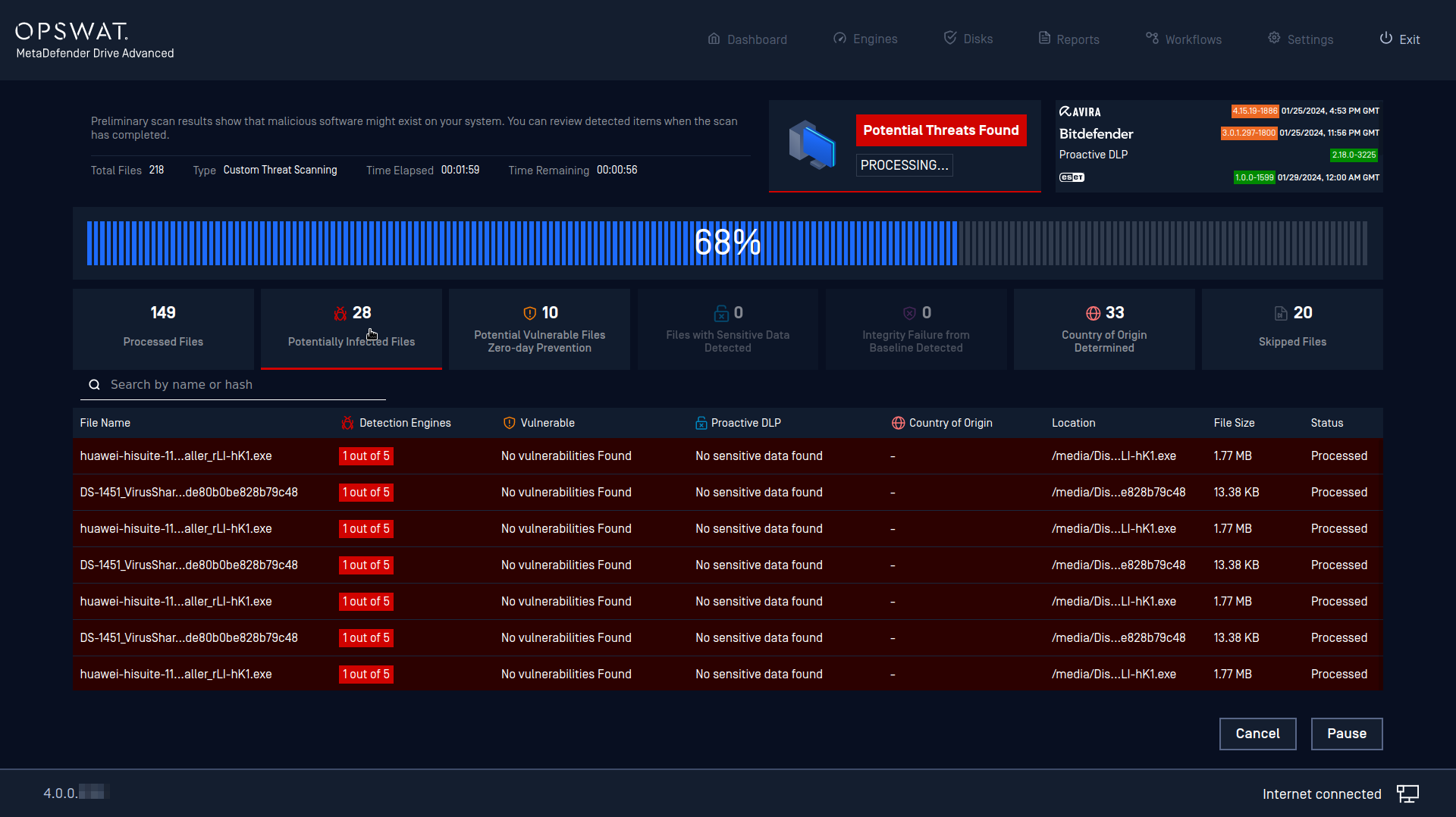
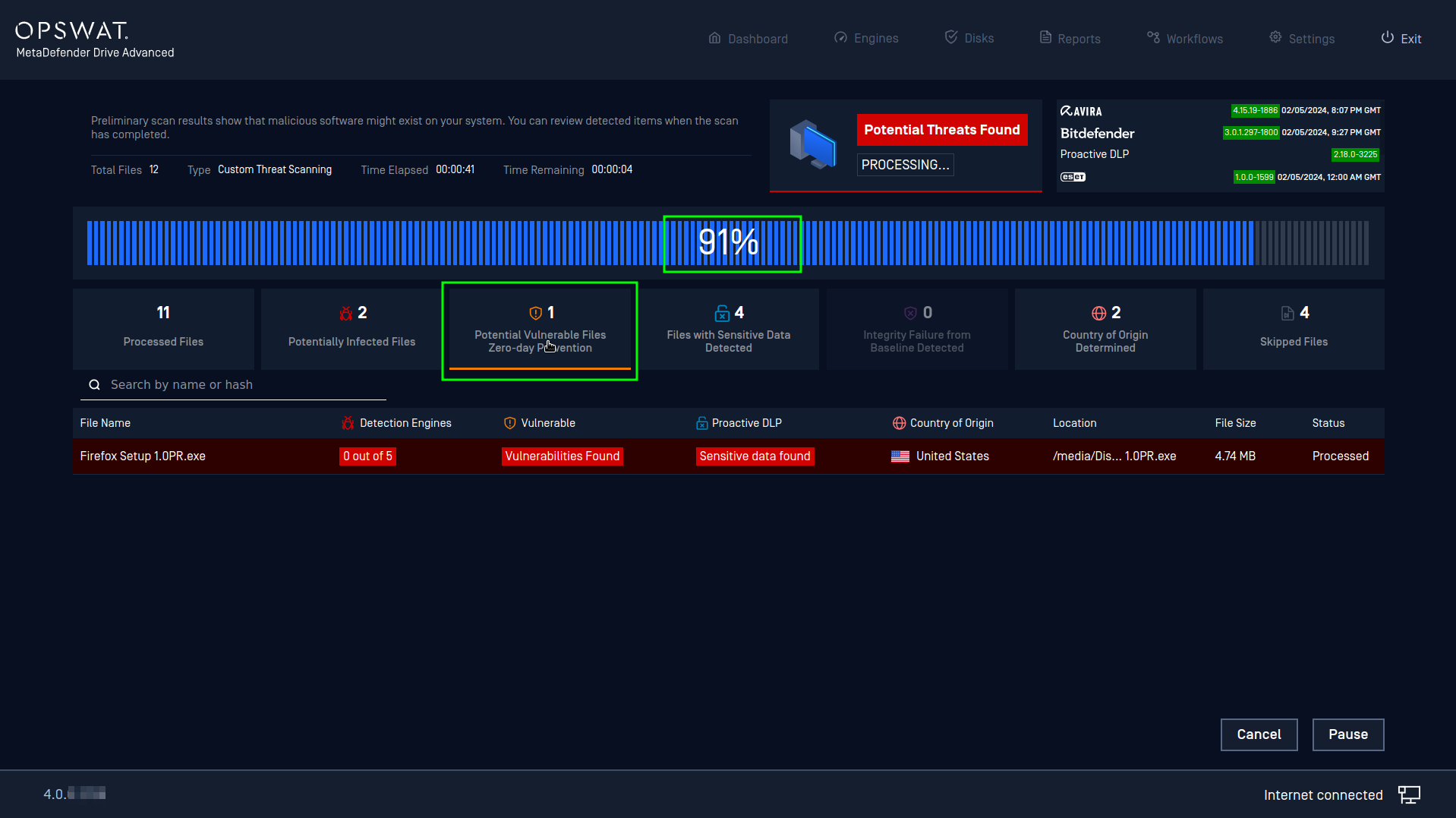
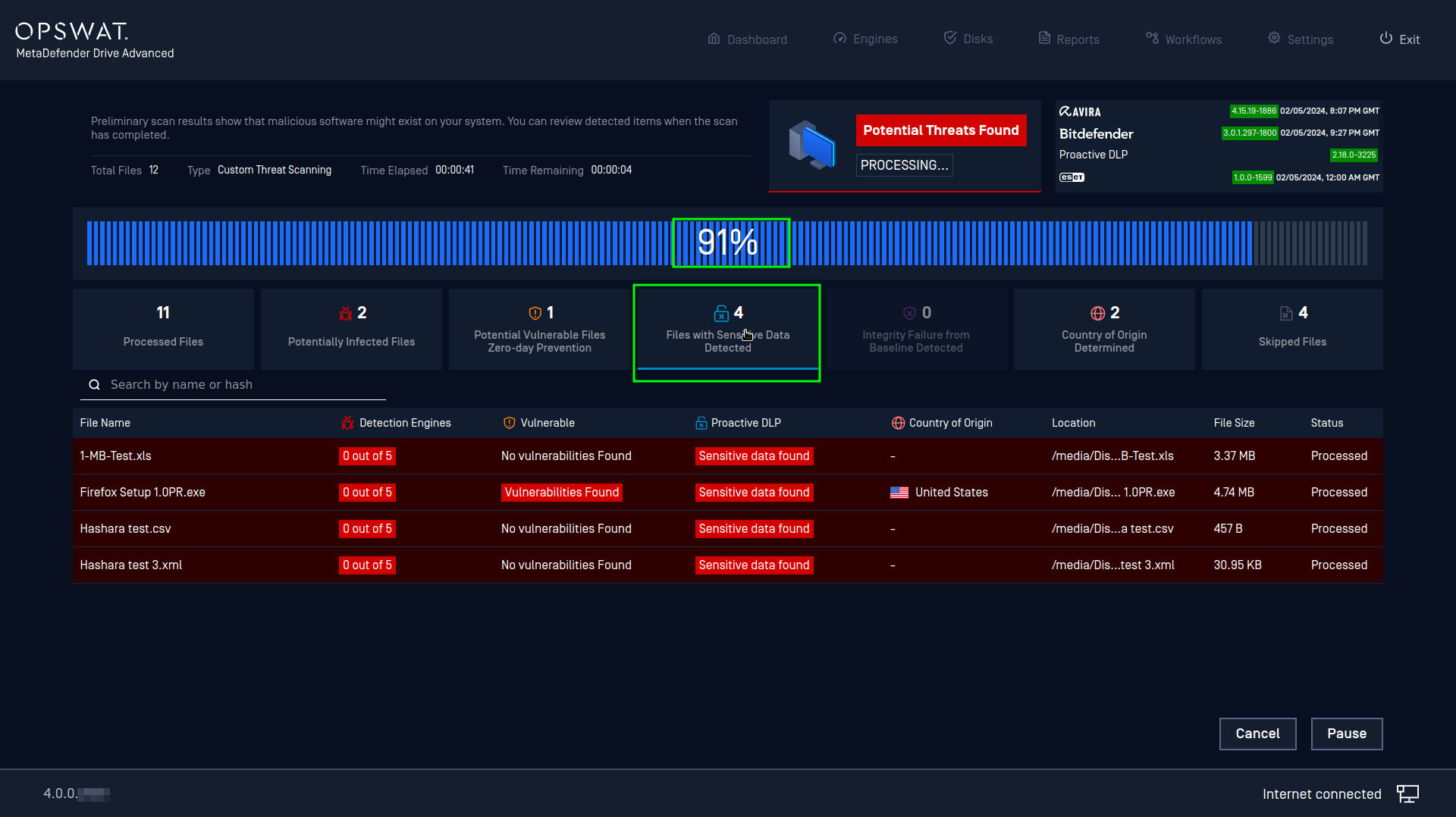
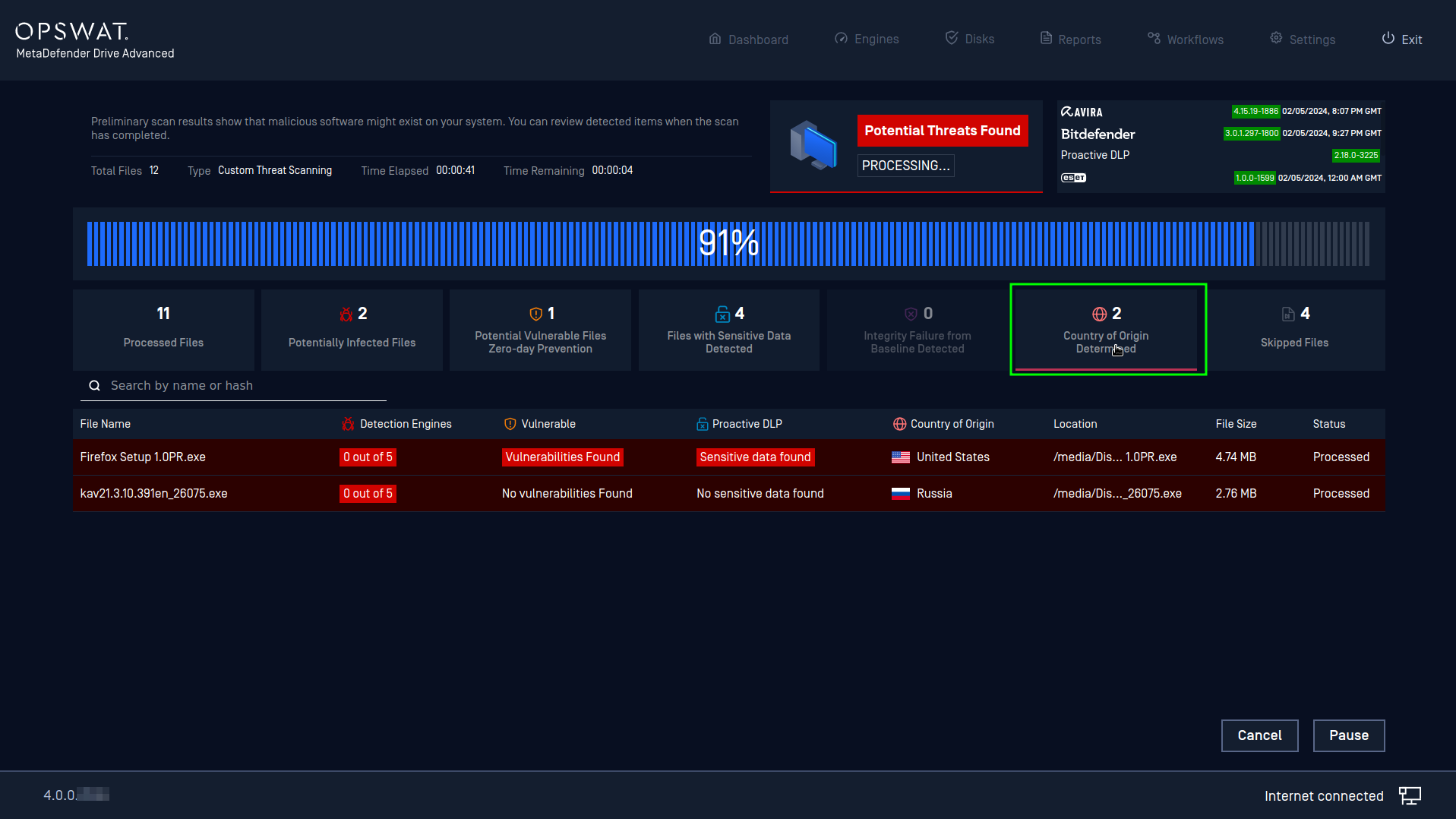
During a scan, the filter tabs will show all findings with relevant information