From MetaDefender Drive Toolkit (version 3.8.5 and later), with MetaDefender Drive inserted into the computer where Drive Toolkit is running from, select My OPSWAT Integration.
Then enter your My OPSWAT Central Management URL and Registration Code, that you can obtain from your My OPSWAT Central Management account, in the dialog box
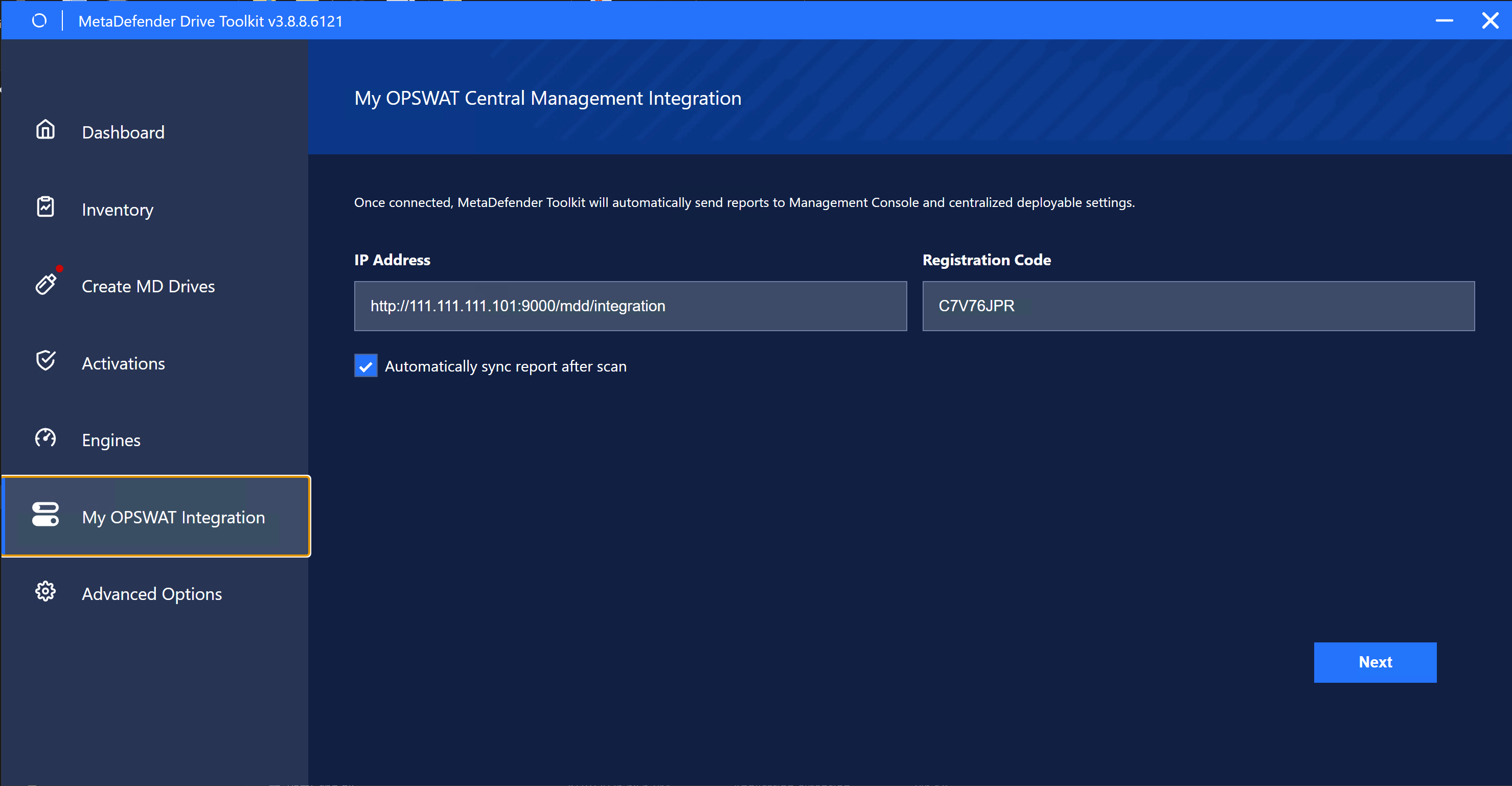
Set Automatically sync report after scan if needed
Click Next
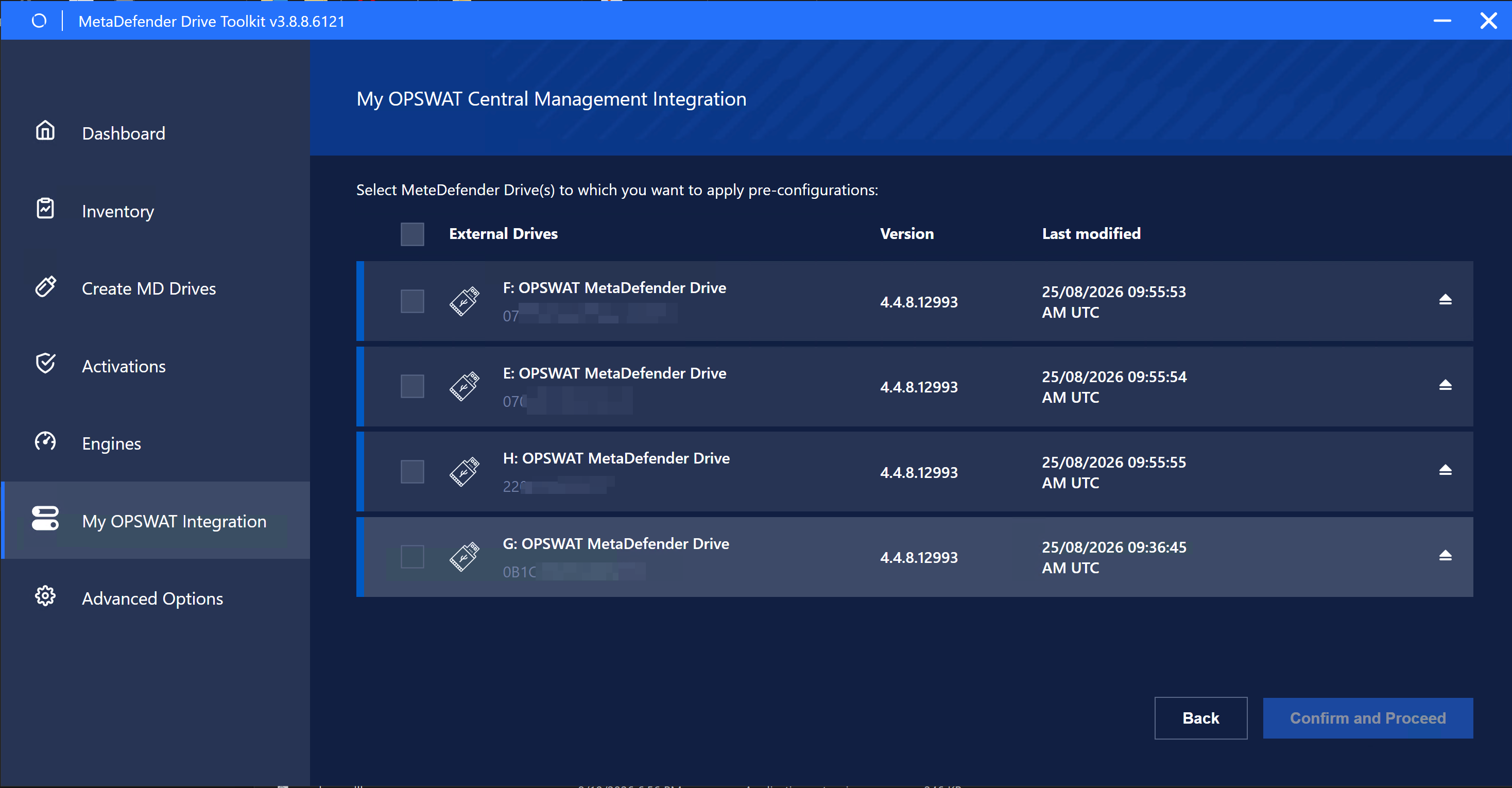
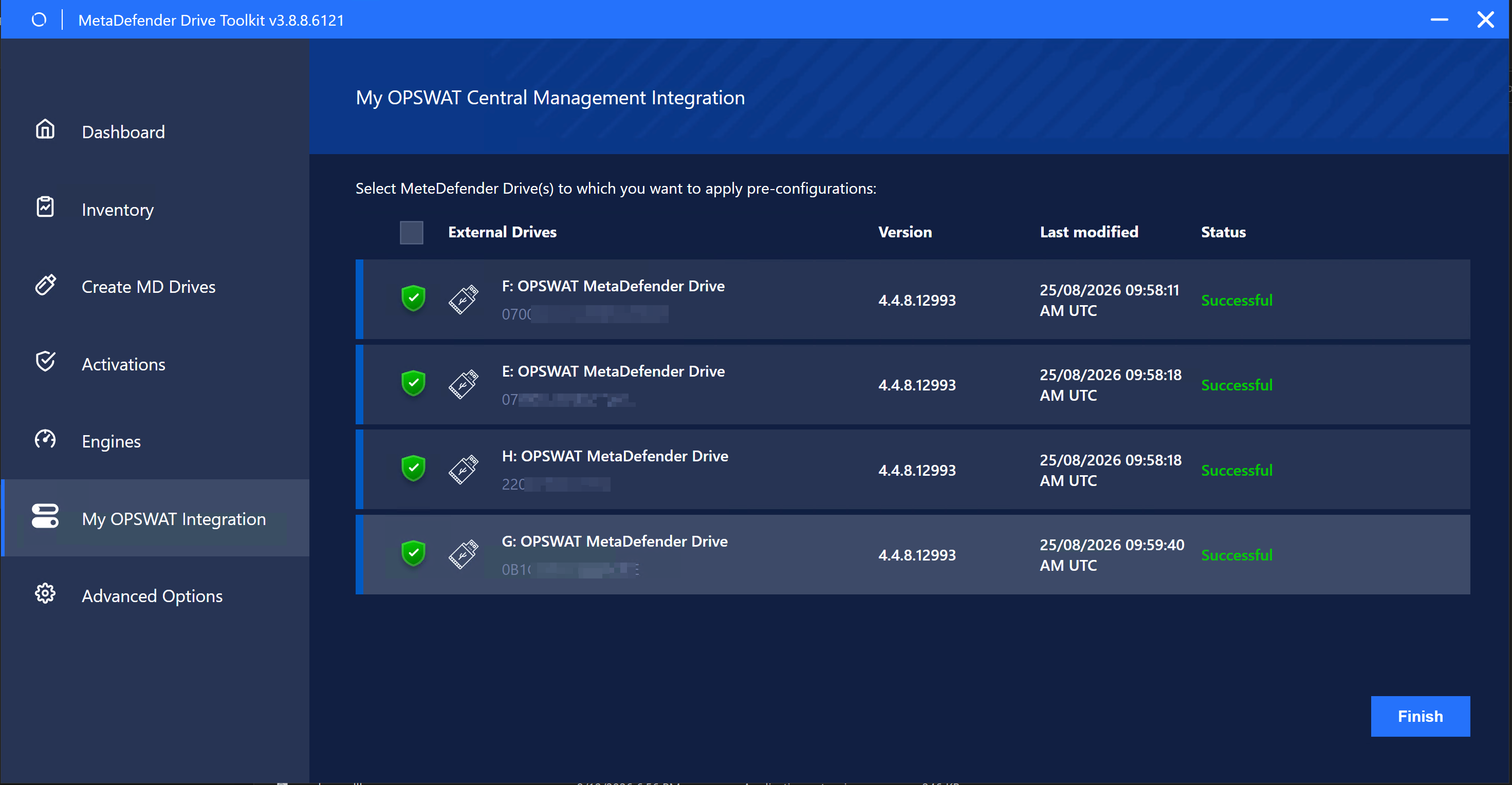
Select the Drives you want to enroll with OPSWAT Central Management Server. You can check External Drives to select all of attached Drives
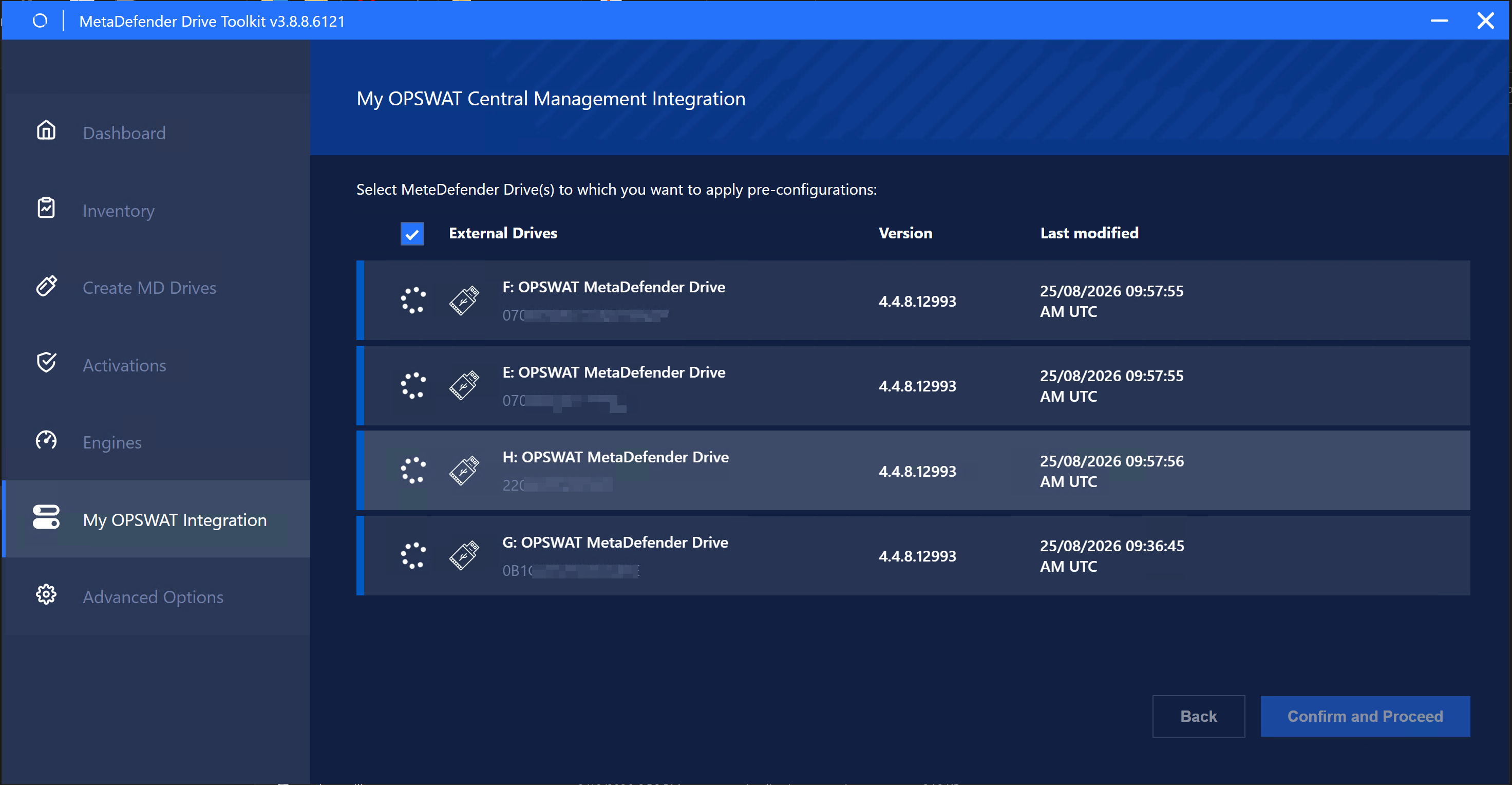
Click Confirm and Proceed. Spinners will appear showing enrollment is in progress.
Wait for "Successful" message. Then click Finish.
Safely remove Drives
This can work with every Drive that is inserted to the computer including MetaDefender Drive with Smart Touch that is in "Device Scanning" mode.
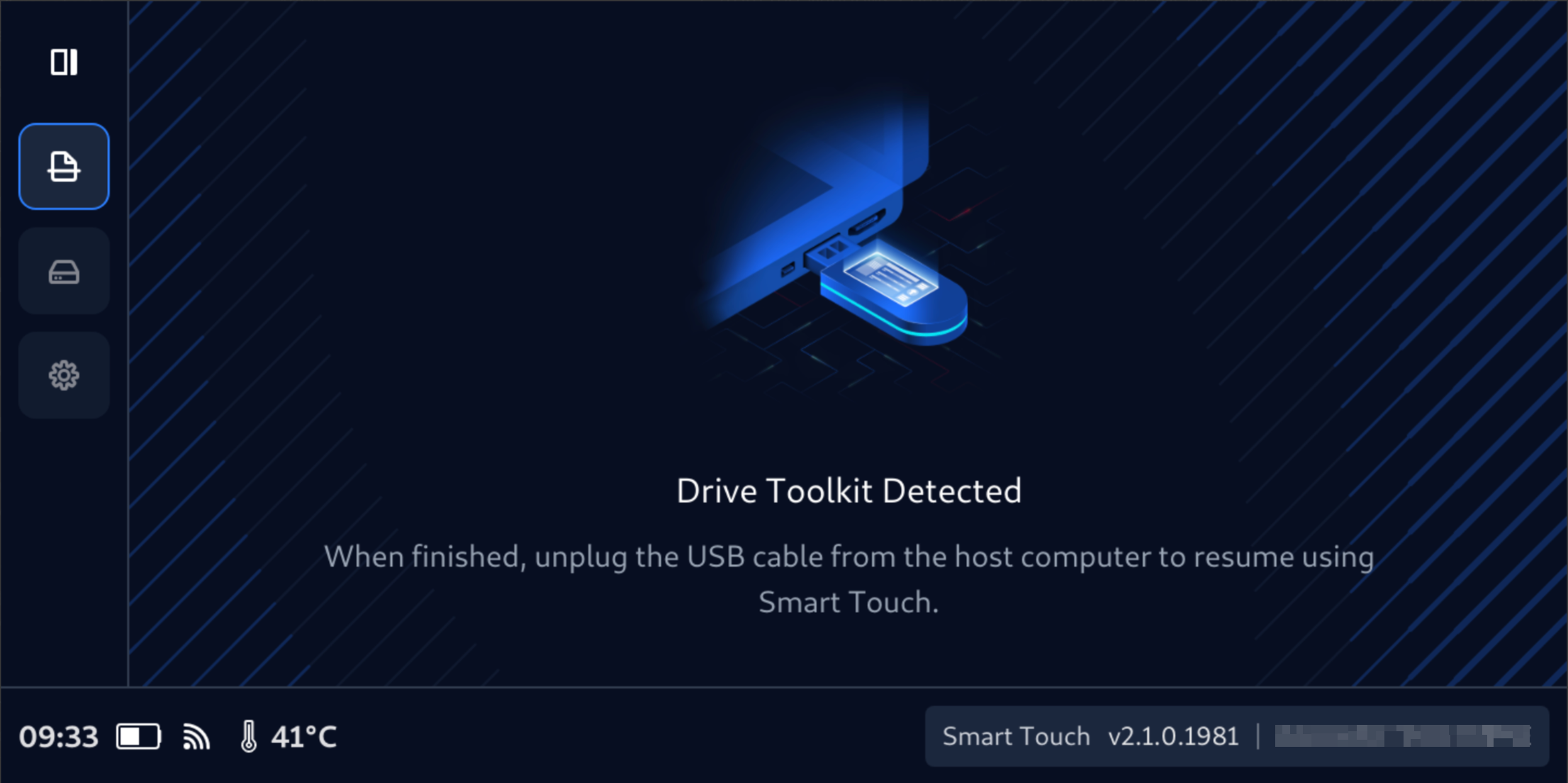
When switched to "Device Scanning" mode, on the screen of Smart Touch it will show "Drive Toolkit Detected".