
Configuration
Administrator Provisioning
Enrollment and Lock MetaDefender Drive
To enroll MetaDefender Drive with Smart Touch to Centralized Scanning Profile, perform the following procedure under administrator
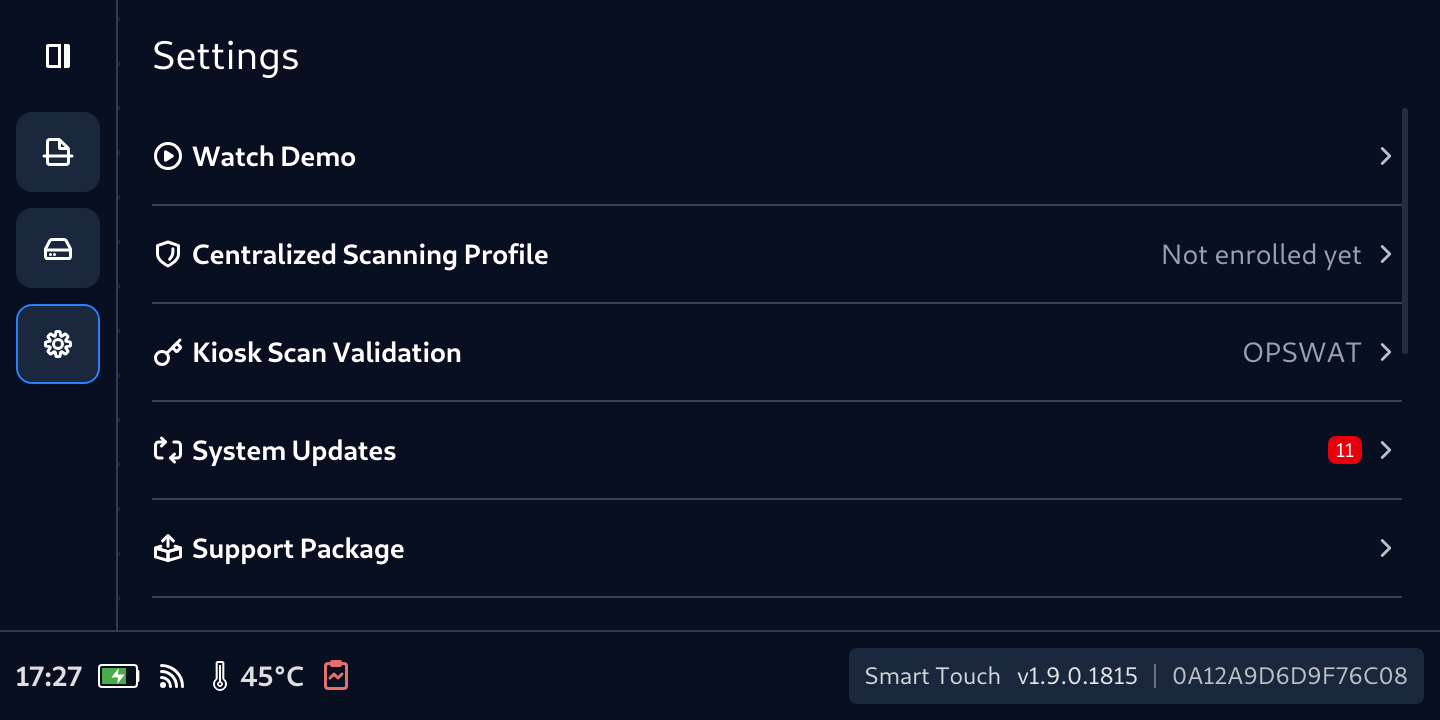
- Go to Settings tab
- Select Centralized Scanning Profile
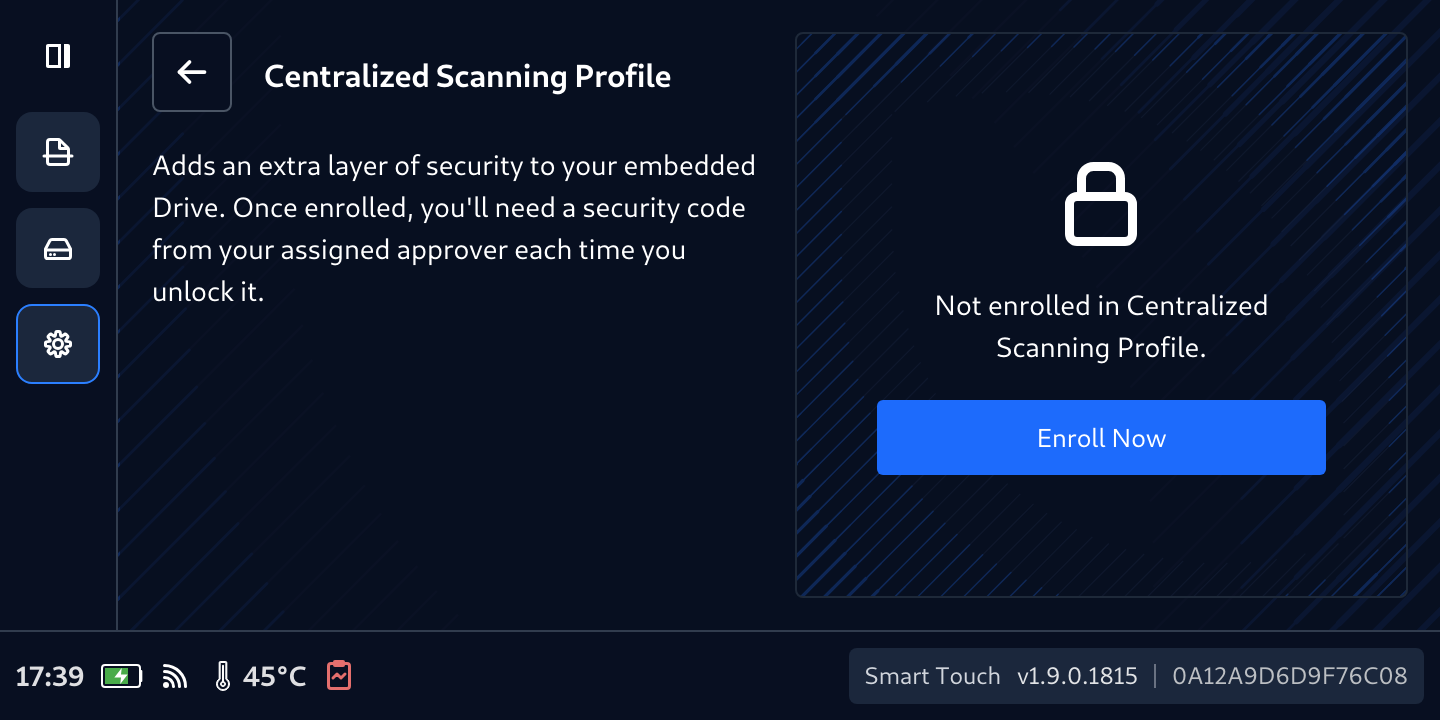
- Tap Enroll Now
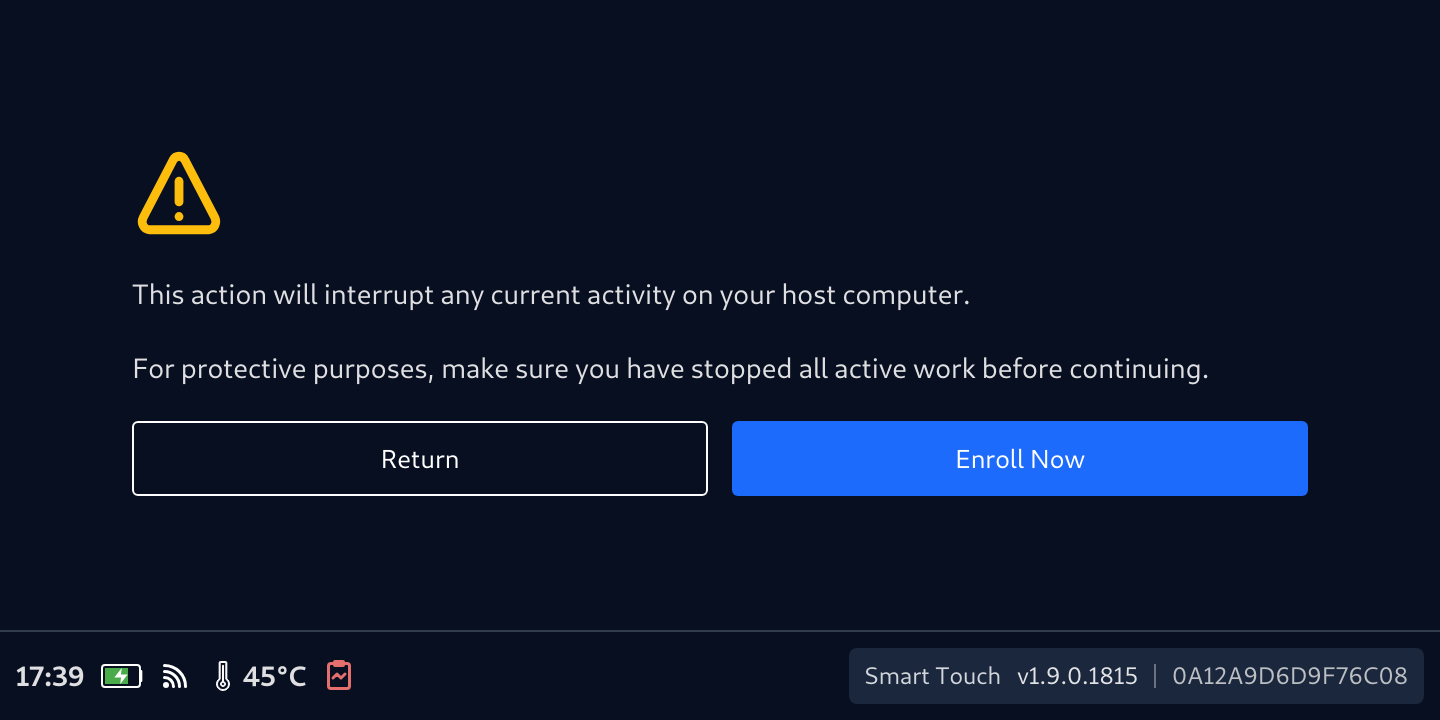
- Confirm the acknowledgement of any running work will be interrupted
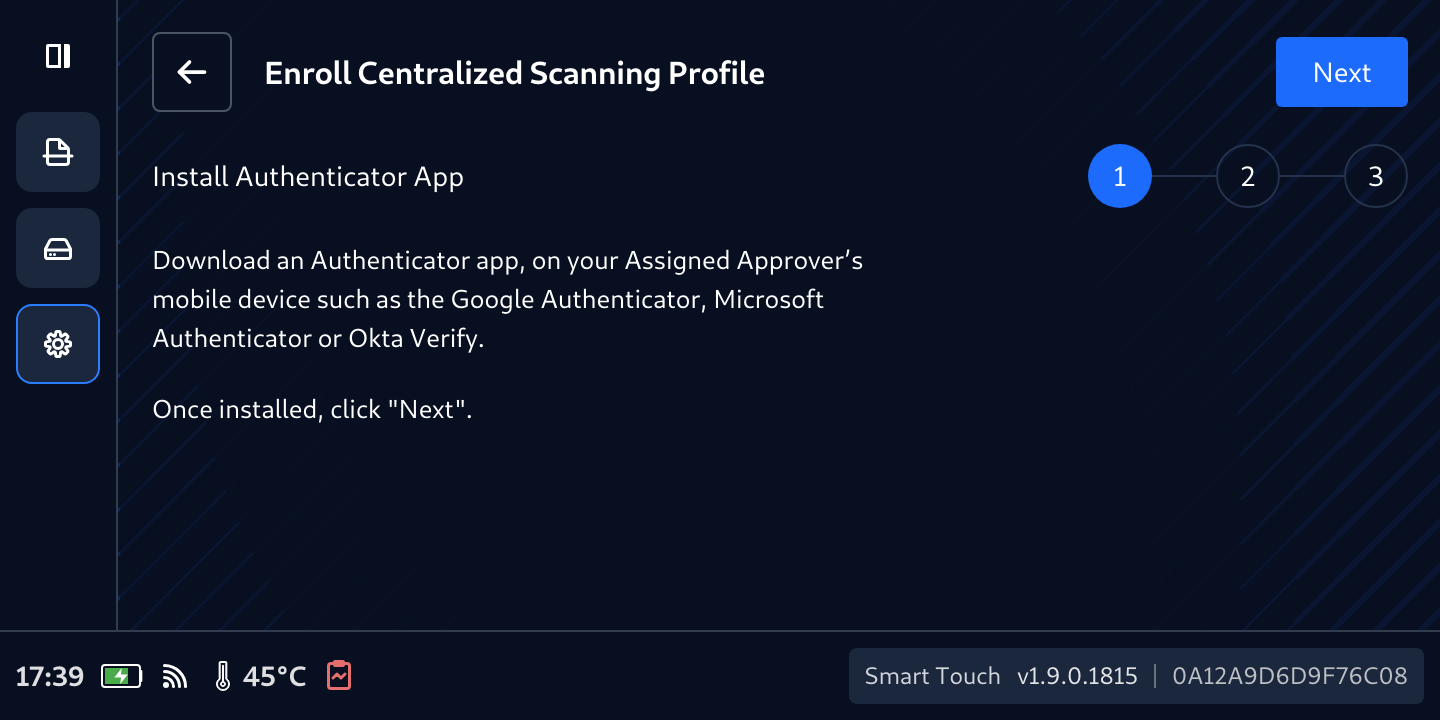
- Follow on-screen instructions
Assign an Approver
- Enter a name to identify the Approver's name with the built-in keyboard, then click Next
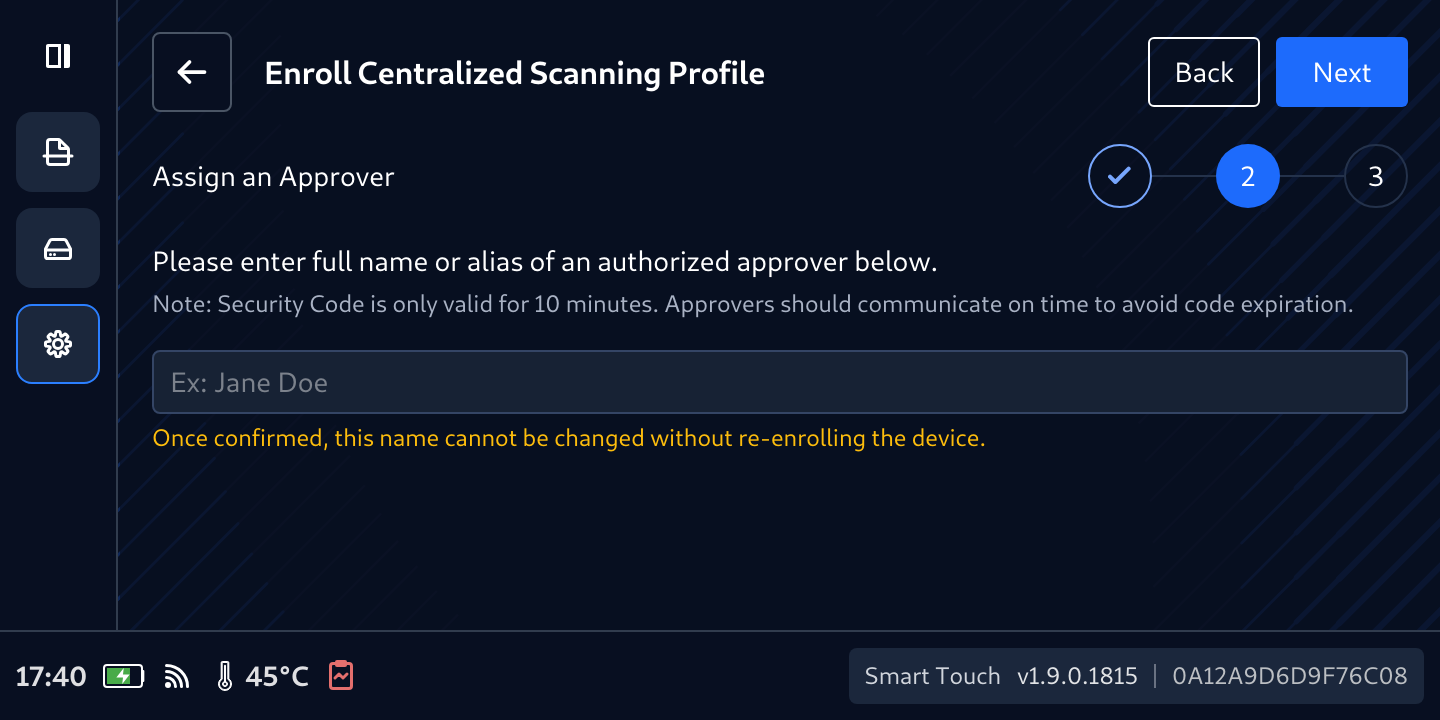
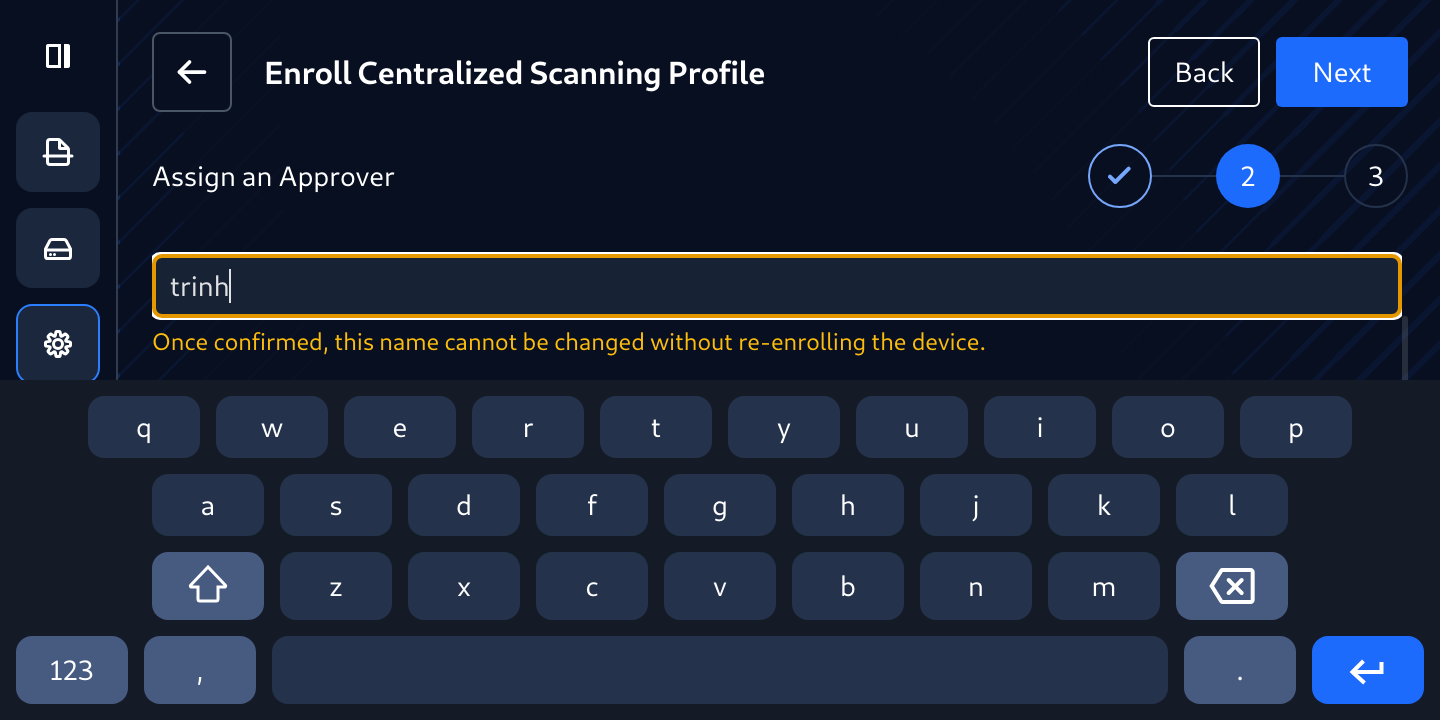
- Using Google Authenticator, Microsoft Authenticator or Okta Verify 2-factor authentication applications (to generate a 6-digit OTP (one-time password) in the next steps)
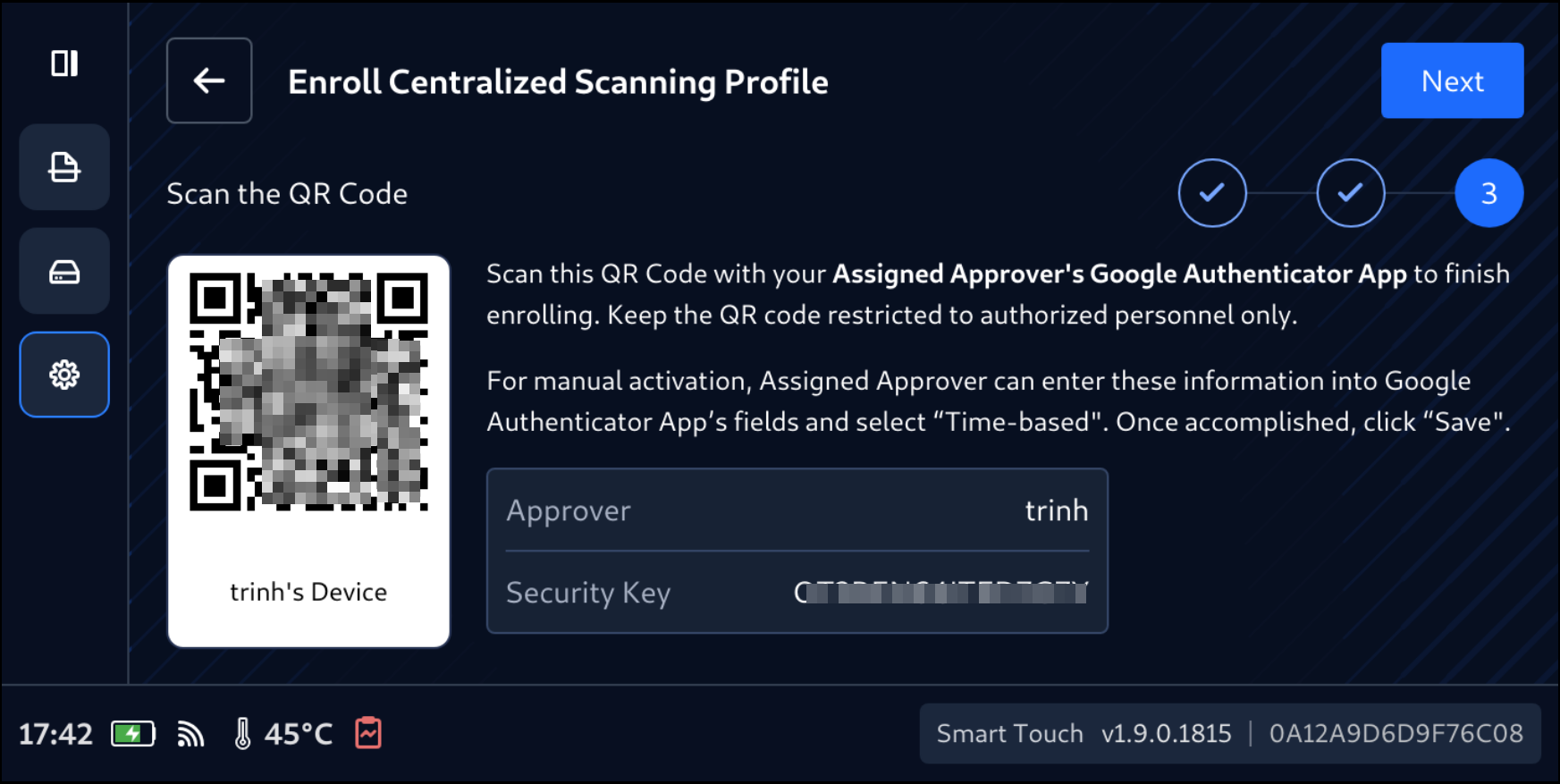
- Enter the 6-digit retrieved from 2-factor authenticator of your choice
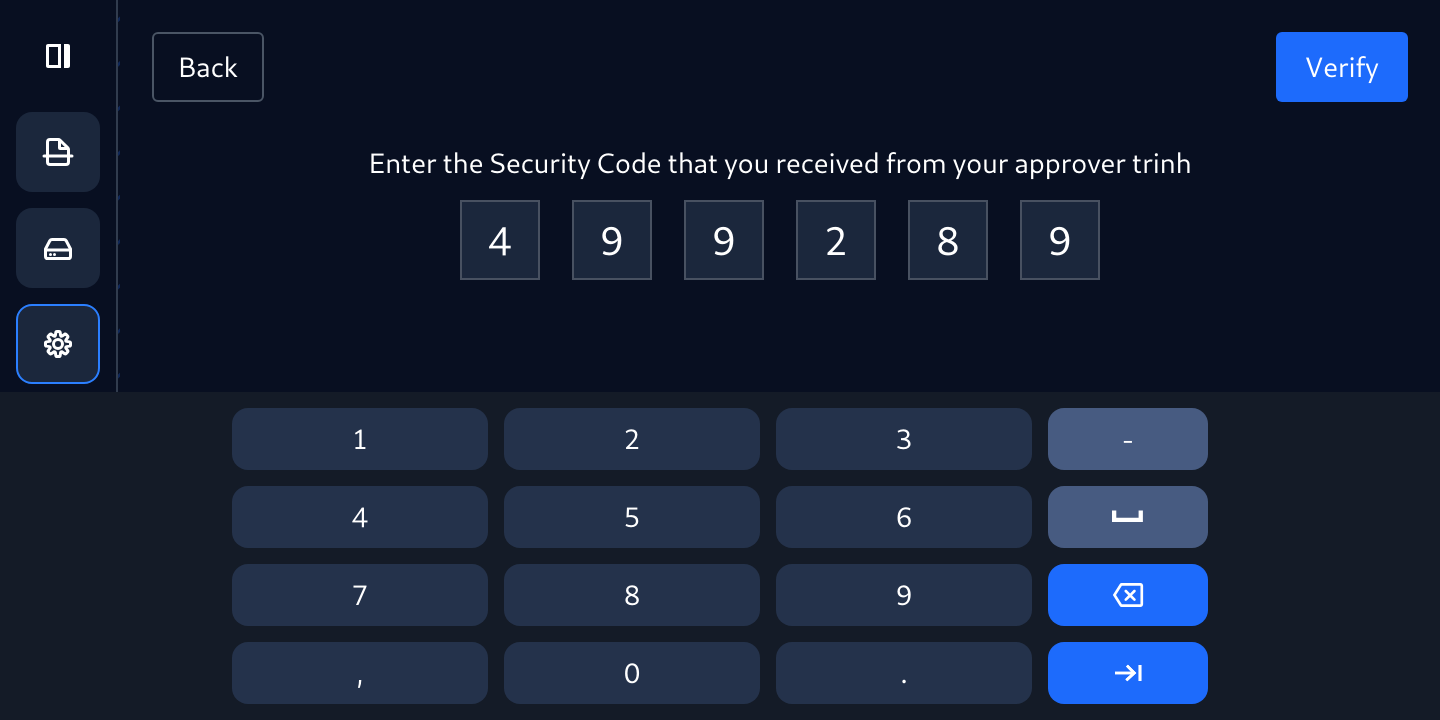
- Tap Verify then wait for the Success! message
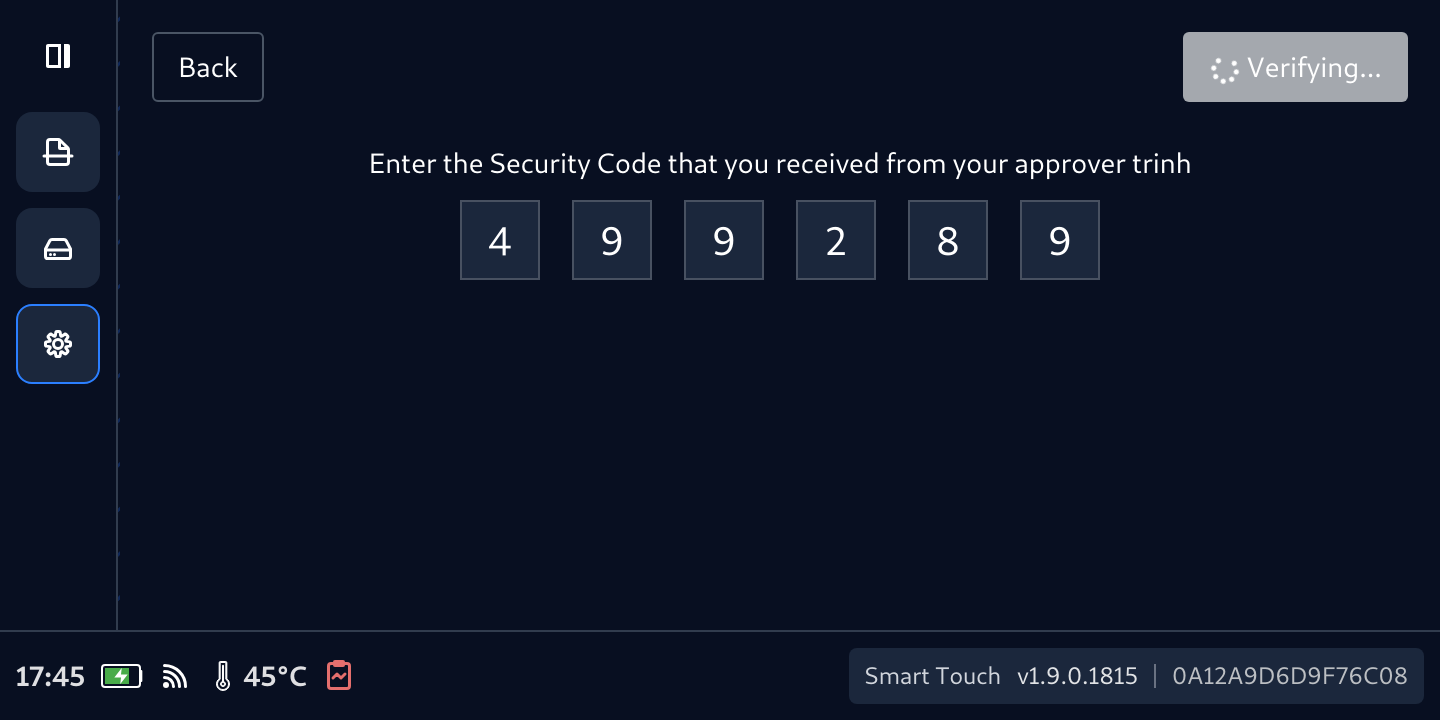
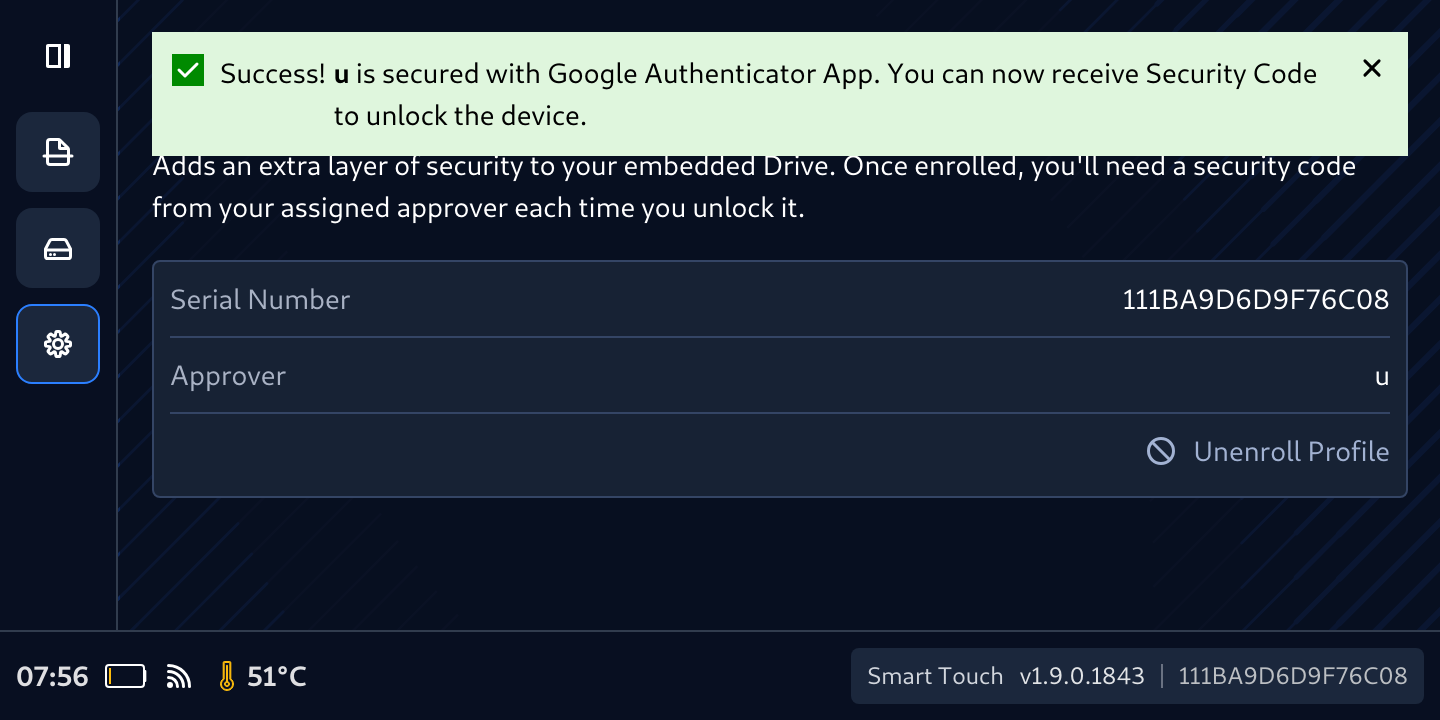
Codes are only valid for a short time, so if it takes too long to enter, you will see this red message. Just need to wait for new one and enter again.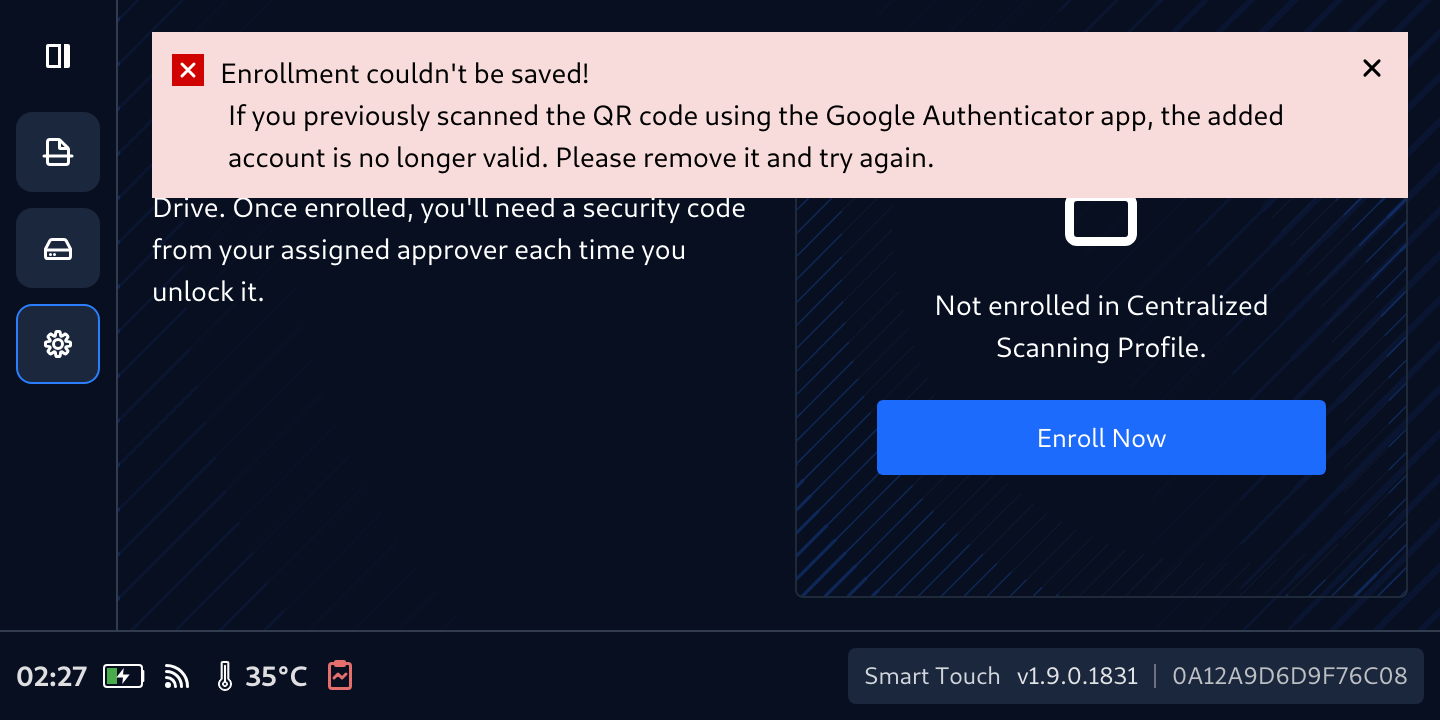
Unenrollment for MetaDefender Drive
After booting the MetaDefender Drive the administrators wish to unenroll from Centralized Scan Profile
- Go to Settings tab
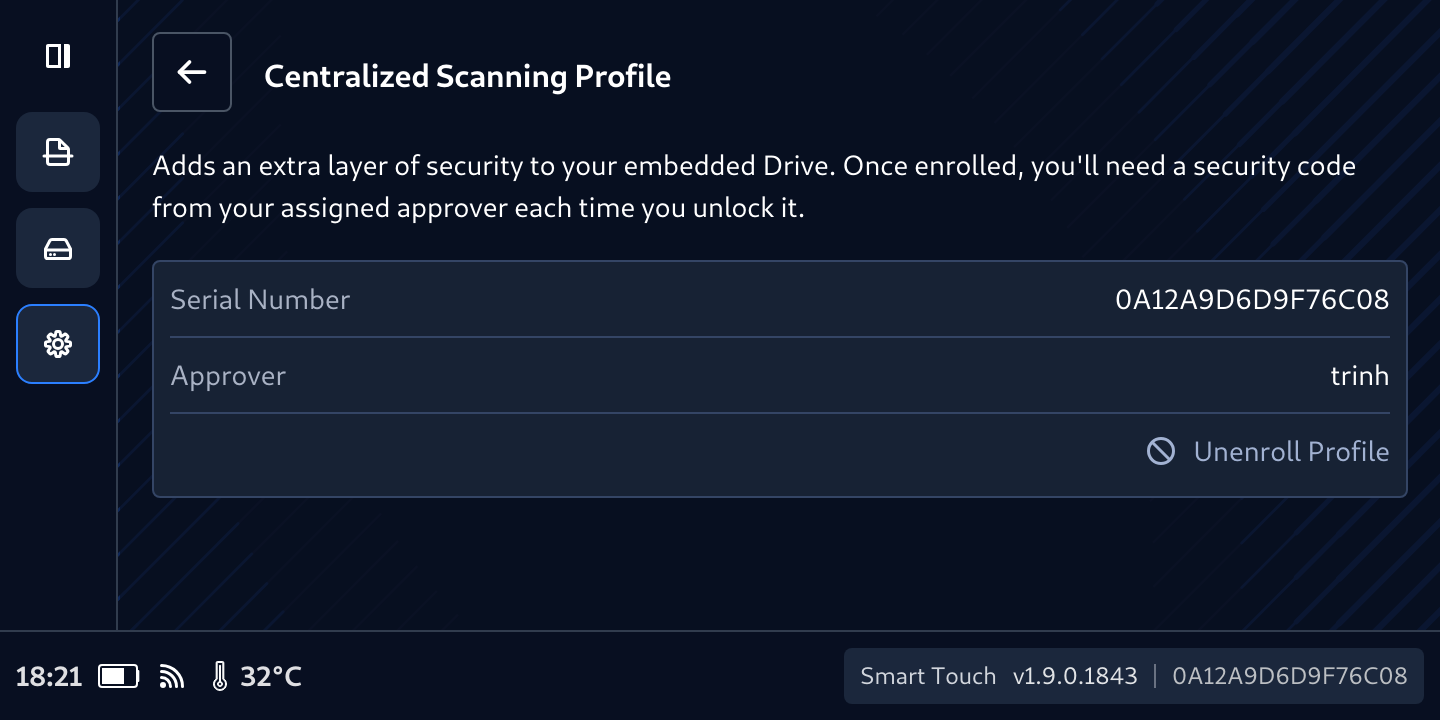
- Notice that the status of Centralized Scanning Profile now is Enrolled
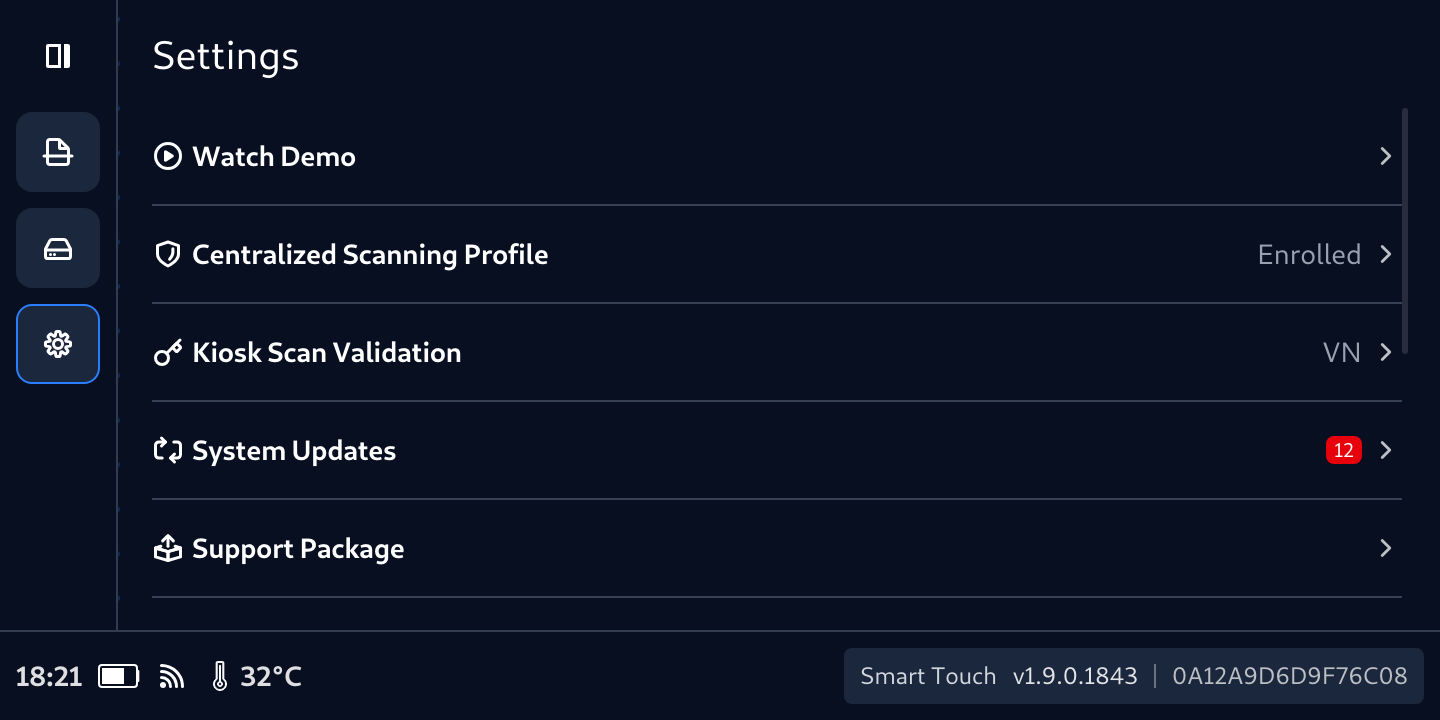
- Tab Enrolled label then tap Unenroll Profile
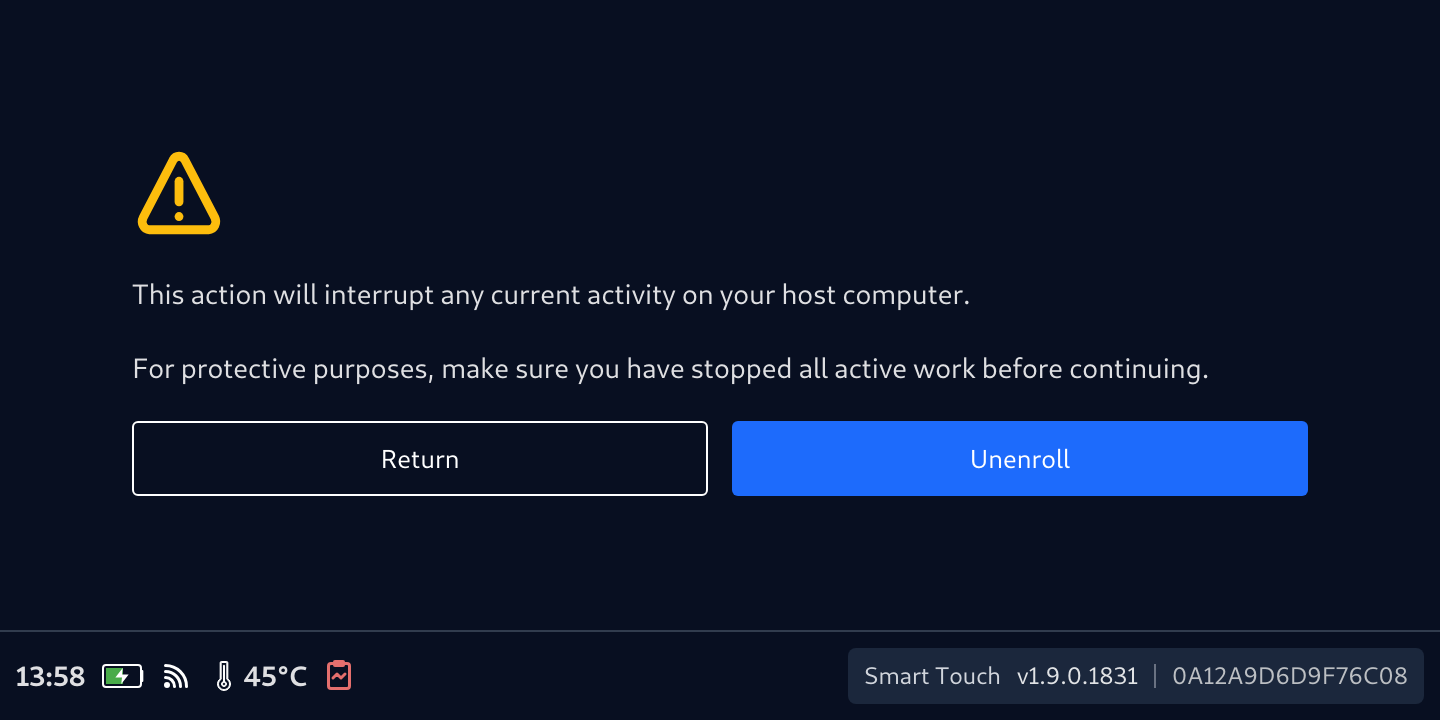
- Confirm that you want to Unenroll
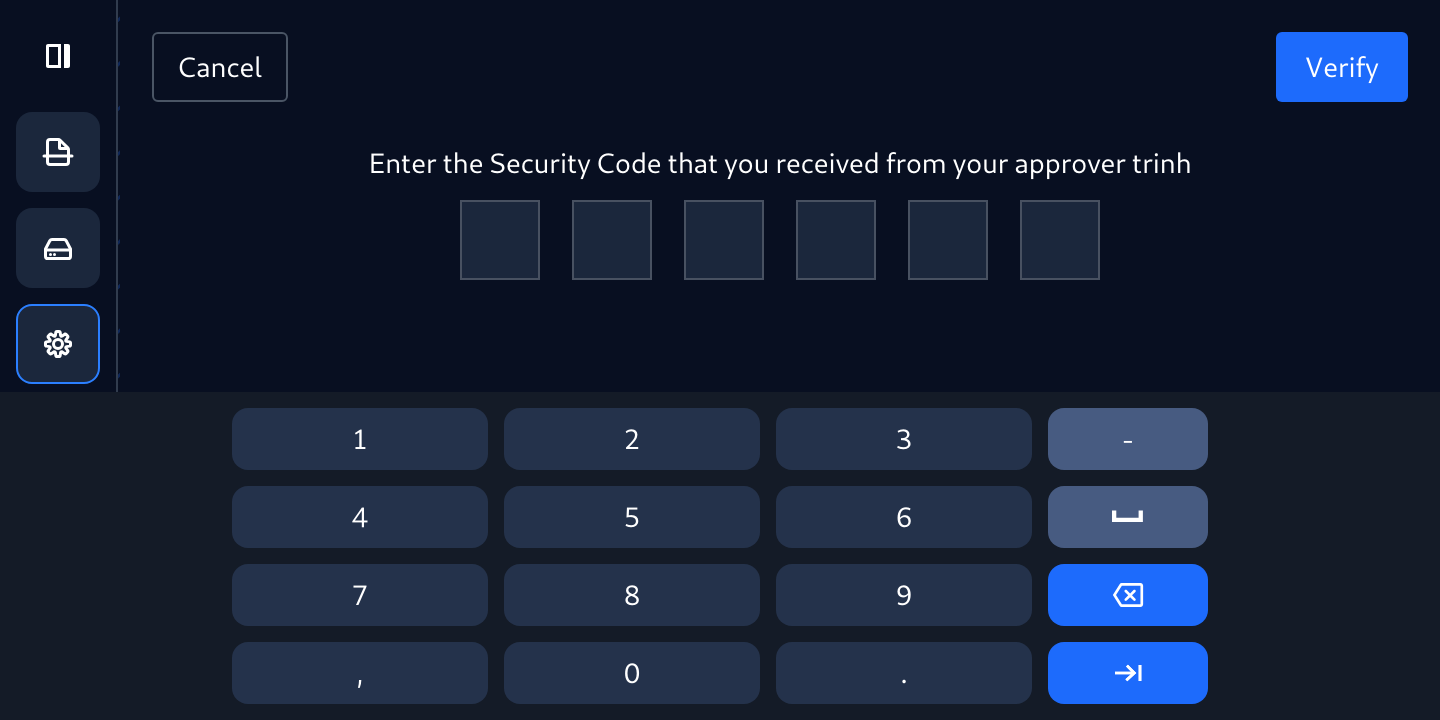
- Enter the OTP retrieve from the 2-Factor Authenticator then tap Verify
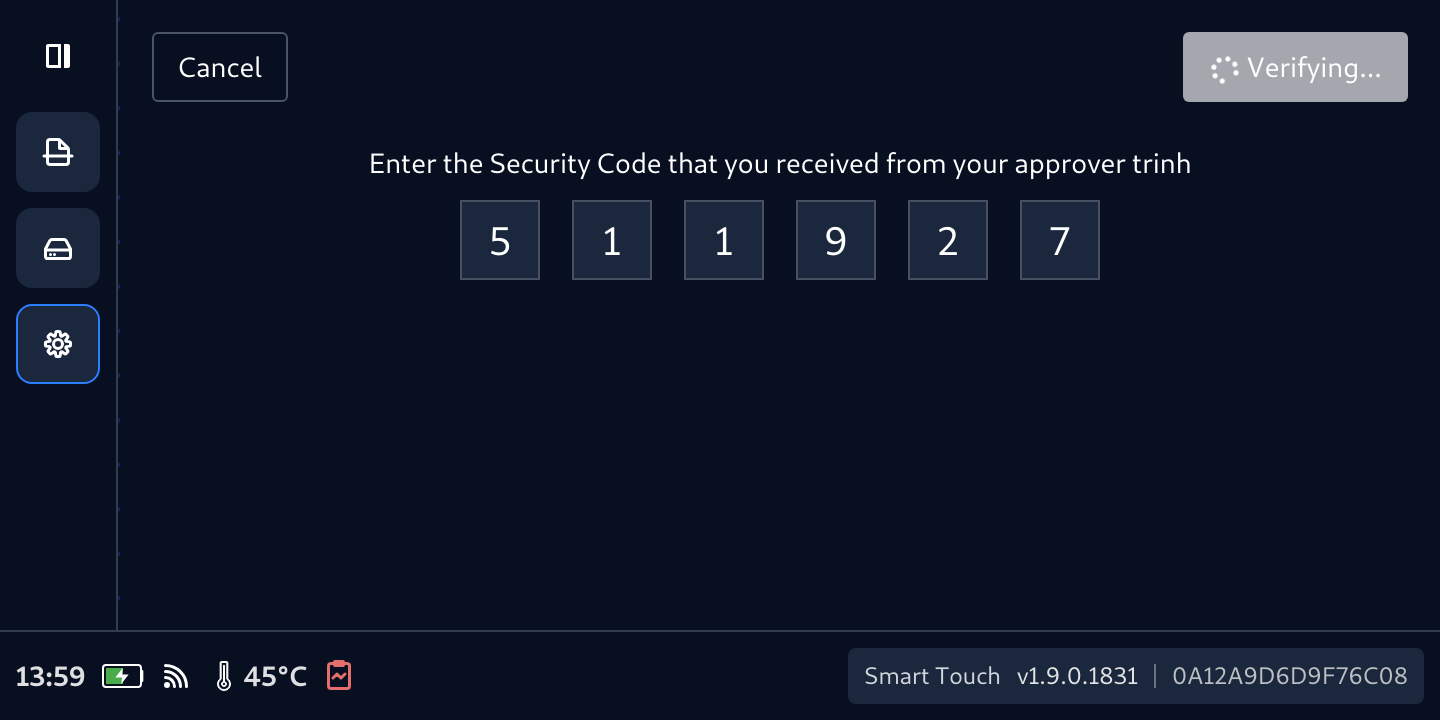
- Smart Touch will verify the entered OTP and will unenroll the device if the provided OTP is correct
Was this page helpful?