
Create OIDC directory in MDCore
Login to MDCore
At dashboard, hit
User Managementin sidebarUnder
User Managementpage, chooseDirectoriestab and hitAdd directoryon the top right
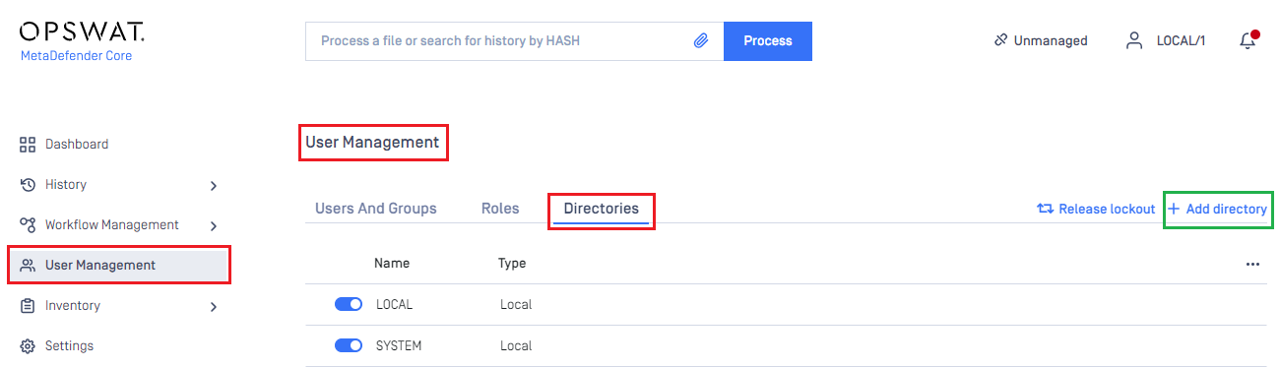
In
Add Directorypage, chooseOIDCinDirectory Type, fillNamefor the new directory, MDCore-OIDC for exampleFill
Host or IPwhere MDCore is hosting, https://127.0.0.1:8008 for this exampleCopy string generated under
Login URLand store to redirect_uri
__
Create and configure OIDC application on PingOne
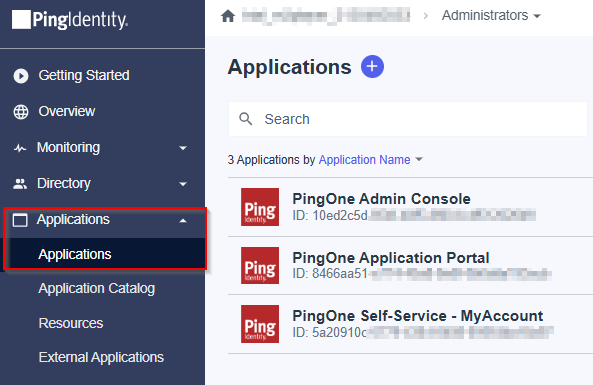
In the PingOne Overview page, navigate
Applicationson sidebar
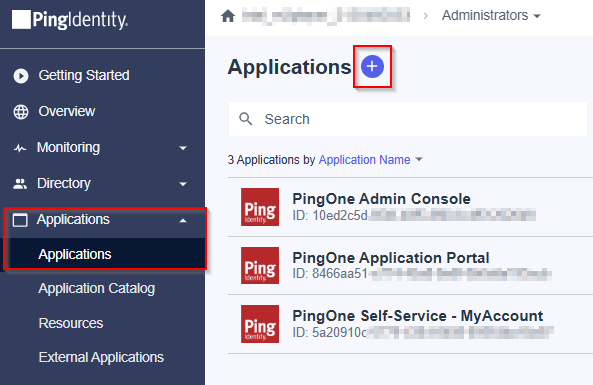
Hit on plus button to add new application
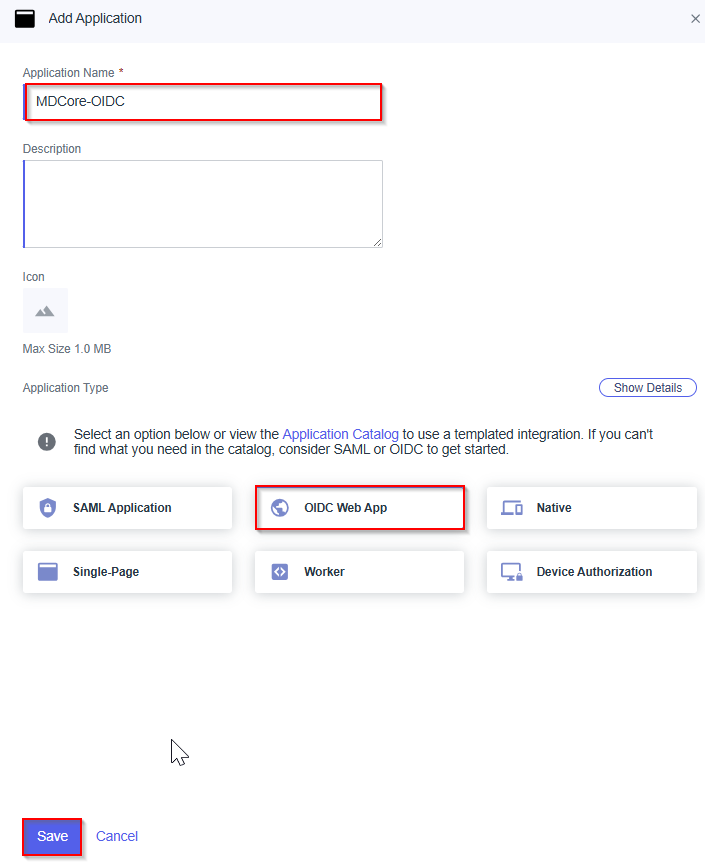
Fill application name, MDCore-OIDC for an example, choose
OIDC Web Appfor Application Type and hitSave
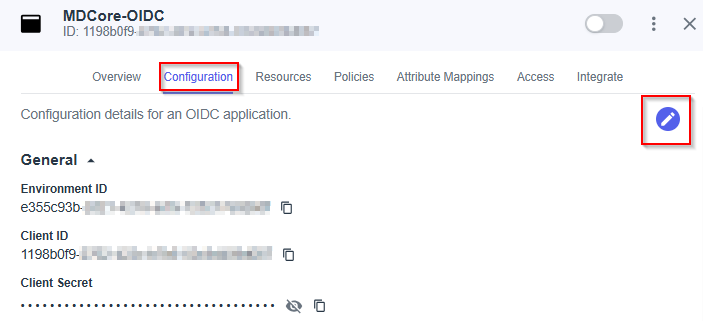
Select
Configurationtab, hit Edit button
In
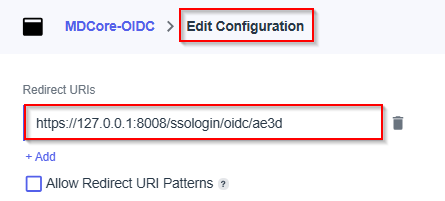
Edit Configurationpage, navigate toRedirect URIsand paste redirect_uri to the box below, then hitSave
In
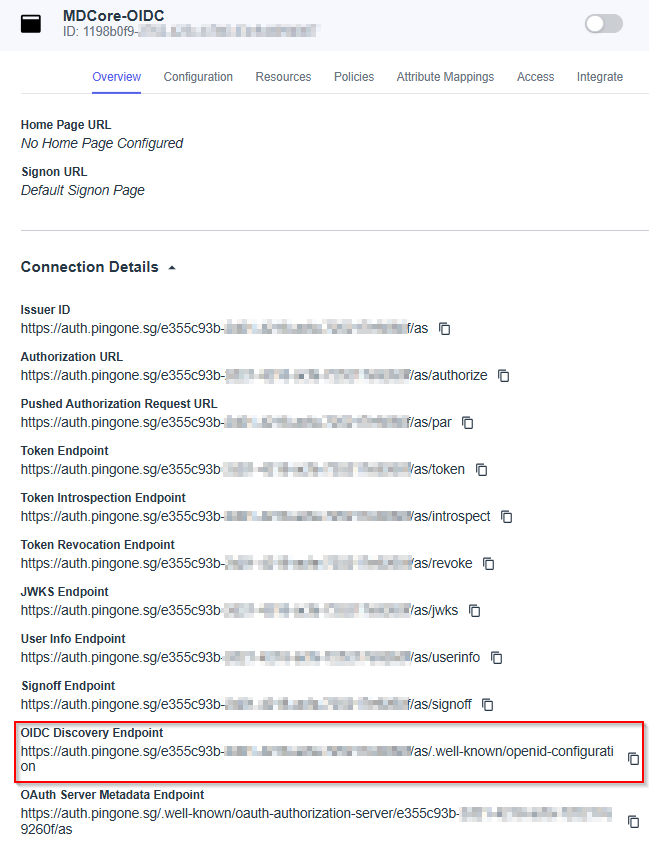
Overviewtab, navigate toOIDC Discovery Endpoint, copy the link below and store to metadata_url
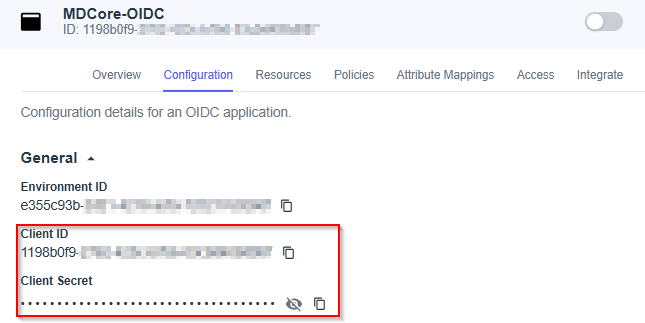
Select Configuration tab, expand General section, navigate to Client ID and Client Secret, copy and store them in client_id and client_secret.
Select Attribute Mappings tab and hit Edit button
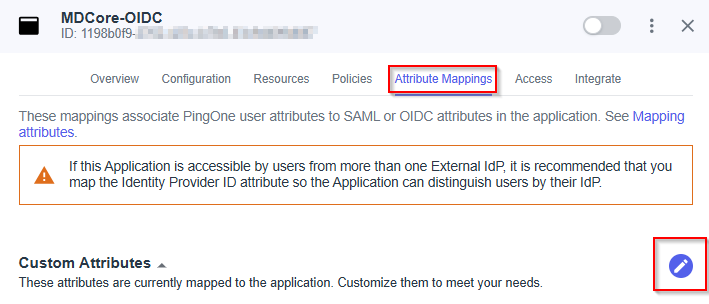
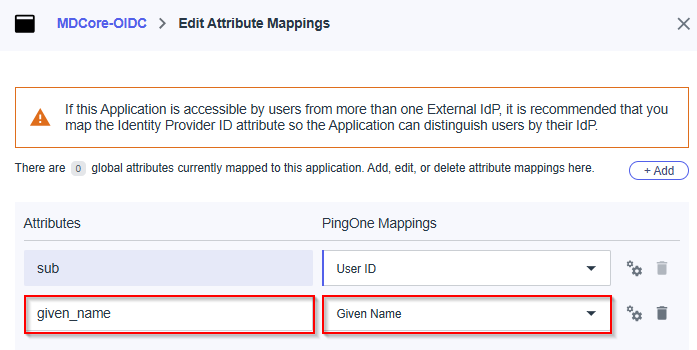
In Edit Attribute Mappings page, hit Add to add new mapping

In this step, we make a mapping from the key name used by MDCore and the name exported by PingOne. For example, we set given_name mapped to Given Name exported by PingOne. Later on, given_name is used by MDCore to identify the login user
Fill attribute name,
given_namein this example, select itemGiven Namein PingOne Mappings and hitSaveto complete
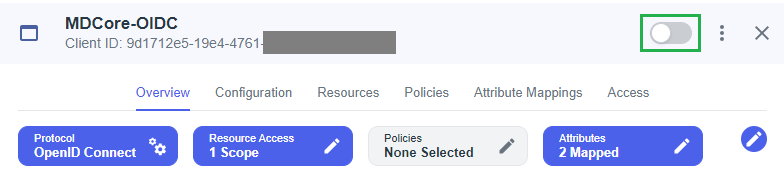
Enable the new application on PingOne
Complete configuration on MDCore
Switch back to MDCore, under Identity Provider, hit Fetch URL, paste metadata_url to the box under, and then hit OK, which requests MDCore to check and set PingOne as its IDP if succeed
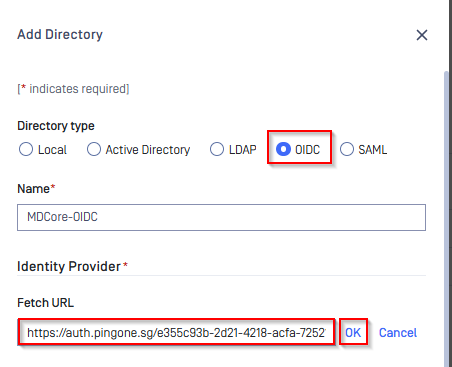
Under
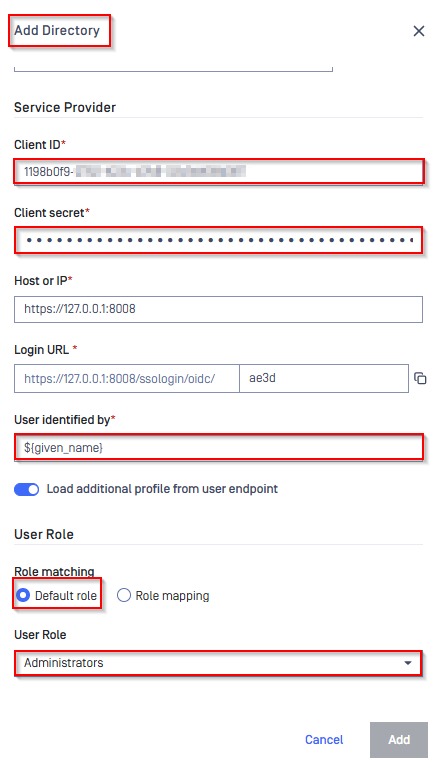
Service Provider, paste client_id and client_secret to boxes underClient IDandClient secretrespectivelyFill ${given_name} in the box under
User identified bySelect
Default roleoption, choose the role to assign to login user underUser Roleand hitAddto complete setting on MDCore
In
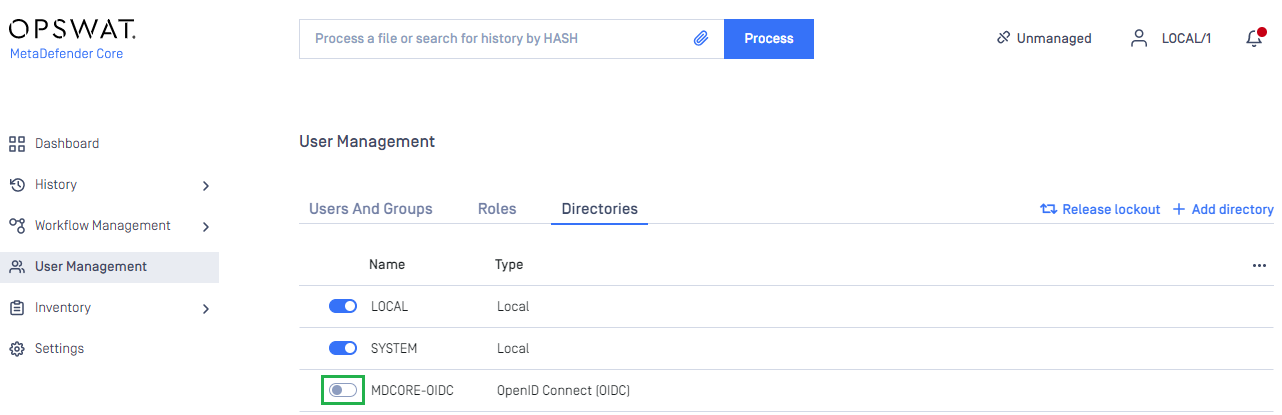
User Managementpage, toggle the new directory, MDCORE-OIDC in this example. A dialog box is shown to confirm the action. OnceEnableis hit, all sessions are expired immediately
Test the integration
In Home screen on MDCore, hit
Login, the user is redirected to login page from PingIdentity
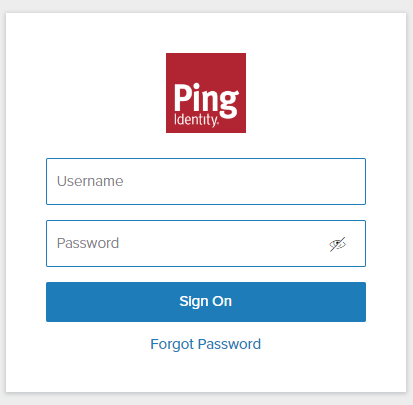
Login by the account registered to PingIdentity
If everything goes right, MDCore dashboard is shown with user identity set at the top right corner

Otherwise, access back login page at
<mdcore-host>#/public/backuploginfor trouble shooting.