
Introduction
Since 5.17.0, MetaDefender Core provides new API endpoints that accept individual requests with split-archive parts, use the Archive Extraction engine extract the archive from those parts, and then process the extracted files. These APIs are best suited for the following use cases:
If your network is stable and high‑bandwidth, split a large archive into multiple parts and use the new API endpoints to upload the parts in parallel, maximizing throughput.
If upload size limits apply, split the large archive file into smaller parts that meet those limits, then use the API to upload each part separately to MetaDefender Core.
If the network is unstable and an upload is interrupted, you can use the API to resume by reuploading only the missing split-archive parts instead of the entire file.
Considerations
Due to the nature of split-archives, only files extracted from the reassembled archive are processed; the combined archive file itself is not supported. Consequently, Quarantine and PostAction do not apply to the archive, only to its extracted files.
Compression and splitting of the compressed archive after processing all extracted files is not yet supported. However, if you need a sanitized archive, you can use this workaround:
Compress the archive twice (nested compression).
Enable “Allow extracted files to be sanitized when configured” (see Configurations).
Configure the relevant sanitization settings under the Deep CDR or Compression tabs.
Split-archive upload is only available for asynchronous scans. Local scan, and synchronous scan are not supported.
Split-archive upload is not applicable for MetaDefender Core installed in non-persistence mode.
Split-archive upload does not support
downloadfromheader.MetaDefender Core can resume uploading parts, but it cannot resume processing once a file has already been fully received.
Split-archive upload recovery does not apply to files uploaded via split-archive that are also linked to a batch.
Track rejected requests does not support split‑archive uploads
Prerequisite
This feature is only available when using MetaDefender Core version 5.17.0 with:
Archive Extraction Engine version 7.7.0
File Type Verification Engine version 7.7.0
Supported file types
These archive formats are eligible for split‑archive upload: ZIP, RAR, TAR, 7Z, XZ, GZ, WinZip, and split Clonezilla (partial support: Clonezilla with GZ compression only).
Configurations
Workflow configuration
To adjust the split-archive workflow configuration settings:
Sign in to the MetaDefender Core dashboard with an admin account.
Go to Workflow Management → Workflows.
Select the target workflow.
Open the Archive tab and locate the “Split archive uploading” section.
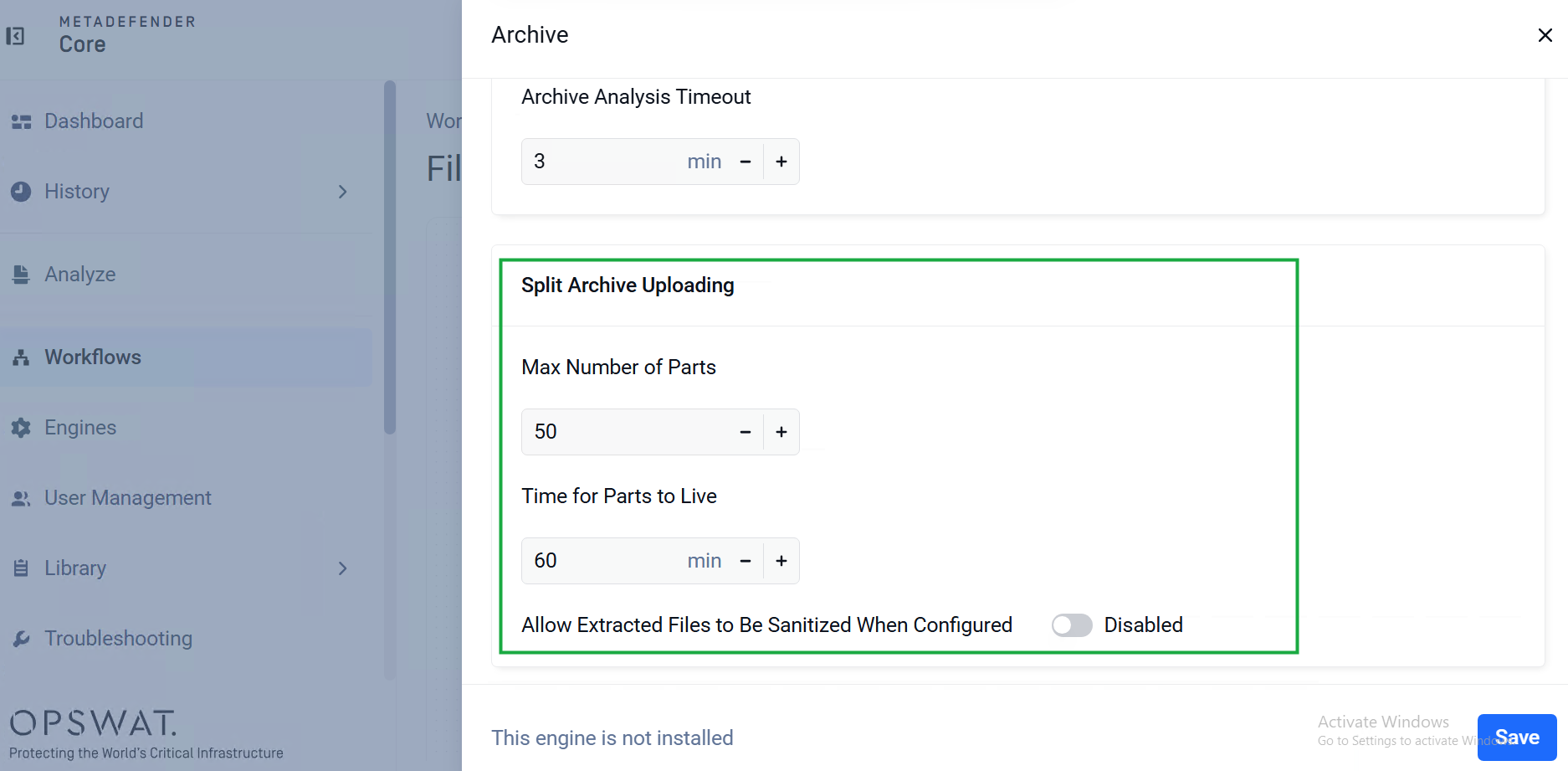
Max number of parts
By default, the maximum number of allowed parts is 50. You can tailor this limit to your needs.
If the submitted part count exceeds the configured limit, each POST /file/splitarchive/{data_id} request will return HTTP 400 Bad Request.
Time for parts to live
By default, a split-archive upload session remains open for 60 minutes after initiation. After this window, each POST /file/splitarchive/{data_id} call returns HTTP 409 Conflict.
Allow extracted files to be sanitized when configured
As noted in the Considerations section, compressing and then splitting the archive after all extracted files are processed is not yet supported. However, extracted files can still be sanitized. To enable this, turn on this option and configure the sanitization settings under the Deep CDR or Compression tabs so extracted files are sanitized.
Storage settings for submitted parts
By definition, MetaDefender Core stores files that are submitted by split-archive upload in <Install-directory>/data/splitarchiveon Windows and /var/lib/ometascan/splitarchive on Linux. You can modify the location to another according to your needs.
On Windows, run Registry Editor, navigate to
HKEY_LOCAL_MACHINE\SOFTWARE\OPSWAT\Metascan\global, add a new string namedsplitarchive, fill in the path to new location, and hit OK to complete. Restart MetaDefender Core to apply the new setting.
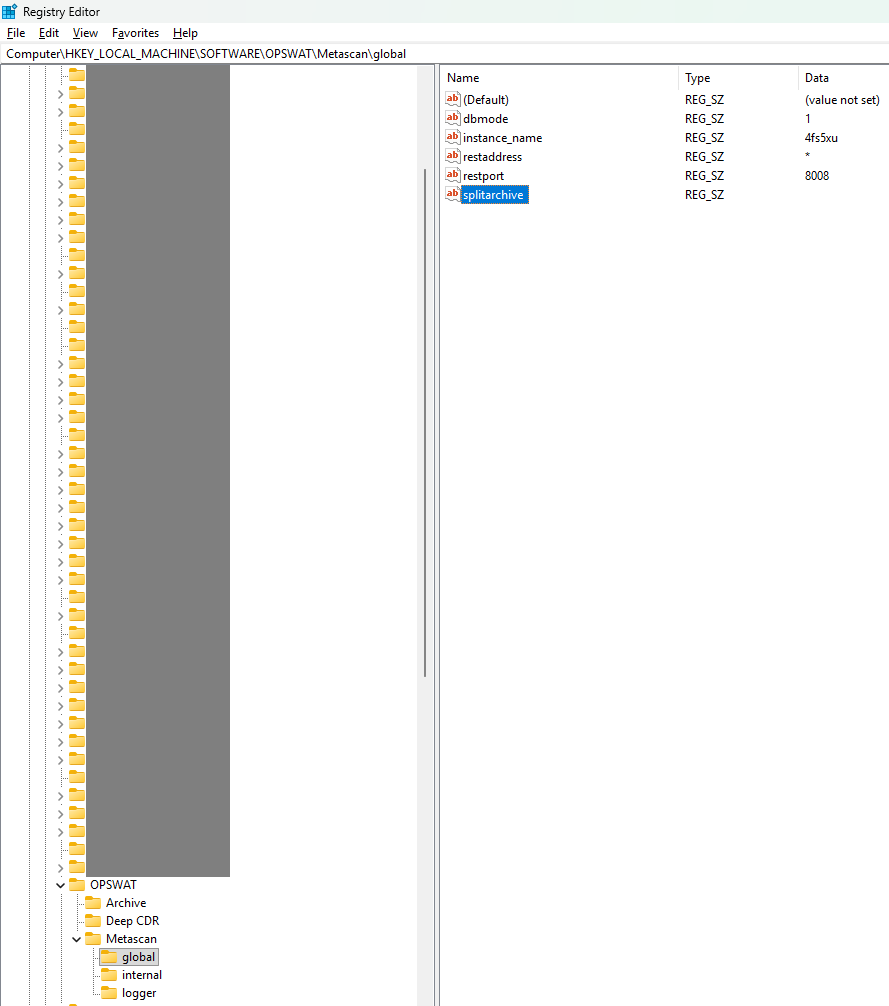
On Linux, open file
/etc/ometascan/ometascan.confin edit mode. Under[global]session, add a new item namedsplitarchive, fill in the path to new location, and save the file. Restart MetaDefender Core to apply the new setting.
Please ensure that MD Core has the necessary permission to access the files in the new folder.
How to use
This feature composes a set of following API endpoints:
Functionality | API |
|---|---|
Initiate split-archive upload session | POST |
Upload individual part to split-archive upload session | POST |
Fetch status of split-archive upload session | GET |
Abort split-archive upload session | DELETE |
Please see the API documentation for detailed usage, parameters, and examples: POST - Create split archive upload session
You can use the new APIs in your applications in three steps:
Split the archive file for scanning into multiple parts on your end.
Initiate a new split-archive upload session in MetaDefender Core.
Upload the parts into the created split-archive upload session in MetaDefender Core.
Step 1:
Use an archive-splitting tool to divide the archive into multiple parts sized to your constraints (e.g., API upload limits, network bandwidth) before uploading.
Step 2: Create a split-archive upload session
Send a POST request to
/file/splitarchiveto initialize a new upload session.Request body: none.
Optional header: total-length (bytes), indicating the full size of the original archive.
If total-length is not provided, MetaDefender Core will automatically sum the sizes of all uploaded parts to validate against configuration limits.
If successful, the response is HTTP 200 OK with a data_id. Persist this data_id and use it for subsequent operations: upload parts to the session, check upload status, abort the session, and query scan status.
Final step: Upload all parts
Send multiple POST requests to
/file/splitarchive/{data_id}, one per part from the original archive.Use the
data_idreturned in Step 1.Each request includes a single part in the body and appropriate headers (e.g., part index, size).
Continue until all parts are uploaded, then finalize per API guidance.
APIPOST/file/splitarchive/{data_id} can only accept requests whose content-type header is set to application/octet-stream ; otherwise, the request body is ill-formatted and resulting in error HTTP 400 BAD REQUEST .
When all parts are uploaded, MetaDefender Core automatically forwards them to the Archive Extraction engine to reconstruct, extract, and begin processing the extracted files using the selected workflow. You can monitor progress and fetch results via GET /file/{dataid}, or cancel processing with POST /file/{data_id}/cancel
If the network fails during a part upload, resend only the interrupted part via POST /file/splitarchive/{data_id}. Use the same approach if your application crashes mid-upload or if MetaDefender Core is temporarily unavailable due to upgrades or maintenance.
With split parts, you can upload sequentially, in parallel batches, or all at once—choose based on your available bandwidth. Additionally, aside from the first and last parts, a part’s content range may overlap with adjacent parts without causing issues for MetaDefender Core.
At any time, you can check upload status via GET /file/splitarchive/{data``id} or abort all part uploads with DELETE /file/splitarchive/{data_id}. Upon abort, MetaDefender Core stops in‑flight part uploads and returns HTTP 422 Unprocessable Entity. The multipart session is set to CANCELED, and all session resources are released.
Split archive upload and other facilities
Once all parts have been fully uploaded to MetaDefender Core, you can cancel processing via POST /file/{data_id}/cancel.
Don’t confuse the two endpoints:
DELETE
/file/splitarchive/{data_id}: aborts part uploads while the file is still being uploaded.POST
/file/{data_id}/cancel: cancels processing after the full file has been received and processing has
The POST /file/splitarchive API supports the callbackurl header, which specifies an external endpoint that MetaDefender Core will call with the analysis result once processing completes.
A file uploaded in multiple parts can be linked to a batch. Include the batchid in the batch header of each POST /file/splitarchiverequest to MetaDefender Core. A 200 OK response with a data id indicates the file was successfully linked. The batch cannot be closed until all linked files have been fully uploaded.
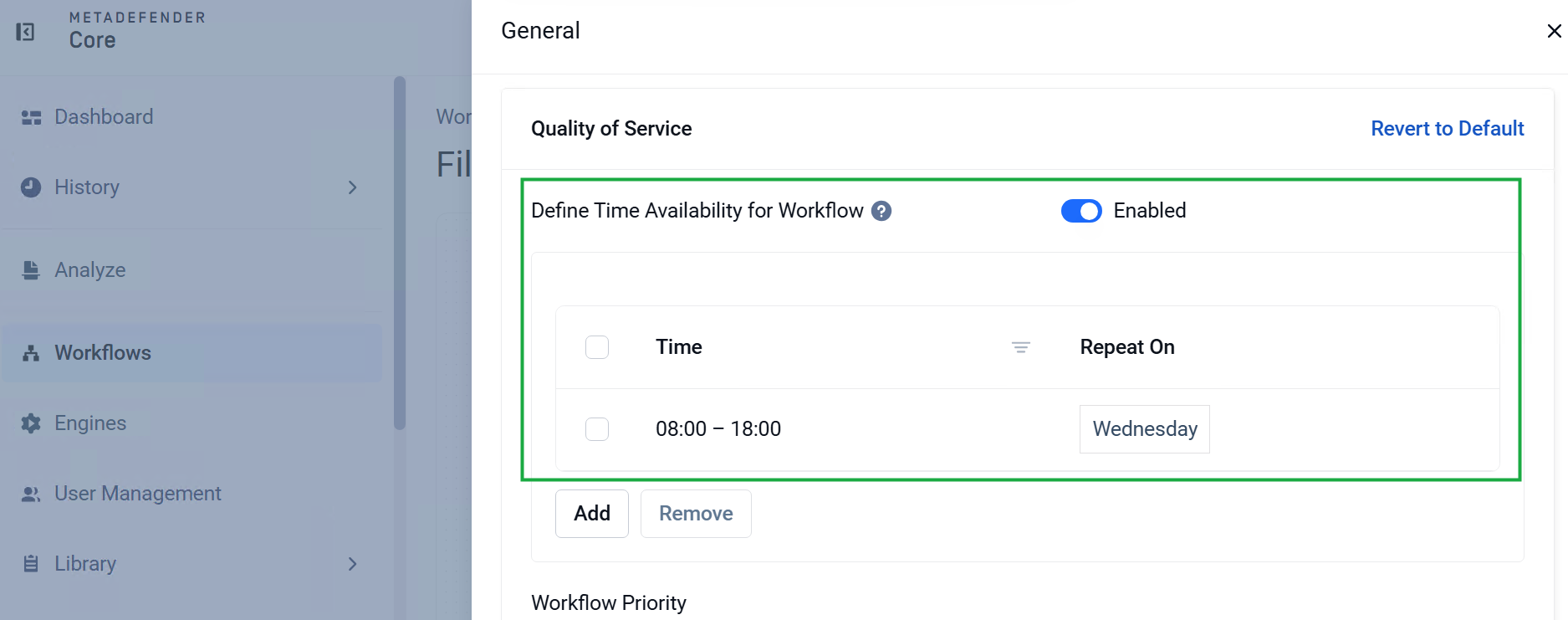
The Time Availability feature under Quality of Service applies to split-archive uploads. If the upload session is initiated within the allowed time window, the session remains valid for parts uploaded later—even outside that window—provided they are uploaded within the configured “Time for parts to live.”
Multipart upload and load balancing
In many deployment scenarios, a number of MetaDefender Core instances are placed behind a load balancer to share the workload. Split-archive upload can also be utilized in these scenarios. For this feature to function correctly, a load balancer sticky session must be used in your application to ensure that all parts of a file are uploaded to the same session which is owned by one of the instances behind the load balancer. You can read more about sticky session for load balancing here.
From your application’s perspective, follow these steps:
Send POST
/file/splitarchiveto the load balancer without cookies.Capture and persist the cookies and
data_idreturned by the load balancer.For each part upload, send POST
/file/splitarchive/{data_id}and include the cookies from step 2.