
MetaDefender Core licenses can be added to this section. The system administrator can add multiple licenses but only one license can be used to activate MetaDefender Core.
Adding a License
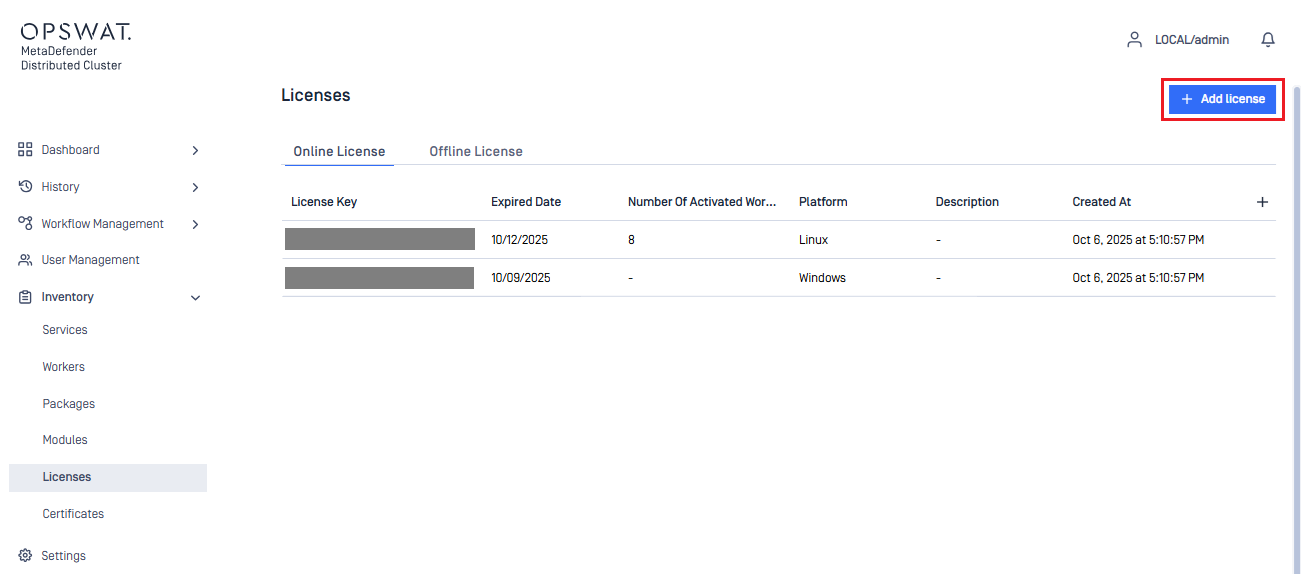
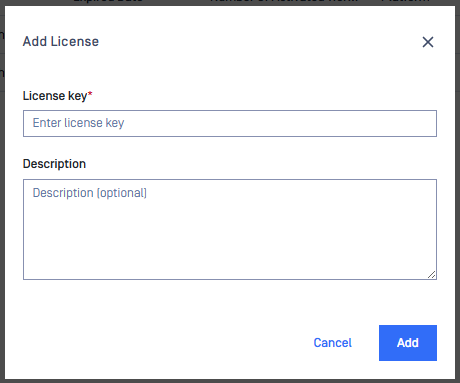
To add your license, simply select Add License and enter the license key then select Add.
Online activation
MD Cluster Control Center will connect directly to the OPSWAT licensing server if connected to the internet.
MD Cluster Control Center will need access to the following host for license activation:
- https://activation.dl.opswat.com Note: IP address-based whitelisting on your firewall might fail after some time since OPSWAT uses CDN (Content Delivery Network) to faster delivery updates over the world, and IP address of edge servers might change over time.
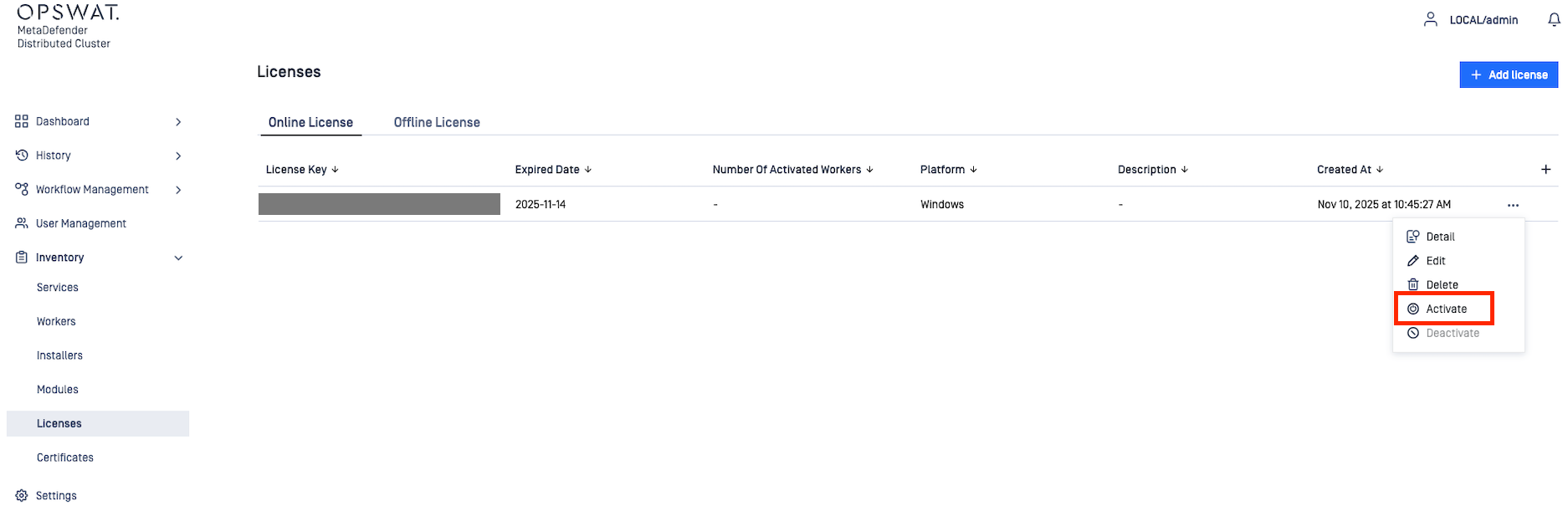
To activate the MetaDefender Core instances simply select the three dots to the right of the license and select Activate.
Offline activation
With no internet connection on MD Cluster Control Center, MetaDefender Core instances can be activated indirectly from a different machine that has internet connection. The system administrator must obtain all DeploymentID's of the MetaDefender Cores and then activate each DeploymentID separately to obtain their license file from My OPSWAT.
Once the system administrator obtains all the license files. Simply activate the MetaDefender Core instances on MD Cluster Control Center.
Follow the steps below to activate MetaDefender Core:
- Select a list of Deployment ID to activate then select
Export. This will allow you to download a text file containing all the DeploymentID's that were selected.
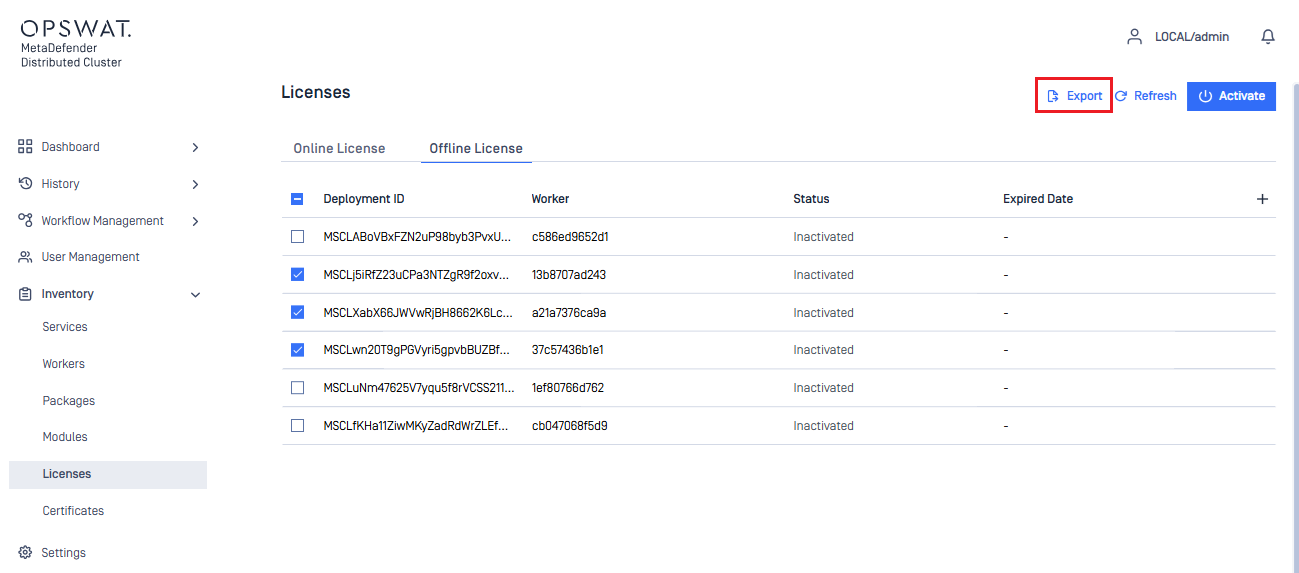
- Open the exported file to reveal all the selected DeploymentID.
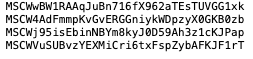
- Sign in to My OPSWAT and then head to
License Management->Activate Licenseand for each DeploymentID, clickActivateand download the license files.
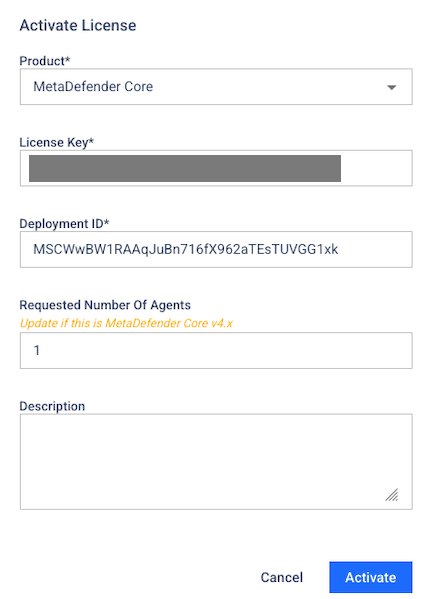
- Once all the license files are obtained. Head back to MD Cluster Control Center ->
Inventory->Licenses->Offline Licenses. ClickActivateto upload activation files to activate.
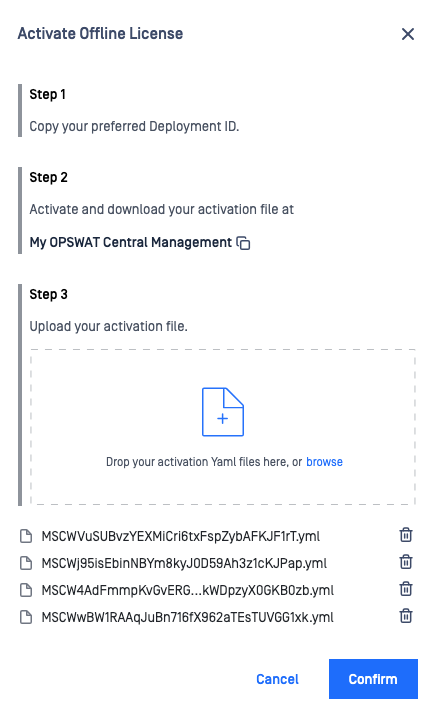
- By clicking
Confirm, MD Cluster Control Center will verify the validity of the activation files and start activating MetaDefender Core accordingly.
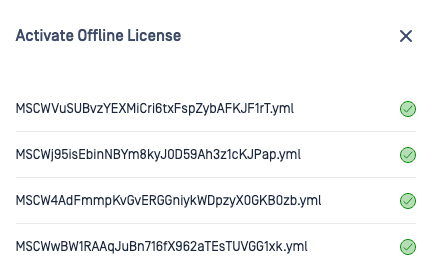
License Management Server activation
Using this licensing model, the License Management Server will act as a dedicated server that manages all license operations for MetaDefender Core. It is deisgned for organizations that prefer or required on-prem or cloud based solutions.
The License Management Server will handle the full license lifecycle - from activation to deactivation, renewal.
Follow the steps below to connect and activate with License Management Server:
- Sign in to MetaDefender Cluster Control Center console.
- Go to
Inventory>Licensesand select License Management Server tab. - Select
Activateand provide the necessary information in the required fields:- Host URL: The URL of the License Management Server to connect to.
- REST Port: The port of the License Management Server.
- Token: Access token obtained from the License Management Server.
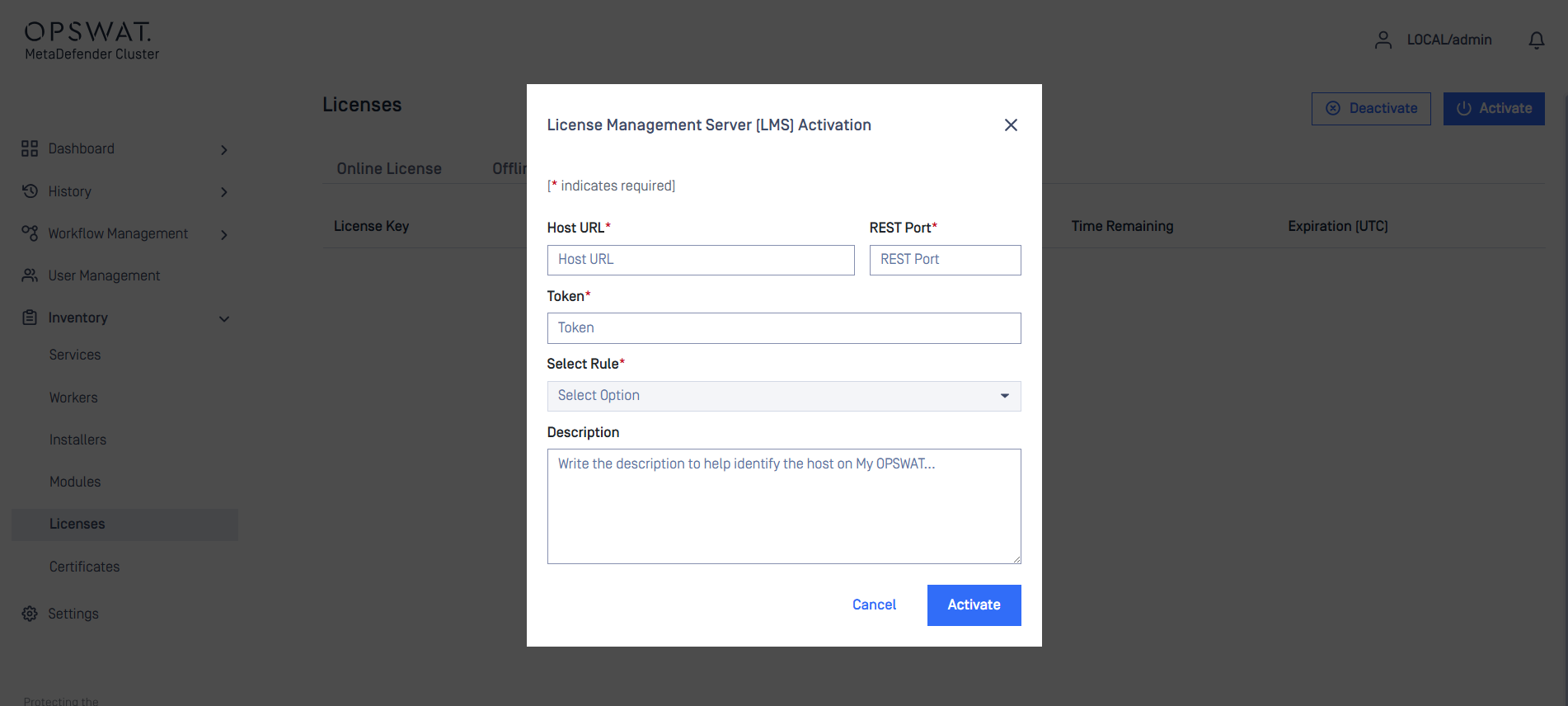
- After input all required fields, the connection to LMS will be established and available rules can be selected under
Select Rules.

The port number defined in "Maintain socket connectivity with LMS through port <port_number>" is required to sustain connectivity between the Control Center and License Management Server. In order for successfully activation, confirm that the port is properly configured and allowed in firewall setting.
- Select the appropriate rule and choose Activate. Upon successful completion, the license details will be shown.
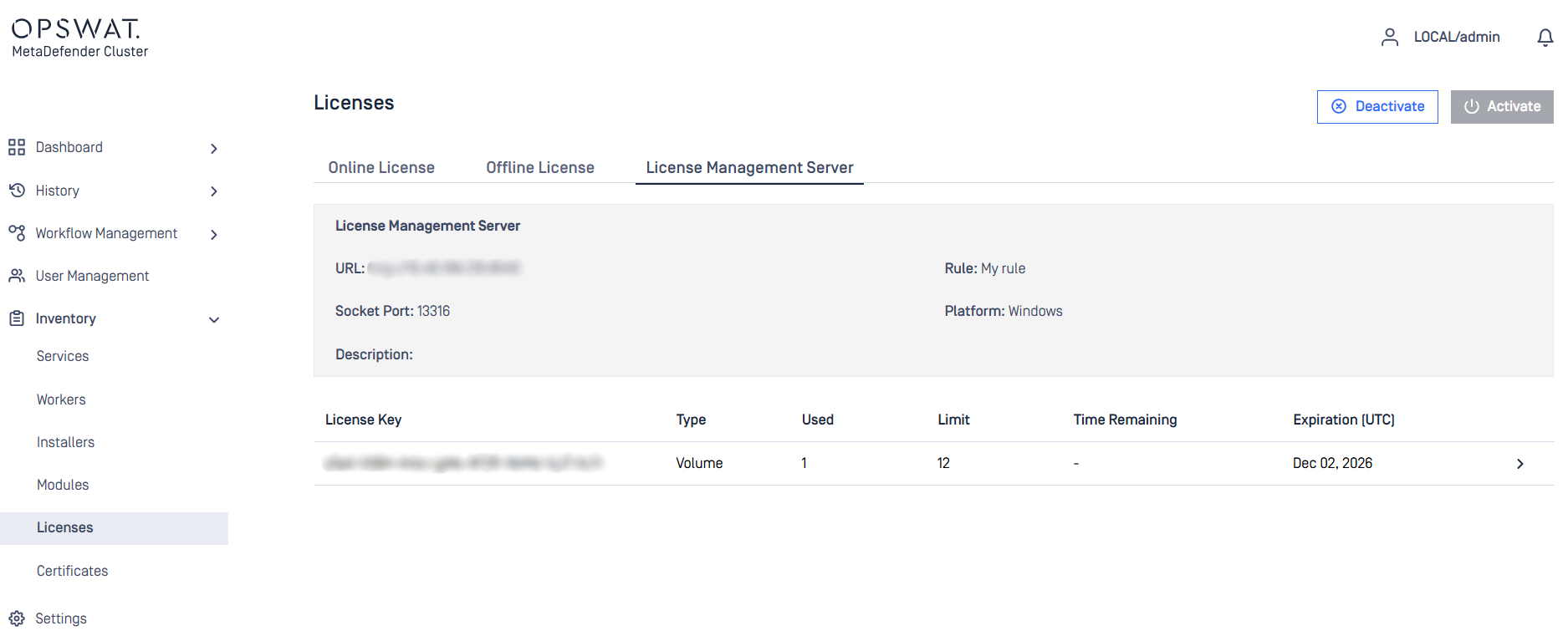
Once activation is successful, the License Management Server will manage the license status of all MetaDefender Core instances. Please ensure sufficient quota is available.
- Check instance status under
Inventory>Workersand confirm all MetaDefender Core instances is activated successfully.

