
Upgrading MetaDefender Cluster (MD Cluster) requires careful planning because not all services affect the system in the same way.
Some components can be upgraded while file scanning continues normally, while others are critical infrastructure services that affect authentication, queue management, metadata handling, and file availability across the entire cluster.
To reduce operational risk, the upgrade procedure is divided into two stages:
Stage | Description | Downtime Impact |
|---|---|---|
Live Upgrade | Upgrades application-level services while the cluster continues processing files | Minimal or no disruption |
Critical Service Upgrade | Upgrades shared infrastructure services that the cluster depends on | Maintenance window required |
Before You Begin
Before starting the upgrade:
Verify backups are available for:
PostgreSQL
MD Cluster File Storage
Confirm all cluster nodes are healthy
Review available disk space and system resources
Notify users about potential service interruptions
Schedule a maintenance window for Stage 2 upgrades
For production deployments, OPSWAT strongly recommends validating the upgrade procedure in a staging environment first.
Why the Upgrade Is Split Into Two Stages
MD Cluster includes both application services and shared infrastructure services. Application services can typically be upgraded with minimal impact to running scans. Critical infrastructure services are different.
Services such as:
PostgreSQL
Redis
File Storage
Identity Service
are shared dependencies used throughout the cluster. These services support:
Authentication and authorization
Queue coordination
Metadata storage
Workflow synchronization
File access and retrieval
Internal service communication
Because these components affect the entire cluster, they require additional care and should only be upgraded during a planned maintenance window.
Stage 1 — Live Upgrade
This stage upgrades services that can be updated while file scanning continues.
Although some management functionality may be temporarily unavailable, active file processing is not interrupted.
Services included:
MD Cluster Identity Service
MD Cluster Control Center
MD Cluster Worker
MD Core
MD Cluster API Gateway
MD Cluster Callback Service
1. Upgrade MD Cluster Identity Service
The MD Cluster Identity Service controls authentication and API authorization throughout the cluster.
Expected Impact:
API authentication becomes temporarily unavailable.
New authenticated requests cannot be submitted.
Existing running scans continue processing.
Upgrade Procedure:
Download the MD Cluster Identity Service installer package from My OPSWAT.
Run the appropriate command for your operating system.
Verify the service status.
2. Upgrade MD Cluster Control Center
The MD Cluster Control Center upgrade only affects the management interface.
Expected Impact:
The web console may be temporarily unavailable.
File scanning and processing continue normally.
Upgrade Procedure:
Download the MD Cluster Control Center installer package from My OPSWAT.
Run the appropriate command for your operating system.
Verify the service status.
3. Upgrade MD Cluster Worker
MD Cluster Worker can be upgraded without interrupting active file scans.
Expected Impact:
The following worker-related features may be temporarily unavailable during the upgrade:
System Health
System Activity
Workflow Synchronization
Support Package generation
Automated deployment operations
Upgrade Procedure:
Sign in to MD Cluster Control Center console using your administrator account.
Go to
Inventory>Workers.In the notification banner, click
Upgrade Now, then confirm the upgrade action.Monitor the upgrade progress and verify that all Workers are running the same latest version.
See Upgrade Workers for more details.
4. Upgrade Execution Instances
This step includes upgrading:
MD Core
MD Cluster API Gateway
MD Cluster Callback Service
Expected Impact:
MD Core instances can be upgraded gradually using a rolling upgrade.
Single-instance MD Cluster API Gateway or Callback Service deployments may experience a brief interruption.
Upgrade Procedure:
Download the MD Core, MD Cluster API Gateway or MD Cluster Callback Service installer packages from My OPSWAT.
Sign in to the Control Center console using your administrator account.
Navigate to
Inventory>Installers.Click
Upload Packageand upload the installer packages. For detailed upload instructions, see here.Go to
Inventory>Workers.Expand
Deploy Workersand selectUpgrade.Select the appropriate version of MD Core or MD Cluster API Gateway or MD Cluster Callback Service, then click
Upgradeto start the process. See Upgrade Instances for more information.
Stage 2 — Critical Infrastructure Upgrade
This stage upgrades services that the entire cluster depends on.
These services must be upgraded carefully because interruptions can affect cluster-wide functionality, including authentication, queue processing, metadata operations, and file availability.
A maintenance window is required before continuing.
The following services are considered critical infrastructure components within MD Cluster:
Service | Purpose |
|---|---|
PostgreSQL | Stores cluster configuration, operational state, processing result and executive data |
RabbitMQ | Coordinate tasks between components |
Redis | Handles caching, and internal coordination |
MD Cluster File Storage | Stores files, scan artifacts, and deployment packages |
Before Upgrading
We recommend completing the following checks before proceeding:
Stop submitting new scan requests
Allow all in-progress scans to complete
Confirm the cluster is idle
Ensure PostgreSQL, RabbitMQ, Redis, and MD Cluster File Storage are healthy before proceeding
Interrupting critical infrastructure services while scans are still processing may lead to failed requests, incomplete workflows, temporary data inconsistency, or service interruptions across the cluster.
1. Verify That Processing Has Completed
Before starting Stage 2:
Log in to the Control Center web console.
Navigate to
Dashboard>Processing History.Filter requests by In-Progress.
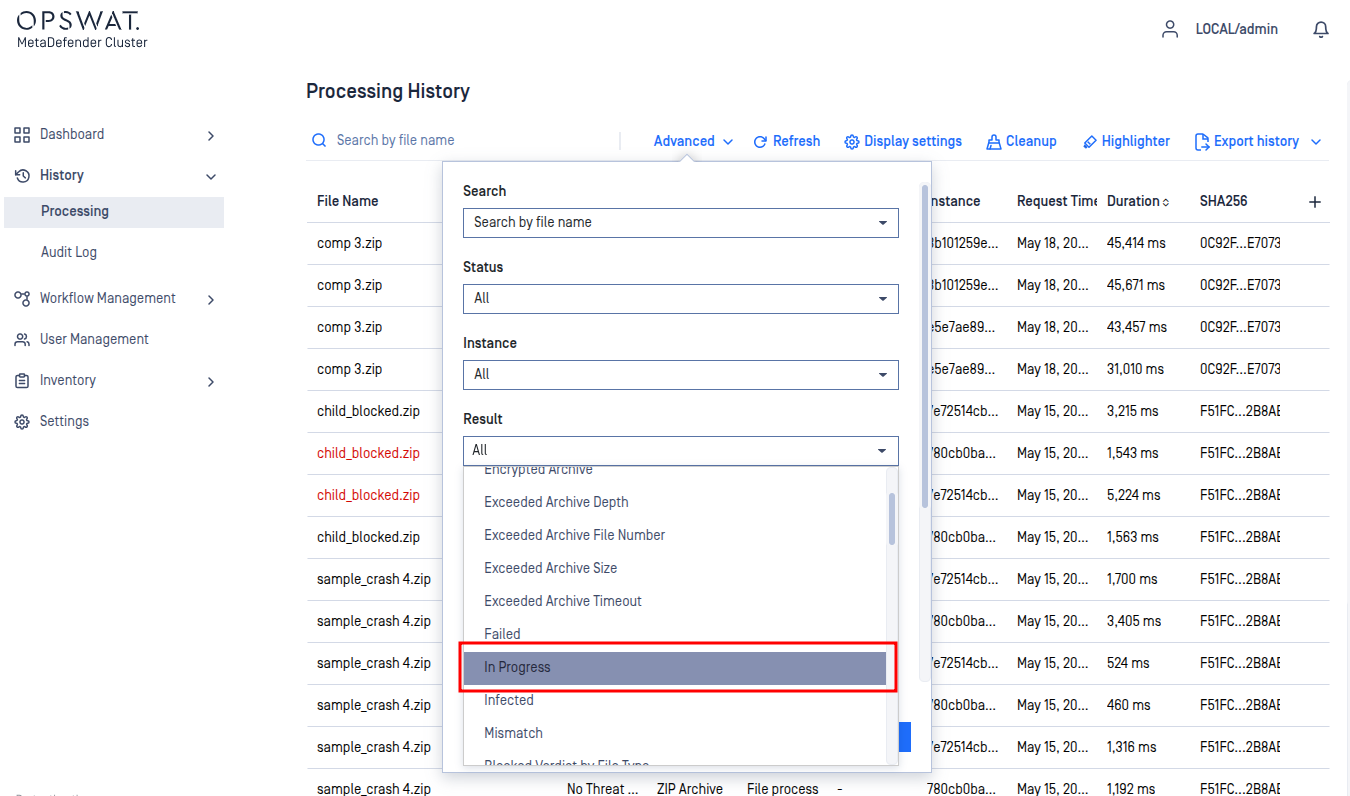
Wait until all requests are completed.
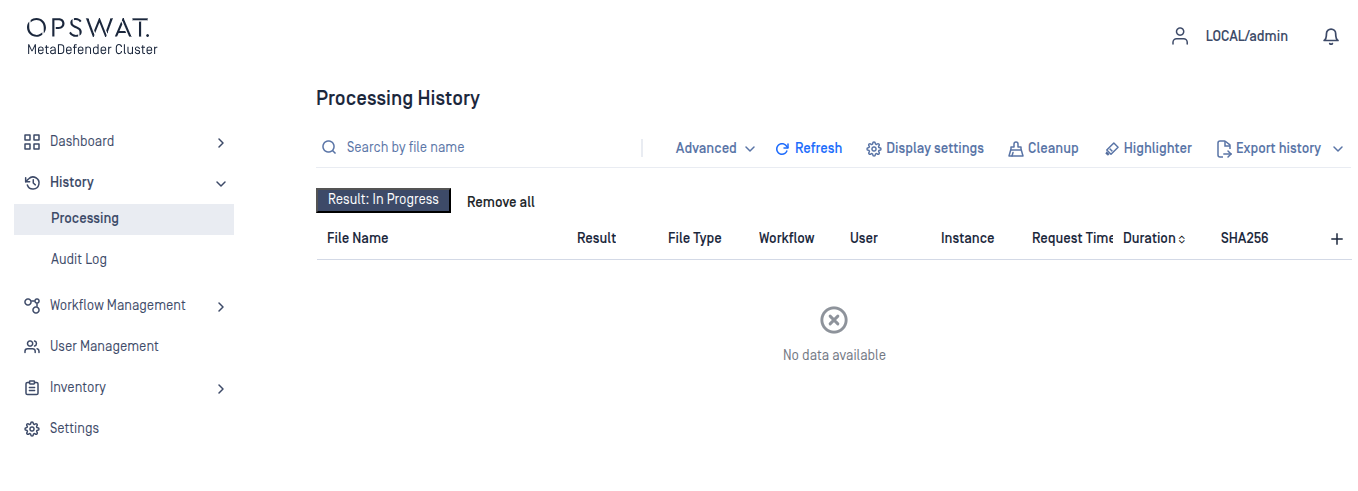
Only continue after the cluster is no longer processing files.
2. Upgrade MD Cluster File Storage
MD Cluster File Storage is one of the most critical services in MD Cluster.
Most cluster operations depend on MD Cluster File Storage, including:
File scanning
File retrieval
Module distribution
Instance deployment
Because of this dependency, MD Cluster File Storage should always be upgraded last.
Expected Impact
File processing may become temporarily unavailable
Scan operations may pause
Internal services depending on shared storage may be interrupted
Upgrade Procedure
Download the MD Cluster File Storage installer package from My OPSWAT.
Run the appropriate command for your operating system.
Verify the service status.
3. Upgrade Lake and Warehouse
On the machine hosting MD Cluster Control Center, navigate to the folder:
Run the following command to upgrade Data Lake:
Run the following command to upgrade Data Warehouse:
If the Data Lake and Data Warehouse are hosted on the same PostgreSQL instance, a combined setup command can be used:
md-cluster-dbready --host=<postgres-host> --port=<postgres-port> --user=<postgres-user> --password=<postgres-password> --target=lake,warehouse
After the Upgrade
After completing all upgrade stages:
Verify all services are healthy
Confirm workers reconnect successfully
Run test scan requests
Validate API accessibility
Review cluster logs for warnings or migration failures
Best Practices
Perform upgrades during low-traffic periods
Always back up PostgreSQL, Redis, RabbitMQ and MD Cluster File Storage before maintenance
Avoid leaving the cluster in a mixed-version state
Upgrade critical infrastructure services carefully and sequentially
Monitor cluster health throughout the upgrade process
Critical infrastructure services are foundational to cluster stability. Careful planning and controlled upgrades help prevent extended outages and operational inconsistencies.