
PostgreSQL version 16.9 or higher is required.
Prerequisites
Before installing the PostgreSQL service, ensure the following requirements are met.
Requirement | Description |
|---|---|
Operating System | Windows 11 23H2+, or Windows Server 2019+. |
Privileges | Administrator privileges. |
Installation package |
|
Hardware | Minimum 8 vCPU and 16 GB RAM. |
Disk space | At least 1 TB of available storage on SSD or NVMe for optimal performance. Approximately 4 GB of storage is required per 1 million scanned objects for a deployment with 5 MD Core instances running 8 AV engines each. |
Network access | Required port is open (default port: 5432). A minimum network bandwidth of 1 Gbps is required. A bandwidth of 5 Gbps or higher is strongly recommended for production deployments. |
Install PostgreSQL
Go to Download PostgreSQL page.
Choose and download the Windows x86-64 version.
Once the download is complete, run the installer.
When prompted, keep the default installation directory.
Choose the default components to install.
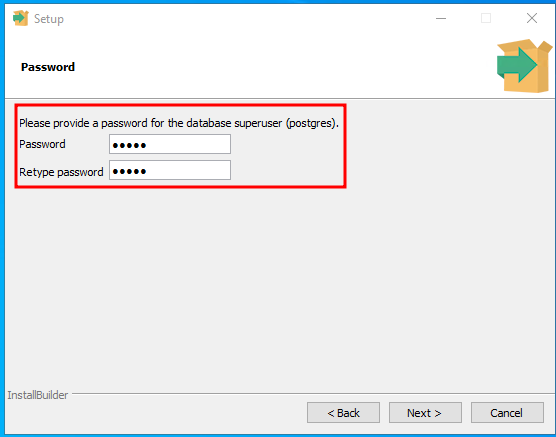
Set a password for the
postgresuser. Make sure to save this password for later use.
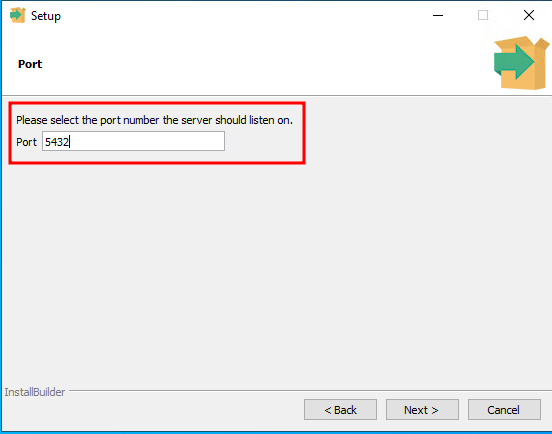
Select the port. Default is 5432.
Choose the default locale for the new database cluster.
Complete the installation process.
Open connection
Locate the PostgreSQL data directory on your server.
To allow remote connections, open the postgresql.conf file and configure the following setting:
To allow MetaDefender Cluster services to access the database, open the pg_hba.conf file and add the following rule.
Restart the PostgreSQL service to apply the changes.