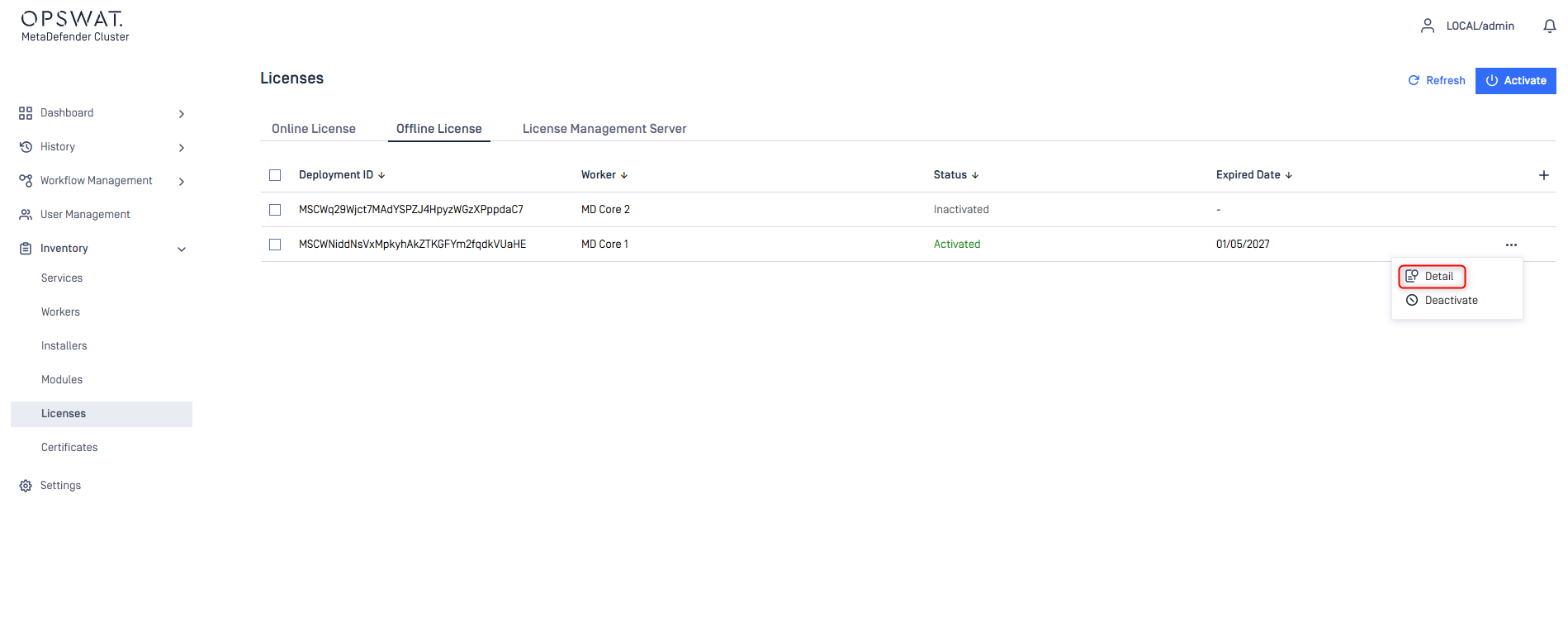
Collect Deployment IDs
Sign in to MetaDefender Cluster (MD Cluster) Control Center console.
Go to
Inventory>Licensesand selectOffline Licensetab.Select Deployment IDs of MetaDefender Core instances you prefer to activate.
Press
Exportat the top right corner and save the exported file to your location of choice.
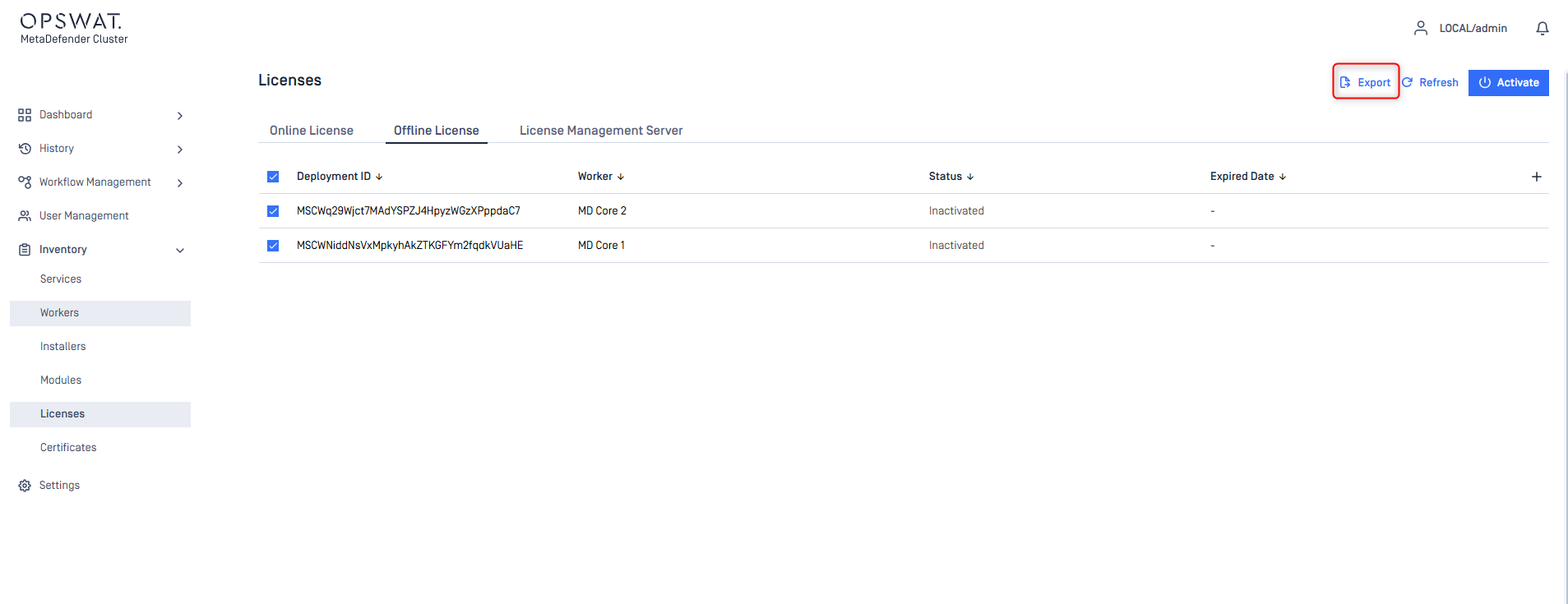
MetaDefender Cluster Control Center only displays the Deployment IDs of MetaDefender Core instances that have not been activated thus far.
The exported file includes a list of chosen Deployment IDs that will be used for activation in the subsequent stage.
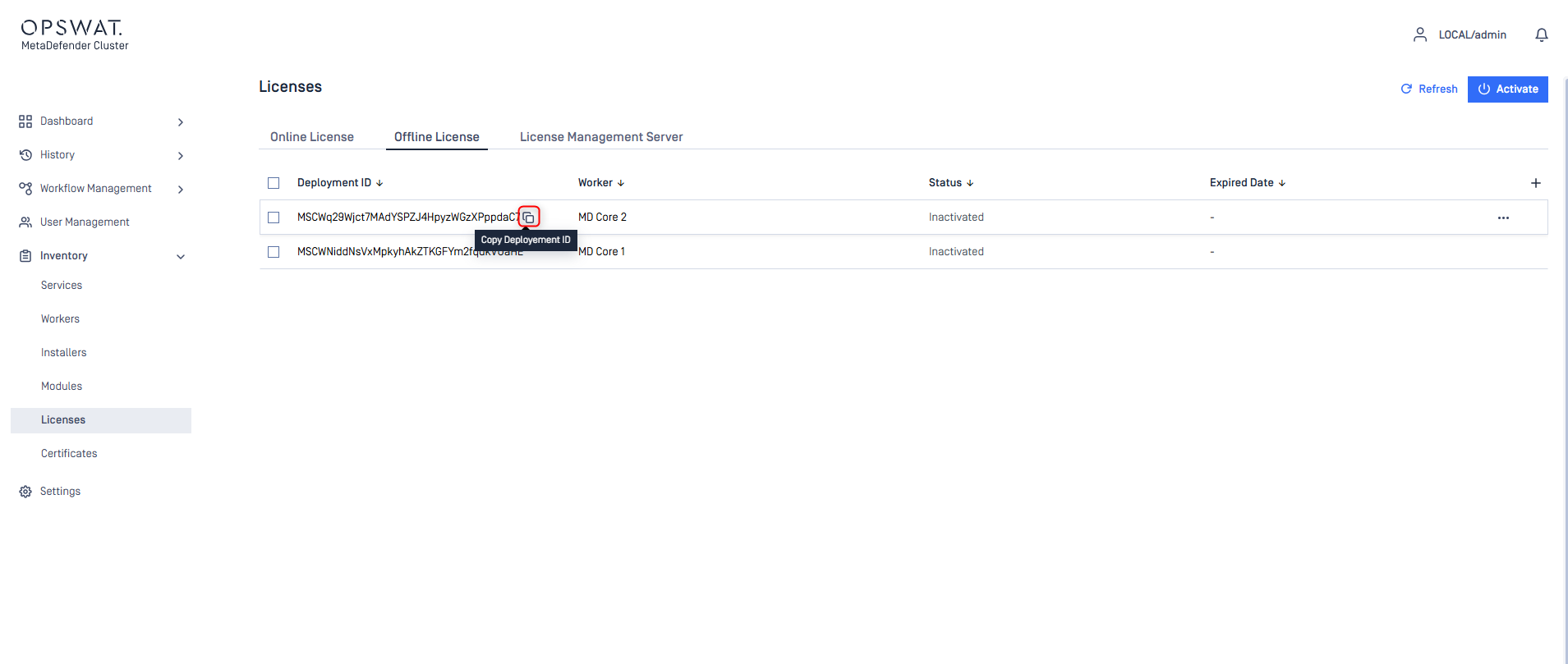
To collect the Deployment ID of a single MetaDefender Core instance, please:
Hover your mouse over the preferred Deployment ID to display the copy button.
Press the copy button.
Retain the copied Deployment ID and proceed to the next stage.
Activate license with Deployment ID
Sign in to MyOPSWAT with your account.
Navigate to
License Managementon the left side panel.Click
Activate License.Fill out all necessary information, including your Activation Key, Deployment ID and selection of the Package you require.
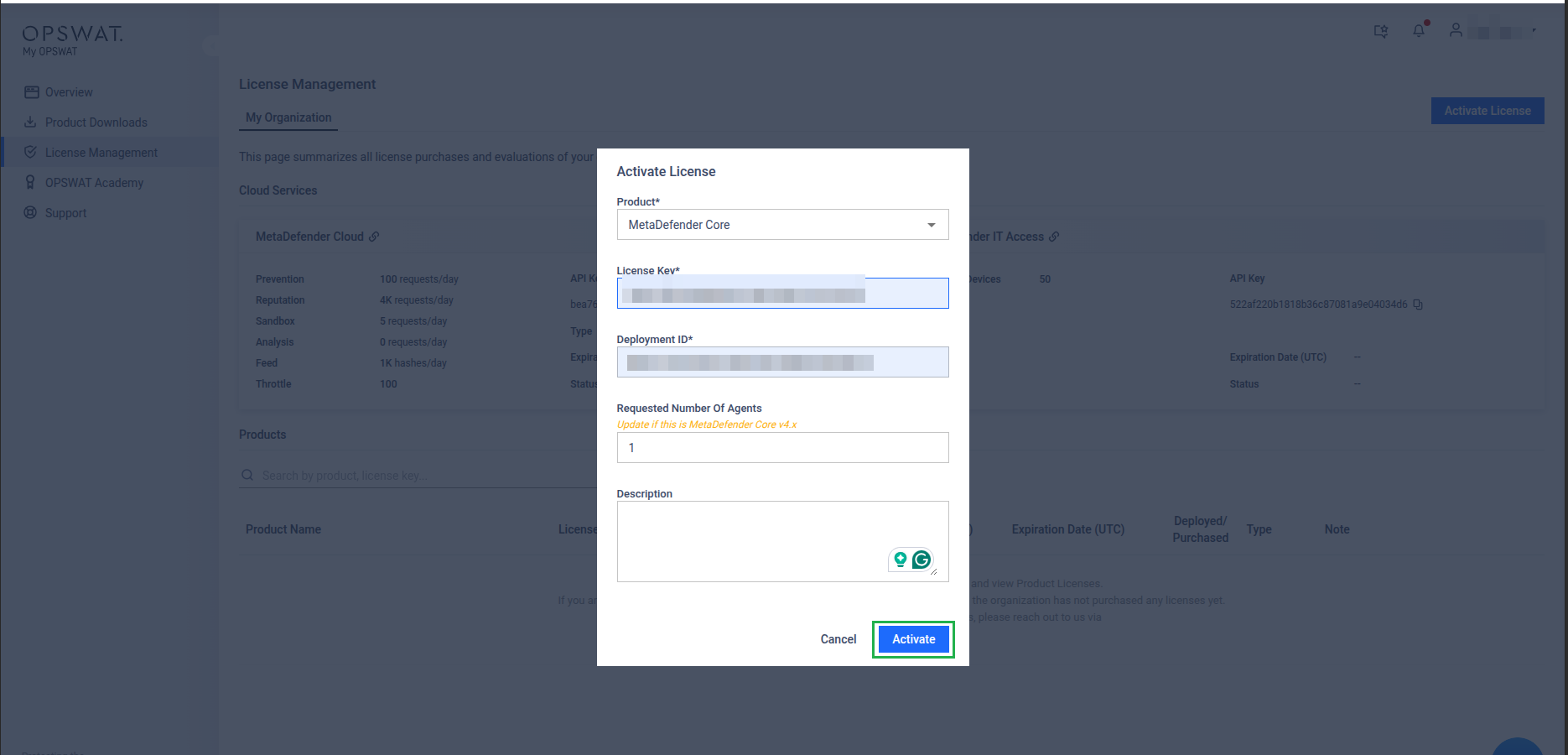
Click
Activate.Click
Downloadand store the license file to your secure location.
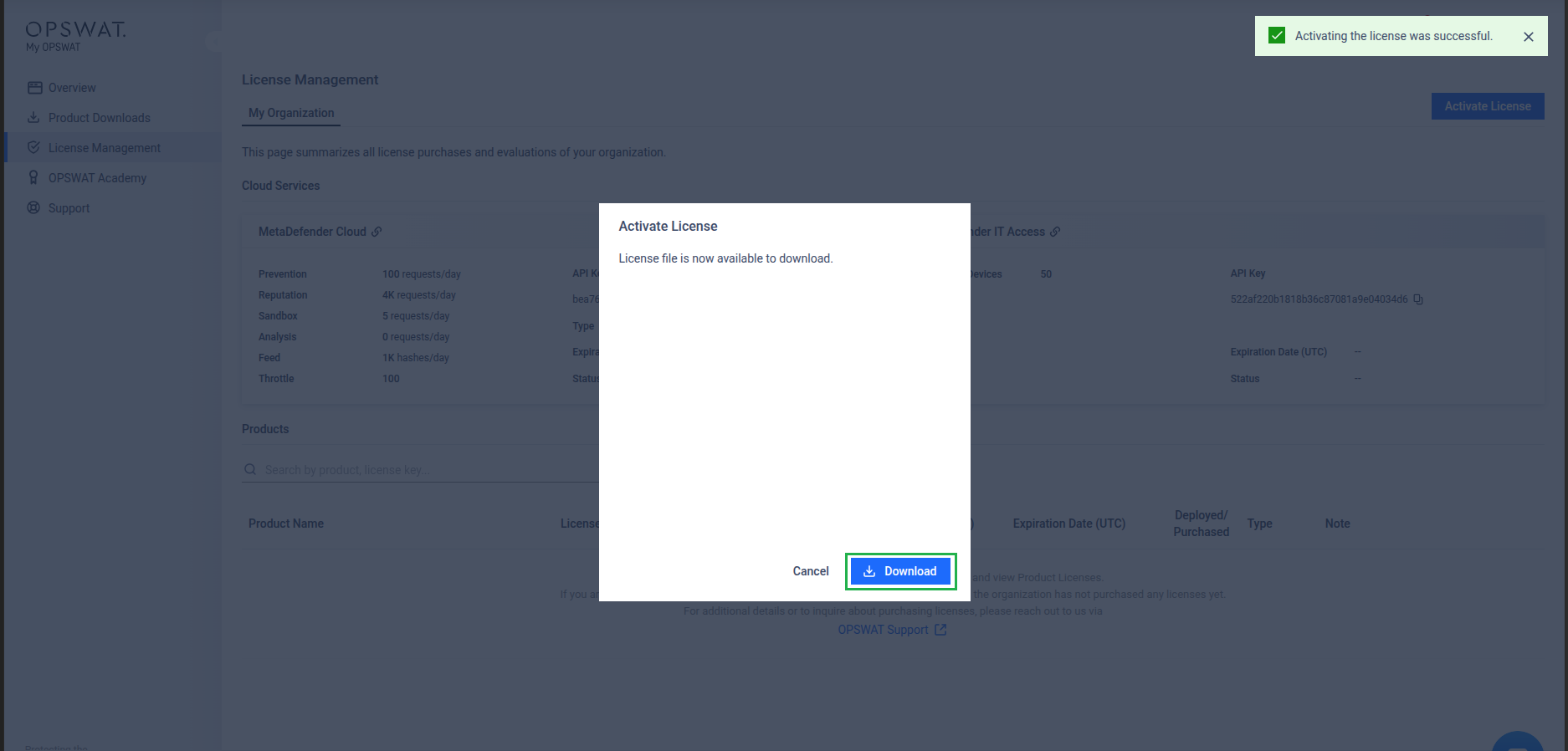
The license file is associated with one unique Deployment ID. The users must carry out steps 3 to 6 for every deployment ID on their list.
Activate MetaDefender Core instances with license files
Sign in to MD Cluster Control Center console.
Go to
Inventory>Licensesand selectOffline Licensetab.Click
Activate.
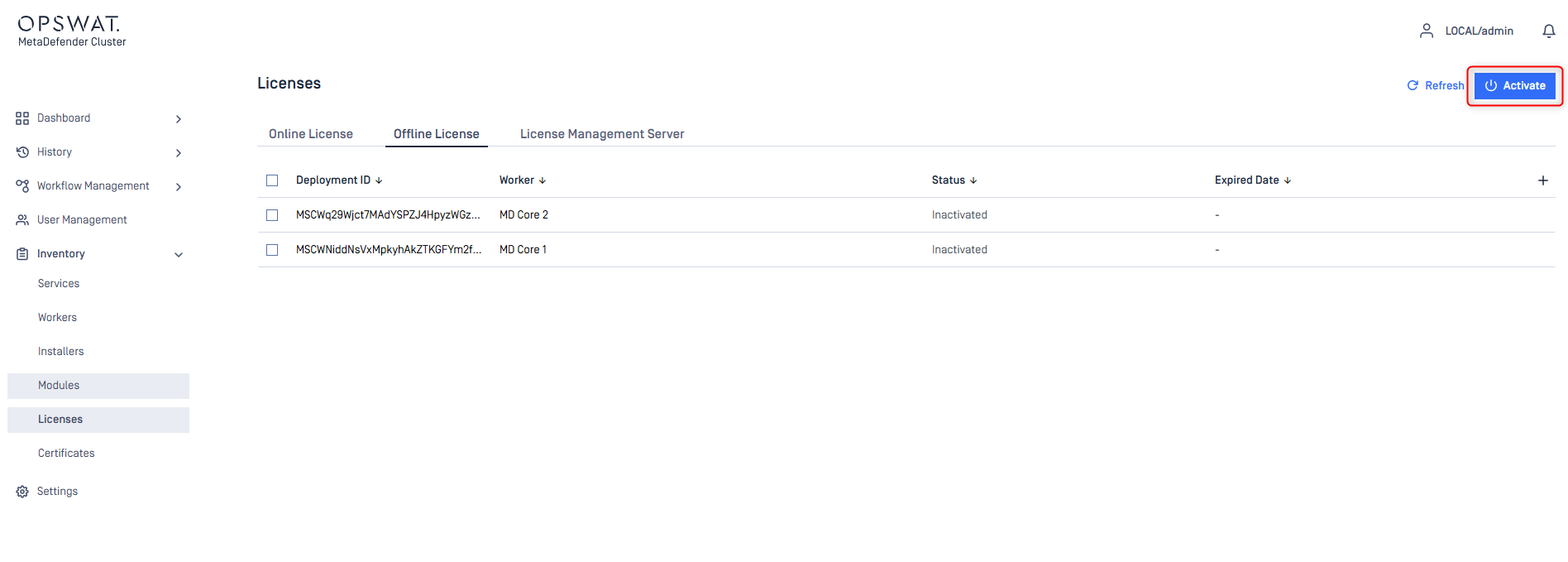
Drop the license files into the dash area for submission.
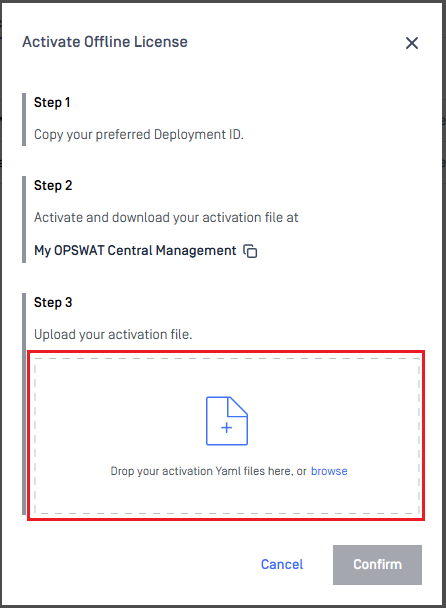
Click
Confirmto complete.MD Cluster Control Center activates MetaDefender Core instances associated with the provided license files and displays their activation status.
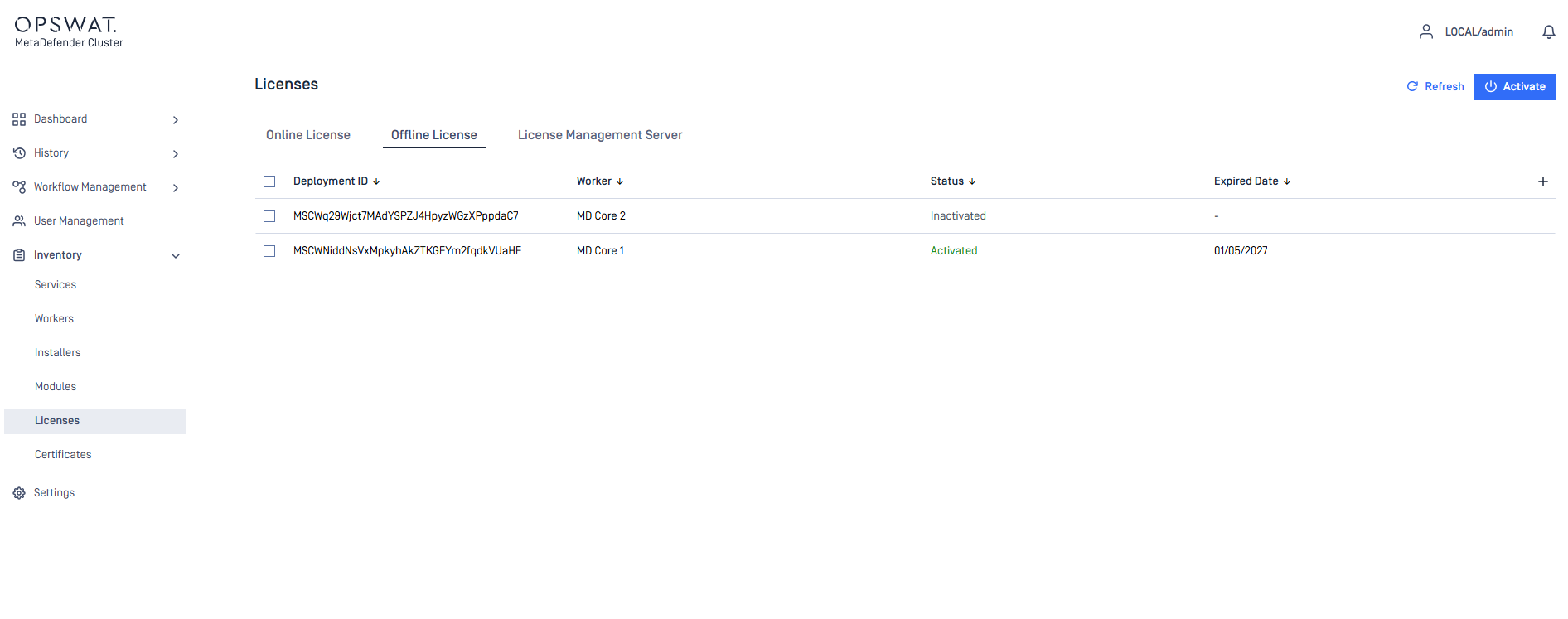
Select an activated MetaDefender Core instance and press
Detailsto view the license details