
Connect to License Management Server (LMS)
Sign in to MetaDefender Cluster Control Center console.
Go to
Inventory>Licensesand select License Management Server tab.Select
Activateand provide the necessary information in the required fields:Host URL: The URL of the License Management Server to connect to.
REST Port: The port of the License Management Server.
Token: Access token obtained from the License Management Server.
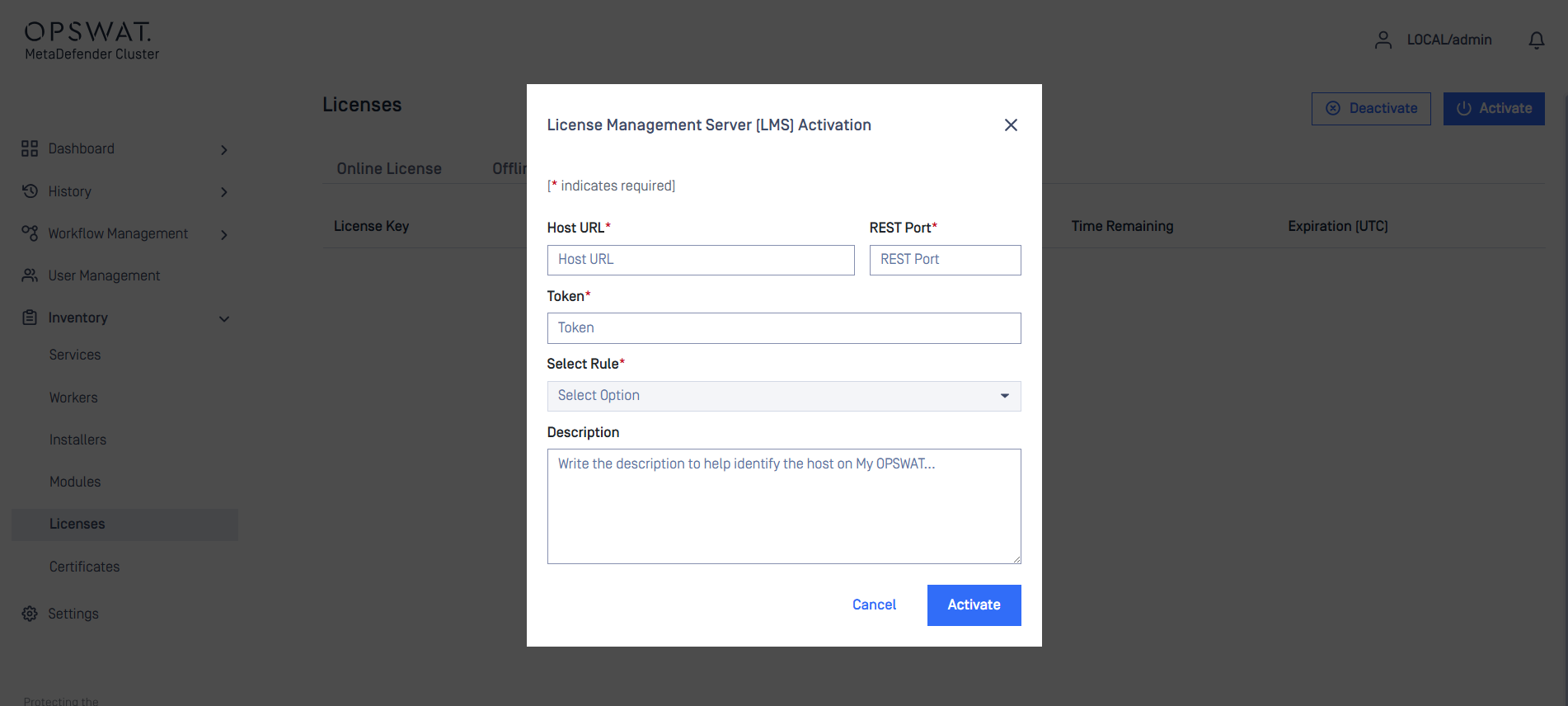
After input all required fields, the connection to LMS will be established and available rules can be selected under
Select Rules.

The port number defined in "Maintain socket connectivity with LMS through port <port_number>" is required to sustain connectivity between MD Cluster Control Center and License Management Server. In order for successfully activation, confirm that the port is properly configured and allowed in firewall setting.
Select the appropriate rule and choose Activate. Upon successful completion, the license details will be shown.
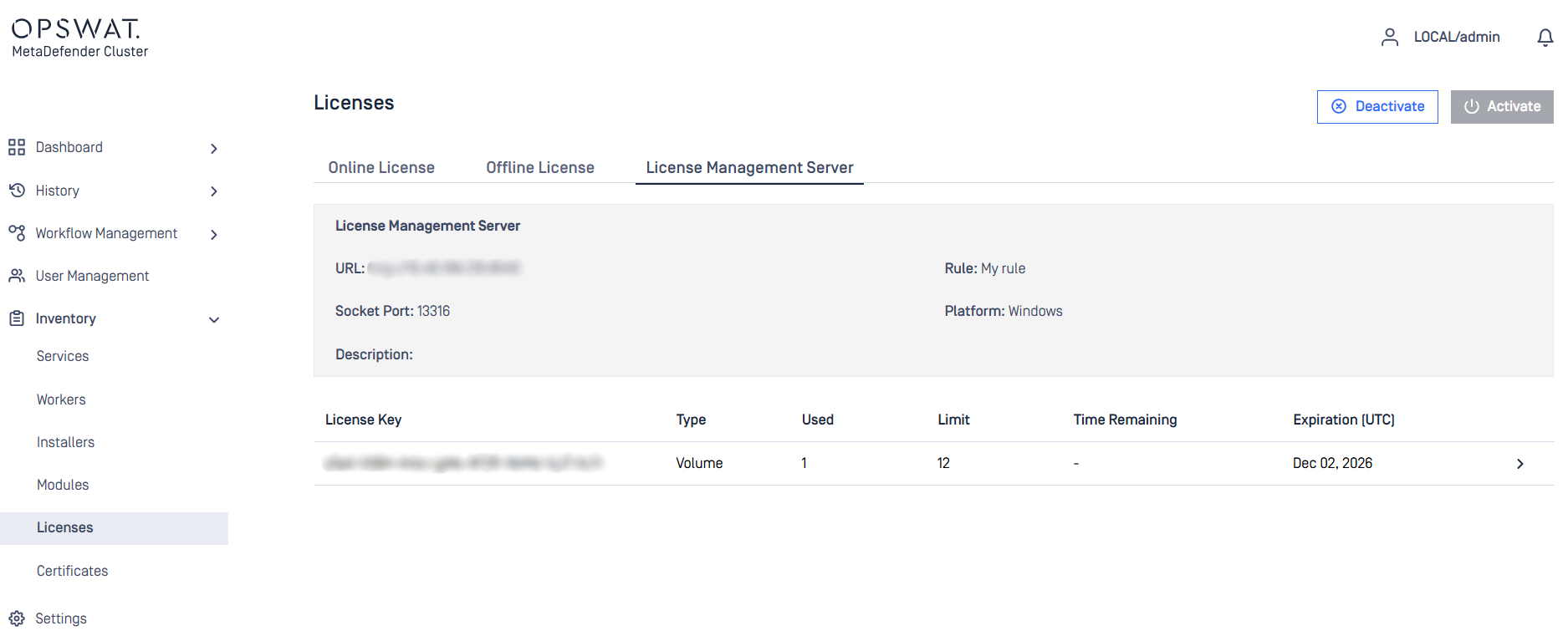
Once activation is successful, the License Management Server will manage the license status of all MetaDefender Core instances. Please ensure sufficient quota is available.
Check instance status under
Inventory>Workersand confirm all MetaDefender Core instances is activated successfully.