
The SSH Access Management setting is accessible under Settings > SSH Access Management.
The SSH Access Management module is designed to provide secure, time-bound, and IP-restricted SSH access to specific system components, such as the Enterprise environment. It offers fine-grained control for administrators and developers to manage SSH sessions efficiently.
You need an SSH key pair (public and private).
If you don’t have one, you can generate it on your machine
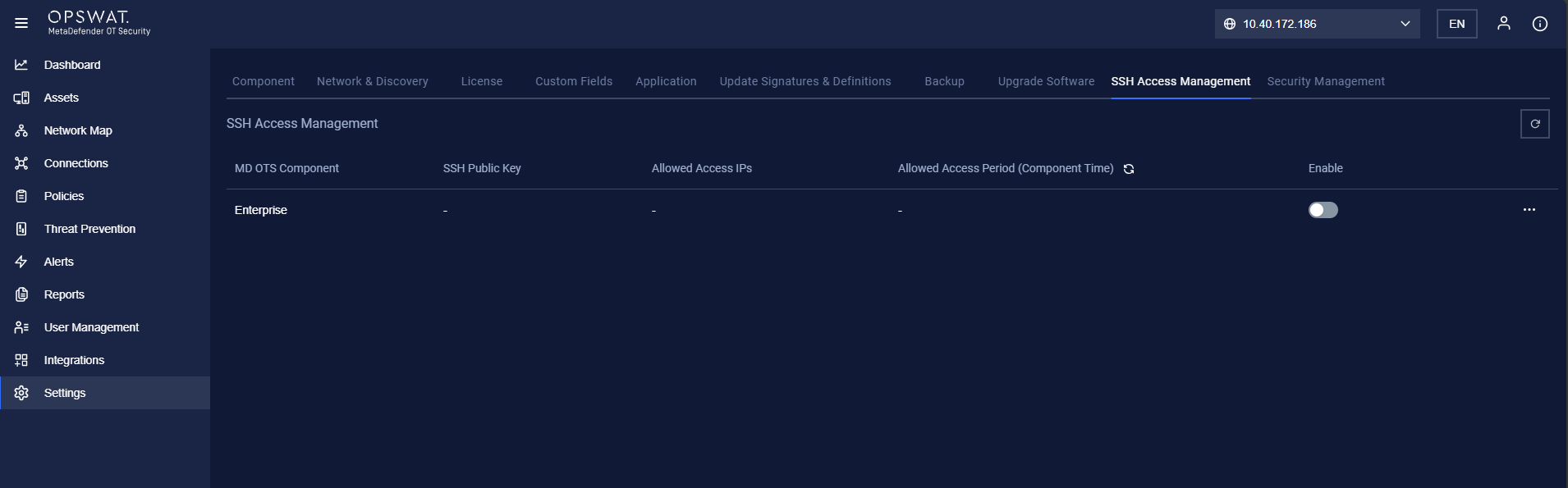
1. Component Listing
Displays a list of system components: Enterprise Manager with SSH access configured.
Columns include:
MD OTS Component: Enterprise
SSH Public Key status
Allowed Access IPs
Allowed Access Period (Component Time)
Enable toggle
2. Enable/Disable SSH Access
A toggle switch is provided per component.
When enabled, users can configure SSH access details.
Disabling the toggle immediately revokes SSH access for the selected component.
3. Edit SSH Session Dialog
Clicking the edit button opens a form to configure SSH session settings:
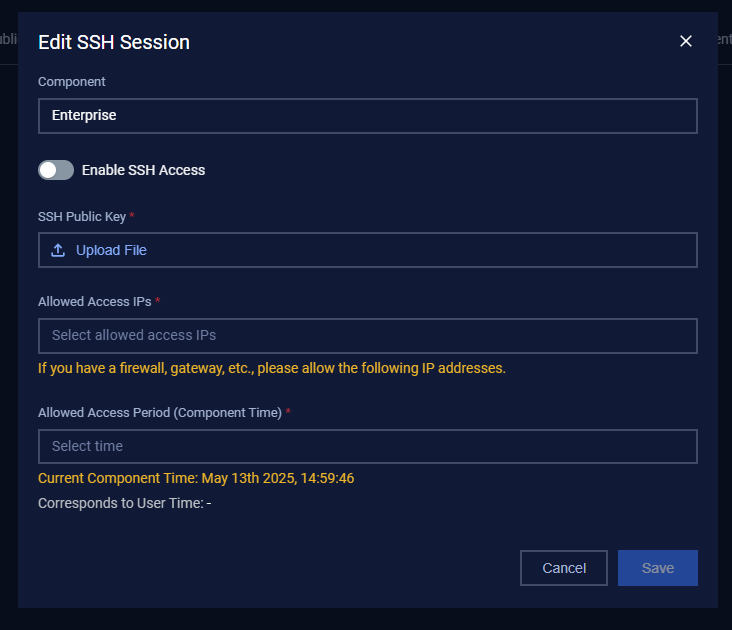
3.1. Component
Non-editable field displaying the name of the selected component (e.g., Enterprise).
3.2. Enable SSH Access
Toggle to allow or block SSH access configuration.
3.3. SSH Public Key (Required)
Upload the .pub file (public key) for authentication.
Only valid public keys will be accepted.
3.4. Allowed Access IPs (Required)
Input or select IP addresses from which SSH access is allowed.
Yellow advisory message: If you have a firewall, gateway, etc., please allow the following IP addresses.
3.5. Allowed Access Period (Component Time) (Required)
Choose the allowed session period based on the component’s server time.
Ensures time-restricted access for better security.
3.6. Current Component Time
Displays current server time (e.g., May 13th 2025, 14:39:17).
3.7. Corresponds to User Time
Intended to show the local time equivalent for reference (not currently populated).
3.8. Save / Cancel
Save: Confirms and stores the configuration.
Cancel: Discards changes and closes the dialog.