
Connection Links
Connection Links helps you review logical or observed communication links for the scope you are working in (for example a sensor or the enterprise). What you see depends on your deployment, version, and permissions.
Before you start
Step | What to do |
|---|---|
1 | Open the MetaDefender OT Security web address your administrator gave you and sign in. |
2 | Open Management from the header or sidebar so you can reach Settings (the exact control name may be Go to Management). |
3 | In the header, use the scope menu (region / site / sensor) to select the enterprise or sensor context this article should match. |
Opening Connection Links
Step | What to do |
|---|---|
1 | In the sidebar, open Settings. |
2 | Open the tab that contains connection-related tools for your product version—often Component or similar. |
3 | Click Connection Links (the label should match the product UI). |
What you see
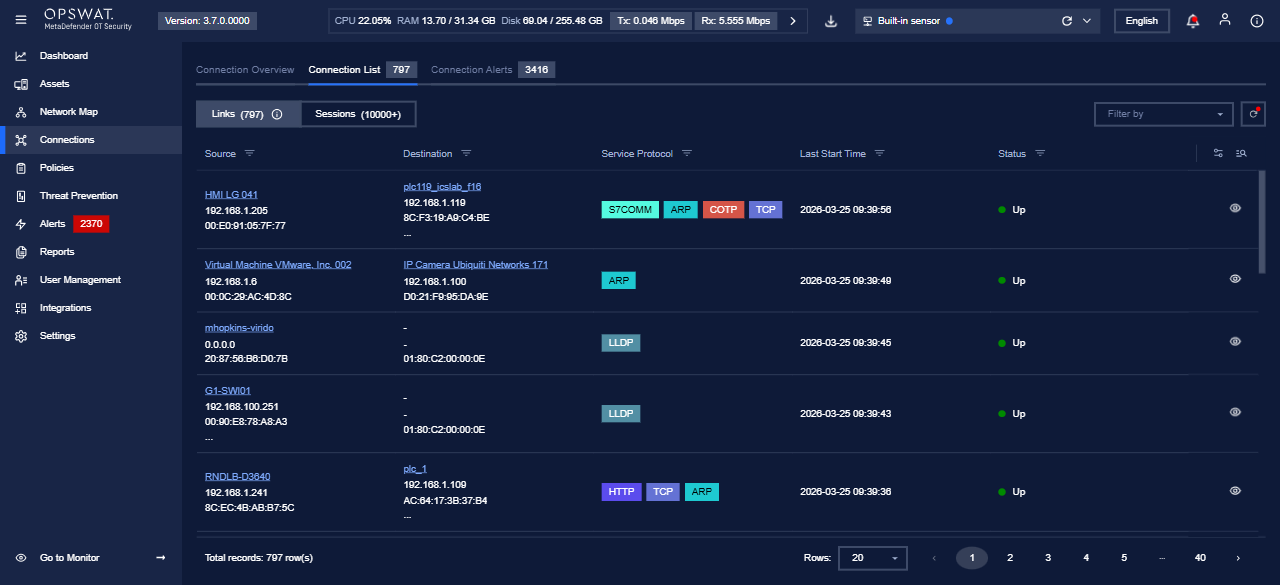
The main view is usually a table of links (endpoints, protocol, state, and other columns your organization exposes). Use sorting, filters, or search if the product provides them.
Detail view
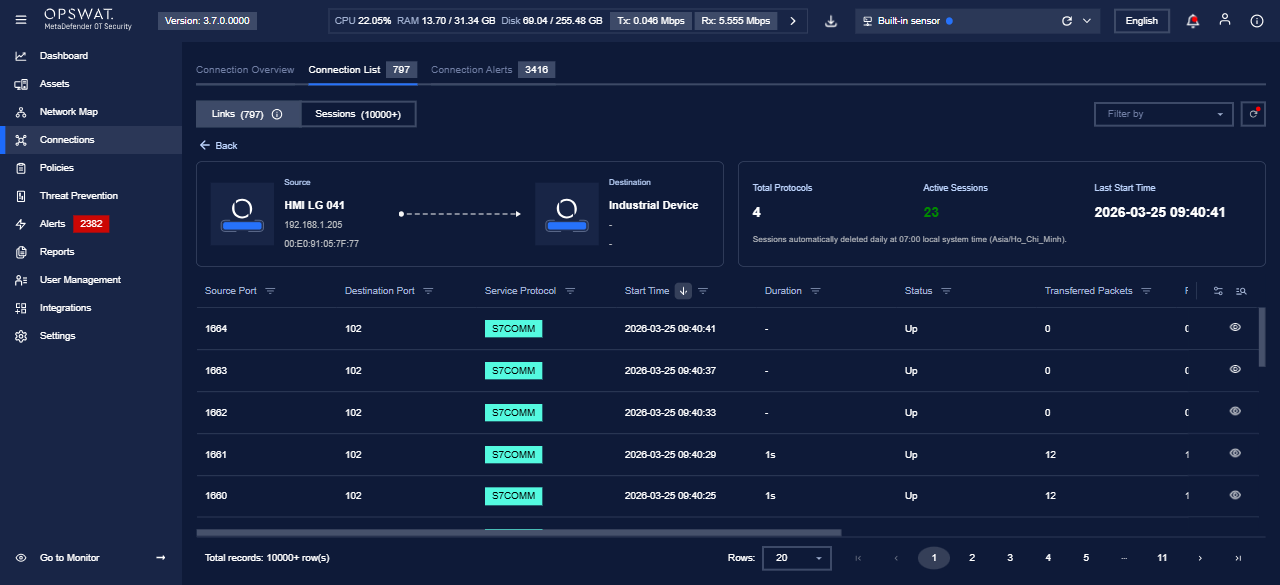
When you select a row, the product typically opens a detail panel or page with more fields about that link.
Notes
- Column names and available actions can change between releases.
- If you need enterprise-wide settings (not only a single sensor), select Enterprise in the header scope menu before you open Settings, when your deployment supports that workflow.