
The misconfiguration is accessible under Policies → Device → Misconfiguration.
The misconfiguration page contains a list of device with opened port policies that are not allowed to connect to the system.
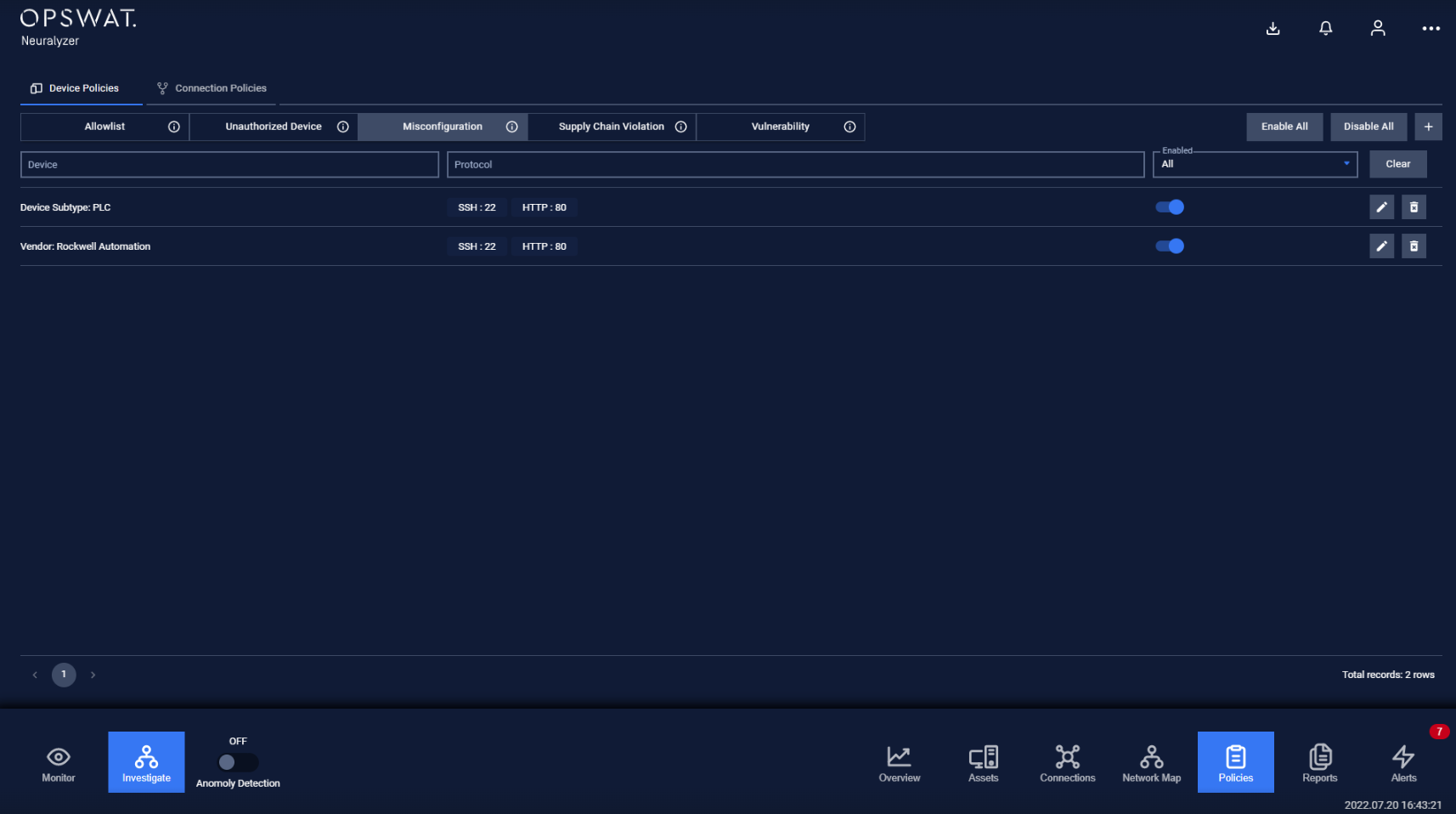
Any open port that are listed in the this policy will make Neuralyzer trigger alerting when the device have unwanted port opened.
Each record in the device list also contains additional rules about:
The device type/subtype or vendor.
The open ports that device is not allowed, and the corresponding protocol on that port.
Misconfiguration policies are added manually by the user.
Note: The blocklist policy can be detected even user didn’t turn on Anomaly Detection.
Actions on Misconfiguration policies
1. View policy
Misconfiguration page is paginated, each page contains 20 records, the total number of policy records is displayed at the bottom of the list
Policies are displayed in a list, each record contains the following information:
Device: device type/subtype or vendor.
Protocol: Contains a list of allowed open port and protocol on that ports, which is displayed in format protocol:port (e.g. http:80) where the protocol can be left blank.
2. Create a new policy
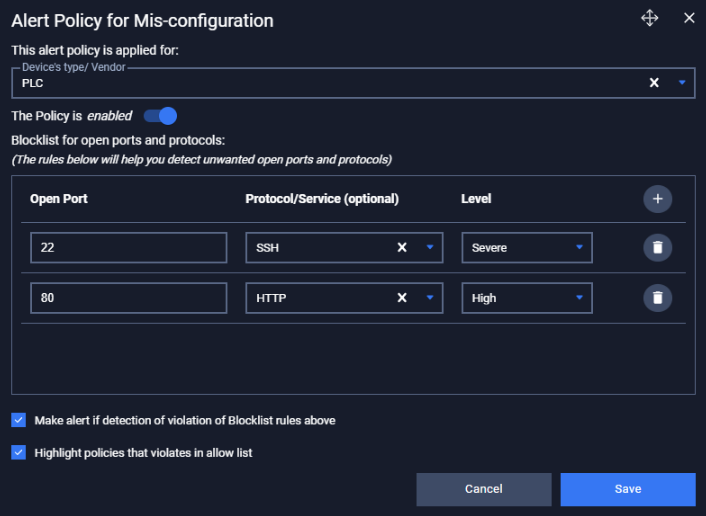
You can create a new policy by tapping on button “+” on the top right of the Policy screen, a policy creation pop-up will appear
Field | Type of input | Note |
|---|---|---|
Device | Choose from drop-down list Input device name (support searching by device’s name and IP) | |
Enable/Disable policy option | Tap to turn on policy | Once disabled, the policy will not be applied. |
Open ports | Input value in number format | Port numbers range from 0 to 65535. |
Protocol on corresponding ports | Select from drop-down list | Allowed Protocol is an Optional field Choose a specific protocol to allow only that protocol on that port (support searching by protocol name) Left blank to allow all protocols |
Criticality | Choose from drop-down list | Alert criticality |
You can check on “Highlight policies that violates in allow list”. if the current opened port rule is already in device allowlist, the related policy in allowlist will be highlighted.
3. Edit policy
You can edit a policy by tapping on “Edit” button on the right of each policy record, a policy editing pop-up will appear.
In the pop-up editing, you can see the detail policy. You can edit by clicking on the field to be edited and perform input operations like when creating a policy.
Note: Field IP, MAC and Source of rule are non-editable .
When finished editing, click “Save” to save the changes or “Cancel” to discard all.
4. Search policy
Searching feature for policy list is located at the top of the policy page.
You can search on one or more fields of the policy, just input value onto one or more fields.
Click the “Clear” button to clear the values in the filters.
5. Remove policy
You can remove a policy from the list by clicking the "Delete" button on each the policy record.