
In the Neuralyzer application, user can take one of the three following roles : Super admin, Admin and Operator.
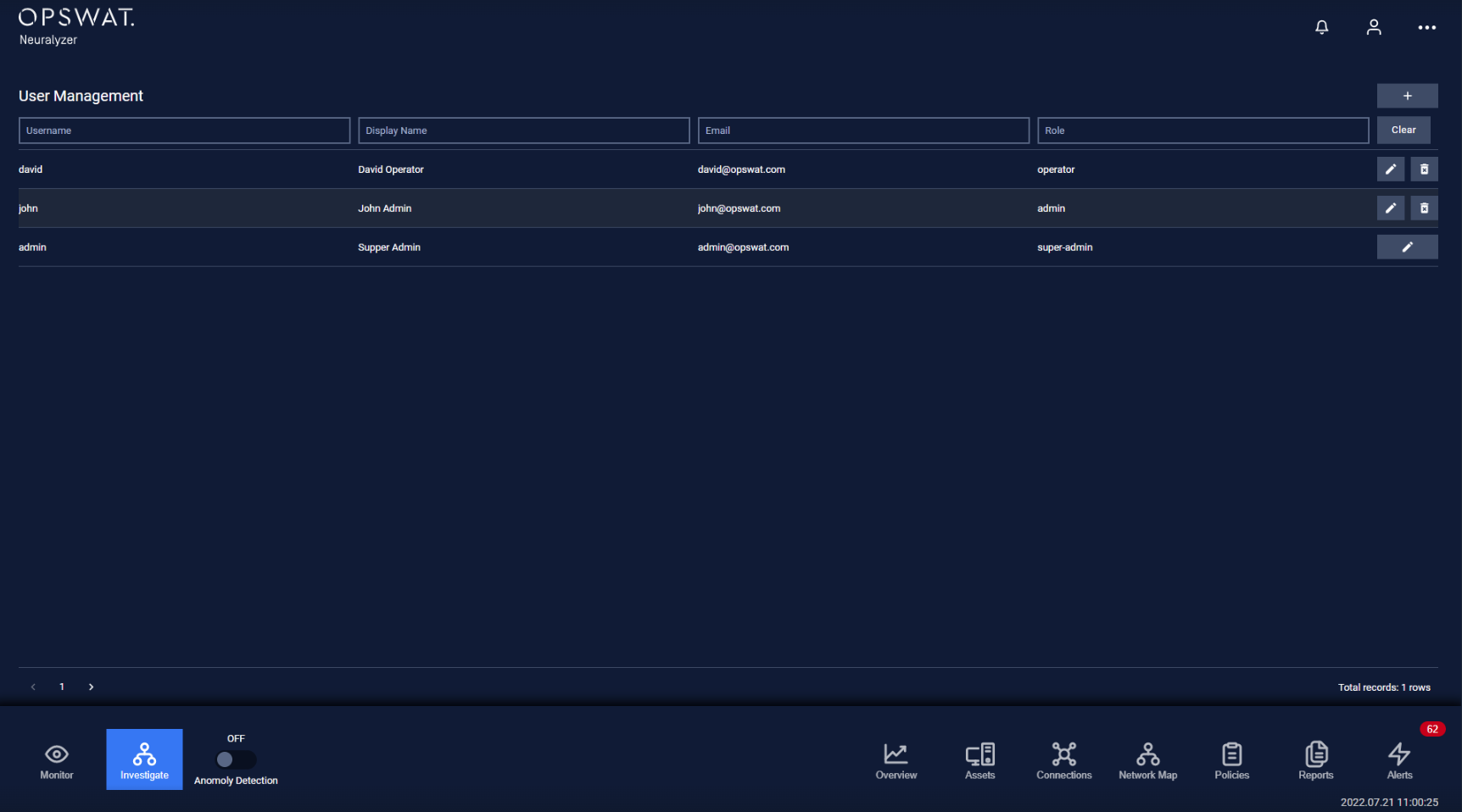
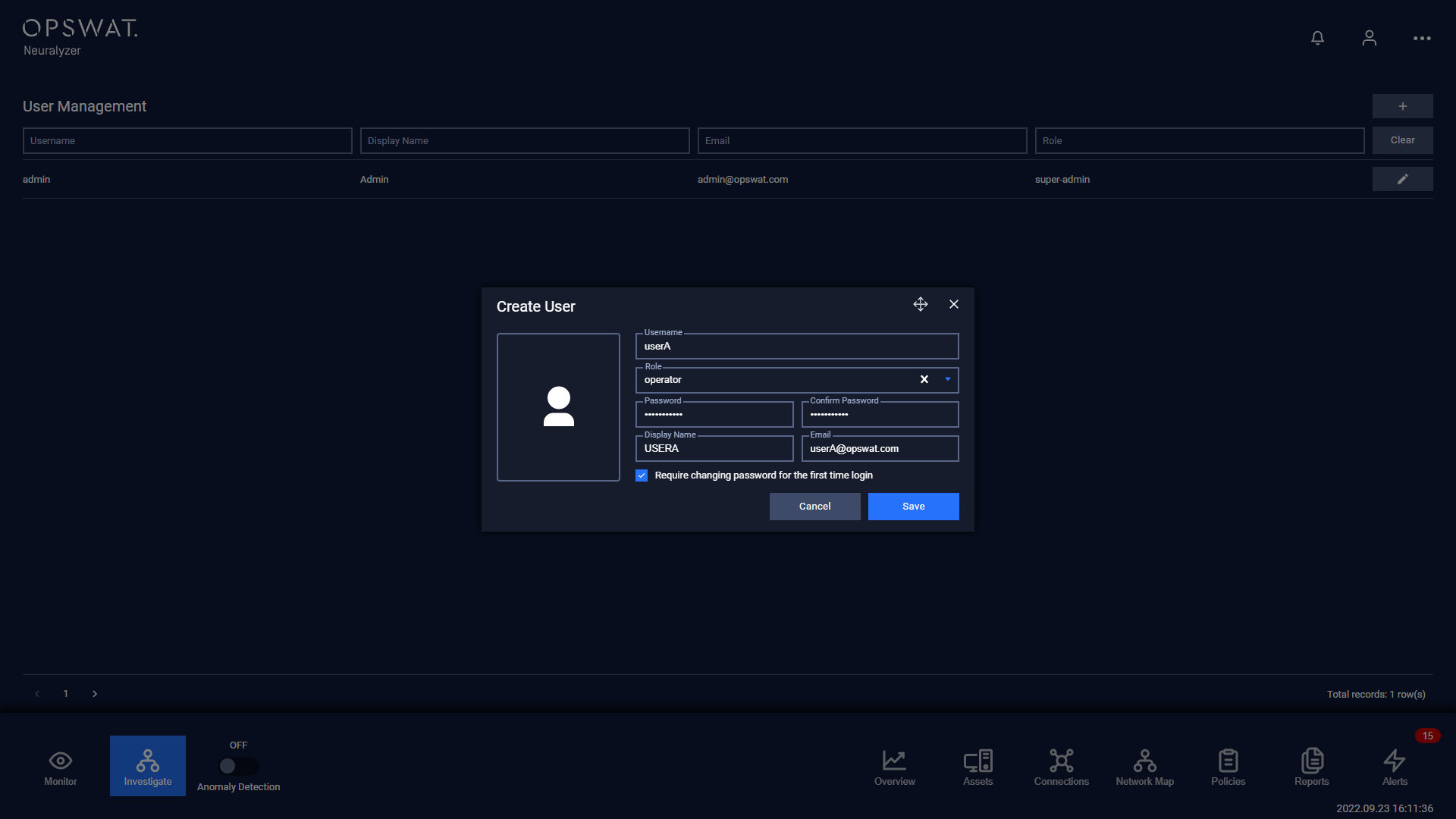
The table below will give you information about the permissions of each role in the Neuralyzer system:
Category | Sub-category | Permission | Super admin | Admin | Operator |
|---|---|---|---|---|---|
User Management | Access Users page for user management | x | |||
Assign new Admin | x | ||||
Assign new Operator | x | ||||
Edit other users' information (username, display name, email) | x | ||||
Change role of other users | x | ||||
Remove other users (including Admins and Operators) | x | ||||
Filter for users on Users page | x | ||||
Application Operations | Overview | Access Overview page | x | x | x |
Change time period | x | x | x | ||
View information on the dashboard page | x | x | x | ||
Interact with pie charts, half pie charts, line charts (tap to access filtered device/connection list, hover to see detail at a time point), device icon (tap to see device's detail), list of devices (tap to switch to new page of devices) | x | x | x | ||
View information on the dashboard page | x | x | x | ||
Add/Hide widget | x | x | x | ||
Interact with widgets: Drag & drop, Resize, Hover to see detail information (connection line chart), Tap to access graph page (Mini-graph widget), Tap to access filtered device list (device management widget) | x | x | x | ||
Assets | Access Assets page | x | x | ||
Assets manipulation | x | x | |||
Graph Visualization | Access Graph page | x | x | x | |
Adjust display preferences | x | x | x | ||
Interact with graph and nodes: Zoom in/out, Drag and drop nodes, Tap on nodes to see device detail, Tap on connection to see connection detail, Tap on link to see link detail. | x | x | x | ||
Policies | Access Policies page | x | x | ||
Create/Edit/Delete policies | x | x | |||
Settings | Access Settings page | x | x | x | |
Edit settings page | x | x |