
Check Your Version:
This article applies to specific versions of MetaDefender OT Security. Please check instructions for settings that apply to your specific version.
Background
For common traditional IT devices (Computers with Windows or Linux OS), the OS info mostly come from active scanning. The lacking of OS info on some devices could be due to:
Active scan settings is not configured on a NIC of the sensor.
The OS scanning is not enabled for some device types that preliminary identified.
Possible discrepancy between auto active scanning and manual scanning.
Solution
On versions of MetaDefender OT Security from 3.1.0 though 3.4.9.
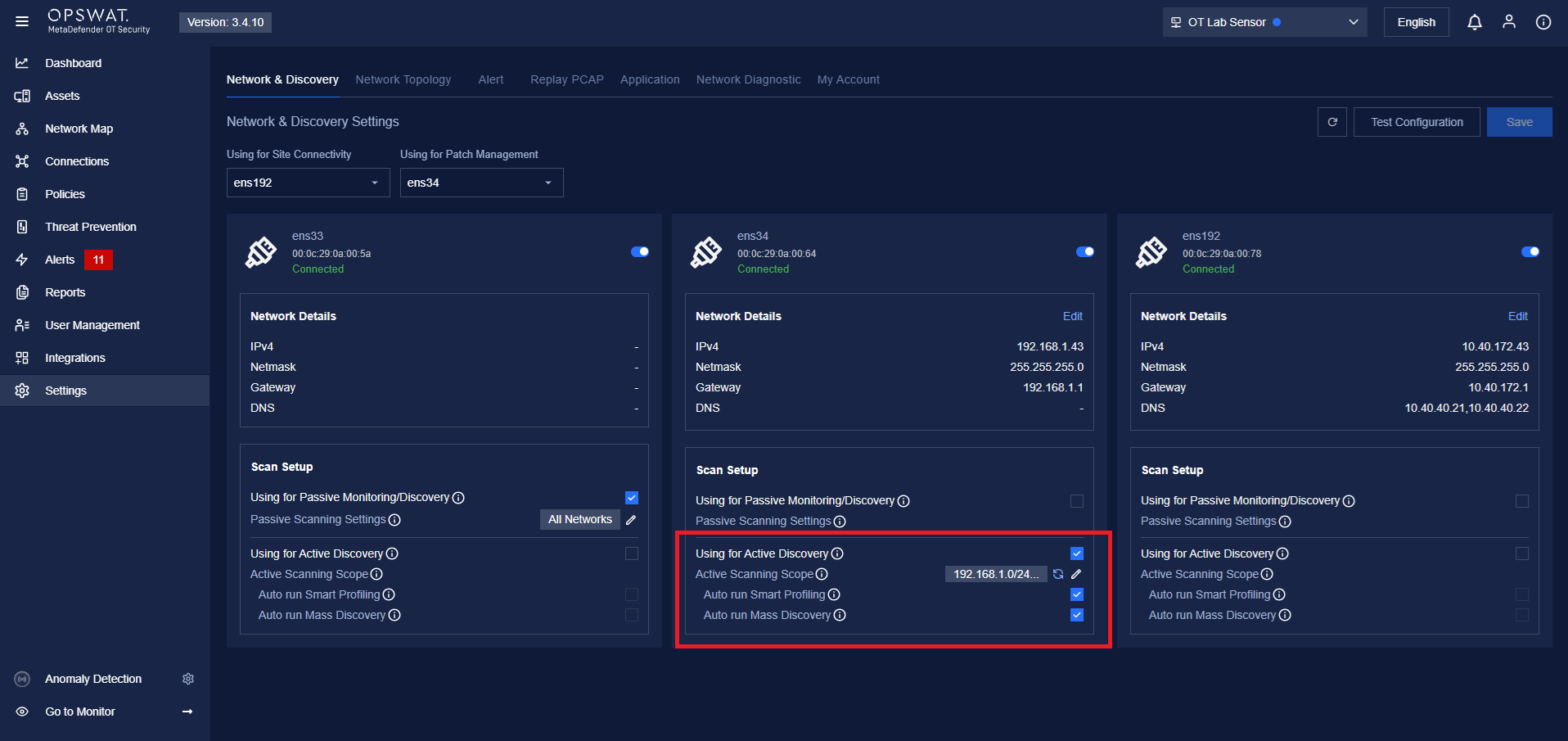
Check if the active scanning settings are configured for the sensor and OS scanning is enabled for the asset category:
I. Active Scanning:
Go to Settings → Network & Discovery
Enable Active Discovery.
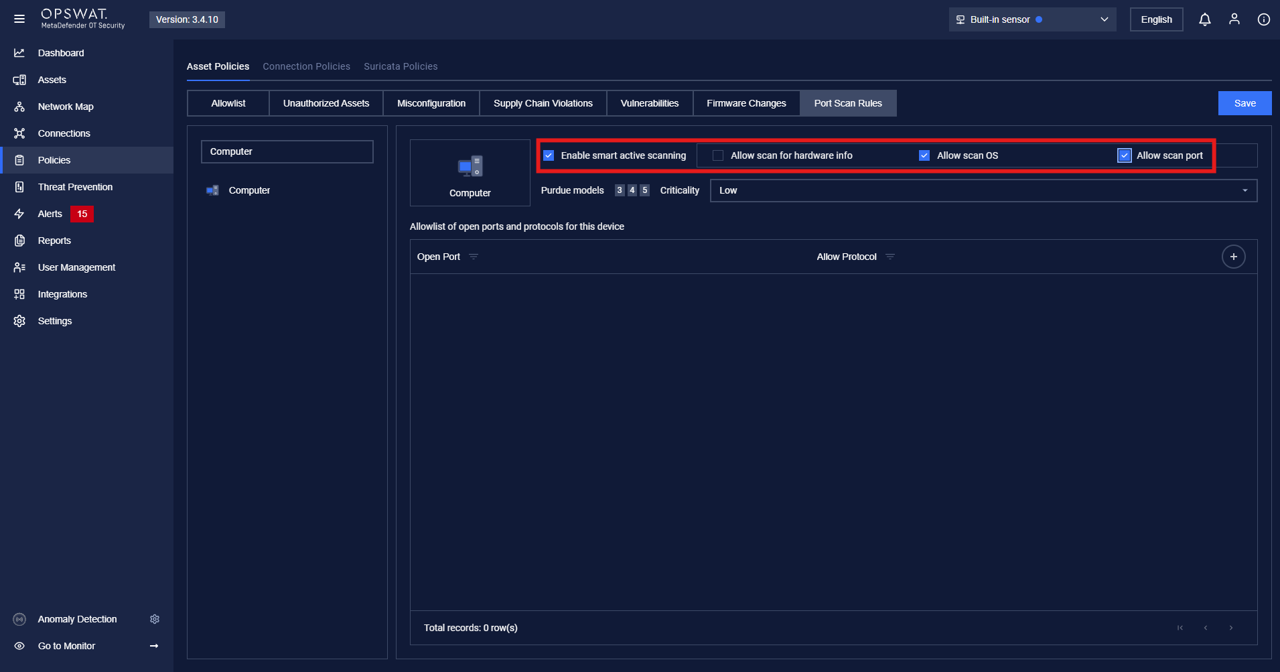
II. OS Scanning:
Go to Policies → Port Scan Rules.
Search for the device types (e.g Computer or Virtual Machine).
Next, check the box for Enable Smart Effective Scanning.
Then, select Allow Scan Port and Allow Scan OS.
After that, the application will automatically scan the OS for all devices with the types specified.
On versions of MetaDefender OT Security 3.4.10 and higher
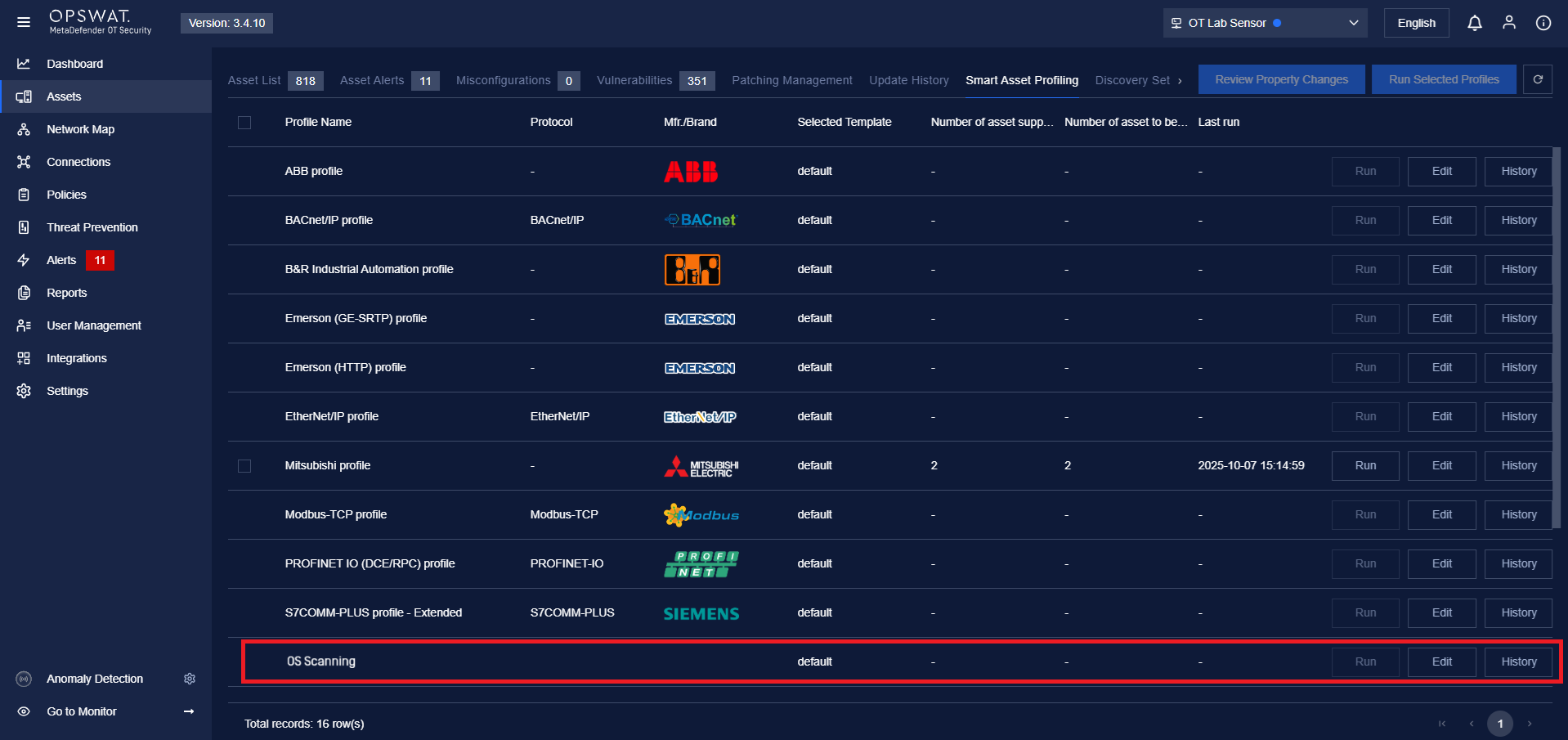
We understand the auto OS scan settings for device type is not very visible and can be looked over. Our enhancement is to provide an explicit OS scanning item on the “Smart Asset Profiling” where user can run OS scan/ discovery for select assets:
Navigate to Assets → Smart Asset Profiling.
Select OS Scanning.
Support:
If Further Assistance is required, please proceed to log a support case or chatting with our support engineer.