About this task
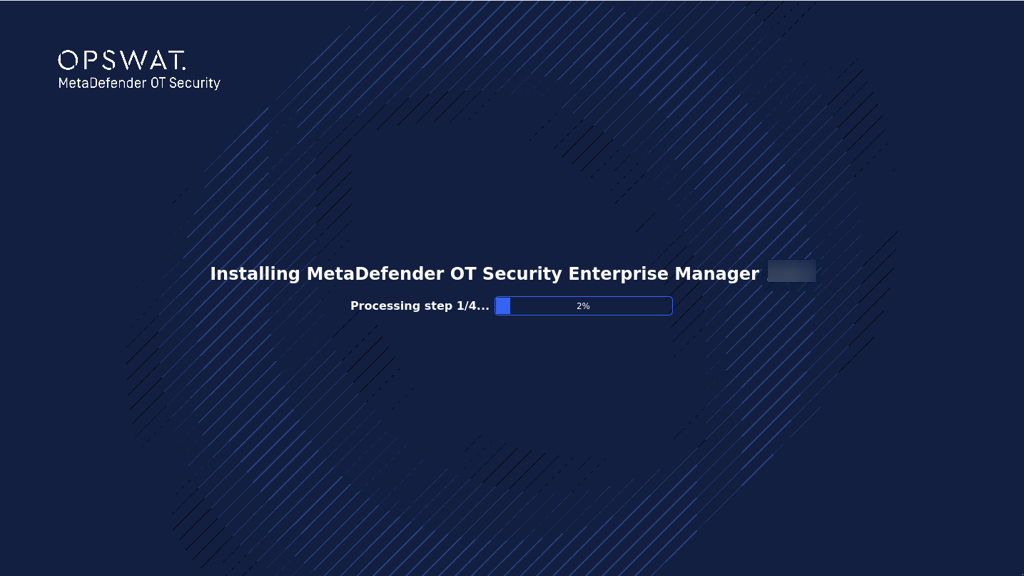
Starting from version 4.0.0, MetaDefender OT Security supports installation via an ISO file.
Use this procedure to deploy the MetaDefender OT Security ISO file
Before you begin
Please complete the Notes for deployment of MD OT Security | Firewall Allow-listed Configurations
Obtain the latest Enterprise Manager ISO file from https://my.opswat.com/home/metaDefender-ot-security
Setup and Tools
1x USB stick with 32 GB storage space: for building the OT Security Image flash drive
Keyboard, mouse, and monitor
Procedure
1. Prepare a bootable USB
The installation of MetaDefender OT Security requires using a USB boot created from a downloadable image file:
1.1. Download the latest MD OT Security ISO:
File name: mdots-installer-[version].iso
Size: ~10 Gb
1.2. Download the Rufus tool for USB burning.
1.3. Plug in a flash USB with at least 32GB of storage.
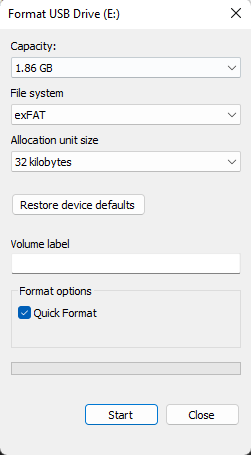
1.4. Format the USB using the exFAT file system type with Windows' format tool. Only use quick format if the USB file system is already exFAT.
1.5. Open Rufus and insert the USB drive.
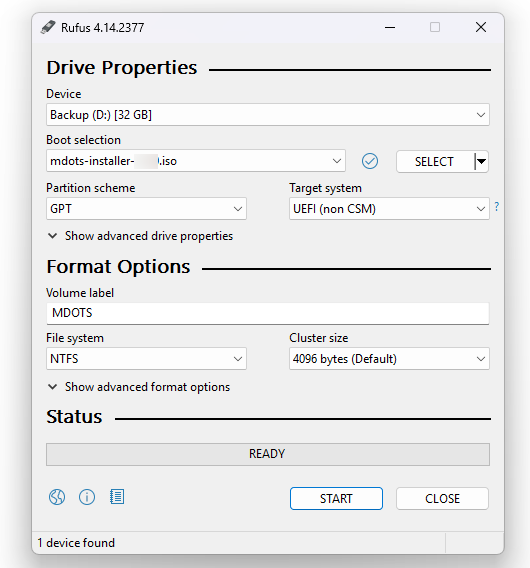
1.6. Select your USB drive under "Devices."
1.7. Click SELECT and select the downloaded mdots-installer-[version].iso
1.8. On the Partition scheme, select GPT
1.9. On the Target system, select UEFI
2.0. Give your Volume label a name (optional).
2.1. Click START.
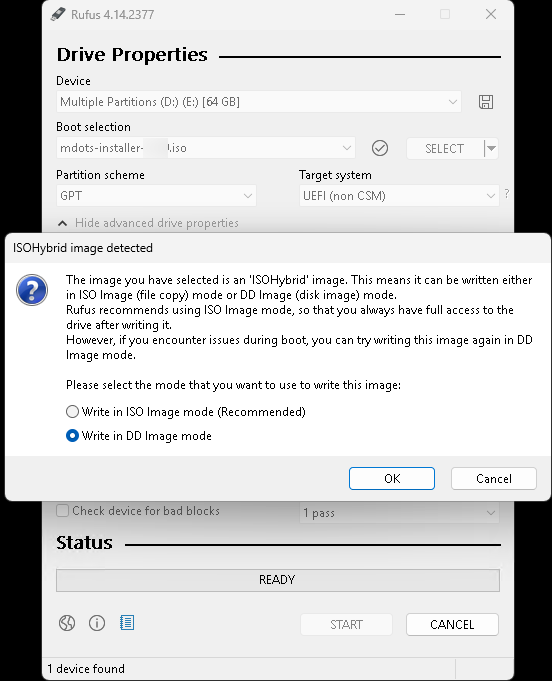
2.2. On the ISOHybrid image detected pop-up, select “Write in DD Image mode. “
2.3. Once the burning is completed, reconnect the USB to the computer
2. MetaDefender OT Security Enterprise Manager flashing and installation
In the last section, the only thing left is to install MetaDefender OT Security onto the machine, which is accomplished almost automatically by the system.
Plug in the MetaDefender OT Security USB that the user created in the first step.
Press the power button to turn on the device.
Repeatedly press F12 (usually) or F11 (on a 1U dedicated server) at the splash screen to select the Boot Menu option.
Select a connected bootable USB.
Boot from the USB in the UEFI mode. Pay attention to the USB brand name to avoid choosing the wrong one.
Booting is a process that has appeared with boot menu options:
MetaDefender OT Security - Use this first (leave it default). It enables normal graphics support and is suitable for most PCs and workstations.
MetaDefender OT Security (Safe Graphics) - If option 1 shows errors, a black screen, or stops during early boot, restart and choose 2. It avoids aggressive graphics setup so the installer can start on servers, KVM/BMC consoles, or systems with non‑standard displays.
MetaDefender OT Security (Fallback Graphics - blacklist drivers) - If 2 still does not boot, restart and choose 3. It turns off common GPU drivers so startup can continue on hardware where those drivers cause problems.
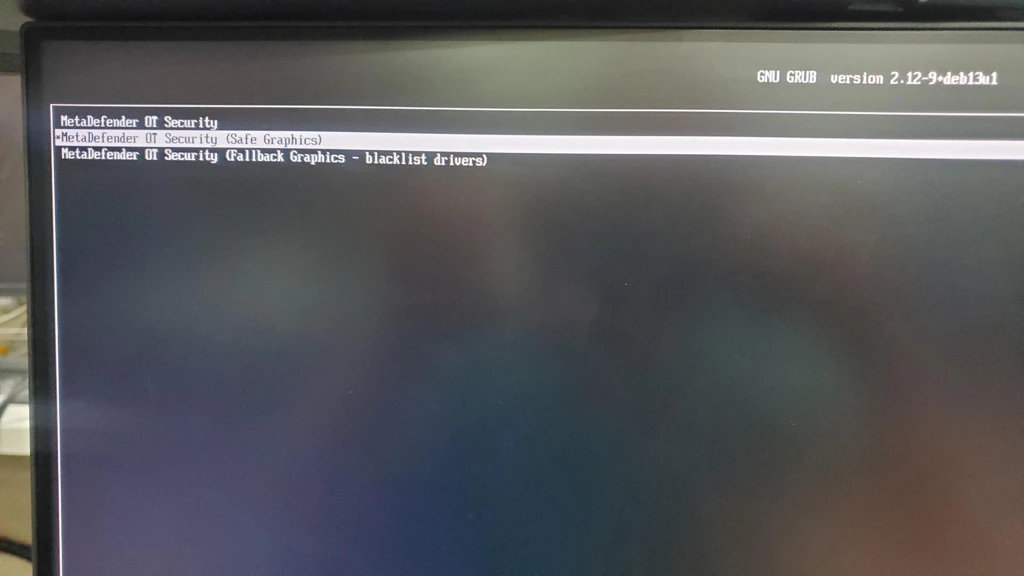
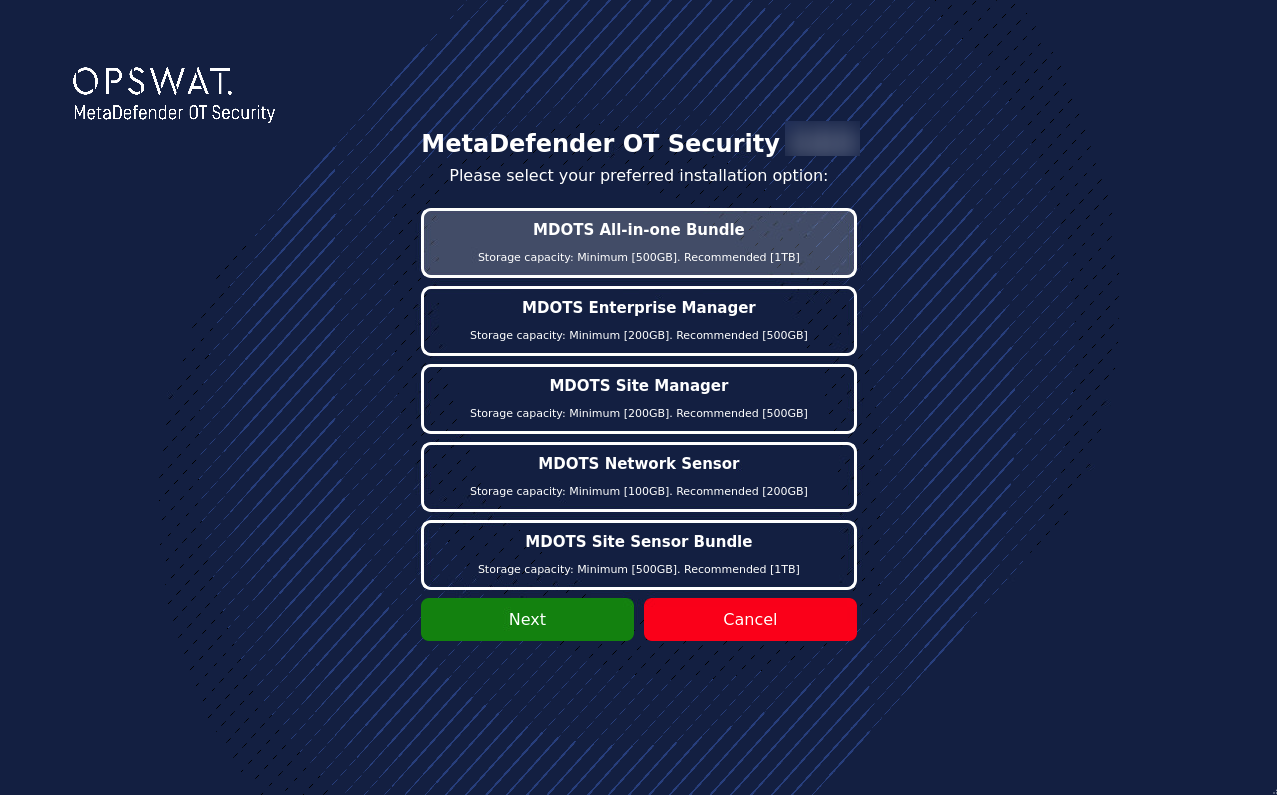
Wait for the first stage installation until the pop-up asking to select a component.
Select the component, click Next
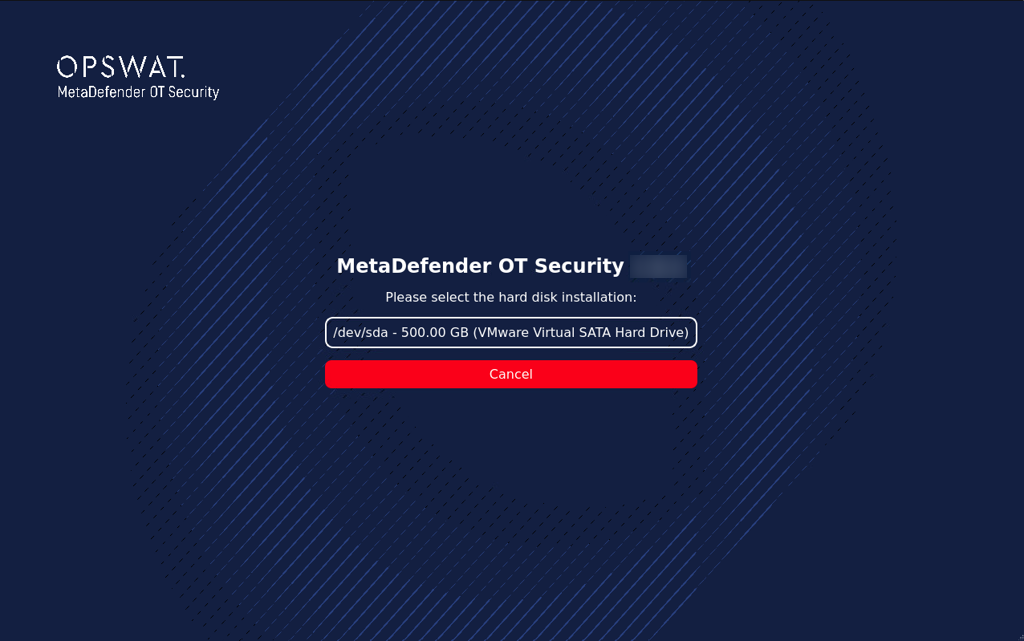
Select the Hard disk
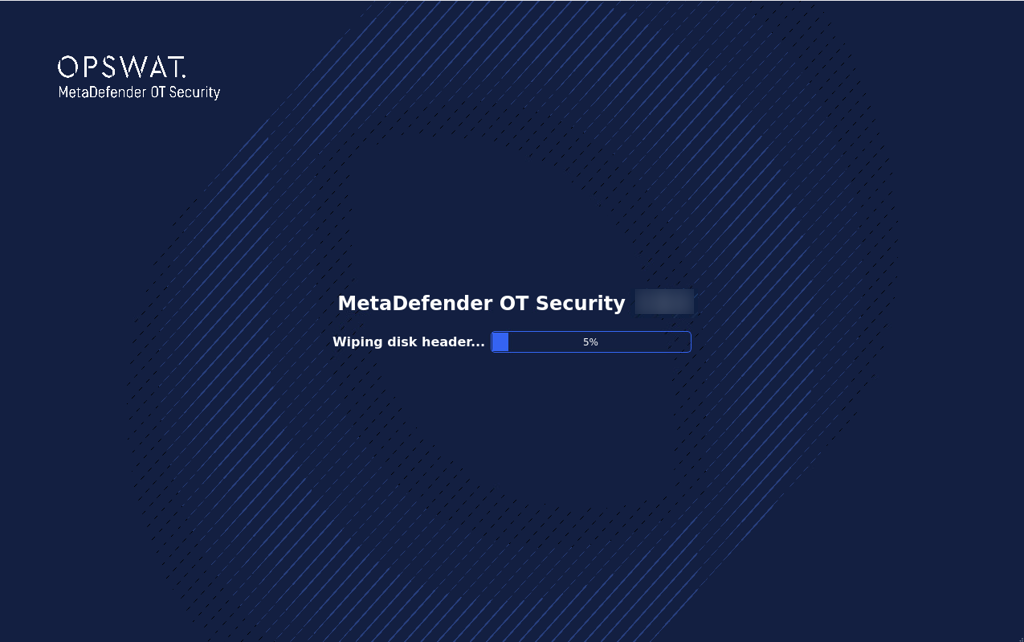
The application is flashing
After flashing is completed, click OK to shut down
Unplug USB (Important!!!)
Turn on the machine again to start installing