
Splunk SOAR (Cloud) delivers the benefits of SOAR as a cloud-based service. With Splunk SOAR (Cloud), you gain the functionality of a security orchestration, automation, and response (SOAR) system that is delivered as a software-as-a-service (SaaS) solution hosted and managed by Splunk. By integrating MetaDefender Sandbox (previously known as OPSWAT Filescan Sandbox) with Splunk SOAR, security teams can automate the process of scanning files for malware and other security threats. This integration allows security teams to quickly and easily scan files for potential threats, and take immediate action to mitigate any risks that are identified.
Utilizing this integration, you can send a file or URL scan request from Splunk SOAR to any sandbox instance, as well as search for previously scanned reports and perform a quick file, ip, domain or URL reputation lookup.
You can find more information about Splunk SOAR here.
MetaDefender Sandbox integration in Splunkbase marketplace available here.
Installation
You can install MetaDefender Sandbox from Splunkbase or from Splunk SOAR directly.
Install from Splunk SOAR
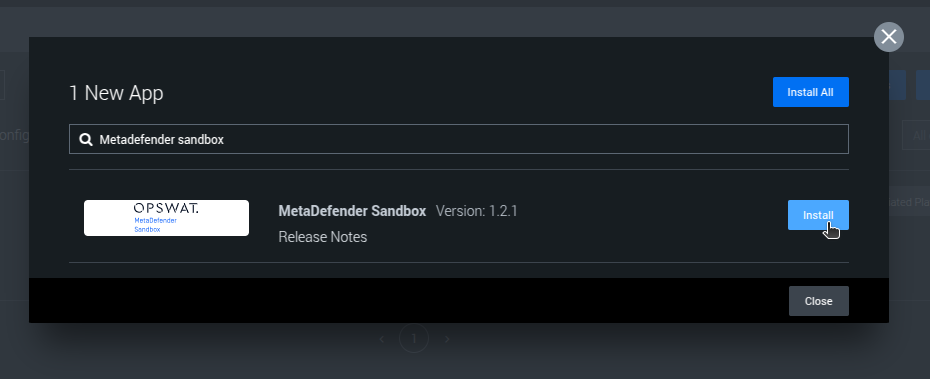
In Splunk SOAR go to Apps and select "New Apps".

Then search for MetaDefender Sandbox and Install it:
Install from Splunkbase
Download MetaDefender Sandbox from Splunkbase: https://splunkbase.splunk.com/app/6942
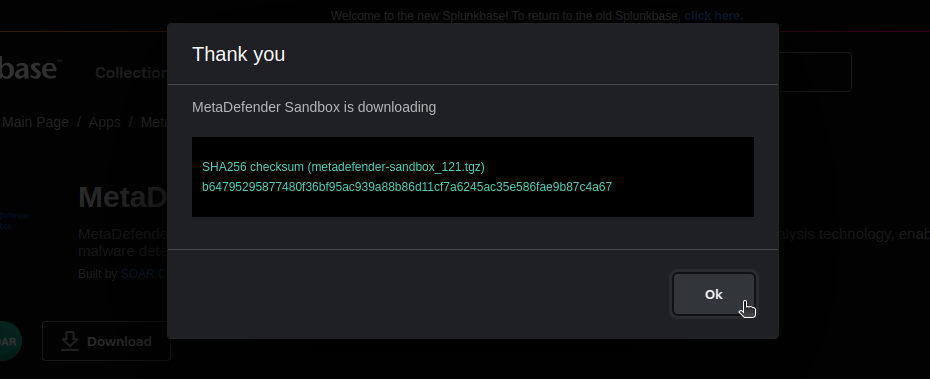
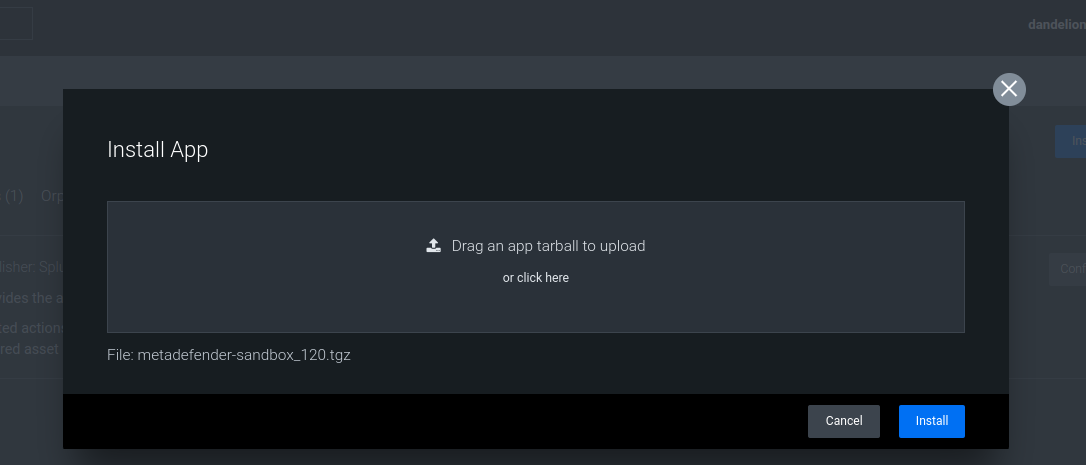
And in Splunk under Apps select "Insall App":

After that drag and drop the downloaded app. And click to "Install"
Configuration
After installed, you can find MetaDefender Sandbox app under the "Unconfigured Apps" list:
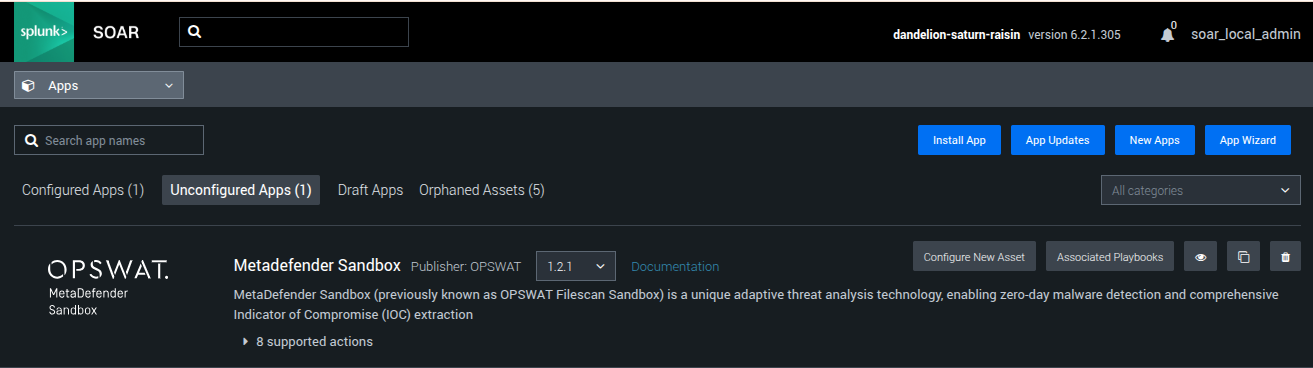
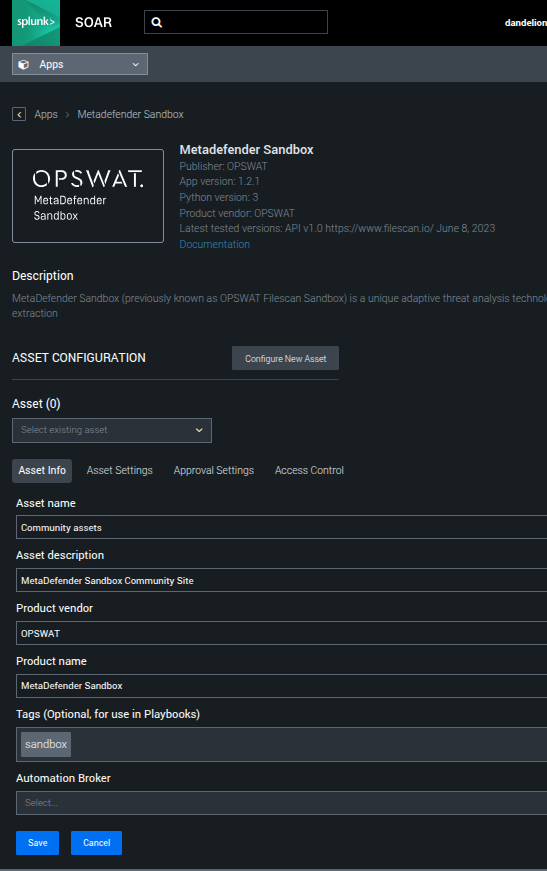
Under 'CONFIGURE NEW ASSET' fill the required fileds.
Under Asset Info tab, please fill the asset name and description:
After this, configure the connection under Asset Settings tab:
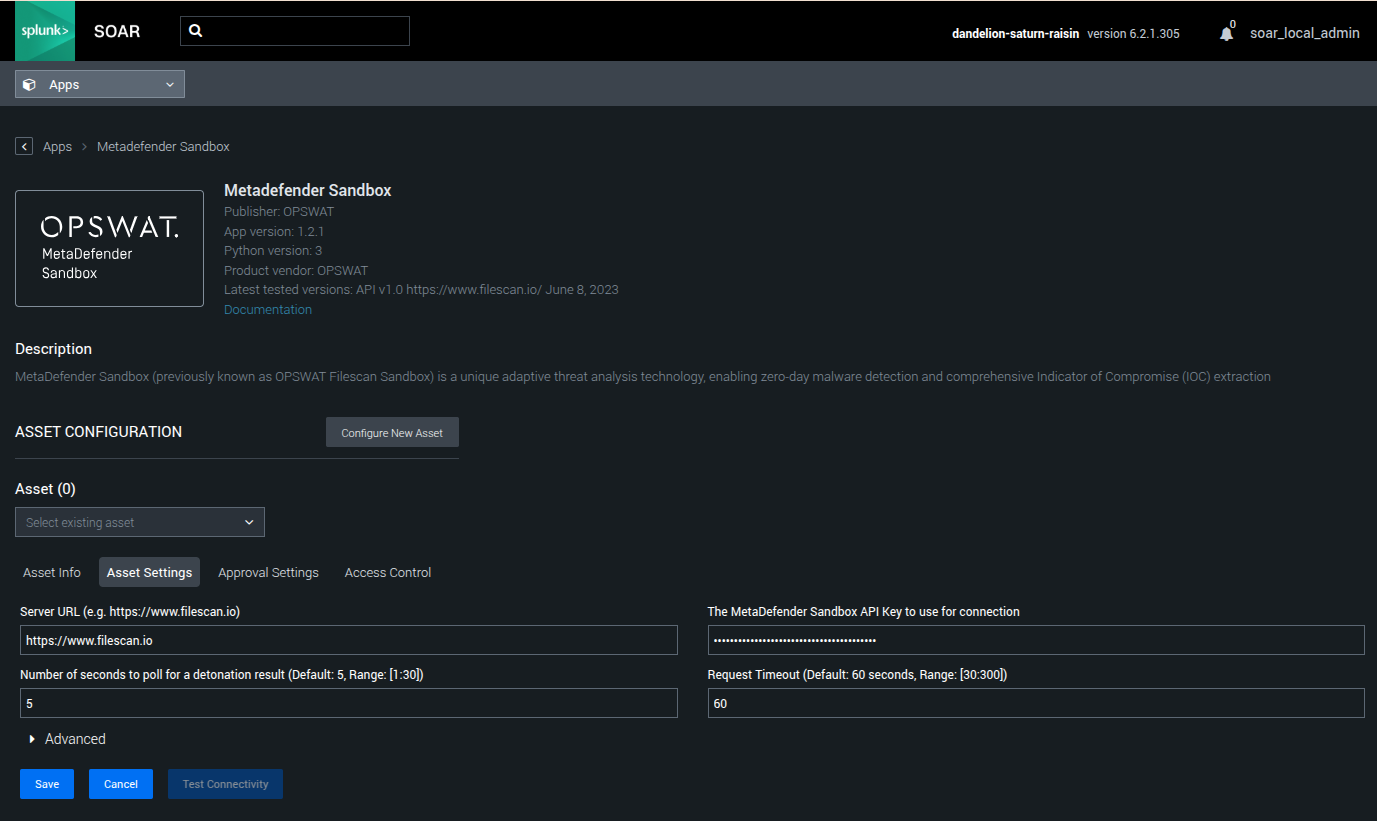
MetaDefender Sandbox API key is required to use the integration.
You can use the Activation Key that you received from your OPSWAT Sales Representative, and follow the instructions on the License Activation page or you can create an API key on the Community site under API Key tab.
You need to add your API key, and if you have on-prem version of MetaDefender Sandbox, you can add your own server's URL. The default URL is the Filescan.io free community.
After saving the settings you can use the asset.
Testing the asset
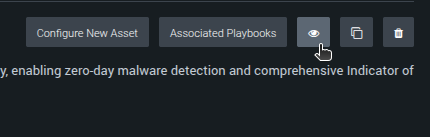
You can test the connection of your asset under the view menu:
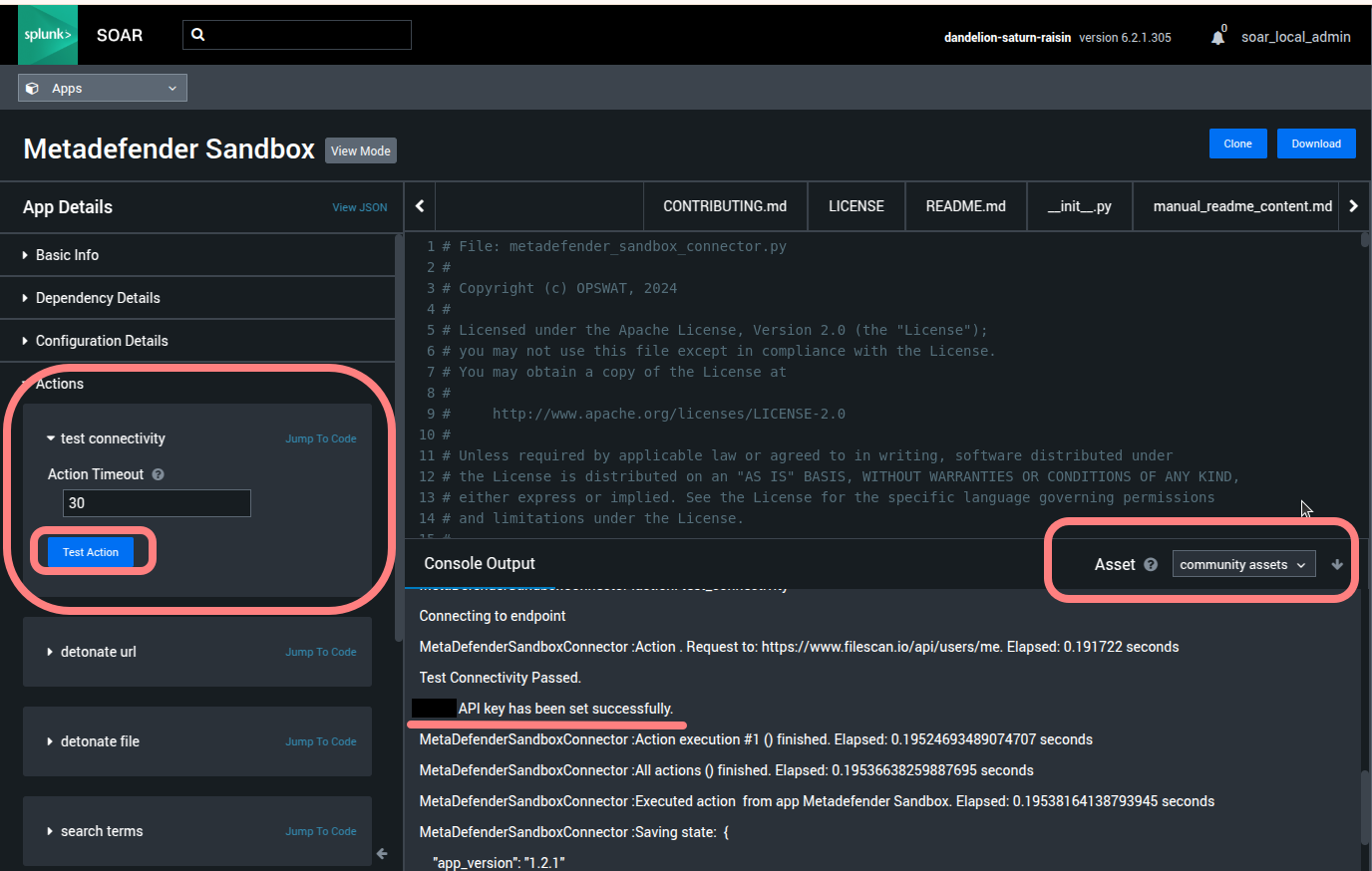
For that, select Actions -> test connectivity at left and on the right side select your asset. After clicking on 'Test Action' button a message will appear. The following message indicates that the setup was successful:
[USERNAME] API key has been set successfully
Available actions
detonate url
Scan URL resource with Sandbox POST - Scan URL
Parameters
Description | Default value | Required | |
|---|---|---|---|
url | The URL to submit | yes | |
password | Custom password, in case uploaded archive is protected | ||
is private | If file should not be available for download by other users | ||
description | Uploaded file/url description |
detonate file
Scan file resource with Sandbox POST - Scan File
Parameters
Description | Default value | Required | |
|---|---|---|---|
vault id | Vault ID of file to detonate | yes | |
password | Custom password, in case uploaded archive is protected | ||
is private | If file should not be available for download by other users | ||
description | Uploaded file/url description |
search
Search for reports. Finds reports and uploaded files by various tokens. It uses GET - Search Report endpoint and the 'query' field.
Parameters
Description | Default value | Required | |
|---|---|---|---|
query | The query string | yes | |
limit | Number of total results. Maximum 50. (If page and page_size was also provided, then it will be ignored.) | 10 | |
page | Page number, starting from 1 | ||
page_size | Page size. Can be 5, 10 or 20 |
file reputation
Get the reputation for one given hash (returns with the last 10 sandbox reports). It uses GET - Get Reputation endpoint.
Description | Default value | Required | |
|---|---|---|---|
sha256 | SHA256 value of the file | yes |
ioc reputation
Get the reputation for one given hash (returns with the last 10 sandbox reports). It uses GET - Get Reputation Ioc endpoint.
Description | Default value | Required | |
|---|---|---|---|
type | Type of the ioc. It should be ip, domain or url. | yes | |
value | The value |
Compatibility
Version | Sandbox 1.9.* | Sandbox 2.0.0 - 2.1.0 |
|---|---|---|
≤ 1.2.0 | Yes | No |
1.2.1 | Yes | Yes |