
By default, the communication between a product and an OPSWAT Central Management server is not encrypted. If HTTPS is enabled, the server can enforce secure connections between clients and the server on SSL channels. This section describes how to enable SSL for OPSWAT Central Management.
Please beware that enabling HTTPS on the OPSWAT Central Management server can cause devices that have installed MetaDefender Endpoint to NOT be able to connect to this server. A new MetaDefender Endpoint installer will need to be redownloaded and re-installed on those devices.
Requirements
In order to enable HTTPS on OPSWAT Central Management server, a trusted certificate issued by a certificate authority provider or a self-signed certificate must be provided.
Please refer to the section below for information on how to install a self-signed server certificate if a trusted certificate is not provided.
Enabling HTTPS for OPSWAT Central Management
Via the management console
To enable HTTPS on OPSWAT Central Management server via the management console :
Navigate to Settings > Server Configuration > SECURITY.
If you have not configured a certificate that you would like to use for secure connections on OPSWAT Central Management, you should follow the below steps to do that; otherwise you can go to step #3.
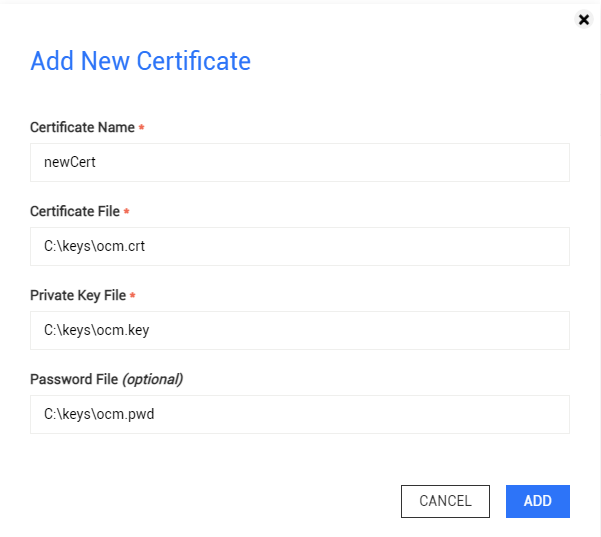
Click ADD NEW CERTIFICATE.
Fill in the required fields. Please beware that the specified files MUST be present on the OPSWAT Central Management server and should not be deleted afterwards; otherwise, OPSWAT Central Management will not start.
Certificate Name: The display name of the certificate in the OPSWAT Central Management console.
Certificate File: The file path of the certificate file.
Private Key File: The file path of the private key file associated with the certificate. The private key must be PKCS8.
Password File (optional): The file containing passphrases used to decrypt an encrypted private key file.
Click ADD.
Check Enable HTTPS.
Select a certificate (added in step 2) that the server should use for secure connections.
Select the TLS versions that the server should allow for inbound requests.
Click SAVE.
OPSWAT Central Management will automatically restart and take a few minutes to load the new Secure Connection settings.

Upon saving Secure Connection settings, customized settings in the nginx's configuration file that are not available on the management console, for example ssl_ciphers, will be restored to default values.
For Windows, getting the latest Windows Updates may be necessary to use a PKCS8-formatted private key.
MetaDefender Core instances cannot download engine packages from OPSWAT Central Management if the latter only has TLSv1.3 enabled.
MetaDefender Core below version 5.4.1 does not support the TLSv1.3 protocol. As a workaround, please enable additional TLS protocols for OPSWAT Central Management.
On Red Hat 7 system, TLSv1.3 should not be enabled alone as Red Hat 7 does not have built-in support for TLSv1.3.
If you are unable to access the OPSWAT Central Management console due to this issue, please modify the serverSettings.conf configuration file manually to revert this change.
Via the nginx's configuration file
To enable HTTPS on OPSWAT Central Management server via the nginx's configuration file :
Locate the serverSettings.conf file in the OPSWAT Central Management installation folder
On Windows: C:\Program Files\OPSWAT\Central\nginx\conf\serverSettings.conf, by default.
On Linux: /opt/ocm/nginx/conf/serverSettings.conf
Open the serverSettings.conf file for modification.
First, add ssl to the two listen lines.
listen 9000 ssl;
listen [::]:9000 ssl;
Then, uncomment the code block starting from ssl_certificate to error_page by removing # at the beginning of each line.
Finally, update the correct file paths for the certificate files
<PATH_TO_CERT_FILE> with the file path of the certificate file, for example "C:\OCM_Keys\your.crt> C:\OCM_Keys\your.crt"
<PATH_TO_KEY_FILE> with the file path of the certificate key file, for example: "C:\OCM_Keys\your.key"
(Optional) ssl_ciphers determines the cipher suites used by nginx. The default configuration uses a macro that prefer cipher suites that supports forward secrecy.
On Windows system, using the standard Windows path separator backslash ** may have unexpected results if the file path contains directories or file names that start with certain special characters such as '\n' or '\t'. The reason is that these characters are interpreted as special characters by nginx.
For example, the following directive:
ssl_certificate "C:\OCM_Keys\nginx\your.crt";
will be interpreted by nginx as:
ssl_certificate "C:\OCM_Keys
ginx\your.crt";
As a workaround solution, instead of backslash (), please use:
Forward slash '/' or
Double backslash ''.
For example:
ssl_certificate "C:\\OCM_Keys\\nginx\\your.crt";
Restart the OPSWAT Central Management server by clicking the Restart menu on the OPSWAT Central Management tray icon.
After the service is restarted, open the OPSWAT Central Management console, for example https://localhost:9000, to check whether the console can be loaded successfully
Click SAVE to save changes.
OPSWAT Central Management version 7.2.0 or earlier stores the HTTPS configuration in nginx.conf. If you are upgrading from one such version to 7.2.0 or above, the installer should automatically generate ssl.conf from your modified nginx.conf file and reset nginx.conf to its default state. In case the generation process failed and the default ssl.conf is installed instead, please follow the instructions below to recover your HTTPS configuration.
Navigate to nginx configuration backup folder (located in C:\ProgramData\OPSWAT\Central\bak, by default).
Locate the nginx.conf file
Locate the HTTPS configuration block to enable HTTPs via nginx above.
Copy the configuration block to the active ssl.conf file (located in C:\Program Files\OPSWAT\Central\nginx\conf, by default).
Restart OPSWAT Central Management to apply new settings.
OPSWAT Central Management version 7.3.0 to 7.34.0 stores the HTTPS configuration in ssl.conf.
From version 7.35.0, the HTTPS configuration is now stored in serverSettings.conf.
If you are upgrading to 7.35.0 or above, the setup should automatically update serverSettings.conf from your modified ssl.conf file. In case the generation process failed and the default serverSettings.conf is installed instead, please follow the instructions below to recover your HTTPS configuration.
Navigate to nginx configuration backup folder
On Windows: C:\ProgramData\OPSWAT\Central\bak, by default.
On Linux: /etc/opt/ocm
Locate the ssl.conf file
Locate the HTTPS configuration block to enable HTTPs via nginx above.
Refer to the configuration block to edit the active serverSettings.conf file
On Windows: C:\Program Files\OPSWAT\Central\nginx\conf\serverSettings.conf, by default.
On Linux: /opt/ocm/nginx/conf/serverSettings.conf
Restart OPSWAT Central Management to apply new settings.
Disabling HTTPS configuration
Via the management console
To disable HTTPS on OPSWAT Central Management server via the management console :
Navigate to Settings > Server Configuration > SECURITY.
Uncheck Enable HTTPS.
Click SAVE.
OPSWAT Central Management will automatically restart and take a few minutes to load the new Secure Connection settings.
Upon disabling the HTTPS configuration, the Server URL will be automatically changed to use the http:// prefix. For certain network configurations where HTTPS access is provided externally (such as via a reverse proxy), the Server URL will need to be manually configured to use the https:// prefix.
Via the nginx's configuration file
To disable HTTPS on OPSWAT Central Management server via the nginx's ssl.conf configuration file :
Locate the serverSettings.conf file in the OPSWAT Central Management installation folder
On Windows: C:\Program Files\OPSWAT\Central\nginx\conf\serverSettings.conf, by default
On Linux: /opt/ocm/nginx/conf/serverSettings.conf
Open the serverSettings.conf file for modification.
Remove ssl from the two listen lines.
listen 9000;
listen [::]:9000;
Restart the OPSWAT Central Management server by clicking the Restart menu on the OPSWAT Central Management tray icon.
After the service is restarted, open the OPSWAT Central Management console, for example http://localhost:9000, to check whether the console can be loaded successfully.
Please note that HTTP Strict Transport Security enabled, you may still be redirect to https://localhost:9000, which now no longer exists.
Update the Server URL to match the new settings if needed.
Click SAVE to save changes.
Enable HTTP Strict Transport Security
HTTP Strict Transport Security (HSTS) enforces the use of HTTPS protocol for all incoming connections. To enable HSTS for OPSWAT Central Management, please follow the below steps:
Locate the ssl.conf file in the OPSWAT Central Management installation folder
On Windows: C:\Program Files\OPSWAT\Central\nginx\conf\ssl.conf, by default.
On Linux: /opt/ocm/nginx/conf, by default.
Locate the configuration line add_header Strict-Transport-Security "max-age=31536000; includeSubDomains; preload" always;
If that line exists but starts with a comment sign (#), remove the comment sign.
If that line does not exist, add it to the bottom of the configuration file.
Restart the OPSWAT Central Management server by clicking the Restart menu on the OPSWAT Central Management tray icon.