
Starting June 17th, 2026, Multi-Factor Authentication (MFA) will be required for all users, except those who sign in through your organization’s own identity provider (IdP).
MFA adds an extra layer of protection at sign-in by requiring a verification code from a supported authenticator app or email. This helps strengthen account security, safeguard access to your organization’s data and resources, and align My OPSWAT Portal authentication with industry best practices.
Table of Contents
My OPSWAT Portal supports two Multi-Factor Authentication (MFA) methods:
Authenticator app (TOTP): an authenticator app plus a recovery code.
Email one-time code: a 6-digit code sent to your verified email address, entered as your second factor at sign-in.
The email method needs no device, which helps if you cannot use an authenticator app or cannot have your phone in your working environment. You choose your method when you set up MFA, and you can change your default method later in My Information > Security.
Set Up MFA When Prompted at Sign-In
If MFA is not enabled on your account, you're going to be prompted to complete MFA setup after signing in. To set up MFA, follow the on-screen instructions.
Choose an MFA method
The first time you sign in without an active MFA method, the Choose an MFA method screen lists the methods you have not yet enabled: Email one-time code or Authenticator app (TOTP). Your selection becomes your default method for future sign-ins. You can change your default MFA method after signing in.
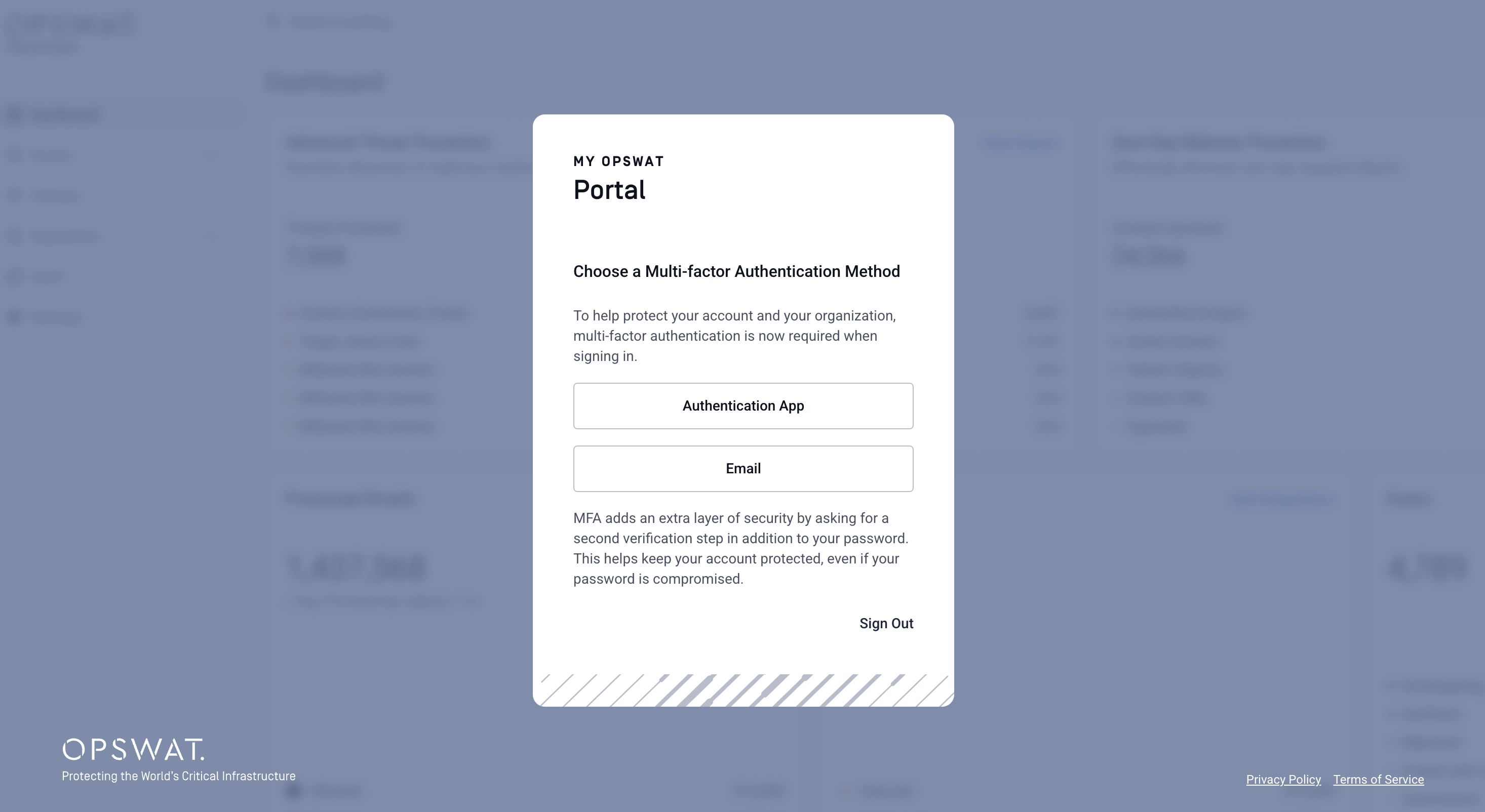
If you choose Email one-time code
Step 1: My OPSWAT sends a 6-digit code to your verified email address.
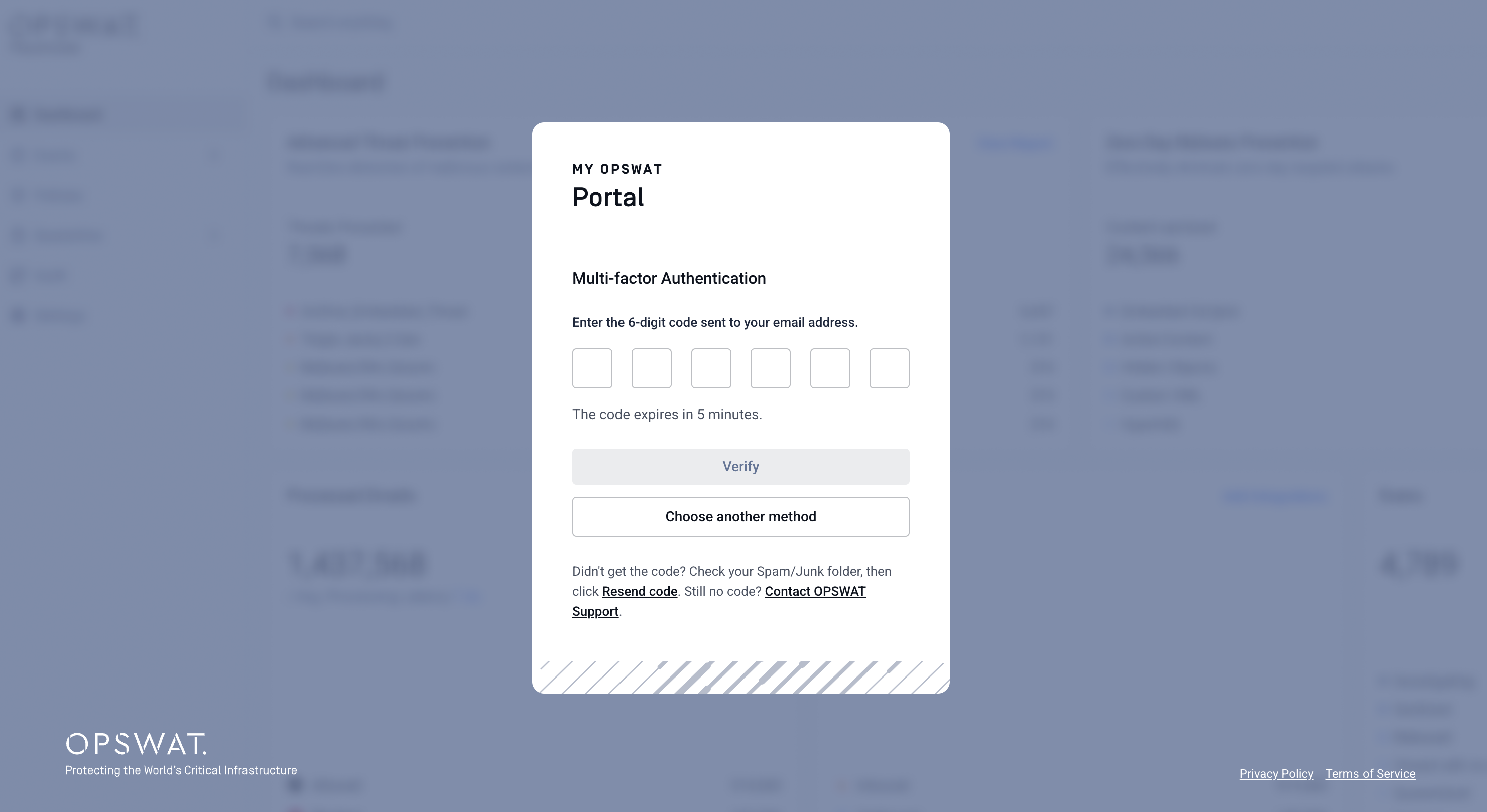
Step 2: Enter the code to finish signing in. The code expires after 5 minutes, and only the most recent code is valid. If you need another code, select Resend code.
Step 3: Complete setup to continue accessing My OPSWAT Portal
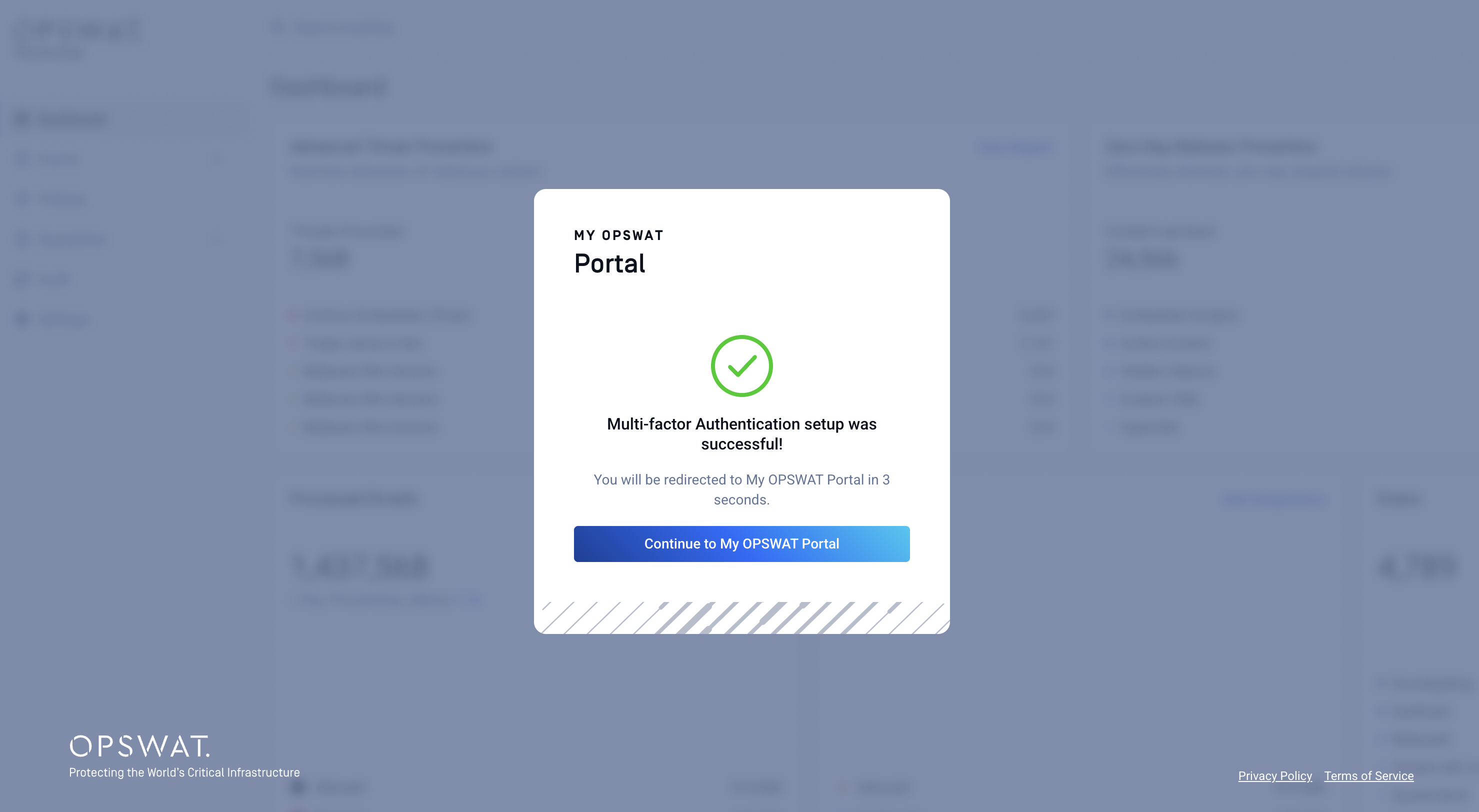
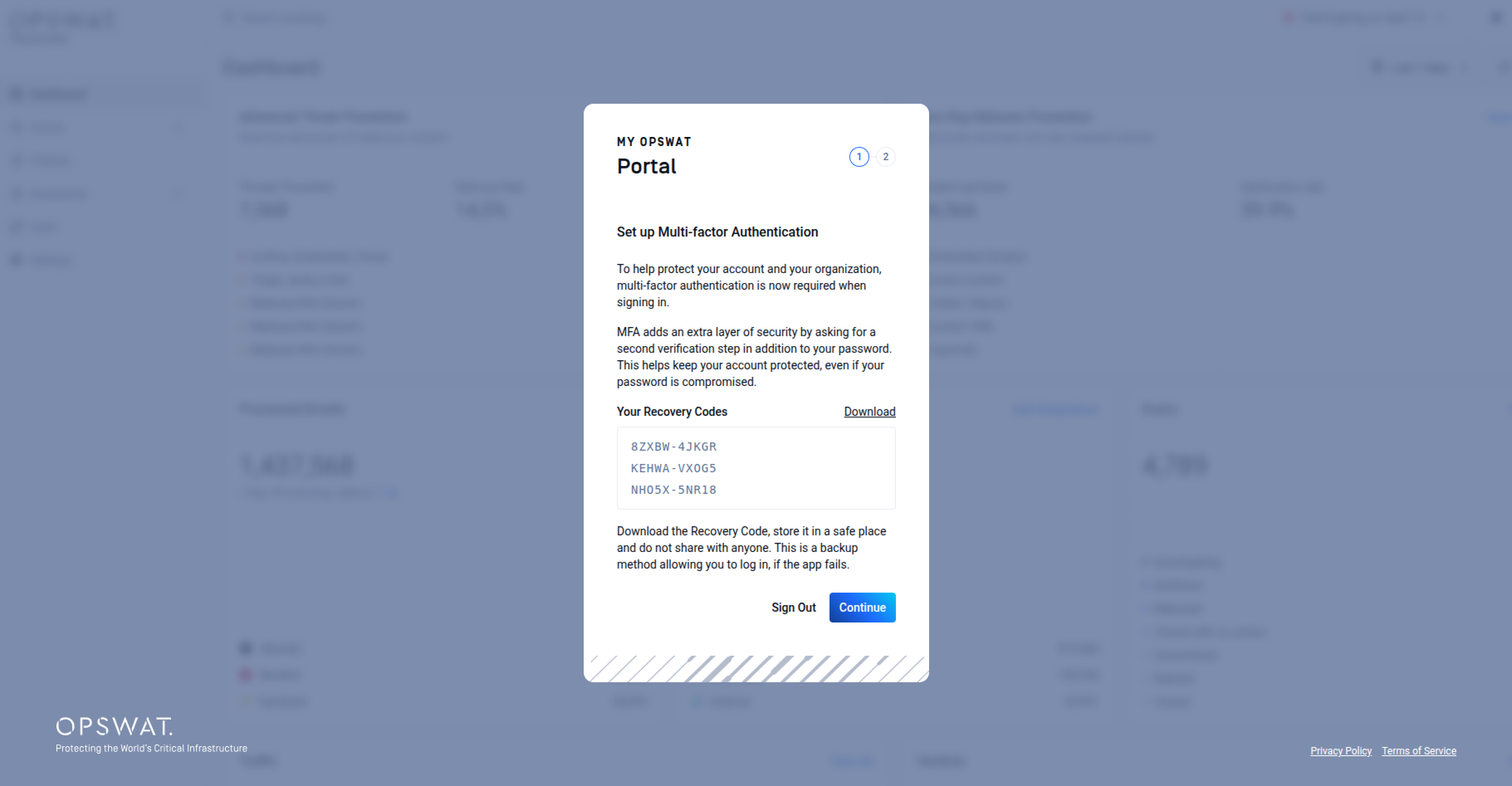
If you choose Authenticator app (TOTP)
Step 1: Download or copy your recovery code and store it in a secure location.
Step 2: Install an authenticator app on your mobile device, (e.g., Google or Microsoft Authenticator), scan the QR code, then enter the 6-digit verification code
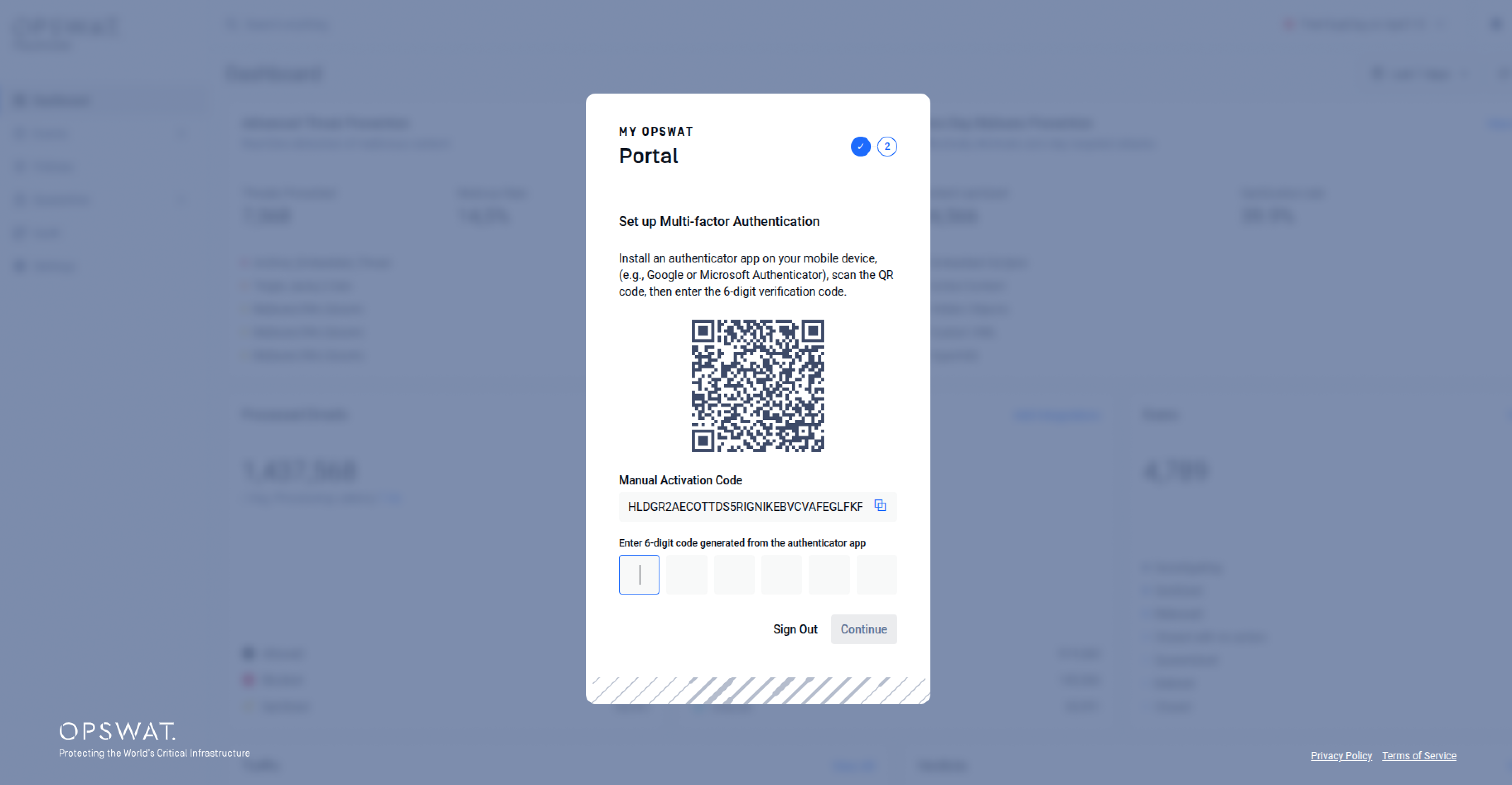
Step 3: Complete setup to continue accessing My OPSWAT Portal
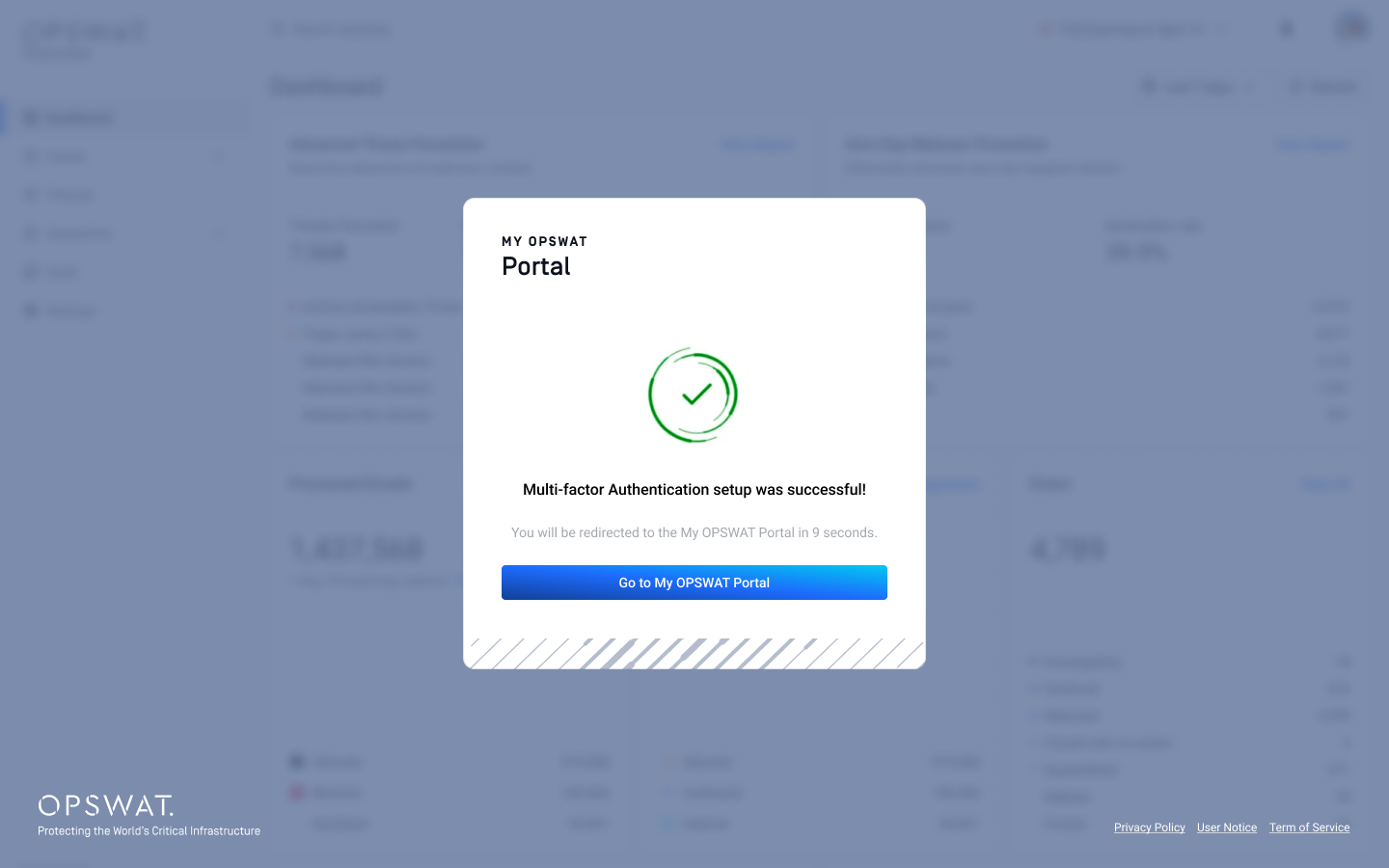
Users must store their MFA recovery code securely. Failure to do so may result in being locked out of their account if the authentication app is lost.
For your account protection, do not share your recovery code with anyone, including OPSWAT Support.
Reset MFA with Recovery Code
If you lose access to your authenticator app or device, use your recovery code to reset your MFA.
Step 1: Sign in to My OPSWAT Portal and enter your email and password.
Step 2: Click Use Recovery code.
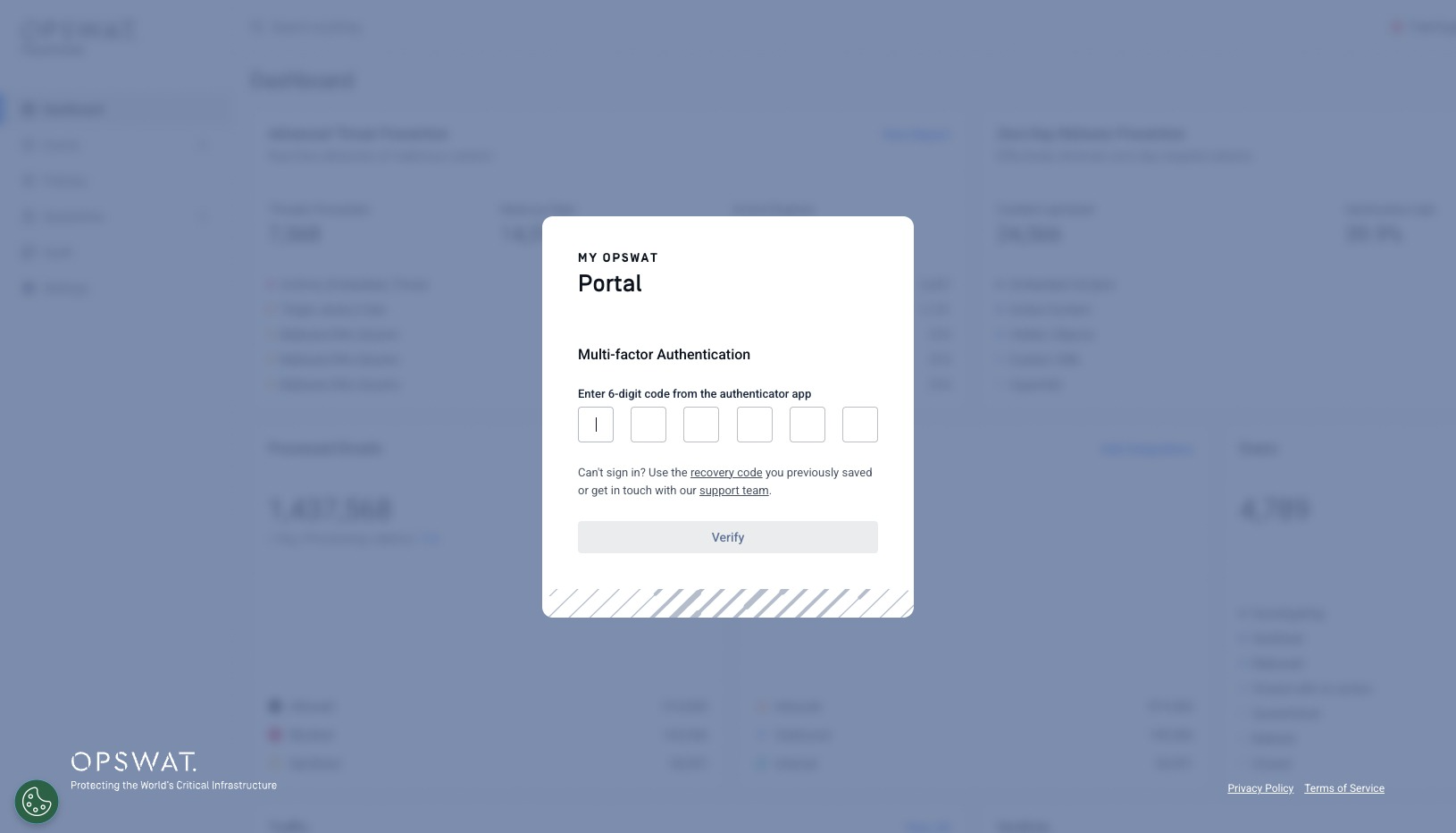
Step 3: Enter your recovery code and click Submit
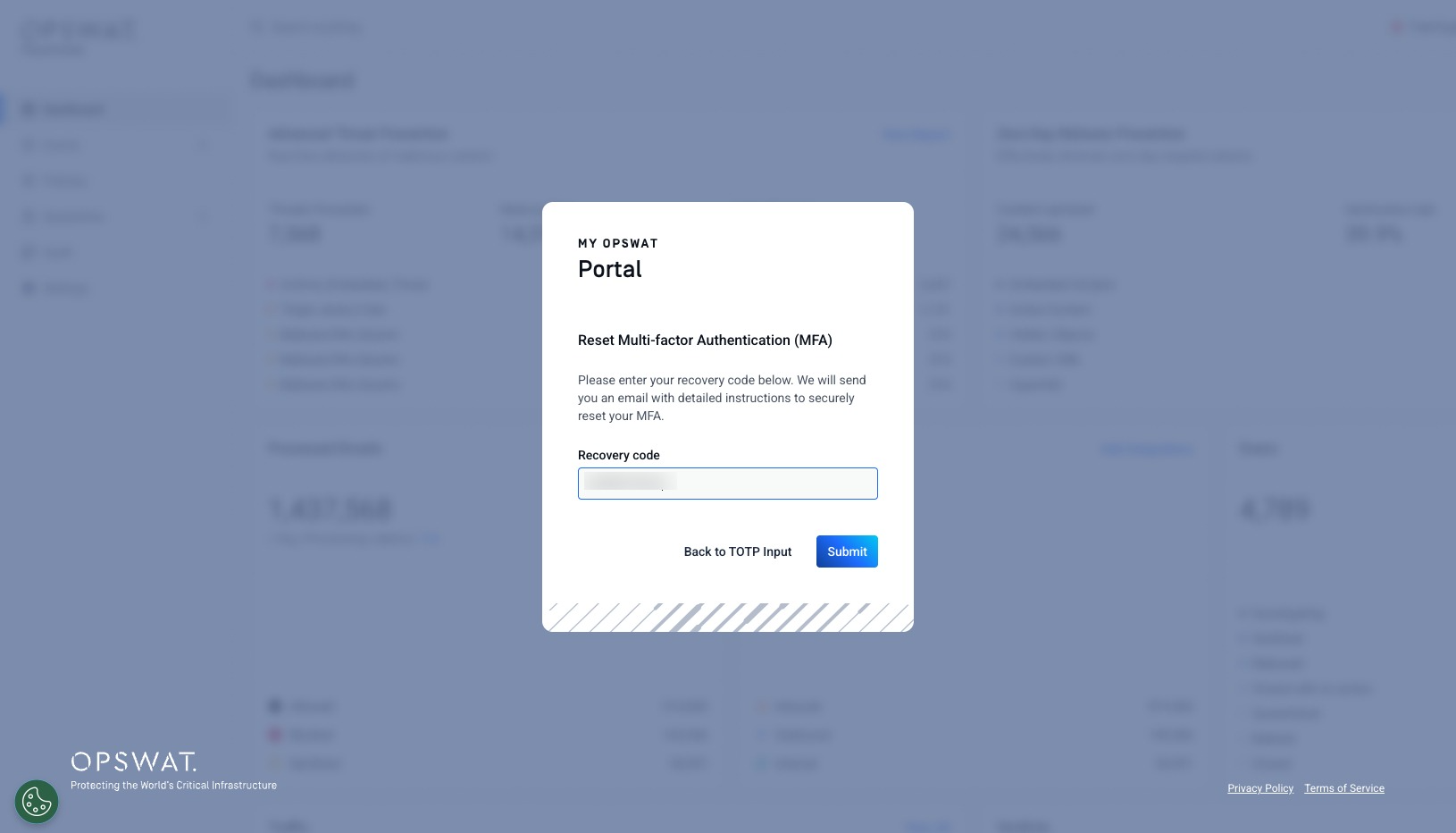
Step 4: An email will be sent to your mailbox with instructions for resetting your MFA. Follow the guidance to set up MFA again.
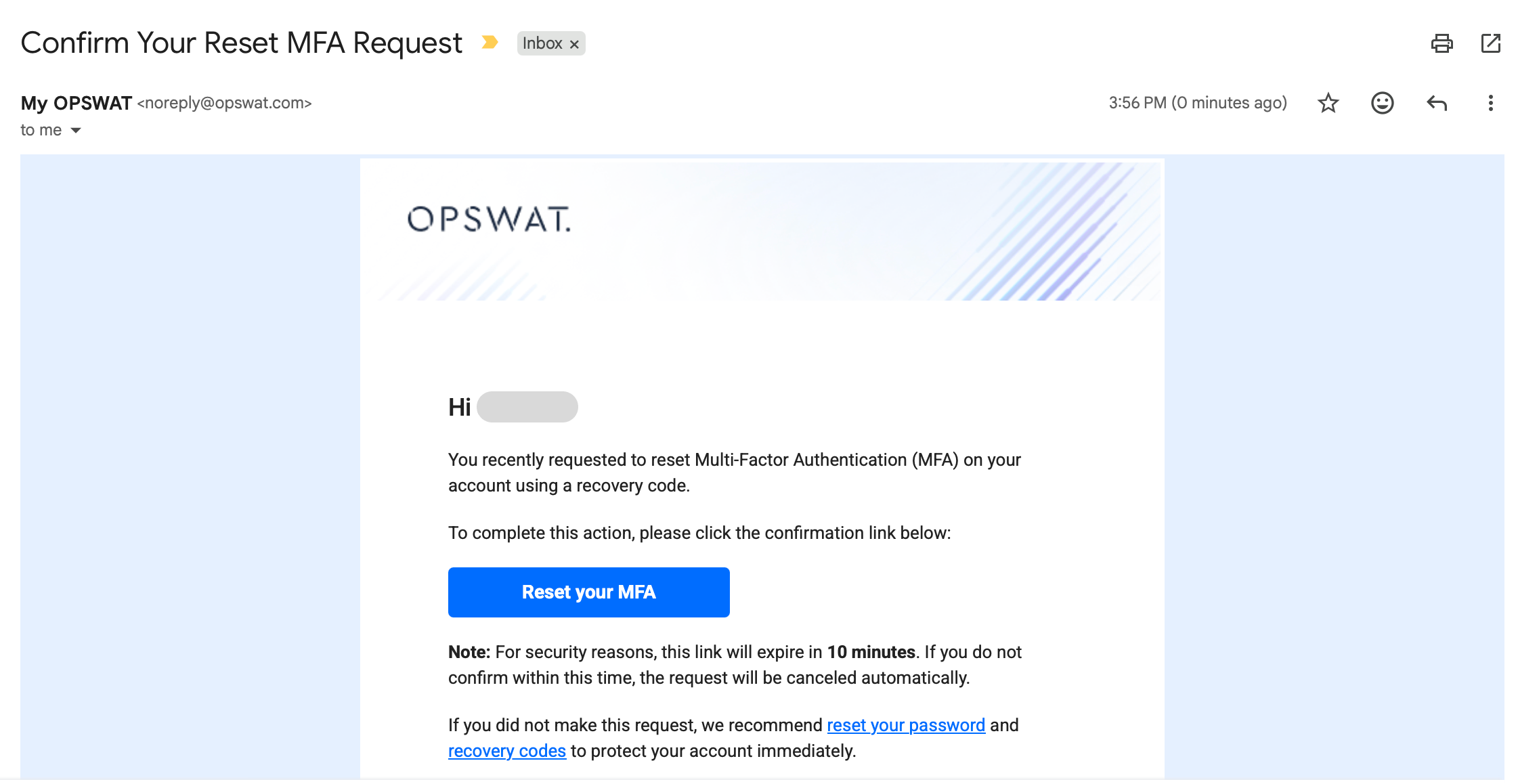
A reset email is sent only when a valid recovery code is entered. If you do not receive the email, please check your spam or junk folder.
For security reasons, no error message is shown for incorrect codes to help prevent unauthorized attempts to identify valid recovery information.
Reset Recovery Code
If you have lost your recovery code but can still sign in to My OPSWAT Portal, you can reset it from your account security settings.

To reset your recovery code:
Sign in to My OPSWAT Portal.
Navigate to My Information > Security.
Under Multi-Factor Authentication, select Reset code.
A new recovery code will be downloaded.
Store the new recovery code in a secure location.
MFA Reset Requests
If you cannot access your authenticator app and do not have your recovery code, OPSWAT Support can assist with an MFA reset after identity verification.
After MFA is reset, you will be prompted to set up MFA again the next time you sign in.
For help, contact OPSWAT Support:
Disable MFA
Because MFA is required for applicable My OPSWAT Portal accounts, you cannot disable MFA. If MFA is disabled during account recovery, you must set it up again the next time you sign in.
Frequently Asked Questions (FAQs)
1. Why is OPSWAT making this change?
OPSWAT is requiring MFA to strengthen account security, help safeguard access to your organization’s data and resources, and align My OPSWAT Portal authentication with industry best practices.
MFA adds an extra verification step at sign-in, which helps reduce the risk of unauthorized access if account credentials are compromised.
2. Does this apply to users signing in through their organization's IdP?
No. If your organization uses its own identity provider (IdP), such as Okta, Azure AD, Ping Identity, or another customer-managed Single Sign-On (SSO) provider, this requirement does not affect your login.
Your organization continues to manage authentication policies for your SSO environment.
3. Which authenticator apps are supported?
My OPSWAT Portal supports Time-based One-Time Password (TOTP) authenticator apps, including:
Google Authenticator
Microsoft Authenticator
Authy
Other compatible TOTP authenticator apps
4. What happens if I lose my phone or cannot access my authenticator app?
If you lose access to your authenticator app or device, use your recovery code to reset MFA during sign-in process.
If you do not have your recovery code, contact OPSWAT Support for assistance.
5. How do recovery codes work?
A recovery code is provided during MFA setup. You should download or copy this code and store it in a secure location.
You may need your recovery code if you lose access to your authenticator app or device.
Do not share your recovery code with anyone, including OPSWAT Support.
6. What should I do if I am locked out?
If you are unable to sign in because you cannot access your authenticator app and do not have your recovery code, contact OPSWAT Support.
OPSWAT Support can assist with an MFA reset after identity verification.
For help, contact OPSWAT Support:
7. What if my organization cannot set up MFA?
MFA is required for accessing My OPSWAT Portal (and other OPSWAT Cloud products/ services, including MetaDefender Cloud, MetaDefender Cloud Email Security, Filescan.IO, My OPSWAT Central Management, and OPSWAT Academy) and cannot be disabled through self-service settings.
If your organization has a specific environment limitation that prevents users from setting up MFA and you are unable to use your organization’s own identity provider (IdP), please contact OPSWAT Support for assistance.
OPSWAT will review the request and provide guidance on the available options.
For help, contact OPSWAT Support:
8. Why can't I download my recovery code?
If the recovery code field is blank, the recovery code does not generate, or you see an error message “Your attempt has failed. Please try again.” when clicking Download recovery code, your browser cache or cookies may be preventing MFA setup from completing correctly.
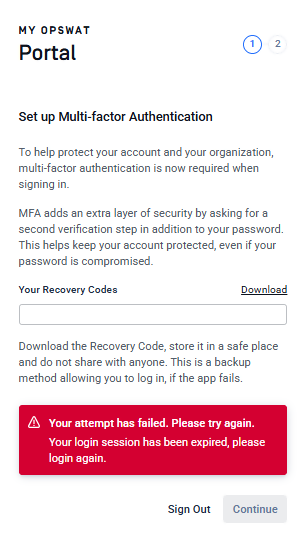
To resolve this issue, try one of the following:
Open My OPSWAT Portal in an incognito or private browsing window, then sign in and complete MFA setup again.
Clear your browser cache, then sign in and complete MFA setup again.
If the issue continues after trying the steps above, please contact OPSWAT Support
9. Why isn't my authenticator code working?
If the verification code from your authenticator app is rejected during MFA setup or sign-in, the time on your mobile device may not be synchronized correctly.
Authenticator codes rely on accurate device time. If your mobile device's date and time are not synchronized automatically, the generated code may be invalid. Enable automatic date and time settings on your device and try again with a new code
10. Why am I not getting emails from My OPSWAT Portal?
If you are not receiving emails from My OPSWAT Portal, please ensure that your email environment allows emails from the following domain:
https://byzibwf.r.us-west-2.awstrack.me
If your organization utilizes an email security gateway, spam filter, or firewall, please reach out to your IT administrator to allowlist this domain to ensure that emails can be delivered successfully.
If the issue persists after allowlisting the domain, please contact OPSWAT Support