
A security dongle must be inserted in the BLUE and RED servers to change configuration.
MetaDefender Diode X Default IP Address
MetaDefender Diode X comes with a default IP of 10.10.10.10 to access the management UI. This is applicable for both the BLUE and RED sides , both sides must be configured.
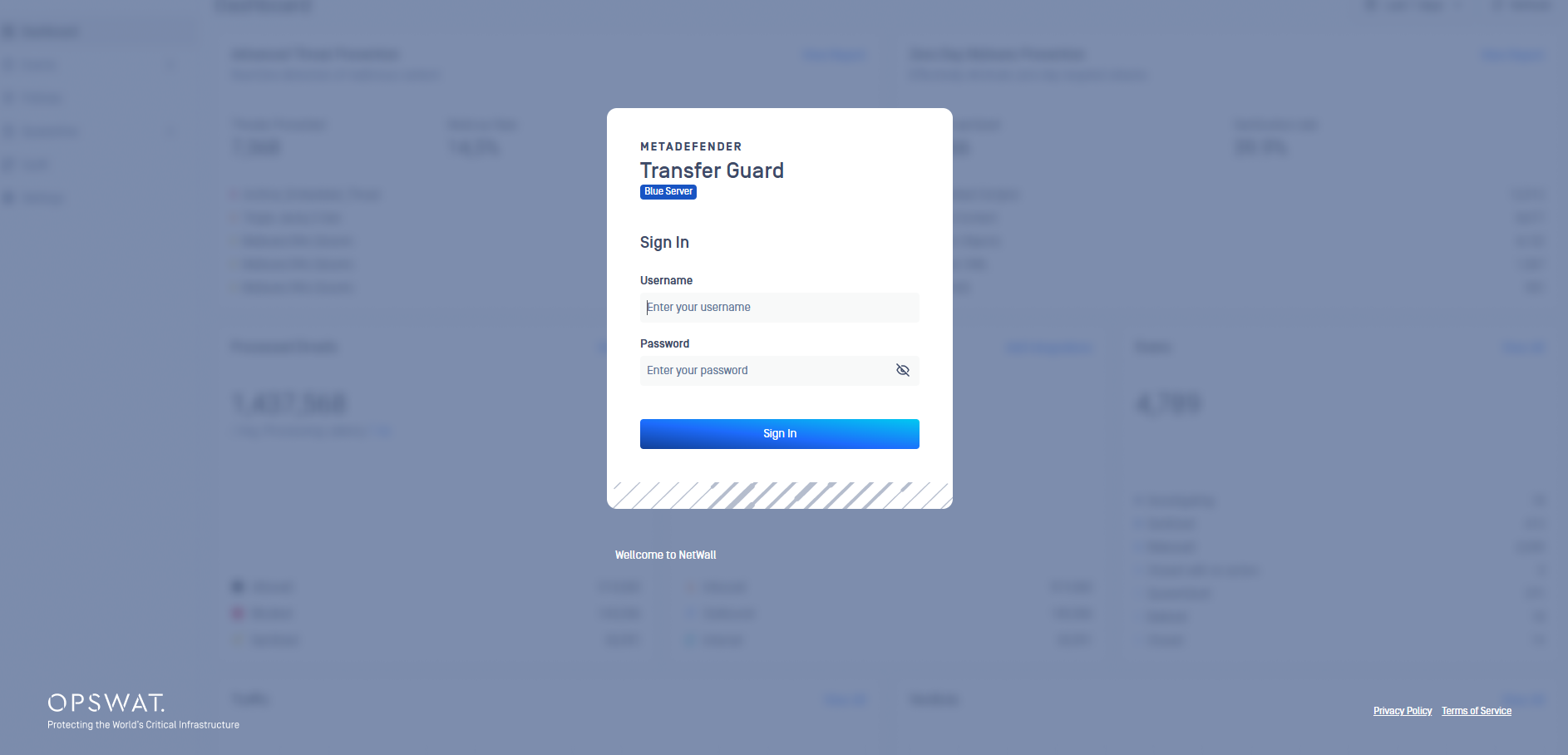
Configure a laptop/desktop with a 10.10.10.X network address. Open a web browser and type https://10.10.10.10 to access the web UI. Once in the login page, insert valid user/password.
Default credentials are opswat/a1aaaa. It is strongly recommended to change username and password as soon as possible.
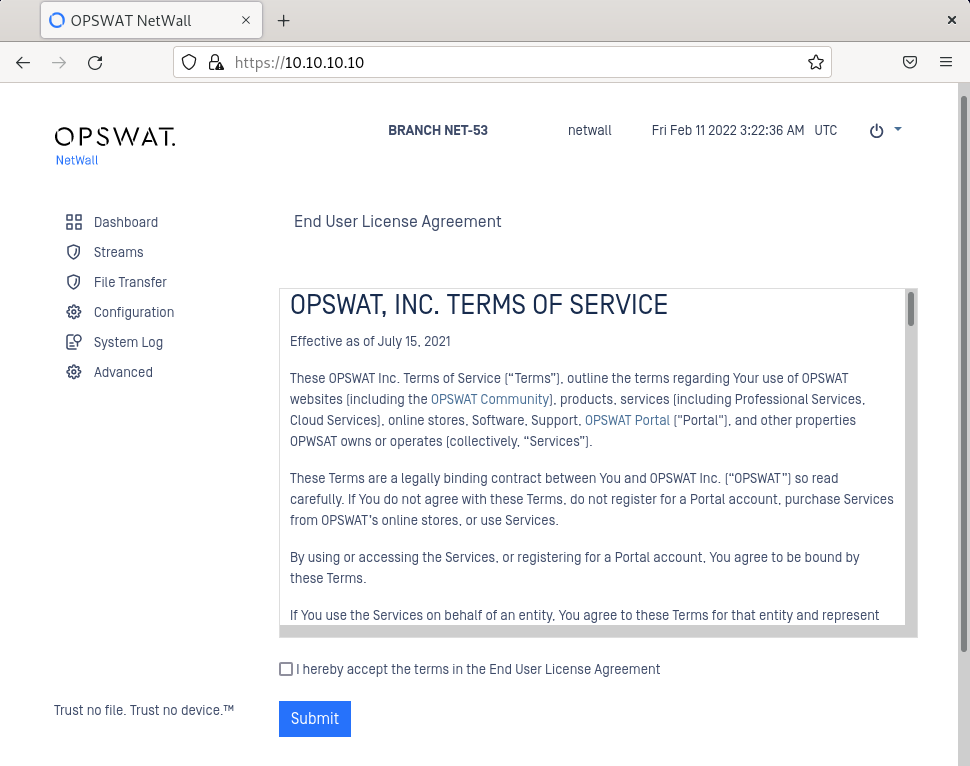
After login, user must accept the OPSWAT EULA.
IP Addresses
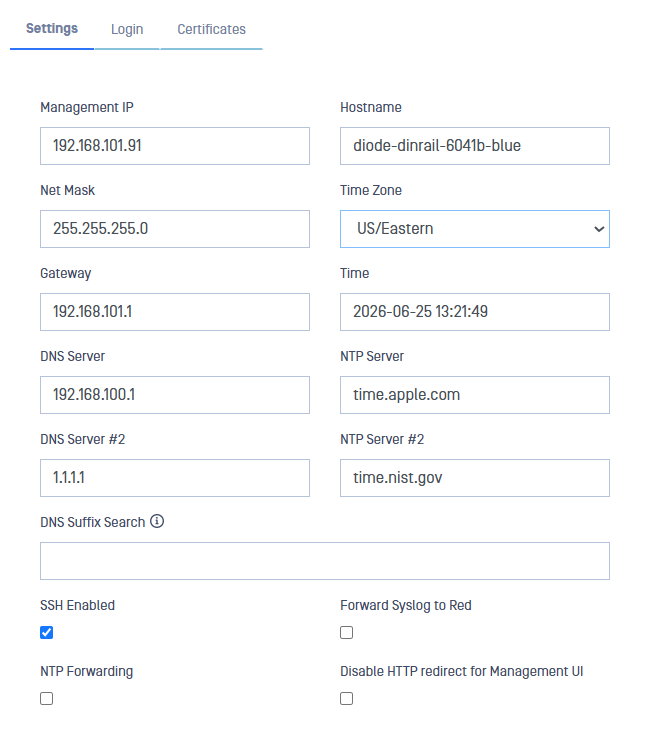
After accepting the EULA, the user will be redirected automatically to the Settings page, where you will be prompted to insert the management IP and other connection details.
Fill in Management IP (for instance 192.168.30.244).
Fill in Net Mask (for instance 255.255.255.0)
Fill in Gateway (for instance 192.168.30.1)
Click Update to save the changes.
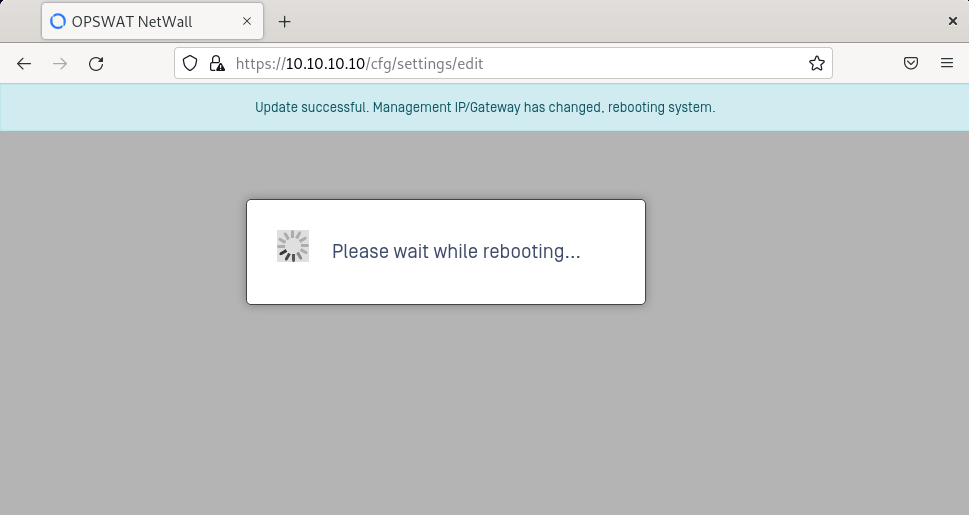
When changing Management IP, the system will reboot. Simply wait until the device reboots.
Set up DNS and NTP Servers
Once the management IP has been configured, access the web UI to configure DNS and NTP servers.
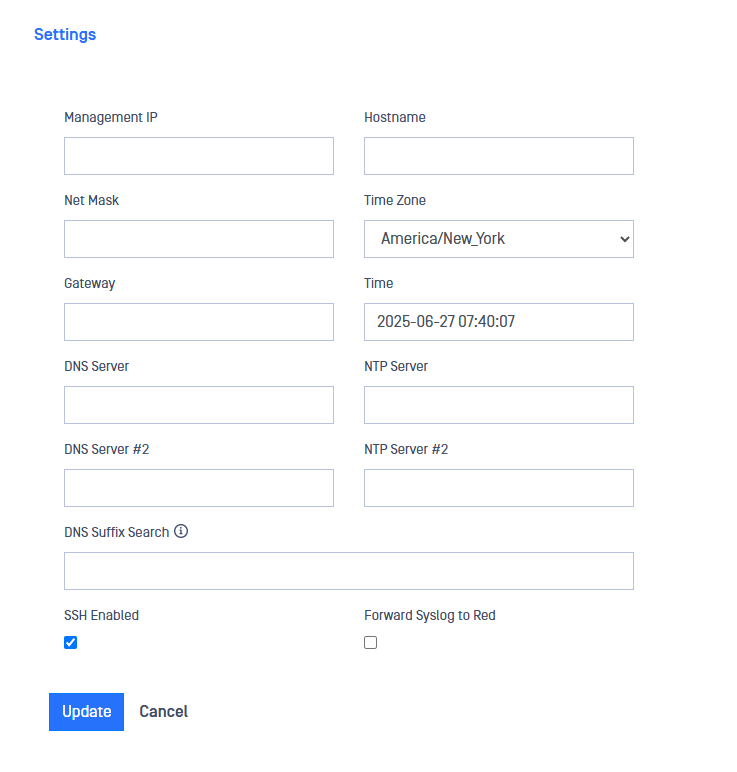
DNS servers
Go to Configuration-> Settings
Click on Edit button
Type the IP address of the DNS server
Type the IP address of the DNS server 2 for an alternative DNS server
Optionally, multiple domain names, separated by a space, can be included in the DNS Suffix Search field.
Click on Update button to save the changes
NTP servers
Go to Configuration-> Settings
Click on Edit button
Type the IP address of the Network Tim Protocol [NTP] server. NTP enables the clocks to synchronize between computer systems through packet-switched, variable-latency data networks
Type the IP address of the NTP server 2 for an alternative NTP server
Click on Update button to save the changes
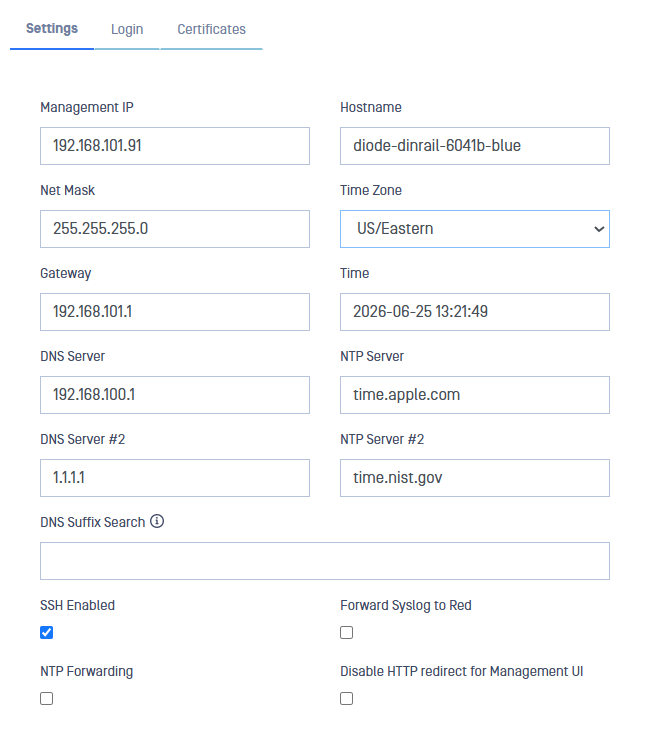
NTP Forwarding from BLUE to RED
NTP Forwarding (BLUE)
This feature provides the ability to synchronize Network Time Protocol (NTP) from Blue to Red. It must be configured on both BLUE and RED.
Go to Configuration -> Settings
Click on Edit Button
Click on the NTP Forwarding box
Select Update to save configuration
NTP Forwarding (RED)
Go to Configuration -> Settings
Click on Edit button
Leave the NPT Server and NTP Server #2 boxes blank
Click on the NTP Forwarding box
Select Update to save configuration
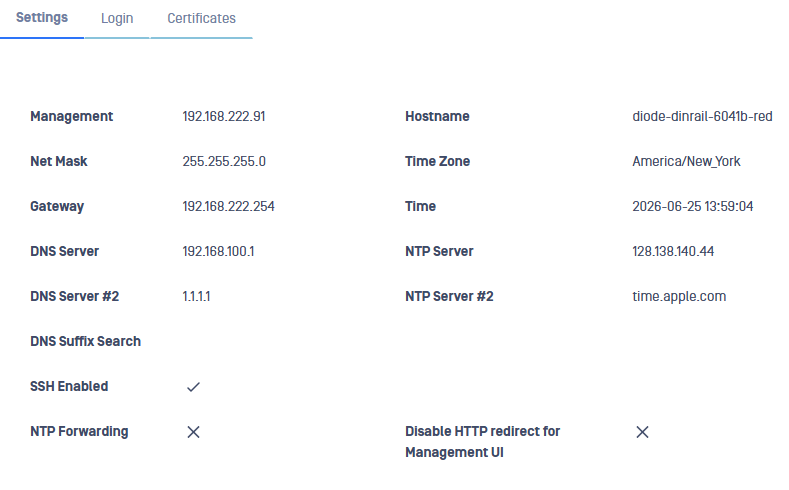
The external NTP client on the RED network must be configured to use the RED Optical Diode as an NTP server.
Additional Settings
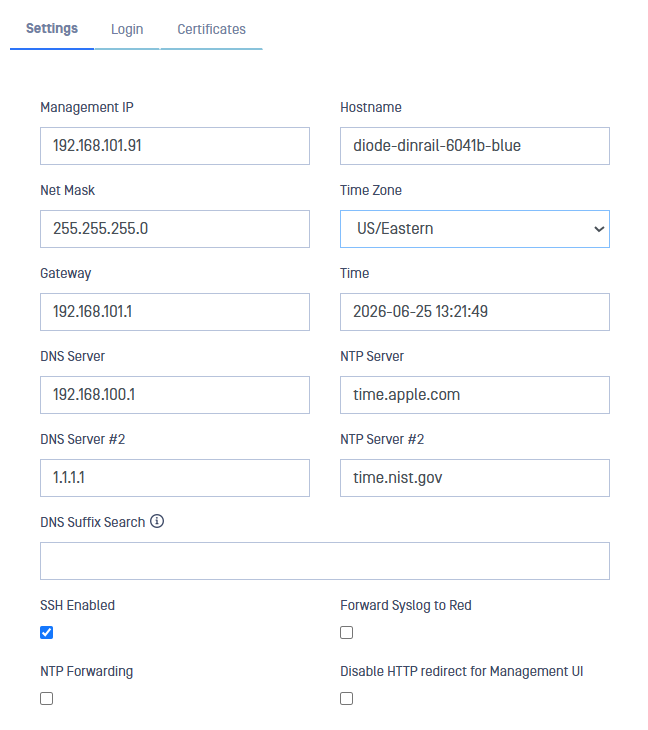
Check/Uncheck SSH Enabled checkbox to enable/disable SSH in the corresponding NetWall server
Check/Uncheck Forward Syslog to RED (BLUE server only) to enable/disable the forwarding of NetWall BLUE syslog to RED automatically.
Check/Uncheck Disable HTTP Redirect for Management UI enable/disable HTTP Port in the corresponding NetWall server
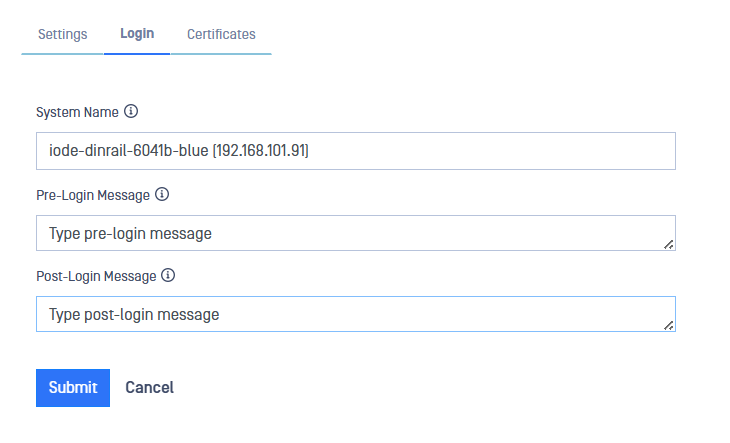
Login Banner
Click the Login tab to customize Pre and Post login banner messaging.
Set Time (Manual Configuration)
Setting the time manually will cause Diode X to reboot. This will happen in both servers BLUE and RED.
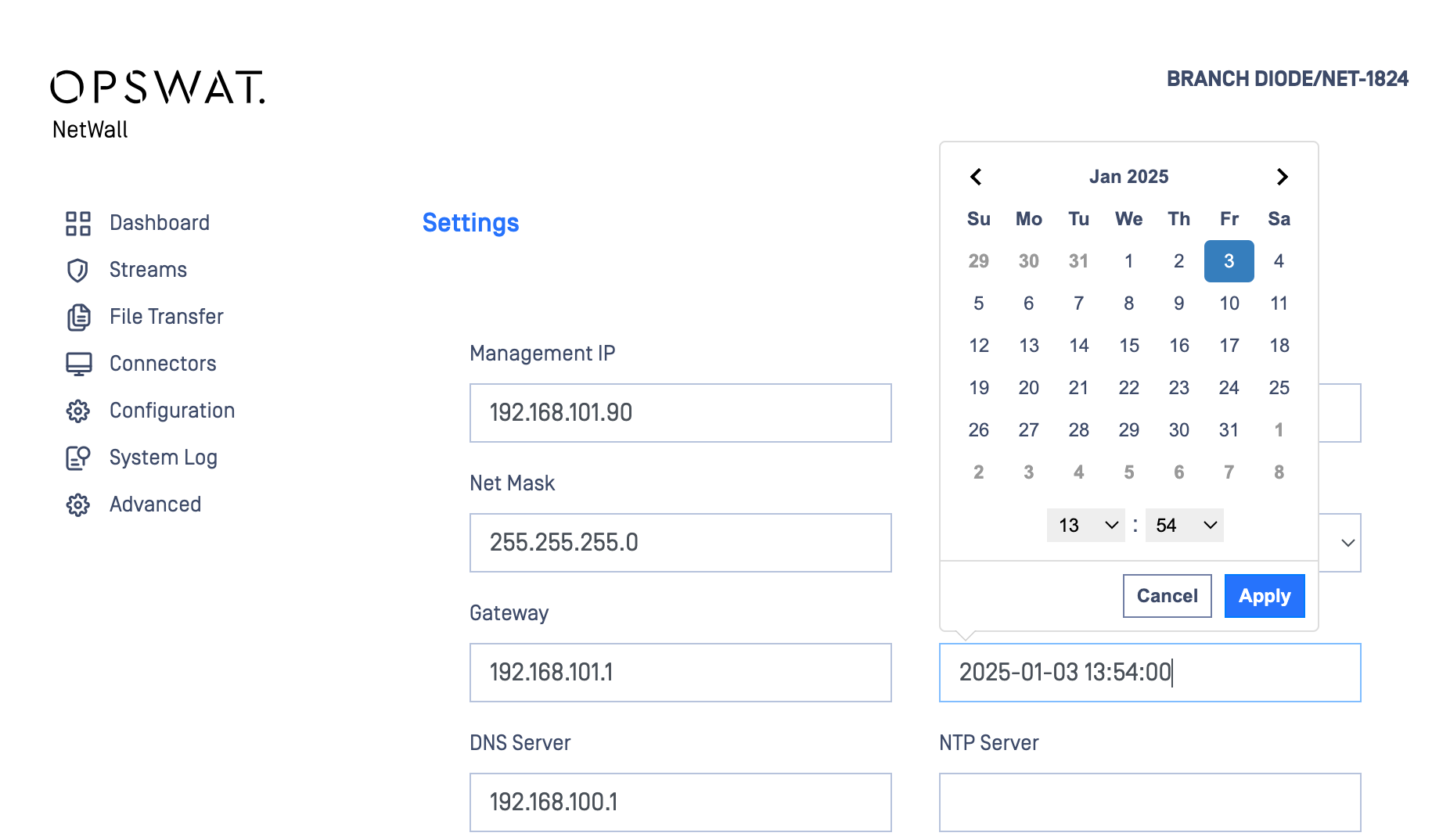
There can be situations when configuring an NTP server is not possible (BLUE side has no Internet access, for instance). In this situations, time cab be configured manually:
Go to Configuration-> Settings.
Click on Edit button.
Select the time zone in the dropdown list.
Click on Time field and select day and time in the deployed calendar, then Apply.
Click on Update button to save the changes.
Diode X CLI
Alternatively, you can set up the Management IP and L3 Routes using the Optical Diode CLI connecting a monitor and a keyboard to each server, BLUE and RED.
Remember you can check available commands by typing ?
Login with valid credentials and set up L3 route and management IP. After that, you can access to the management UI using the configured management IP and configure DNS and NTP servers.
Set up Routes
eagle> config
eagle (config)> routes
eagle (config.routes)> add
eagle (config.routes.add)> gateway 192.168.X.X
eagle (config.routes.add)> target_range 0.0.0.0/0
eagle (config.routes.add)> save
Set up Management IP and Port
eagle> management
eagle (mgmt)> ipaddress 192.168.X.X/24
It will ask you to reboot, type 'y' and press 'enter'.
Diode X Dashboard
Once set up and configured, the user can check Diode X's status in the Health Information screen on the Diode X RED Dashboard. Information will be displayed confirming whether MetaDefender Diode X BLUE is correctly connected. The Health Information screen will also validate whether the redundant optical connection is correctly connected.
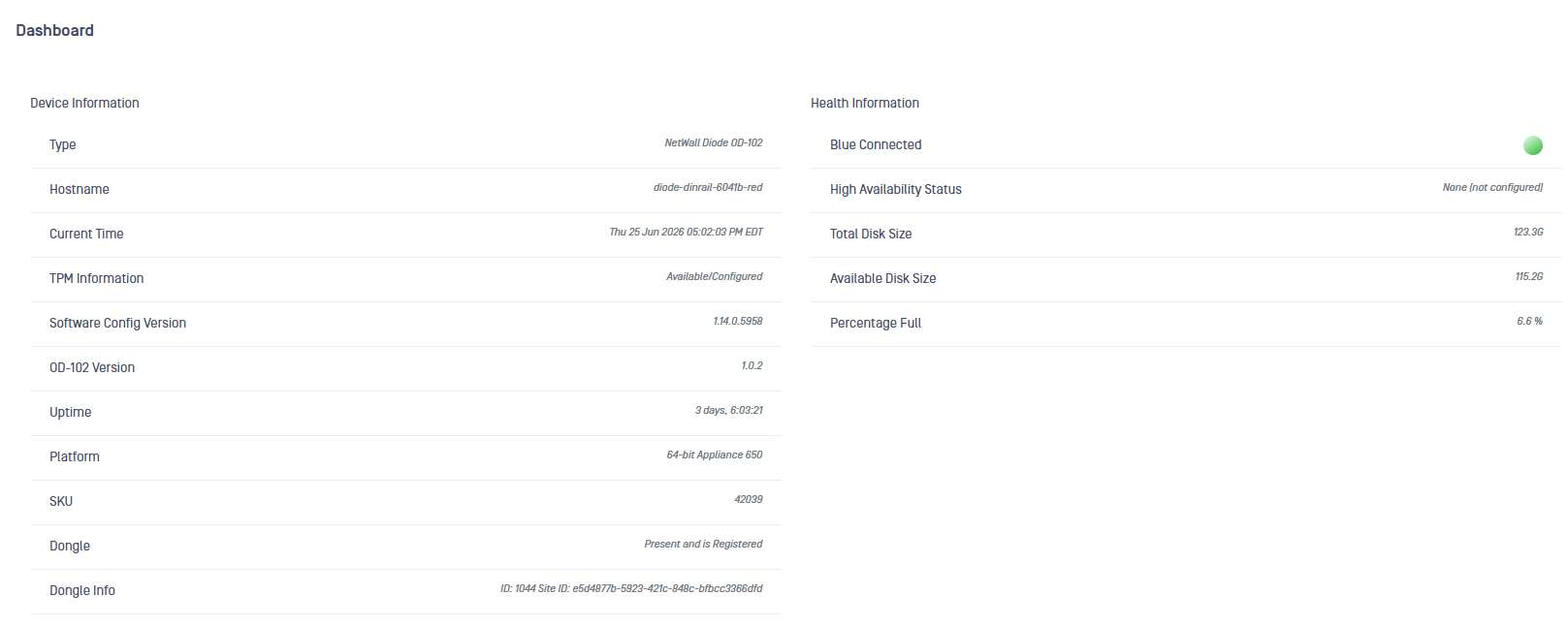
MetaDefender Diode X will verify the authenticity and integrity of Diode X hardware components. The result of Hardware Attestation will be indicated in the Dashboard.

Hardware Attestation provides assurance that the hardware components are legitimate and have not been tampered with. If the hardware attestation fails, the data flow will be terminated. The Hardware Attestation feature is only available on Diode X software versions v2.3.0 and 2.4.0.
OPSWAT Central Management Integration
Central Management is a centralized console that provides basic health information for MetaDefender diode X and other NetWall models. In addition, you can perform global operations such as manage MetaDefender products and OPSWAT Client, view managed anti-malware engines, manage virus definition and engine updates, and check licensing status. For more information, please visit https://docs.opswat.com/ocm
OCM configuration is optional and very simple.
OCM integration must be configured independently on both BLUE and RED appliances. A security dongle must be inserted in the appliance to change the configuration of OCM integration.
Log into the Web UI and click on the "Unmanaged" text on the top right. A Product Management Enrollment screen will pop up. Key in the OCM Server API URL and Registration Code.
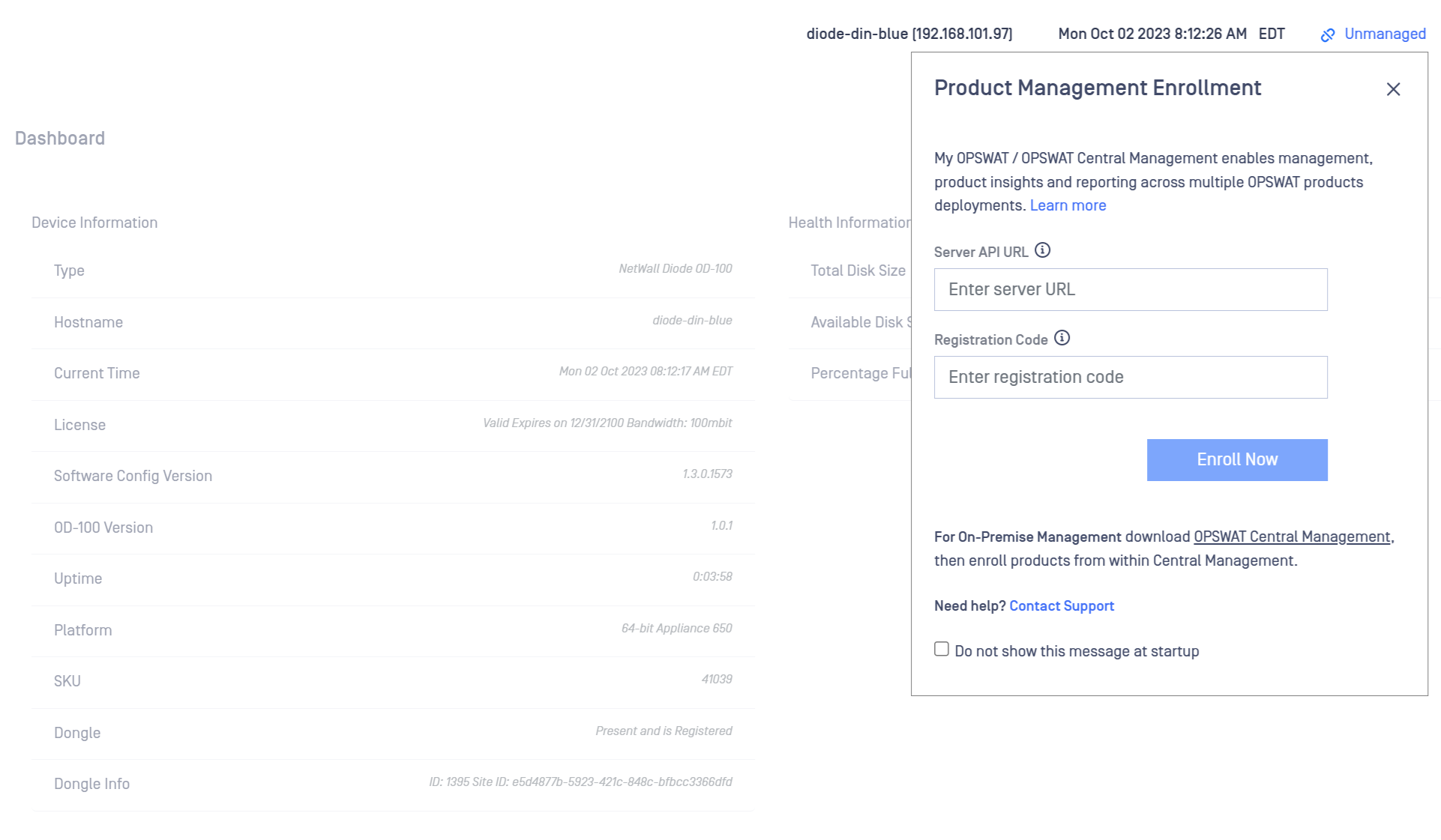
Server API URL: URL of your OCM Server's API
Registration Code: This registration code will be provided in the OPSWAT Central Management console.

Once the required information keyed in, click on the Enroll Now button.