To enroll MetaDefender Storage Security into My OPSWAT Central Management, these steps should be followed:
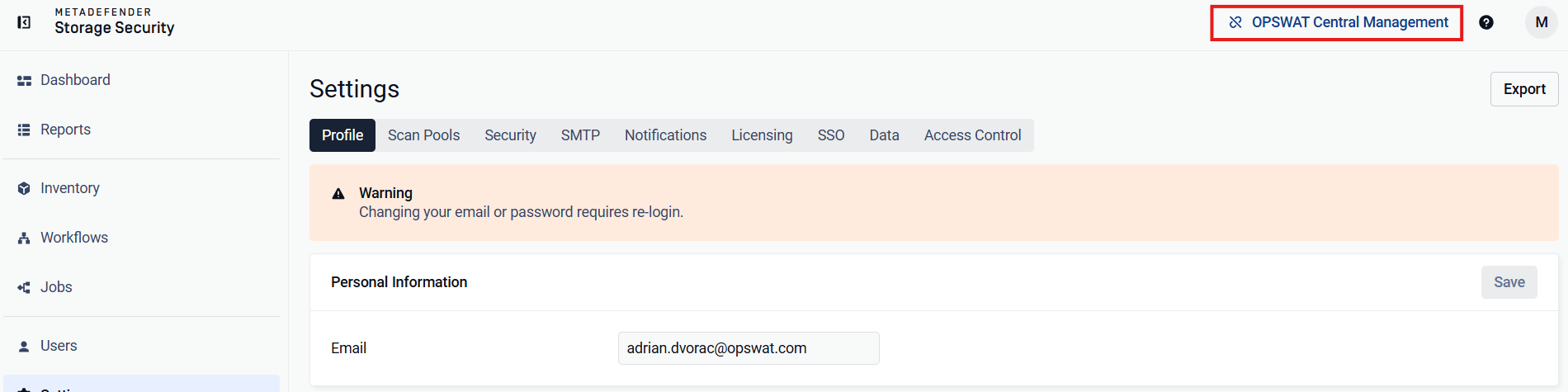
In the top-right corner, next to the username, click the OPSWAT Central Management button. The button keeps this label after enrollment; only its icon changes to show that the product is connected. Users without permission to change the enrollment see the label but cannot click it.
Clicking the button will open a form containing the necessary fields to enroll. These are Server URL, which is the address of the Central Management server to which you want to enroll the product, and Registration Code, which can be found in the Central Management UI by navigating to Settings -> Global. The registration code will be present on that page.
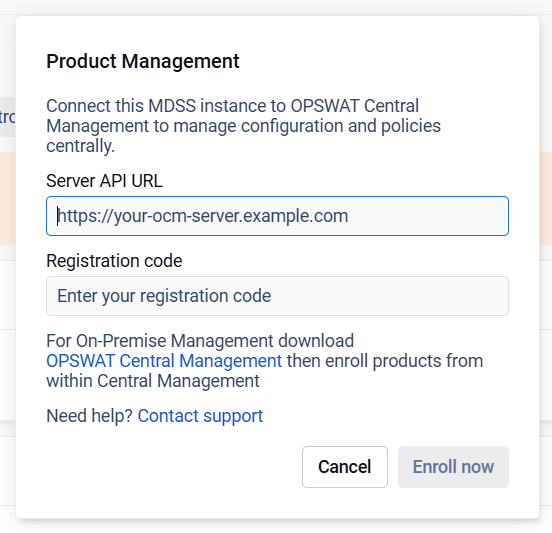
After completing the form, click Enroll now. If the information is correct, MDSS should display a message saying that enrollment was successful.
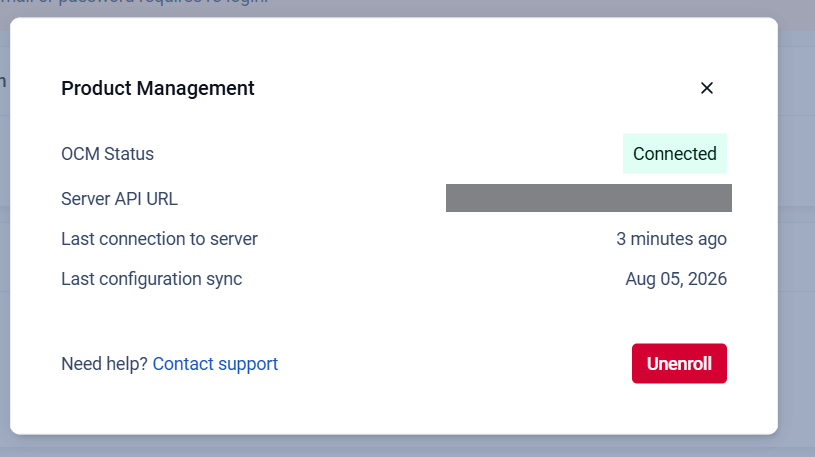
Once you have successfully enrolled your MetaDefender Storage Security instance, the button OPSWAT Central Management will reveal Product Management information about the connection to the OCM platform.
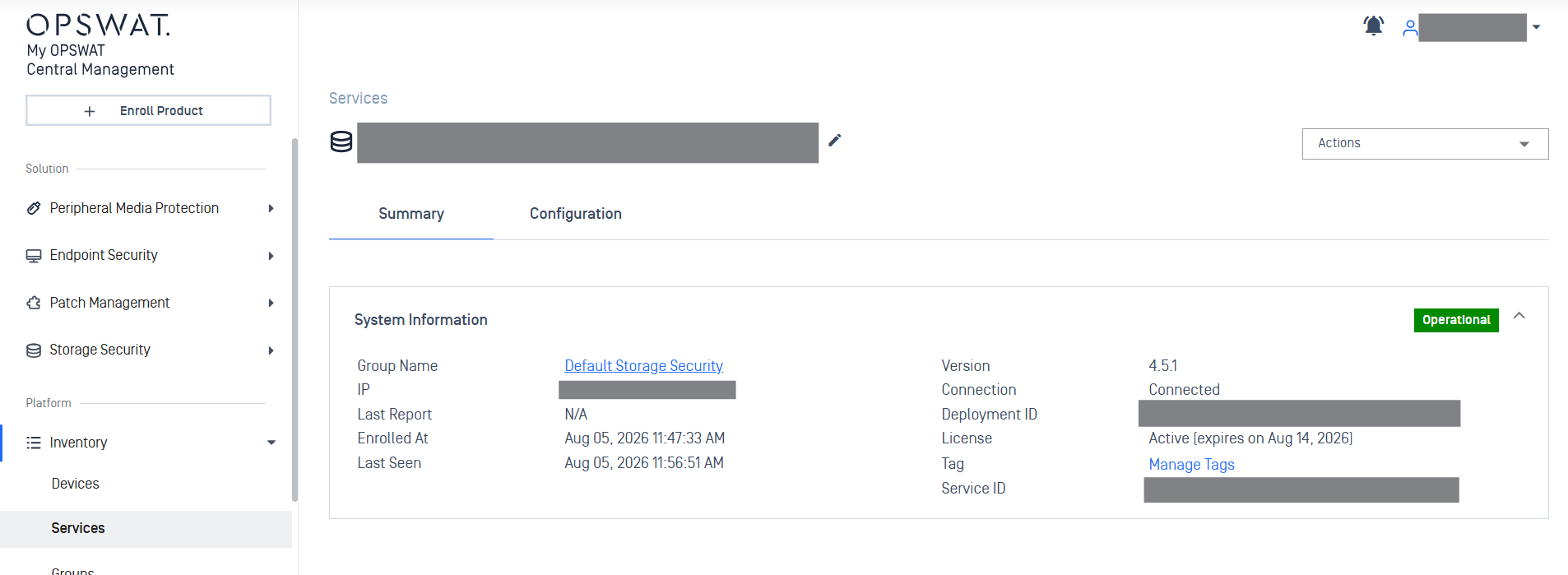
Additionally, navigating to the Central Management server, you should be able to see your enrolled instances under the Inventory > Services tab
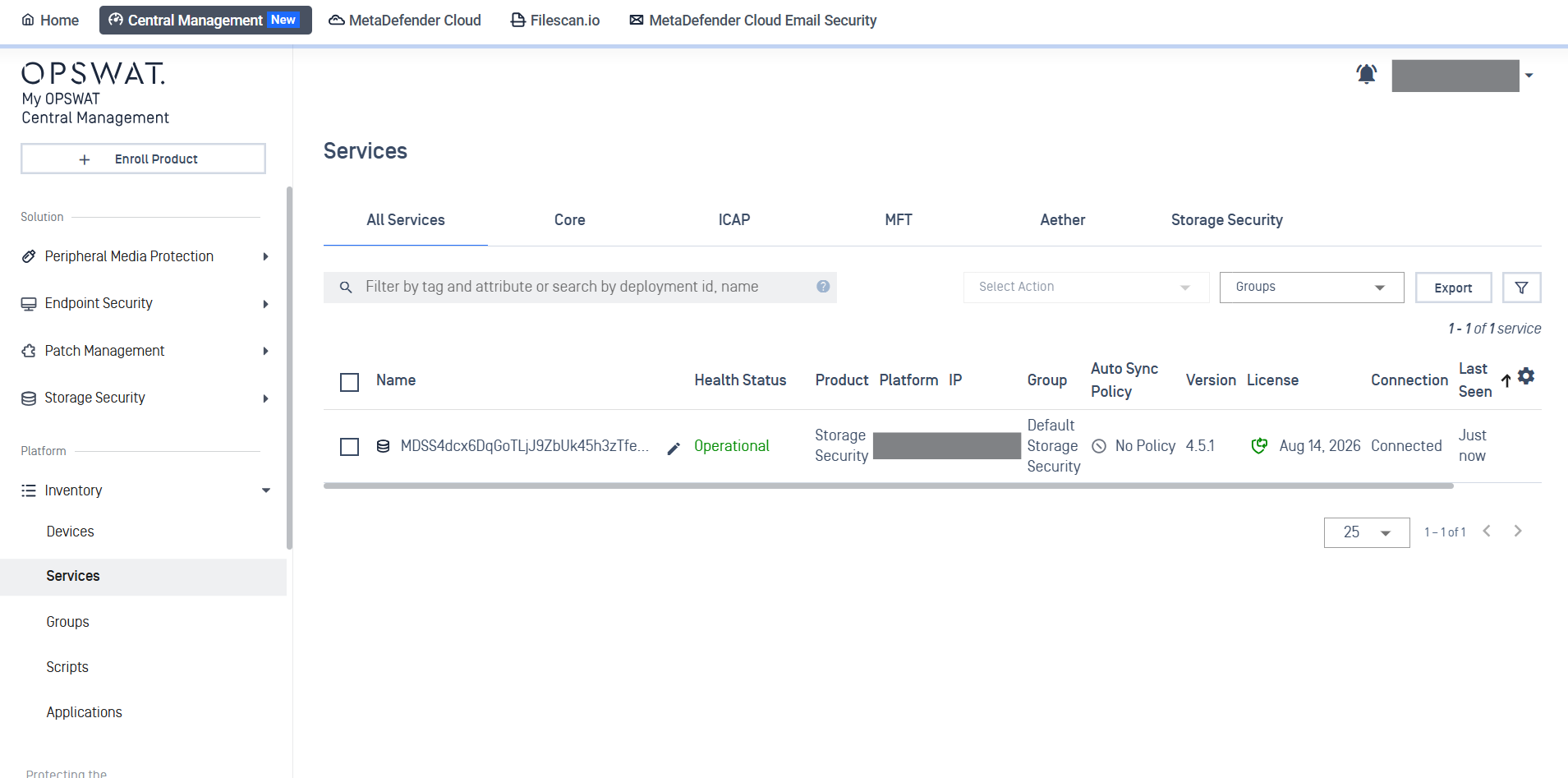
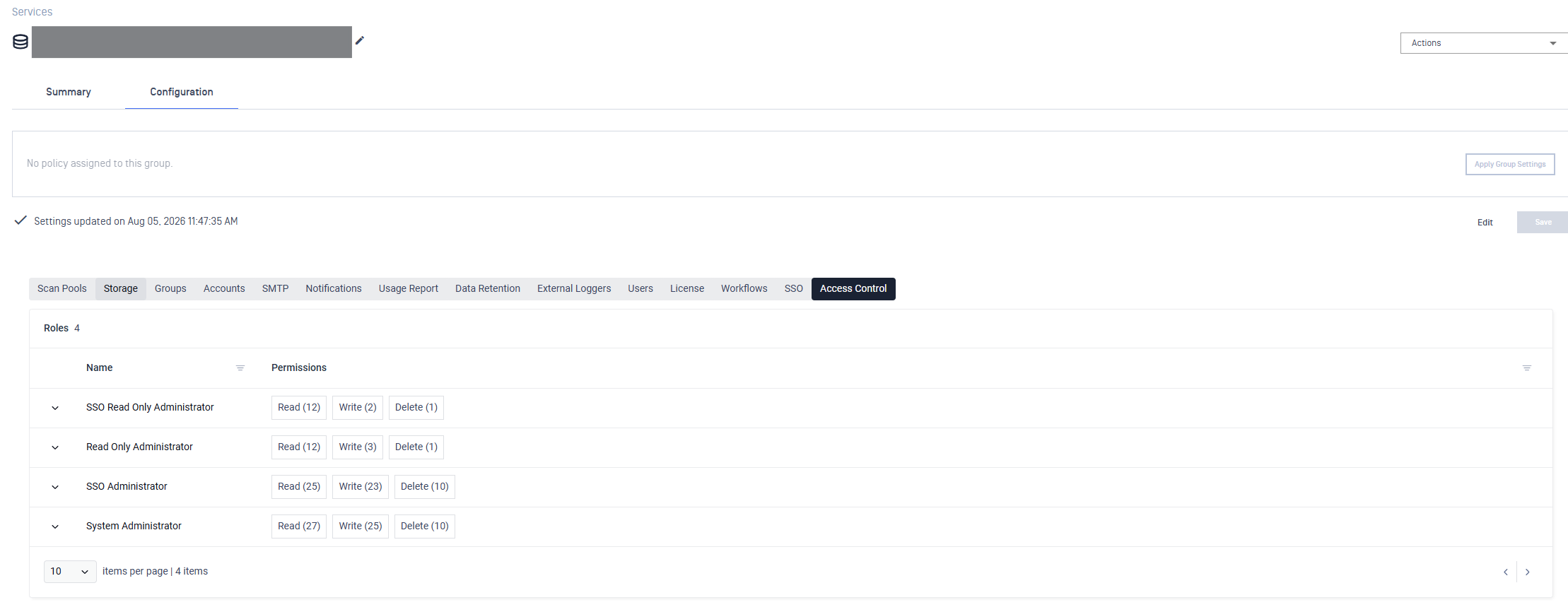
Furthermore, clicking on the card above will take you to a page where more information about each instance can be seen: