
Limitation : Due to an Azure Files restriction, uploading 0-byte files is not supported. If a remediation action attempts to upload an empty file, the operation will fail.
In order to integrate Azure Files with MetaDefender Storage Security please follow these steps:
From the left side menu, navigate to Inventory , click on Add account and choose Azure Files
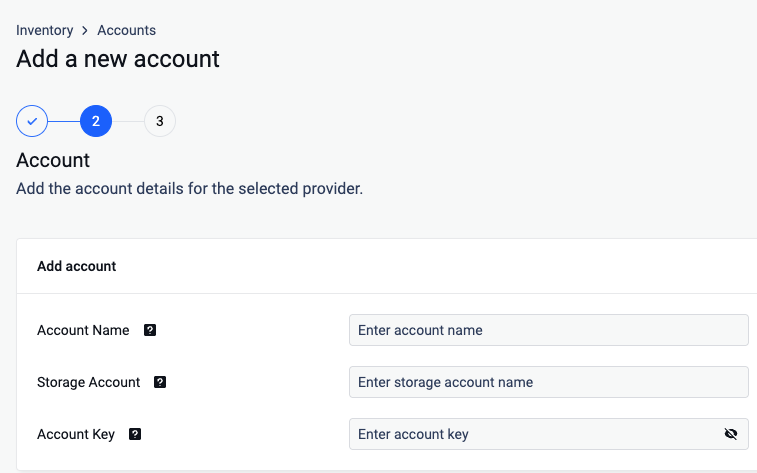
Give your account a name so you can easily identify it later
Enter the Account Name.
Enter your Azure Storage Account
Enter your Account Key. Scroll to the end of this page for more details.
Click next and finish the process
Add a new unit for the previously created account
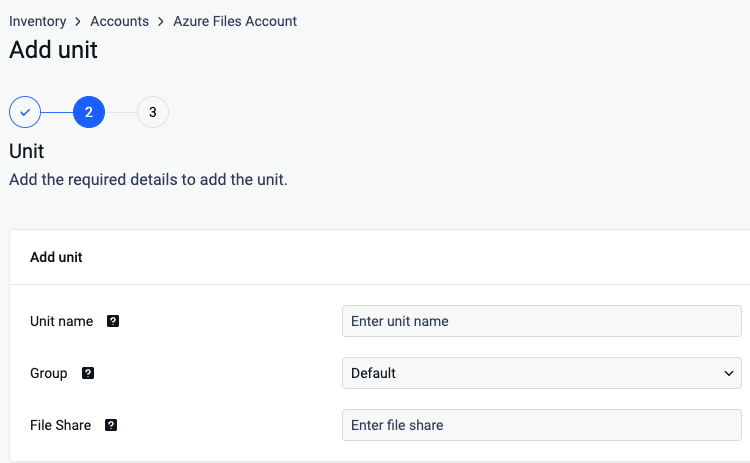
Give your unit an unique name
Assign your unit to a Group
Enter the name of the share you wish to process with MetaDefender Storage Security.
Click Next in order to finish the process.
Where can I find the Access Key?
To find the Account Key, please follow these steps:
https://learn.microsoft.com/en-us/azure/storage/common/storage-account-keys-manage?tabs=azure-portal