
1. Prerequisites
In order to Add a Scality RING storage in MDSS, you will need the Service URL, Access Key Id / Secret Access Key and the bucket name.
2. Obtaining the Service URL
The Service URL is the S3 endpoint URL of your Scality RING, used to access the S3 services on the RING. It is typically available via the Supervisor interface under S3 Services.
3. Obtaining Access Keys
Access keys are managed through the Scality RING Supervisor's S3 Console.
Click the target account’s Actions Key icon to call the Manage access keys dialog.

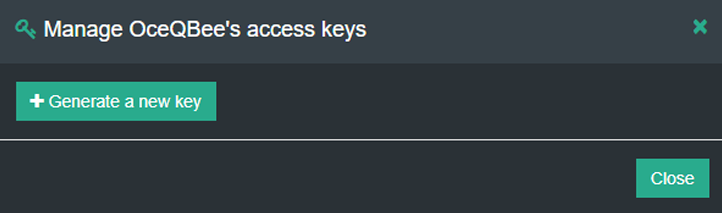
Click Generate a new key. A confirmation dialog will display.
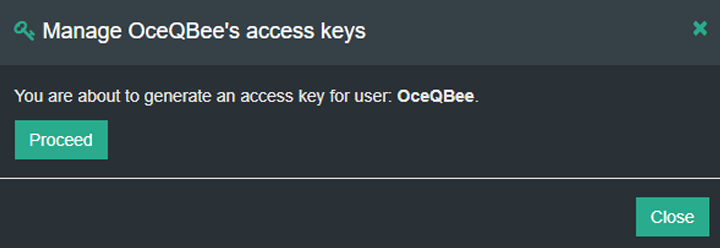
Click Proceed to trigger account access key creation. The dialog will indicate the success of the operation, as well the AccessKey (click Show to view the SecretAccessKey).
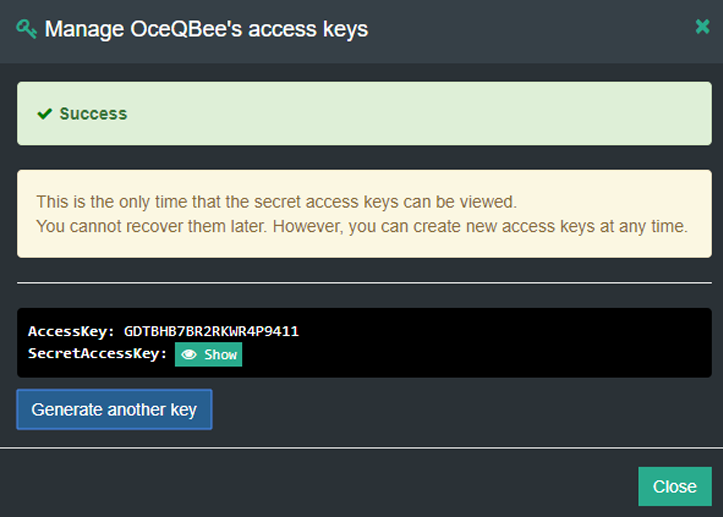
Copy and save SecretAccessKey to a secure location. It is not shown again and cannot be recovered later.
4. Obtaining the bucket name
Go to Buckets: Locate the "Buckets" section
Identify Bucket: Find your bucket in the list and note its name.
5. Adding Scality RING storage in MDSS
In order to integrate Scality RING with MetaDefender Storage Security please follow these steps:
From the left side menu, navigate to Inventory, click on Add -> Account and choose Scality RING
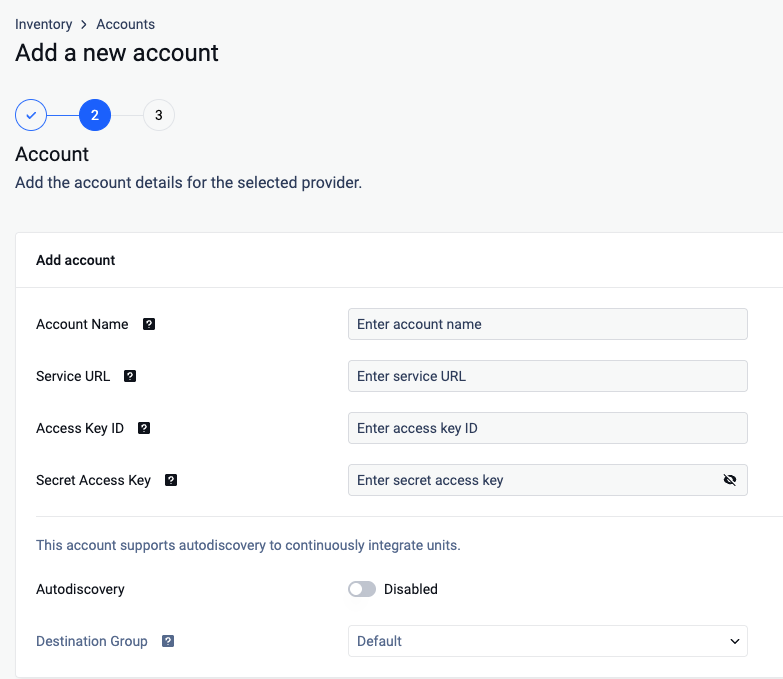
Give your account a name so you can easily identify it later
Enter the Service URL for your Scality RING endpoint
Enter your Access Key ID. Scroll to the end of this page for more details.
Enter your Secret Access Key. Scroll to the end of this page for more details.
(Optional) Enable Autodiscovery
Once the account is successfully added, navigate to Inventory -> Add Unit -> Choose the previously created account
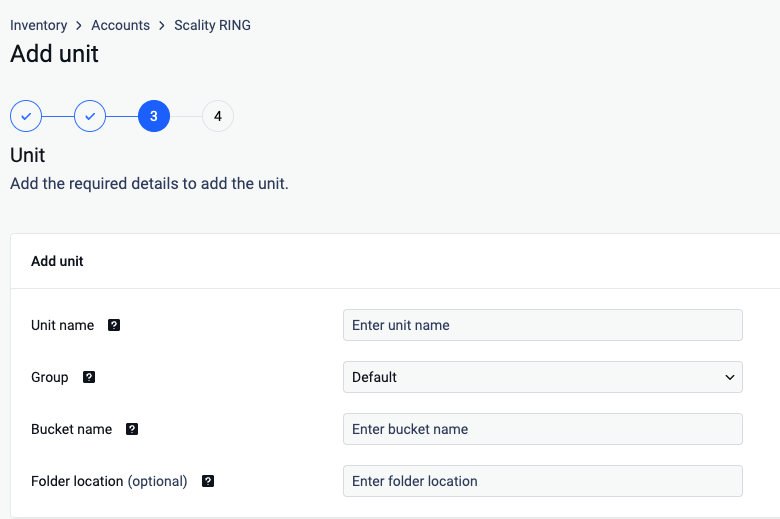
Give your unit an unique name
Choose Group
Enter a valid bucket name
Enter a Folder location (optional)