
Overview
The MetaDefender Core™ Integrations page provides a data table that lists all configured integrations. This table allows users to view integration details and perform various actions such as adding a new integration, editing, disabling, testing, and deleting an integration.
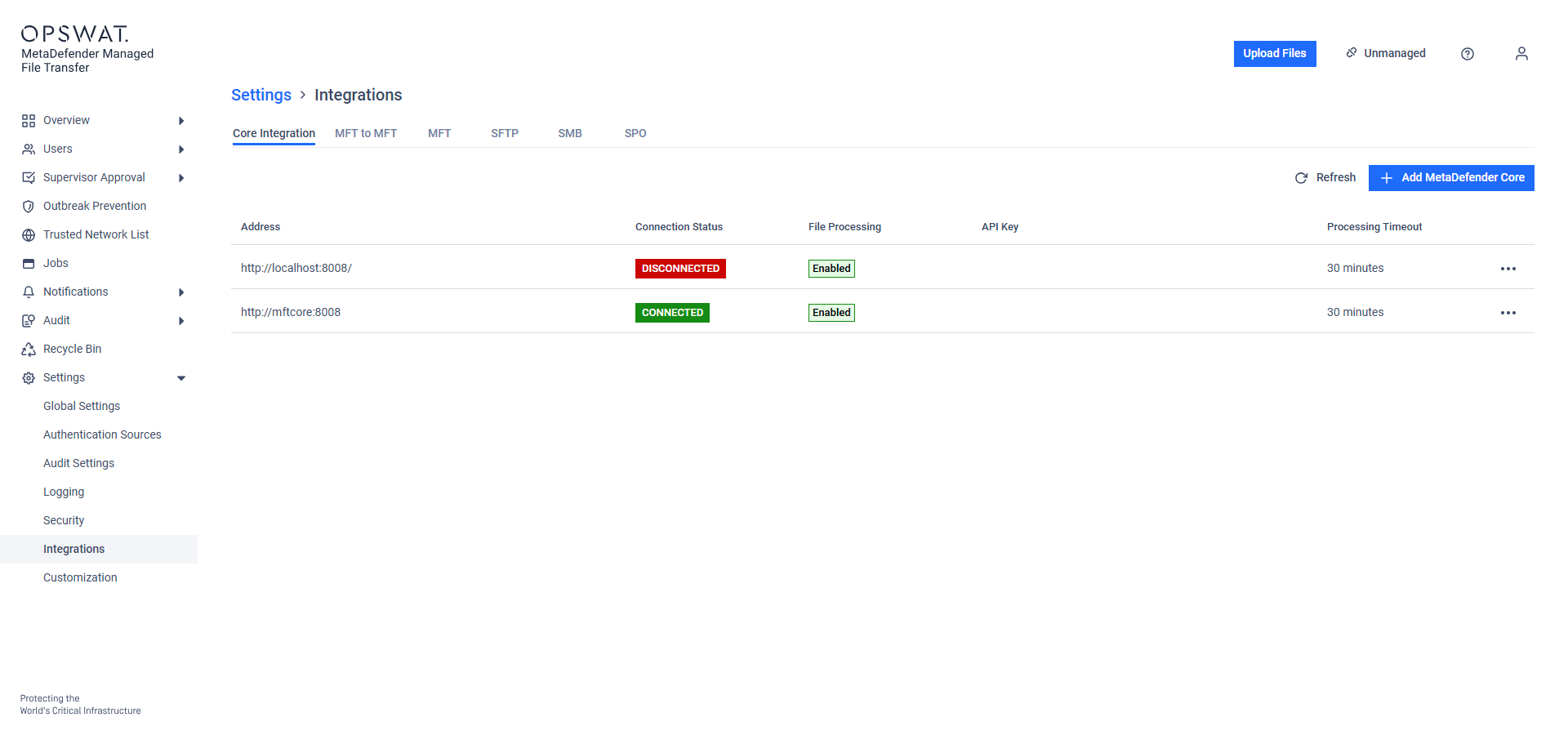
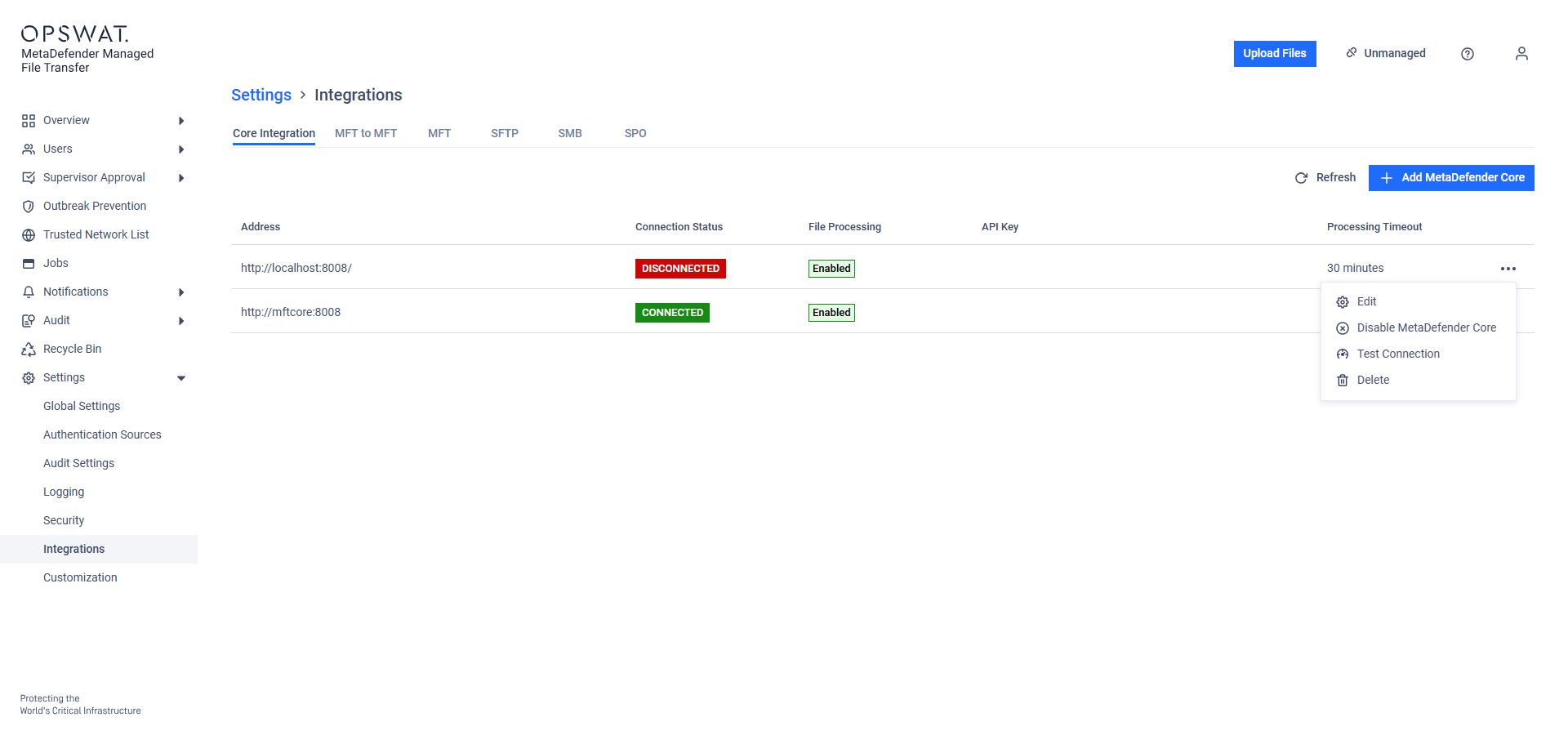
Table Columns
The integrations table contains the following columns:
Address
Displays the URL or IP address of the MetaDefender Core™ instance.
Connection Status
Indicates the current connection state of the integration.
Possible values:
Connected,Disconnected,NotFound.
File Processing
Shows whether file processing is enabled for the integration.
Possible values:
Enabled,Disabled.
API Key
Displays the API key used to authenticate requests.
Processing Timeout
Indicates the maximum allowed processing time for each file.
Value is displayed in minutes.
Actions
Provides a set of action buttons for managing the integration:
Edit: Modify the integration settings.
Disable: Temporarily disable the integration without removing it.
Test Connection: Check the connection status of the integration.
Delete: Remove the integration from the system.
Managing Integrations
Users can perform the following actions from the integrations table:
Editing an Integration: Click the Edit button to modify the integration details such as address, API key, and processing timeout.
Disabling an Integration: Click the Disable button to temporarily deactivate the integration. A disabled integration can be re-enabled at any time.
Testing the Connection: Click the Test Connection button to verify the connection status of the integration in real-time.
Deleting an Integration: Click the Delete button to permanently remove the integration from the system. A confirmation prompt will appear before deletion.