
You can perform common file operations, such as deleting, moving, and renaming files and folders.
Operations on a Single File
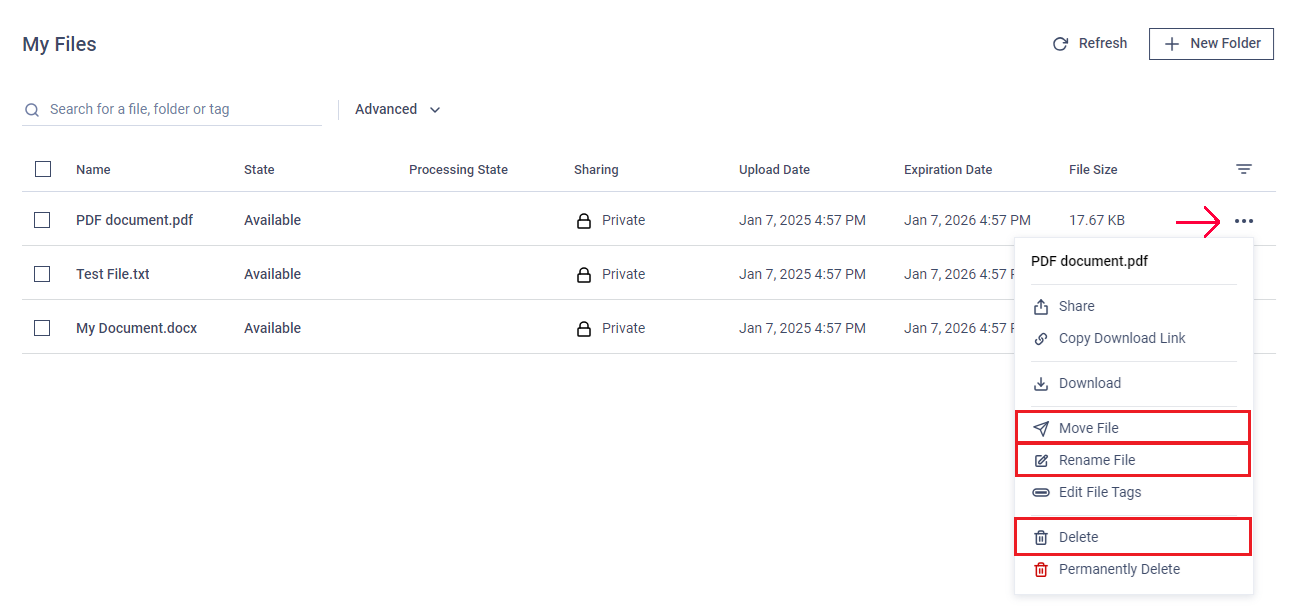
Click on the "action" menu (three dots) next to the file on the right.
Select "Delete," "Move," or "Rename" as needed.
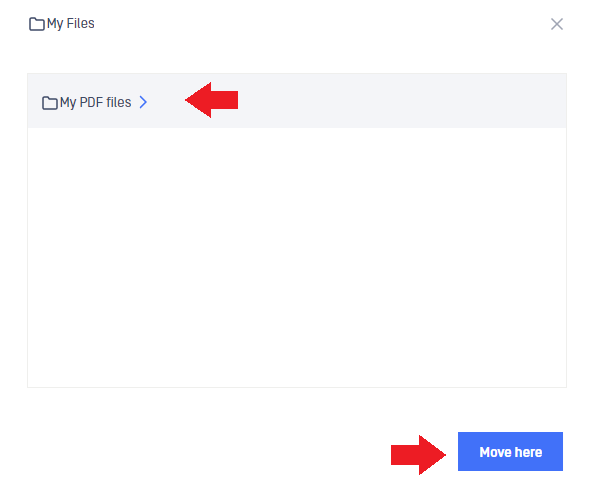
If moving files, choose the target folder from the displayed list and click "Move Here."
Deleted files are sent to the Recycle Bin and can be restored later if needed. To permanently delete files, use the "Delete files permanently" option (explained below).
However, deleted folders are not sent to the Recycle Bin—only the files within the folders are moved there.
Managing Multiple Files Simultaneously
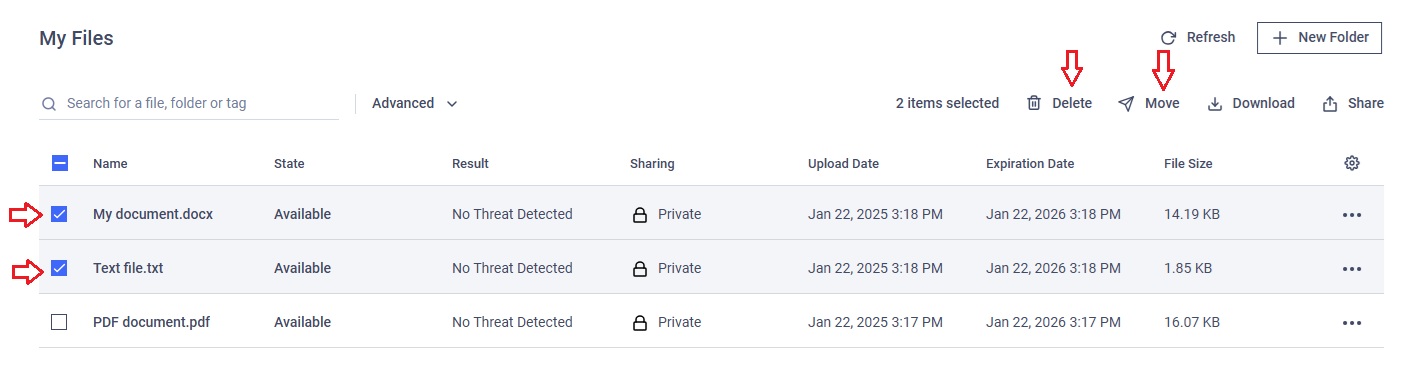
Check the checkboxes next to the files to be deleted or moved.
A menu will appear above the table.
Click "Delete" or "Move" in the menu as needed.
If moving files, select the target folder from the list and click "Move Here."
Deleting Files Permanently
If MetaDefender® MFT is configured to allow permanent file deletion, a "Permanently Delete" option will be available in the three-dot menu or in the appearing menu after a right-click on multiple selected items.
You can use this option just like the normal delete function.
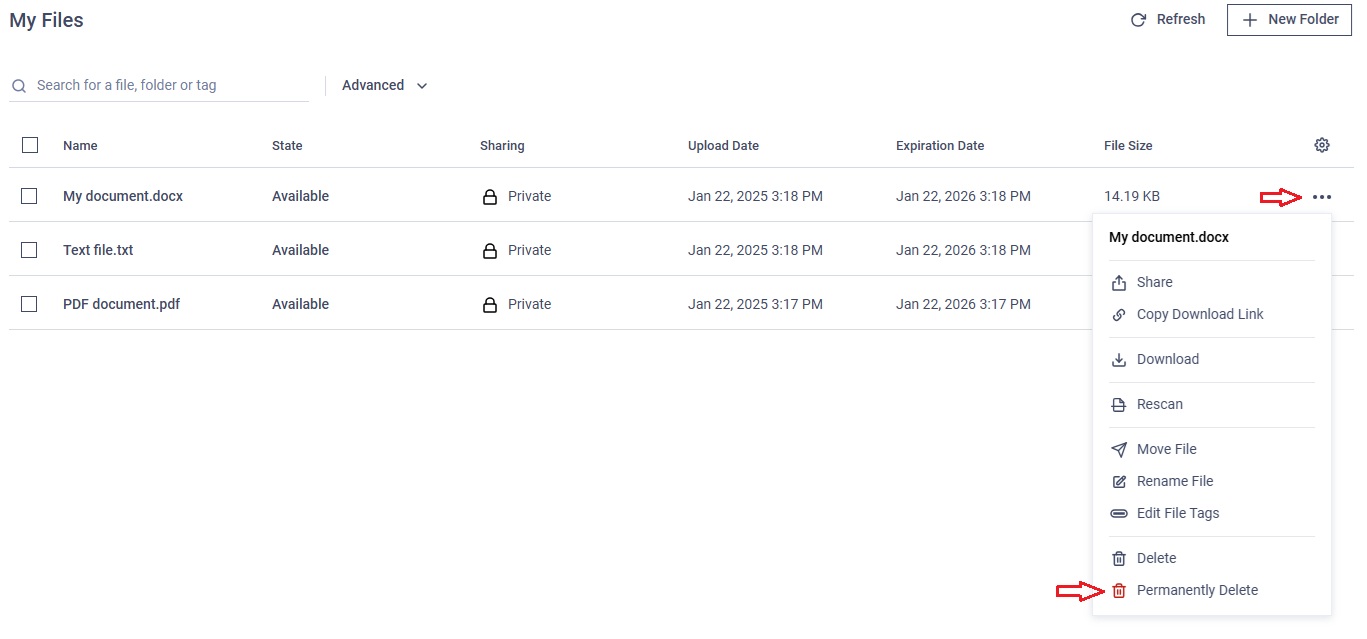
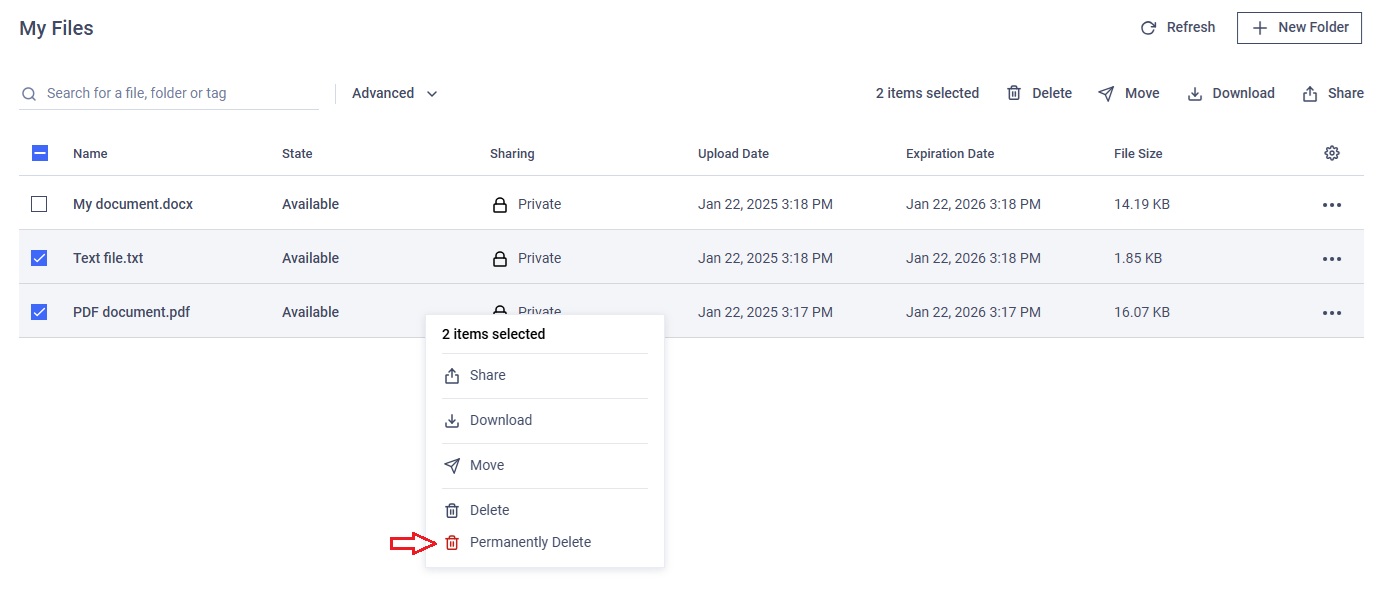
Permanently deleted files cannot be restored!