
To add embedded images (as part of the email message instead of being referenced from an external source) as data URIs to MetaDefender Managed File Transfer email templates:
A data URI for an image is a way to embed the image data directly into a web page or document by encoding it as a text string, allowing it to be displayed without the need for a separate file.
For further details, see https://en.wikipedia.org/wiki/Data_URI_scheme.
Obtain the data URI for your image using online converters or by encoding the image in Base64. Prefix it with the appropriate MIME type, e.g., "data/png;base64," followed by the encoded data.
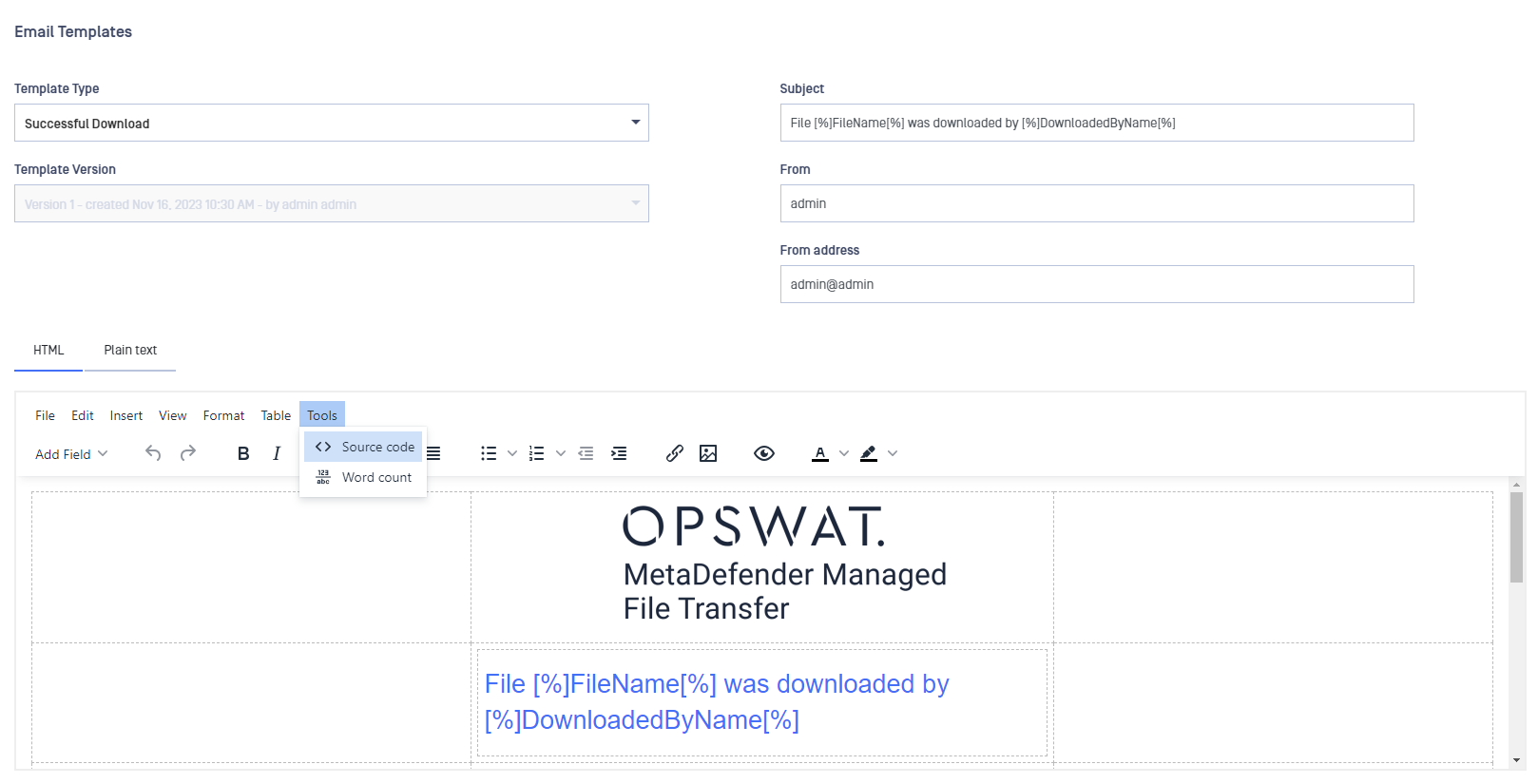
Go to your MetaDefender Managed File Transfer email template page and select "Tools" → "Source code."
Find or create the <img> tag where you want to embed the image, and paste the data URI into the src attribute of the <img> tag.

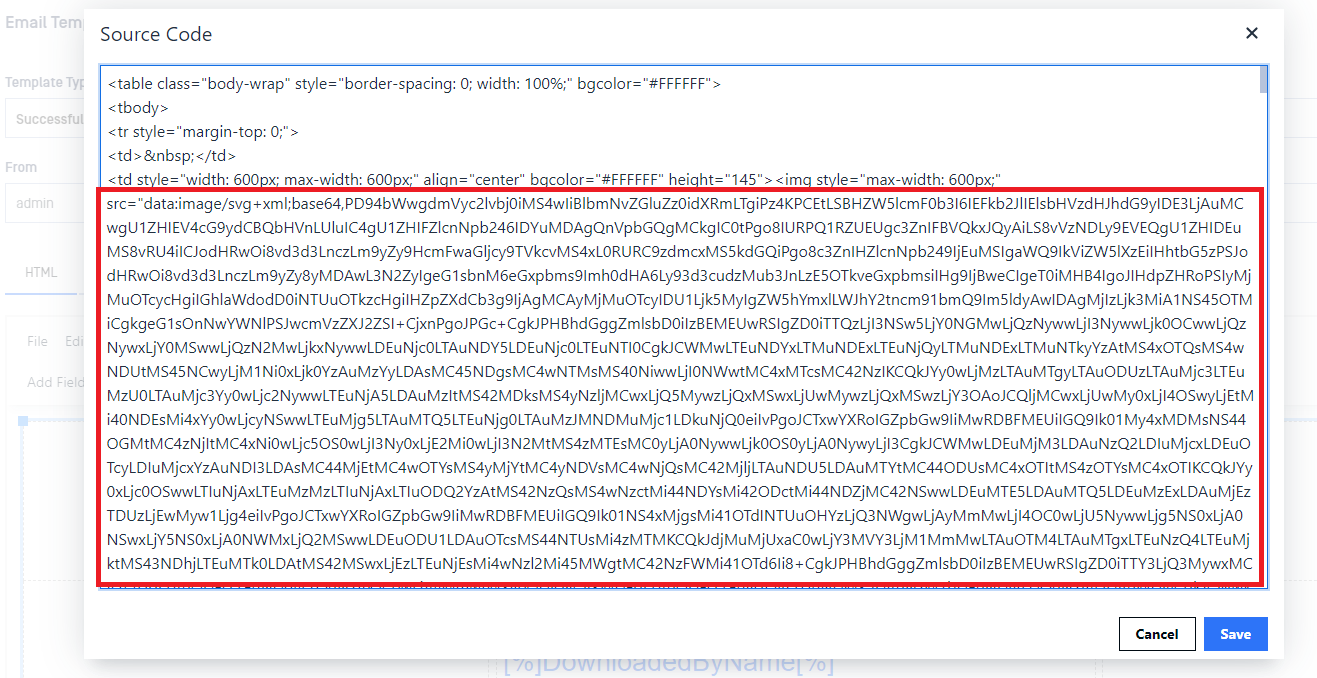
Save the dialog and the email template.