
To create a new Job, go to Jobs menu and click on the Add New Job button. The generic part of configuration is the same for any type of automated Job:
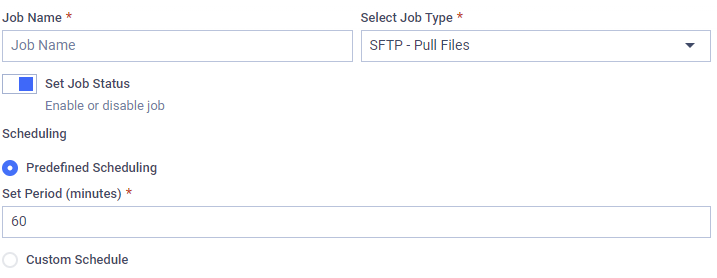
It is possible to save a Job that has incomplete configuration to be finished in the future.
Job Name
The display name of the job serves solely to help easily identify the job. It does not have any other functionality. If it is an automated job designed to pull test result files from a central SFTP server every week, it could be named "Gather test reports from central server (weekly)" for easy identification.
Select Job Type
The type of the Job to create. It is a selection of predefined, Managed File Transfer supported Jobs which can be configured for automation. To see the list of available Job Types go to this page: Available Job Types
The advanced configuration options depend on the type of Job selected.
Job Status
A deactivated Job is not being scheduled. It can still be configured, but will never be executed even when triggered manually. It is useful to have a Job deactivated until the configuration is finalized or in case it should be paused for a period of time.
Scheduling
Repetition of automated Jobs can be configured in multiple ways depending of the use case of how and when the Job should be executed.
If a Job is still executing the next scheduled run will be skipped. No multiple executions of the same Job can run at the same time.
** Periodical Scheduling ** This mode makes it possible to configure a repetition frequency in minutes. Switching Job schedule to periodic will make the Job execute every time the configured time has passed.
If periodic based recurrence is configured to 15 minutes, the job will execute every time after 15 minutes have passed. If 15 minutes have passed but the Job is already executing from a previous trigger, the current trigger will be omitted.
** In Configured Times ** This mode allows you to specify the exact times and days of the week when the job should be executed. You can set multiple time points on different days to enable detailed customization and precise scheduling.
It is possible to configure the execution of a Job at 8:15AM at every Tuesday and Thursday, and at 4:30PM on Fridays.
Advanced Configuration
Advanced configuration options depend on the Job type selected in the basic configuration. To read more about the different types of Jobs, follow the Available Job Types page.