
Uninstalling Using the Install Wizard
Go to Start → Control Panel → Uninstall a program
Select whether to do a complete uninstallation. If you select no, a normal uninstallation will take place
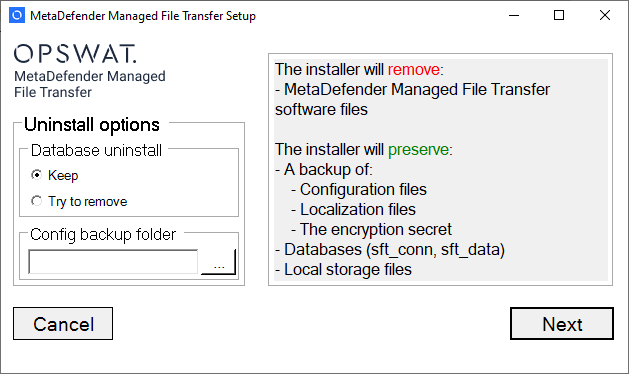
Keeping the database
When you choose this option the installer will preserve uploaded files stored in the installation directory, settings and the database for future installations.
This uninstallation mode is suitable for:
Preserving database for compliance reasons, or when it's unclear if MetaDefender Managed File Transfer™ will be used in the future
Repair installation
Removing an MFT node from an MFT cluster
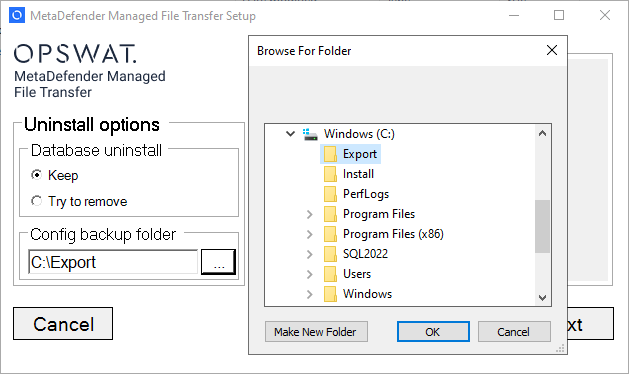
Exporting settings is highly encouraged, otherwise reconnecting a new installation to the database may not be possible.
Removing the database
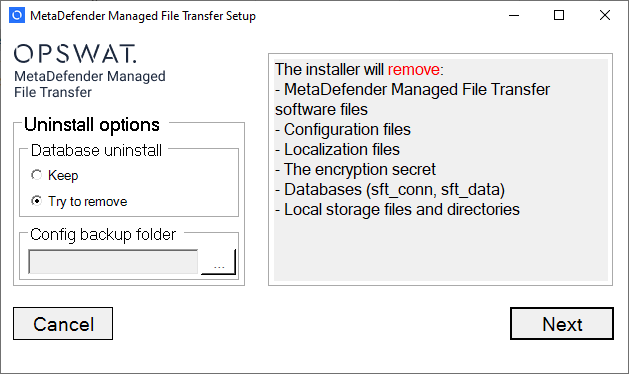
When you choose this option the installer will remove all data created by MetaDefender Managed File Transfer™ including the database and uploaded files stored in the installation directory.
If the database server couldn't be reached at the time of uninstallation, it needs to be manually removed.
Uninstall From Command Line
For a complete list of command line parameters see Installing from Command Line