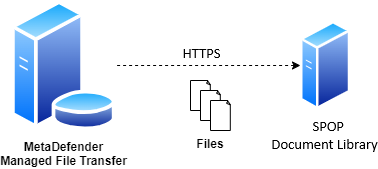
Use this type of job to automatically push files to an SPOP document library.
During automated file transfers, only files in the "Available" and "Sanitized" states within the source folders will be transferred.
Configuration
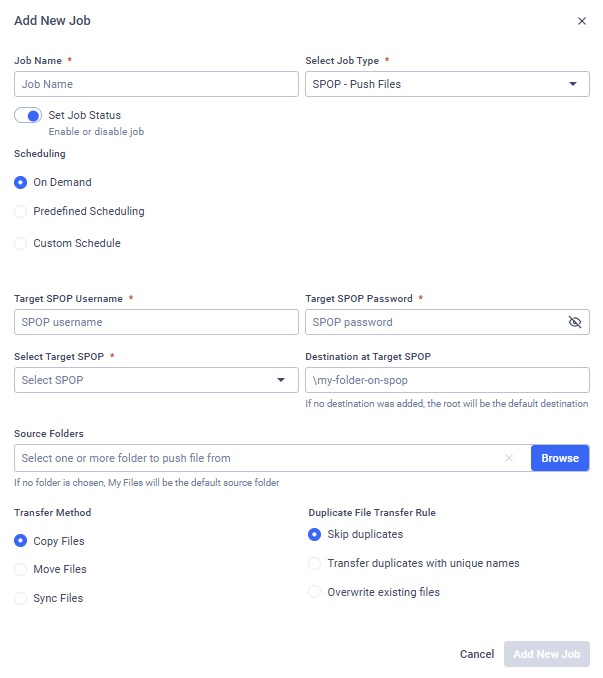
Target SPOP Username
The username used to authenticate via the SPOP.
Target SPOP Password
The username used to authenticate via the SPOP.
In case of editing or duplicating a previously saved job, the password needs to be re-entered.
Selecting Target SPOP
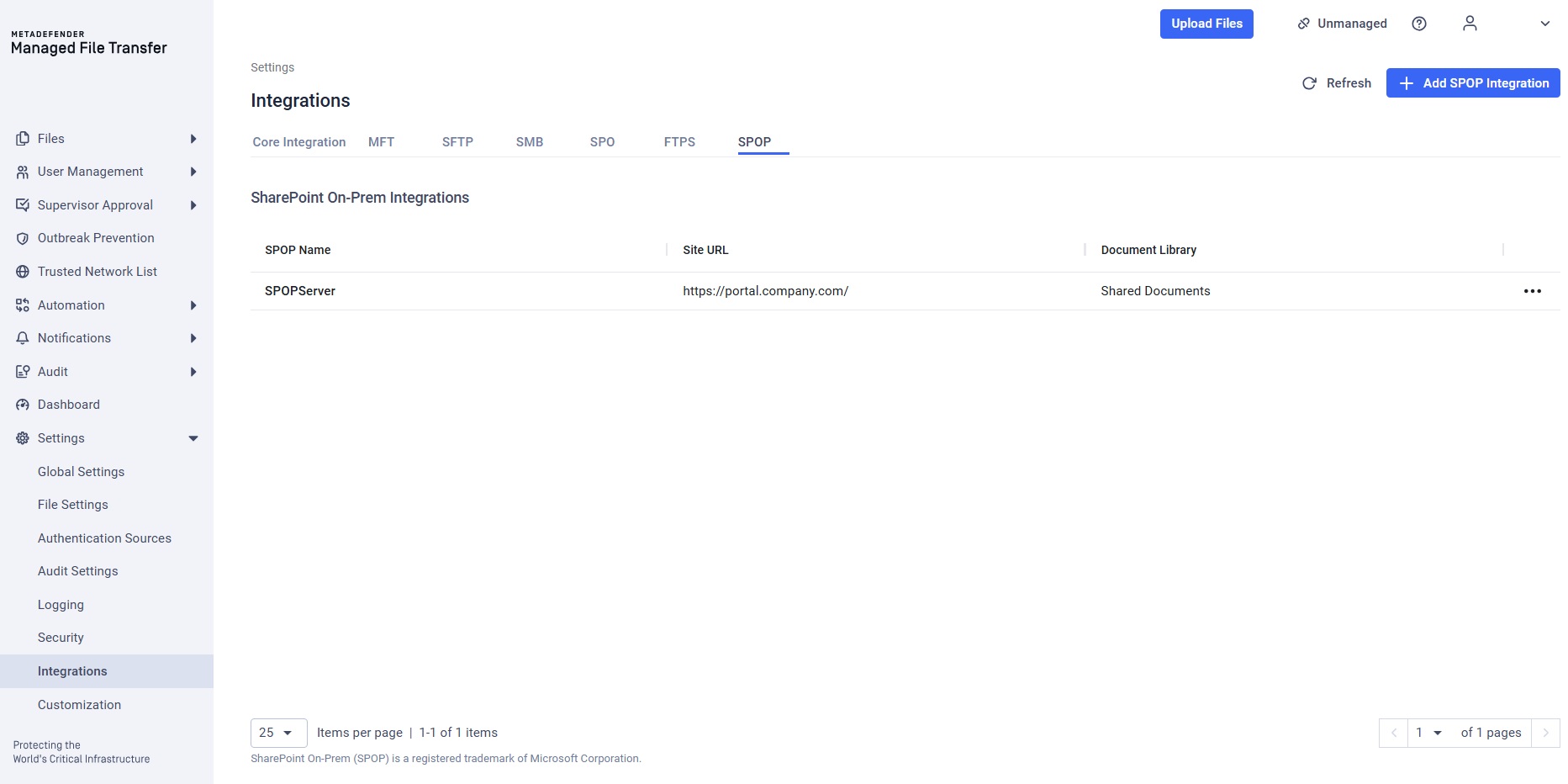
Choose the SPOP integration you want to use. Files will be pushed to the document library configured in the selected integration. See: SPOP Integration.
Providing Source Path(s)
Specfify the paths from which files should be recursively collected and pushed from MetaDefender Managed File Transfer. Multiple paths can be configured. If no path is added, the root ('/') will be the default source path.
Destination at Target SPOP
Specify the destination path in the SPOP document library. If the path does not exist, it will be created automatically.
Transfer Method
Choose what to do with the original files on MetaDefender Managed File Transfer.
Copy Files: Files that are successfully pushed will remain intact on MetaDefender Managed File Transfer.
Move Files: Files that are successfully pushed will be removed from MetaDefender Managed File Transfer.
Sync Files: Keeps a remote destination folder identical to a local source folder.
If multiple source paths point to the same file, the file will only be deleted from the local instance if it was successfully pushed from all listed source paths.
For example, if move is enabled and there is a file /data/logs/log.txt with source paths /data and /data/logs are configured with the destination /push, the file will only be removed from the local instance if pushing was successful for both /push/logs/log.txt and /push/log.txt.
Duplicate File Transfer Rule
Decide how to handle files that already exists in the SPOP document library with the same absolute path:
Skip duplicates: The file from MetaDefender MFT is not pushed to the destination.
Transfer duplicates with unique names: The existing destination file is kept. The new file from MetaDefender MFT is pushed and saved at the destination with a unique name.
Overwrite existing files: Push the file to the remote host, overwriting the existing one.
When overwriting a file on SPOP, all previous versions will remain intact and can be accessed in the file's version history.
Only the files that have changed either in MetaDefender MFT or in the SPOP document library since the last job run will be pushed to SPOP. Identical files will not be pushed.
Sync Behavior for Deleted Files
Decide on the course of action if the selected transfer method is Sync Files.
Delete from destination: If a file or folder is deleted from the source, it will also be deleted from the destination on the next job run. This ensures the destination remains an exact mirror of the source.
Retain on destination: If a file or folder is deleted from the source, it will not be deleted from the destination. This option is useful when you want to use Sync to transfer new and updated files but need to prevent any data from being automatically removed from the destination.
Push operations are strictly limited by the maximum upload size configured in SharePoint On-Premises. Files exceeding this limit will fail to upload.
Default Restriction: 2 GB (all SharePoint versions)
Maximum Configurable: Up to 15 GB (SharePoint 2019 only, requires administrator configuration)
Refer to the File Size Limits section in the SPOP Integration for complete version-specific details.
Example
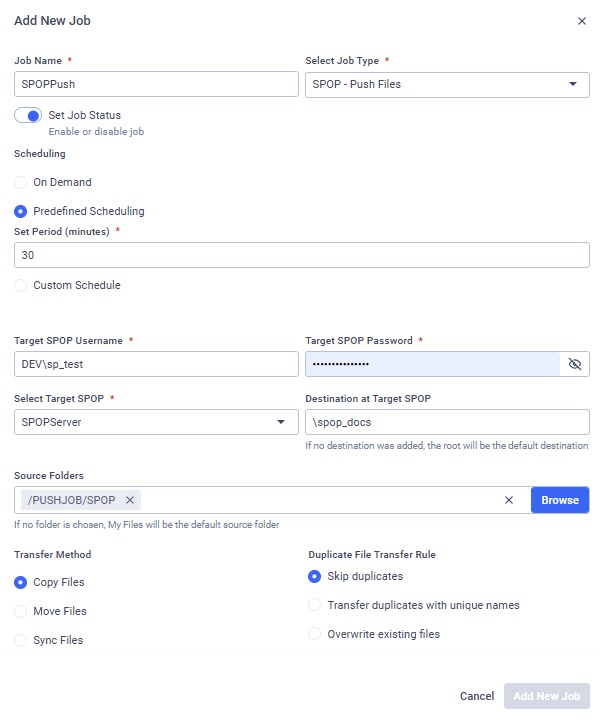
Suppose you want to push files from MetaDefender Managed File Transfer to your SPOP document library. You only want to push files from the folder named "/PUSHJOB/SPOP"," located in the root folder, every 30 minutes. My username is DEV/sp_test and my password is pass%123!.
Your SPOP document library, named "Shared Documents" is available at "https://portal.company.com/". You want the files to be copied to the folder "spop_docs" in your SPOP document library. If a file already exists there, overwrite it if it has been changed since the last job run, while keeping the previous versions intact.