
To create a new job, go to the "Jobs" menu and click the "Add New Job" button. The generic part of the configuration is the same for any type of automated job.
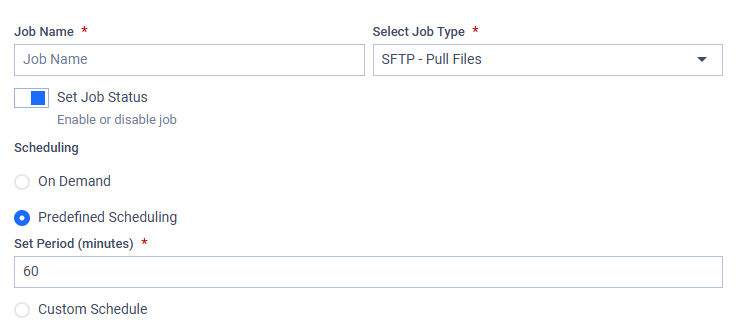
You can save a job with incomplete configuration and finish it later.
Job Name
The display name of the job helps you easily identify it. It has no other functionality. For example, an automated job designed to pull test result files from a central SFTP server every week could be named "Gather test reports from central server (weekly)" for easy identification.
Select Job Type
Choose the type of job to create from a selection of predefined, MetaDefender Managed File Transfer™-supported jobs. To view the list of available job types, refer to the Available Job Types page.
The advanced configuration options depend on the selected job type.
Job Status
A deactivated job is not scheduled. It can still be configured but will not be executed, even if triggered manually. Deactivation is useful if a job’s configuration is incomplete or if it needs to be paused for a period of time.
Scheduling
Repetition of automated jobs can be configured in several ways, depending on how and when the job should be executed.
If a job is still executing, the next scheduled run will be skipped. No multiple executions of the same job can run simultaneously.
On Demand
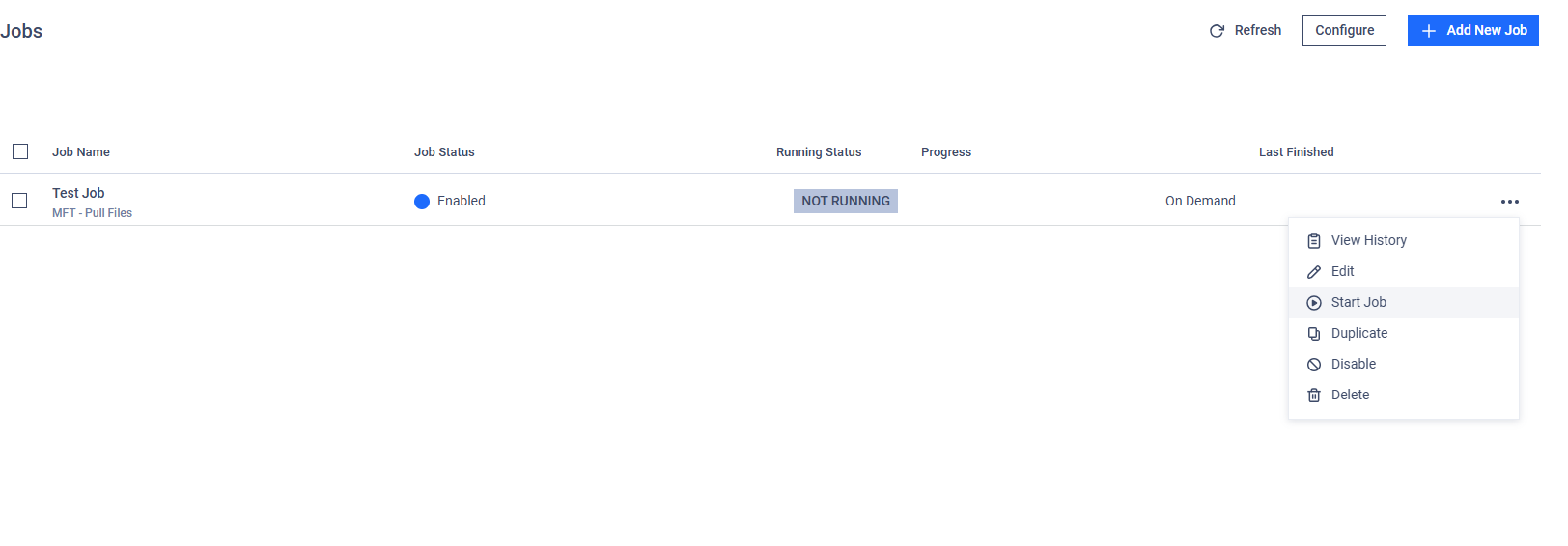
This mode allows you to configure a job, which will never run automatically. The job execution can be initiated from the job's list page by open the three-dot-menu and click on the "Start Job" button.
Periodical Scheduling
This mode allows you to configure a repetition frequency in minutes. When a job’s schedule is set to periodic, it will execute every time the specified time has passed.
If a periodic recurrence is configured to 15 minutes, the job will execute every 15 minutes. If the job is already executing when the 15 minutes pass, the current trigger will be skipped.
Configured Times
This mode allows you to specify the exact times and days of the week when the job should be executed. You can set multiple time points on different days to enable detailed customization and precise scheduling.
You can configure a job to execute at 8:15 AM every Tuesday and Thursday, and at 4:30 PM on Fridays.
File event occurs Scheduling
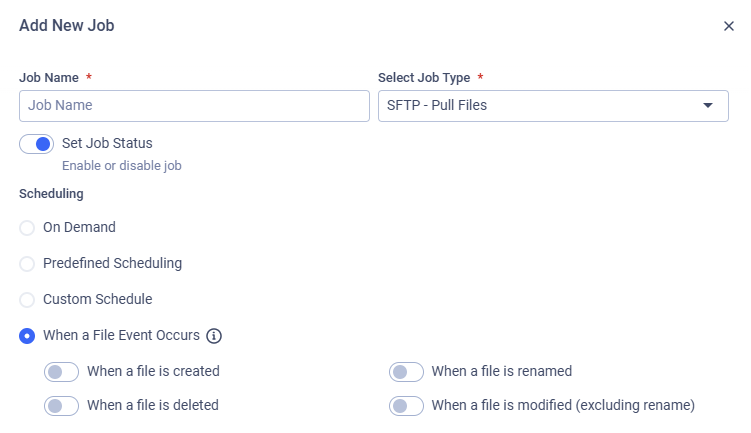
This mode automatically schedules the automation job to run every 10 minutes to update the remote server if any of the selected file events have occurred. This ensures that changes in your local environment are regularly synchronized.
You can configure the job to trigger based on the following specific events:
When a file is created: The job will execute whenever a new file is detected in the monitored location.
When a file is renamed: The job will execute when an existing file is renamed.
When a file is deleted: The job will execute when an existing file is renamed.
When a file is modified (excluding rename]: The job will execute when the contents of a file are changed, but will ignore changes to the filename itself.
Selecting When a file is renamed option will typically enable the When a file is created and When a file is deleted options automatically.
Advanced Configuration
Advanced configuration options depend on the job type selected in the basic configuration. To read more about the different types of jobs, visit the Available Job Types page.