
Purpose
The Kiosk UI can be exited using the Alt-F4 keyboard combination. By default, Kiosk UI can be closed without password required. This article document shows how to enable “Exit Password” for Kiosk UI.
Detail benefits when enable “Exit Password” function in MD Kiosk:
Prevent unauthorized personnels to turn off Kiosk functions on the device.
Guarantee continuous system operation without disruption.
Solution
To enable “Exit Password” in MD Kiosk, please read through the following guidance for step-by-step instructions
Setup Progress | Description |
|---|---|
Step 1 | Access to Kiosk Web Management Console |
Step 2 | Navigate to Configuration, select Kiosk UI |
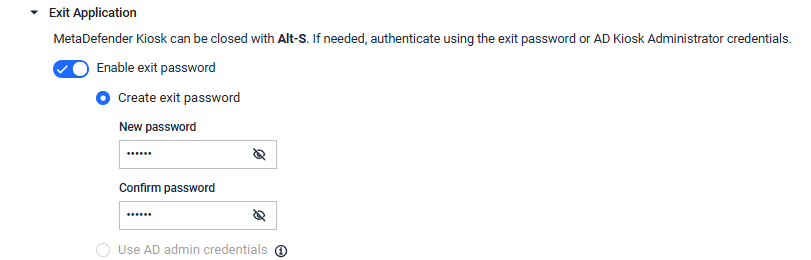
Step 3. | Expand Exit Application section, enable exit password
The MetaDefender Kiosk application can be exited using the Alt-F4 keyboard combination. If a exit credentials is required, the user will be prompted to enter the password or credential of AD users assigned as Kiosk Administrators after hitting Alt-F4.
|
Step 4 | Click Save Updates |
Using BeyondTrust Password Safe as the exit credential
If your organization manages Active Directory credentials through BeyondTrust Password Safe, you can require that same managed credential to exit the Kiosk UI, instead of a fixed local password.
Requirements:
An Active Directory connection in User Management > User Directories that already has BeyondTrust Password Safe configured.
That directory must be enabled — if it is later disabled or removed, this exit option becomes unavailable again until it's reconfigured.
To enable it:
Go to Configuration > Kiosk UI.
Expand Exit Application and turn on Enable exit password.
Select Use BeyondTrust Password Safe.
Click Save Updates.
Once enabled, anyone who needs to exit the Kiosk UI (Alt-S) retrieves the current password for the managed account from BeyondTrust Password Safe and enters it at the prompt — there is no separate local password to remember or reset. Every exit attempt is recorded as an access request in BeyondTrust, so exits are auditable the same way access to any other BeyondTrust-managed credential is.
Because the password is validated live against BeyondTrust Password Safe, the device needs network connectivity to BeyondTrust at the moment someone tries to exit. If BeyondTrust can't be reached, the exit prompt will not accept the password until connectivity is restored.
Applying the Exit Password to Restart and Shutdown
By default, the exit password (or AD admin credentials, if configured) is also required when choosing Restart or Shutdown from the Kiosk UI — not just when exiting to the Windows desktop.
If you'd rather let users restart or shut down the Kiosk without entering the exit password, while still requiring it to reach the Windows desktop, you can turn this off:
Access the Kiosk Web Management Console.
Navigate to Configuration, select Kiosk UI.
In the Exit Application section, disable the option to require the exit password for Restart and Shutdown.
Click Save Updates.
With this turned off, users can restart or shut down the device directly from the Kiosk UI without a password prompt. Exiting to the Windows desktop always requires the exit password (or AD admin credentials) when exit password is enabled, regardless of this setting.