
MetaDefender Kiosk 4.8.2 | |
|---|---|
9 July 2026 (Kiosk 4.8.2.8007) | |
Bug fixes | |
Fix Kiosk unenroll during sleep/suspend cycle | Fixed an issue where Kiosk could automatically unenroll from Central Management after the device wakes from sleep or suspend. Kiosk now preserves enrollment state through sleep/suspend cycles, preventing devices from re-registering as new instances. |
20 Jun 2026 (Kiosk 4.8.2.7850) | |
Enhancement | |
Enhanced Internal Communication and Improved Resilience Against External Factors | Enhanced the internal communication between Kiosk components, ensuring more reliable and consistent behavior across system operations. It also strengthens resilience against external factors, avoiding issues where HTTPS configuration not being retained properly, and license-related errors |
5 Jun 2026 (Kiosk 4.8.2.7615) | |
Enhancement | |
Security enhancements | Various security issues have been addressed to enhance the overall security of the system |
26 May 2026 (Kiosk 4.8.2.7413) | |
Enhancement | |
Enhance Kiosk-to-CM connection resilience under poor network conditions | Improve the reliability and responsiveness of the Kiosk's communication with Central Management (CM) when operating in degraded network environments (packet loss, high latency, half-open connections, slow TLS handshakes). |
Bug fixes | |
Fixed Kiosk service crash on non-ASCII filenames | Resolved an issue where scanning files with non-ASCII characters in their filenames (e.g Japanese, Korean) caused the Kiosk service to crash. |
Fixed the configuration restore issue after upgrading from 4.7.9 | Fixed an issue where upgrading from Kiosk 4.7.9 failed to restore configuration |
13 May 2026 (Kiosk 4.8.2.6758) | |
Enhancement | |
Support Data Locker Sentry 5 software version 7.1.x | Kiosk now support Data Locker Sentry 5 with a newer software version 7.1.x |
Bug fixes | |
Resolve Intermittent My OPSWAT Enrollment Failure on Kiosk Upgrade | Fixed an issue where Kiosk with auto export log enabled intermittently hung during My OPSWAT enrollment after image upgrade, caused by duplicate records are stored in database. |
Resolve Kiosk Service Restart Issue When Inheriting Newer Policy Version | Fixed an issue where the version of Kiosk instances with version 4.8.1 restarted continuously after inheriting a 4.8.2 policy in My OPSWAT Central Management. |
7 May 2026 (Kiosk 4.8.2.6718) | |
New Features | |
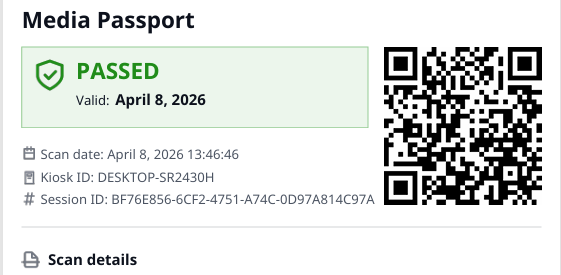
Single-Page Media Passport for Scanned Sessions | A new single-page Media Passport view provides security personnel with a consolidated summary of each scan session, including safe/unsafe status, session metadata, and file statistics. The layout is designed for quick review without requiring navigation across multiple screens or reports. Additionally, MetaDefender Drive can also leverage this feature to automatically generate a one-page passport with high level information.
|
Independent Media Type Permissions for Processing, File Retrieval or use as secondary media | Administrators can now configure separate media type permissions for file processing, use as secondary media and file retrieval on a per-workflow basis. For example, a workflow can permit USB drives for processing only, SD cards for both processing and retrieval, and optical media for retrieval only. |
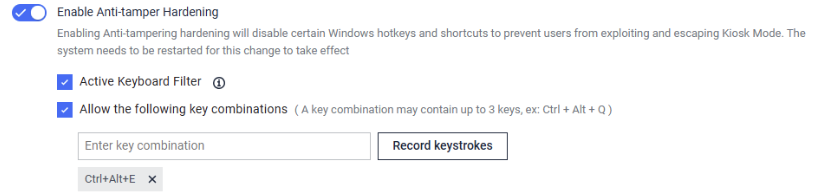
Key Combination Whitelist for Anti-Tamper Hardening | Administrators can now define a whitelist of physical keyboard key combinations that Anti-Tamper Hardening will allow. This is particularly relevant for non-US keyboard layouts to type special characters without reducing the overall hardening posture.
|
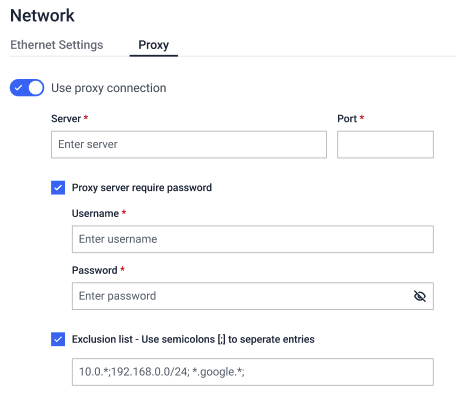
Proxy Server Configuration in Kiosk Console | Administrator can now configure proxy settings directly from the Kiosk console. This simplifies network configuration in environments with restricted or managed outbound access.
|
Kiosk application upgrade rollback from Central Management (CM10) | Central Management (CM10) can now remotely trigger application rollback on Kiosk devices. This release also includes improvements to upgrade and rollback status reporting, enhanced log traceability, and resolution of issues identified during integration testing.
|
Enhancements | |
Streamlined Default Workflow Settings for New Installations | New Kiosk installations are now pre-configured with simplified default workflow settings, reducing the number of steps required during initial setup. Administrators can complete deployment faster without needing to manually configure standard options from scratch. |
Support for Kingston DataTraveler Locker+ G3 Encrypted USB | Add support for Kingston DataTraveler Locker+ G3 hardware-encrypted USB drives |
Support Swiss Frenc, Estonian and Russian On-Screen Keyboard | Swiss French (CH), Estonian (ET) and Russian (RU) keyboard layouts have been added to the Kiosk on-screen keyboard, supporting authentication for users whose credentials include locale-specific characters not available on standard layouts.
|
Enforce authentication with RFID card only | Administrators can now enforce the user authentication with RFID card only. Only users will a valid RFID badge will allow to scan media with the Kiosk devices.
|
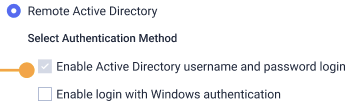
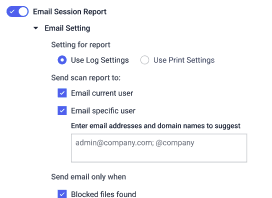
Send scan report to specific email address | In the Employee workflow, administrator can configure to allow the end user to send the scan reports to certain email address. Combining with Active Directory setting enabled, Kiosk will automatically show the list of users as recipients.
|
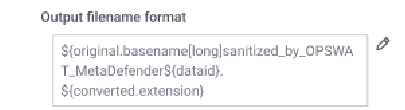
Custom File Naming for Scan Reports | Administrators can now define custom naming patterns for session scan reports files. This enables consistent naming conventions across sessions and simplifies report organization, archival, and retrieval.
|
MBR Partition supports in CloneZilla Disk Imaging | Disk image processing via CloneZilla now supports MBR (Master Boot Record) partition alongside GPT. This extends compatibility to a broader range of storage media, including legacy devices that use older partitioning formats. |
XFS filesystem support in VMDK disk images | The Kiosk can now mount and scan XFS-formatted partitions inside VMDK virtual disk images — unlocking seamless support for Linux-based media and expanding compatibility with a wider range of customer environments. |
Post-Scan Media Wipe option | MetaDefender Kiosk can now be configured to allow wiping the source media after the process completed. |
Auto file retrieval after the scan process completes | Administrator can now configure the Kiosk to automatically retrieve files from a specific network folder after the scan process completes. |
Support Variables in Email Notification Subject | Administrators can now include variables, such as session ID, scan result, and username, in email notification subject lines. This allows recipients to assess notification priority and context without opening the message body. |
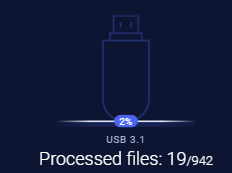
USB Protocol Version Display During Scanning | The Kiosk UI now displays the USB protocol version, such as USB 2.0, 3.0, or 3.2 when a drive is connected. This assists users and administrators in identifying the USB version and correlating it with observed scan performance.
|
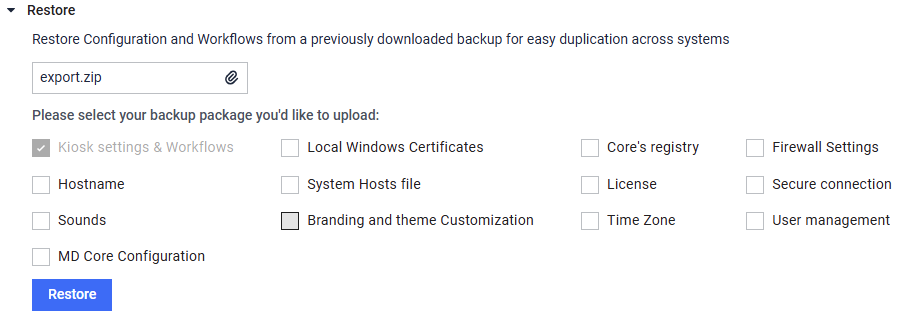
Improved Restore Console Setting Clarity | A dedicated "Kiosk Settings and Workflows" checkbox has been introduced in Kiosk restore page to improve the clarity.
|
Support sending to Entra ID SSO email address | Kiosk now allows administrator to configure sending email to Entra ID SSO user email addresses. This enables automatic delivery of scan reports to the logged-in user without requiring manual address input. |
Security enhancements | Various enhancements have been applied to improve the overall security of the system |
Bug Fixes | |
Kiosk fails to load on hardened image | Resolved a rare issue where the Kiosk could become unresponsive during startup after running for several days on a hardened system. The application now recovers gracefully, ensuring reliable, uninterrupted operation. |
Disk not detected after upgrading to 4.8.1 | Fixed an issue where certain external hard disks were not recognized properly after an upgrade, appearing only as unreadable boot sectors. All supported disk types are now detected reliably right out of the box. |


MetaDefender KIOSK Documentation
The users can consult this web page or, alternatively, they can download the manual in pdf format from the link below:
MetaDefender KIOSK manual (SHA256: 404339BCE0F3E4C5EFA52F55903C8C617C0F9630D01E2020EC09EA6CDC1304C7).
OPSWAT MetaDefender AGD Documentation_v1.6 (SHA256: 78A69F89D3C0D0FCA8A4B8D30B2C92E55D80CC559583F23AC61158F67CE04988).