
MetaDefender Kiosk requires a valid license to be applied before use. If no valid license is present, the Kiosk user interface will display a license error and will not allow users to proceed.
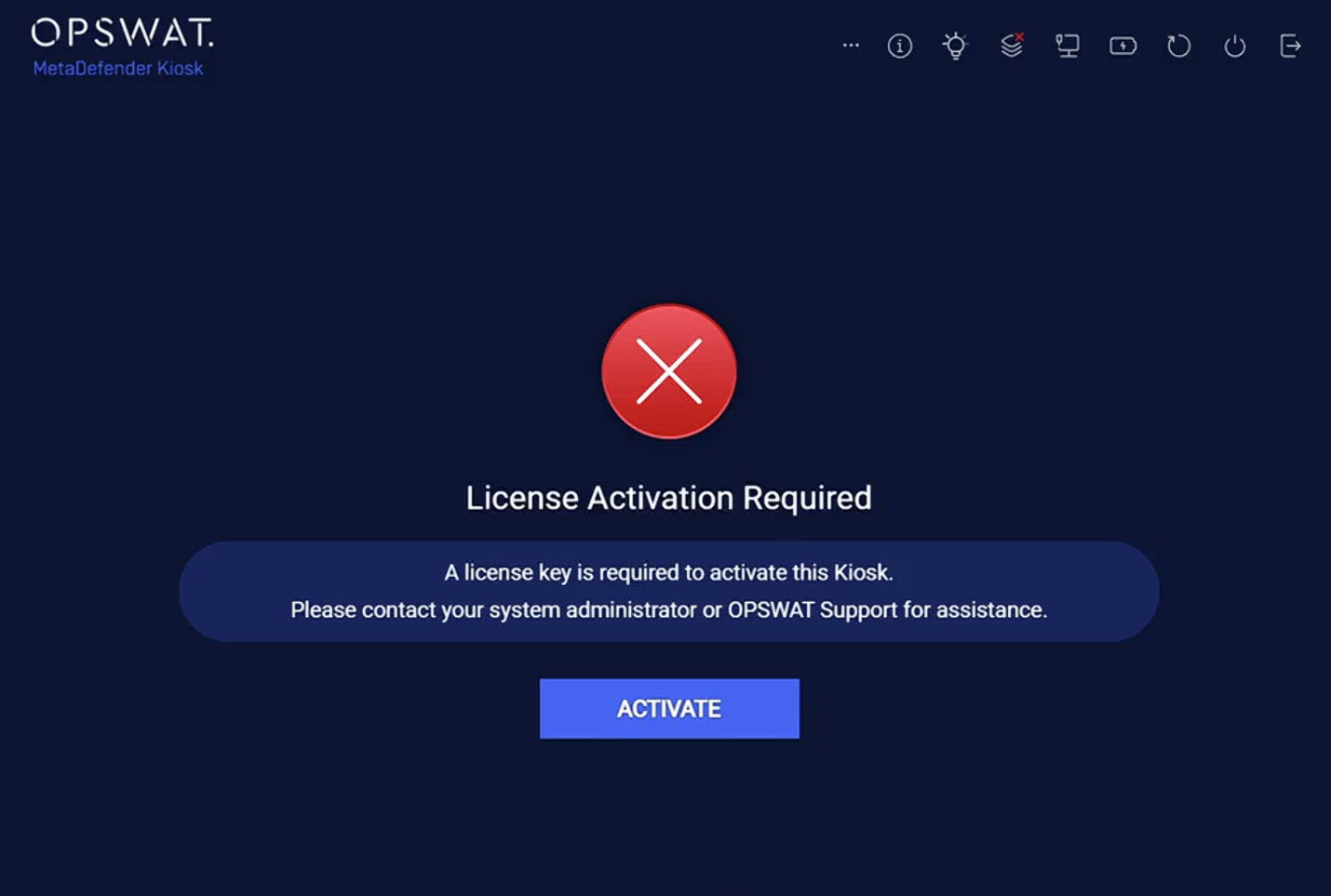
MetaDefender Kiosk licenses can now be activated in two ways:
Via the Kiosk Management Console
Directly from the Kiosk UI
On successful activation (through either method), the Kiosk home screen will display the Welcome page and users can start using the device.
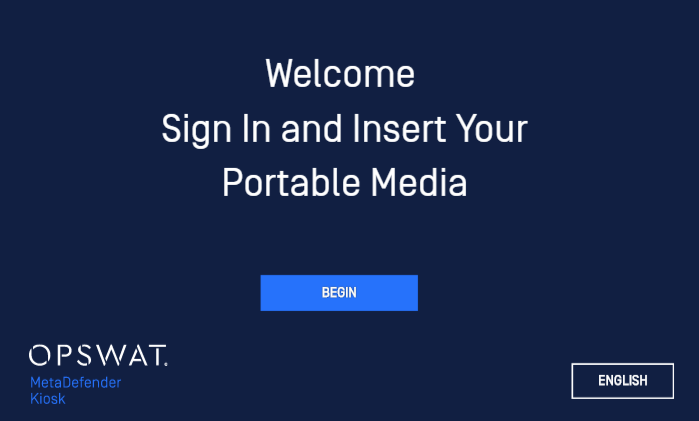
Option 1 - Activate License directly from Kiosk UI
Use this method when you want to activate the Kiosk without leaving the Kiosk UI. This is especially useful for field deployments or locked-down terminals.
The Kiosk UI supports:
Online activation – when the Kiosk can reach OPSWAT Activation Server
Offline activation – for isolated or air-gapped environments using a USB drive
Online activation
Use online activation when the Kiosk device has Internet access.
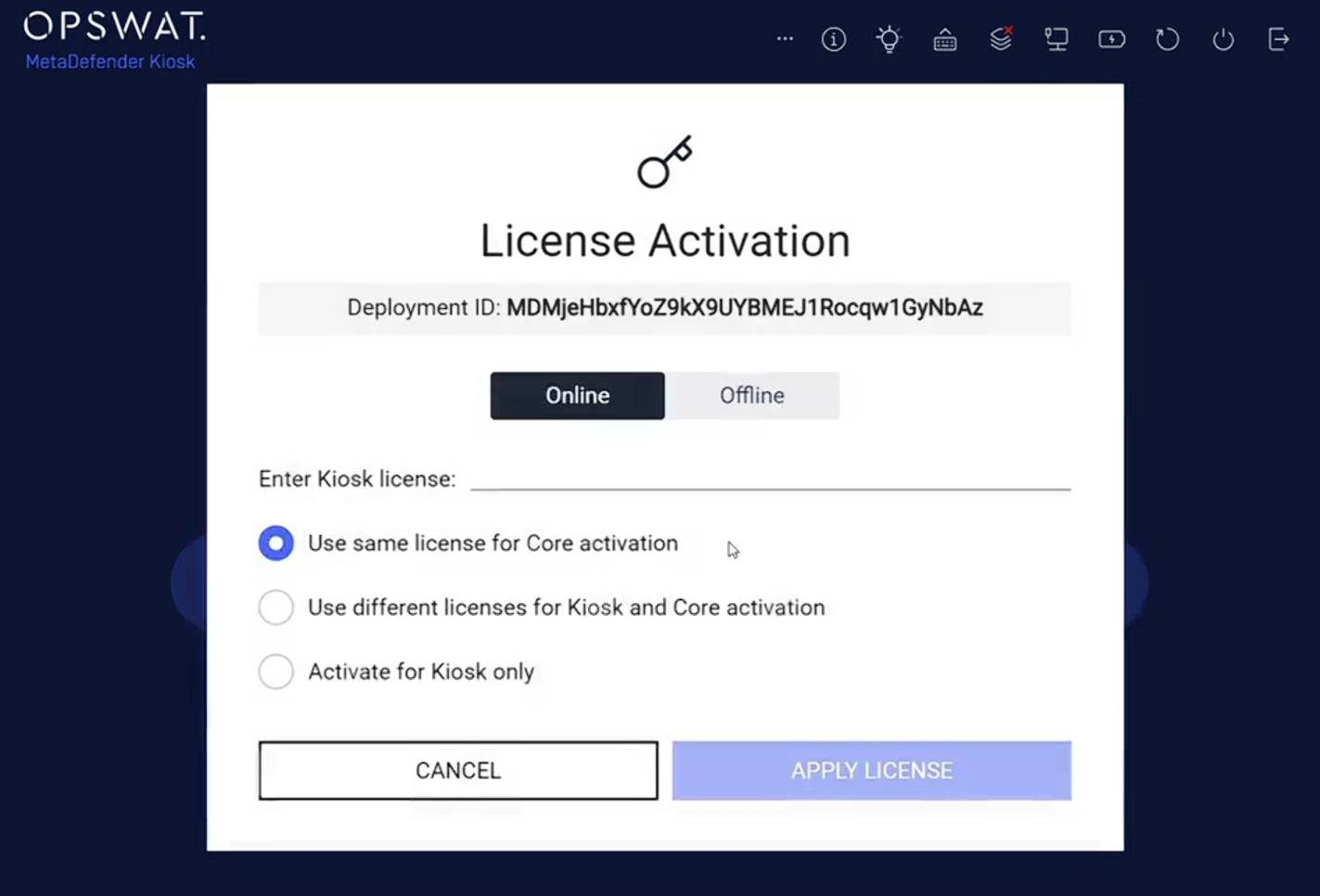
Provide the Kiosk license key
Select the appropriate activation license option
Use same license for Core activation: Kiosk uses the same license key to activate MetaDefender Core
Use different license for Kiosk and Core activation: Administrator can enter a separate license key for MetaDefender Core
Activate for Kiosk online: Kiosk uses the provided license key to activate Kiosk only
Offline activation
Use offline activation when the Kiosk device is in an isolated or air‑gapped environment without Internet access
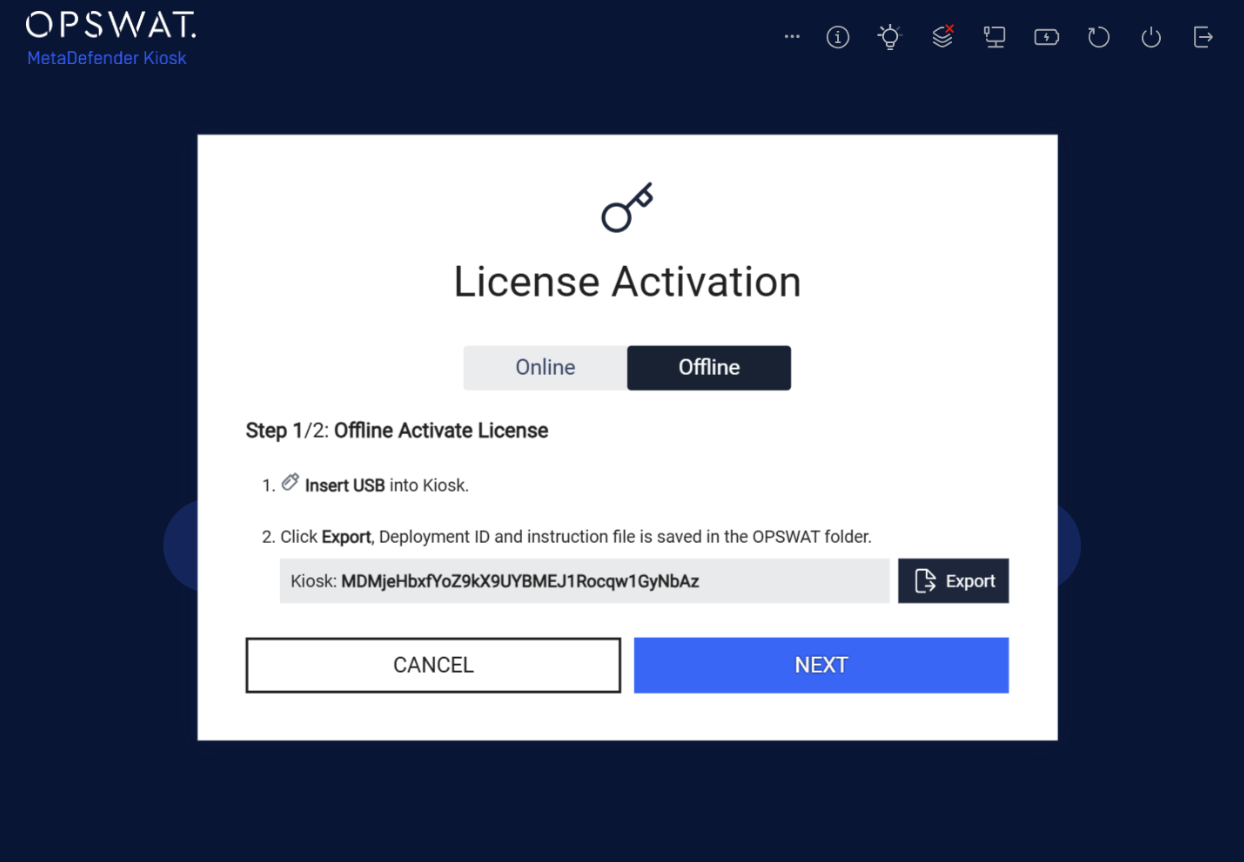
Step 1 - Generate the Deployment ID file to a USB drive
Insert a USB drive into the Kiosk device.
Click Export, Kiosk automatically generate an instruction file which includes the Kiosk and Core deployment ID under an OPSWAT folder path on the USB drive (USB:\OPSWAT)
Step 2 - Obtain the offline activation file from My OPSWAT Portal
Take the USB drive to a separate machine that has Internet access.
Access My OPSWAT Portal (https://my.opswat.com/) > License Management > Activate License
Perform the activation. Download and copy the offline activation files (for Kiosk and Core) to USB:\OPSWAT
Step 3 - Activate the Kiosk and Core via Kiosk UI offline method
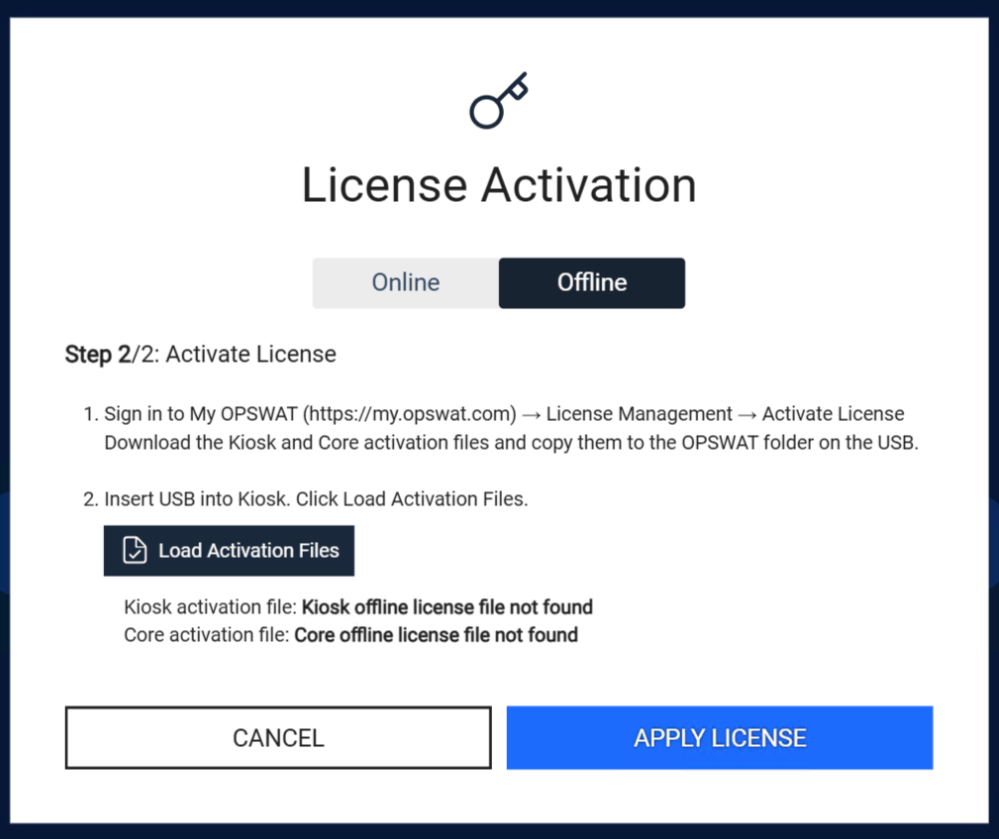
Insert the prepared USB with the offline license files in USB:|OPSWAT to the Kiosk device
Click Load Activation Files, then click Apply to finish the activation process.
Option 2 - Activate license via Kiosk Management Console
Use this method if you prefer to manage licensing from the Kiosk Management Console
Step 1 - Open the Management Console
Exit the Kiosk UI (if running).
Log in to the MetaDefender Kiosk Management Console (http://localhost:8009).
Step 2 - Activate license
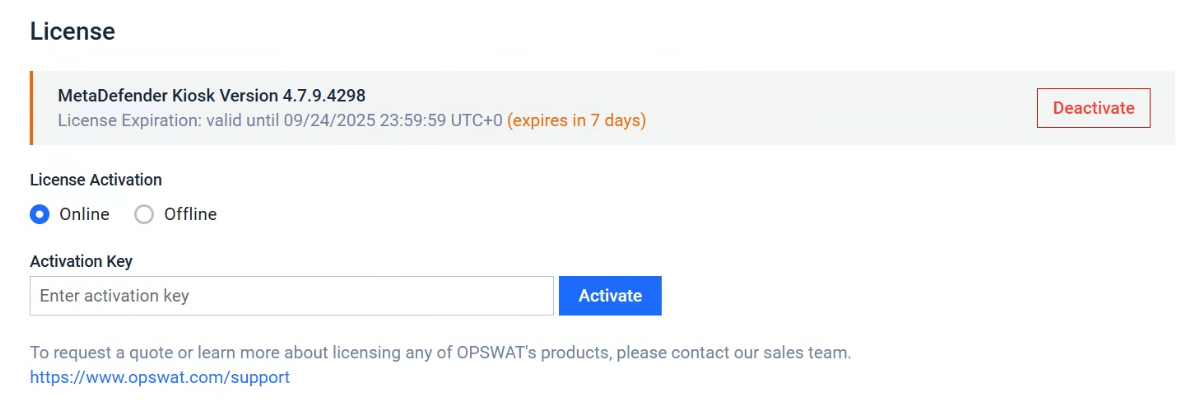
Navigate to the License page (Settings → License)
Select option to activate the license
Online - If the Kiosk device has access to OPSWAT Activation Server
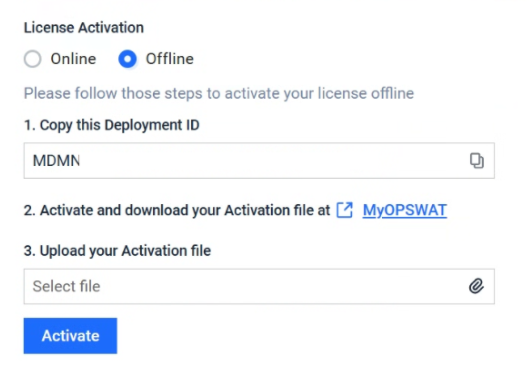
Offline - If the Kiosk device is in an isolated or airgap network
For Online activation, provide the Kiosk license key and click Activate
For offline activation, follow the instructions on the License page to activate MetaDefender Kiosk.
If the license is expired or invalid, the Kiosk UI will display an error and prevent users from proceeding until a valid license is applied.
For license activation via Management Console, make sure MetaDefender Core license is activation separately. Refer to License Activation - MetaDefender Core