Overview
Kiosk 4.8.0 (or later) allow MetaDefender Drive updating engine and sync scan reports directly from the Kiosk UI. It coordinates with the MD Drive DTK (Drive Toolkit) to download engine updates from My OPSWAT and applies them to a connected MDDrive device.
Key points:
When the MD Drive integration is enabled, Kiosk automatically download MD Drive engine updates from MyOPSWAT.
Engine updates and report syncs are initiated from the Kiosk UI when an MD Drive is plugged into the Kiosk.
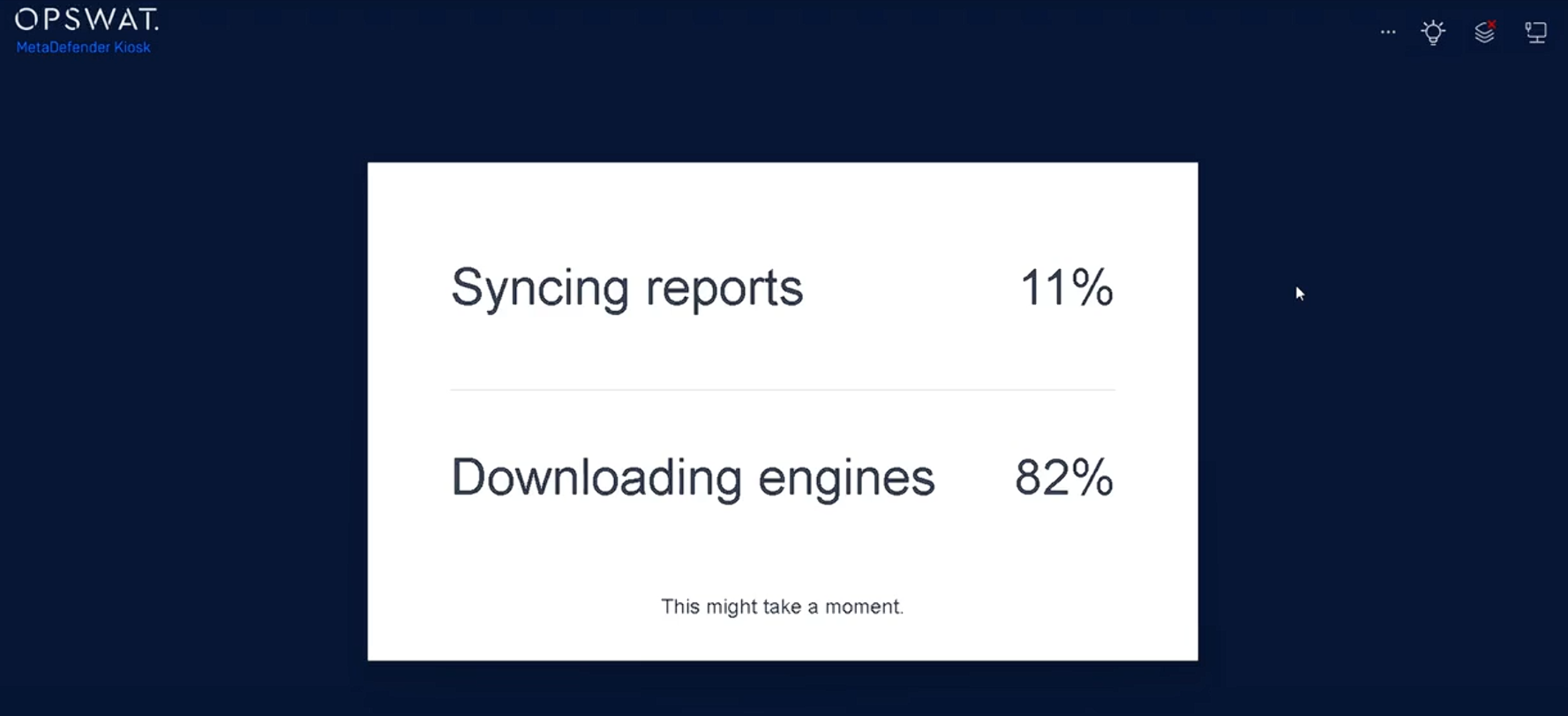
The Kiosk displays clear update and sync progress.
Prerequisites
MD Kiosk v4 (Windows) version 4.8.0 or later.
MD Drive is already enrolled to My OPSWAT
Proper network access from Kiosk device to My OPSWAT server for engine downloads and report sync.
Configurations
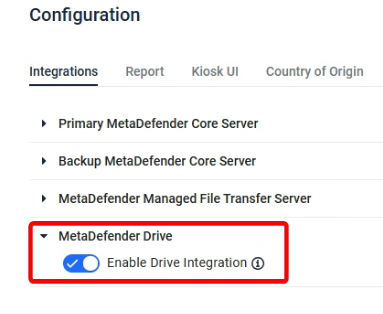
From Kiosk Management Console, navigate to Configuration > Integrations > MetaDefender Drive
Enable Drive integration option
Process
Step | Description |
|---|---|
Automatically download MD Drive engine package | Enable MetaDefender Drive integration from Kiosk Console. Kiosk will automatically pre-download the MD Drive engine package from My OPSWAT |
Device Detection and MD Drive Identification | Insert an enrolled Metadefender Drive into the Kiosk device. |
Sync reports and apply engine packages | When a supported MD Drive is detected, Kiosk automatically trigger the process:
Once completed, Kiosk automatically close the windows.
|