
This feature in Kiosk 4.8.0 or later introduces a streamlined workflow for updating MetaDefender Core engine packages on air-gapped Kiosks directly from the Kiosk UI using a USB drive. It eliminates the need for administrators to access the MetaDefender Core management console for local engine updates, providing a more intuitive experience for authenticated users in isolated environments.
Configuration
From Kiosk Management Console, navigate to Configuration > Kiosk UI > Kiosk Interface
Enable Allow update offline engine
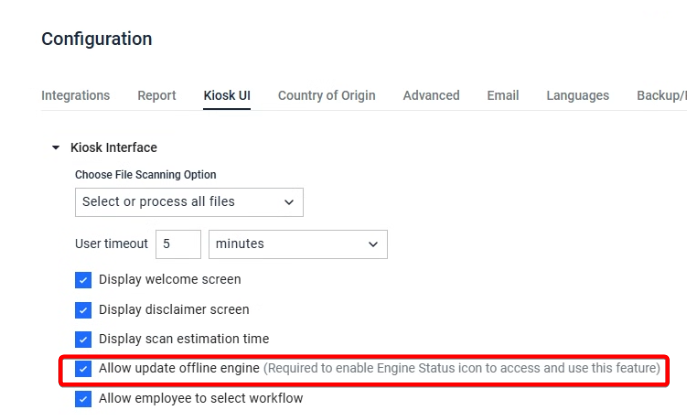
Make sure the Engine Status (under Configuration > Kiosk UI > Kiosk Interface > Customize Menu Bar) is configured to be displayed in the Kiosk UI Menu Bar
Prepare offline engine packages
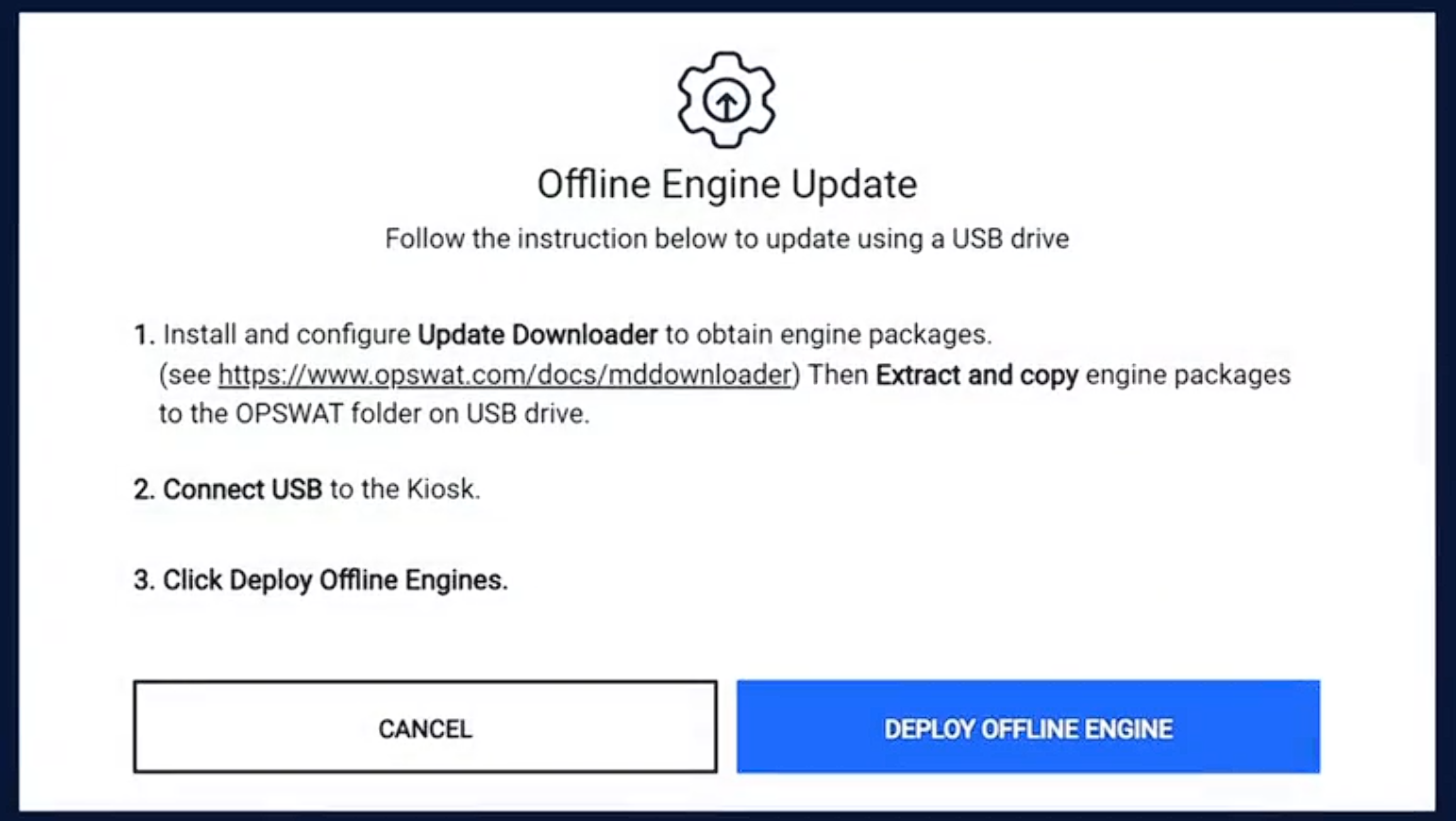
Before you can update engines from the Kiosk UI, the offline engine packages must be prepared in advance on an internet‑connected system. Use MetaDefender Update Downloader for Offline Environment to download the latest engine packages for your Core license. For more details, refer to MetaDefender Update Downloader
After the download completes, extract the engine packages so that each engine has its .yml and .zip pair available as individual files. Finally, copy these extracted files onto the USB drive under a top‑level folder named OPSWAT (for example, USB:\OPSWAT). The Kiosk UI will only detect and offer these updates if the engine package files are placed inside this OPSWAT folder on the removable drive
For example, if the USB is mount to E:\ drive, make sure the engine packages are copied with the following structure:
E:\OPSWAT\ahnlab_windows-engine-1773075845-1773075850.zip
E:\OPSWAT\ahnlab_windows-engine-1773075845-1773075850.yml
E:\OPSWAT\ahnlab_windows-database-1776857184-1776857239.zip
E:\OPSWAT\ahnlab_windows-database-1776857184-1776857239.yml
Offline engines via Kiosk UI
Step | Description |
|---|---|
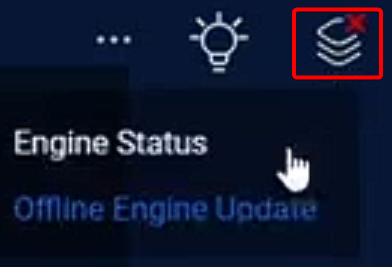
Initiate offline engine update process | Click on the Engine Status > Offline Engine Update
|
Insert USB with engine packages | Insert the USB with engine packages stored in USB:\OSPWAT folder. Click Deploy Offline Engine
|
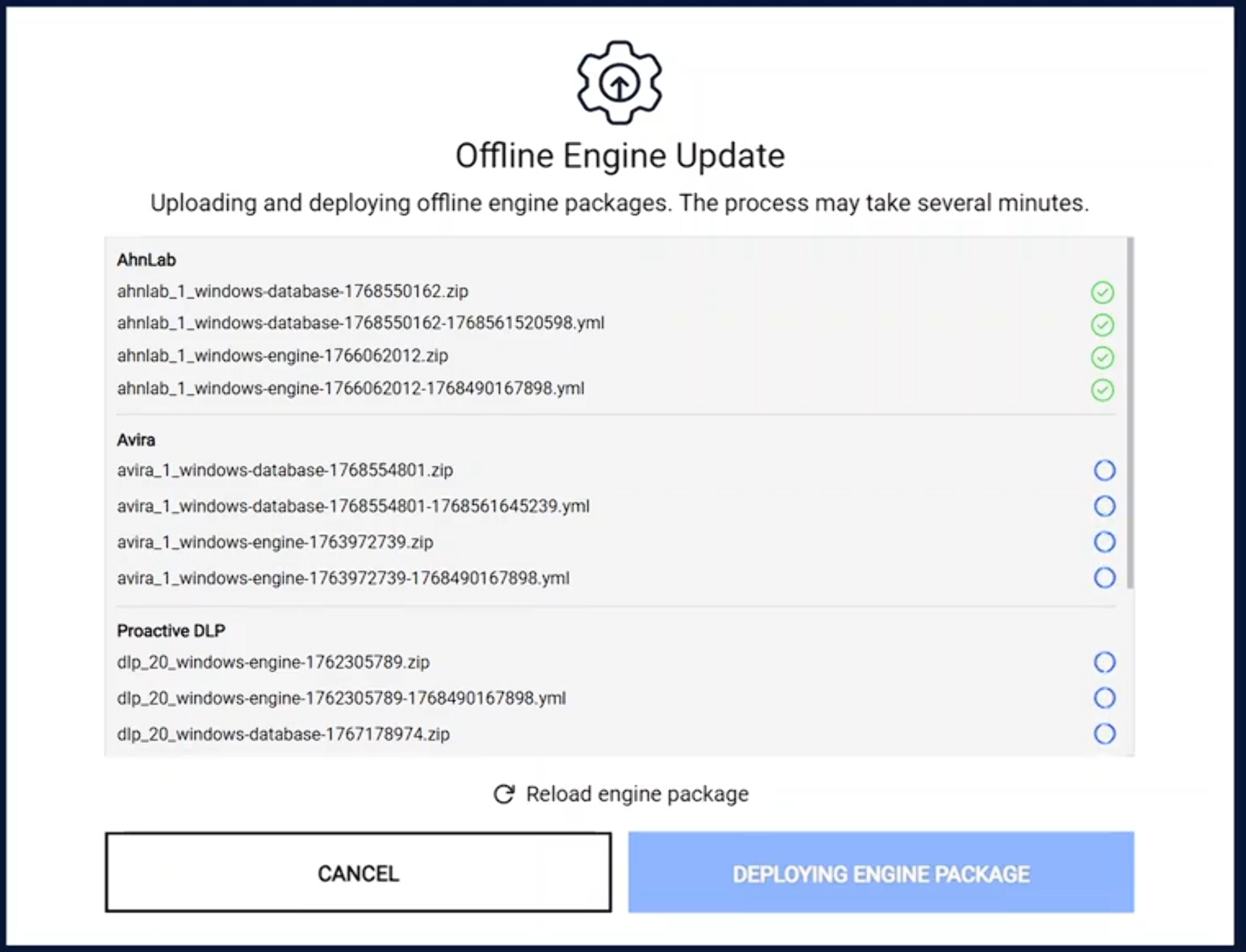
Deploy engine package | Kiosk automatically detects and deploys engine packages
|
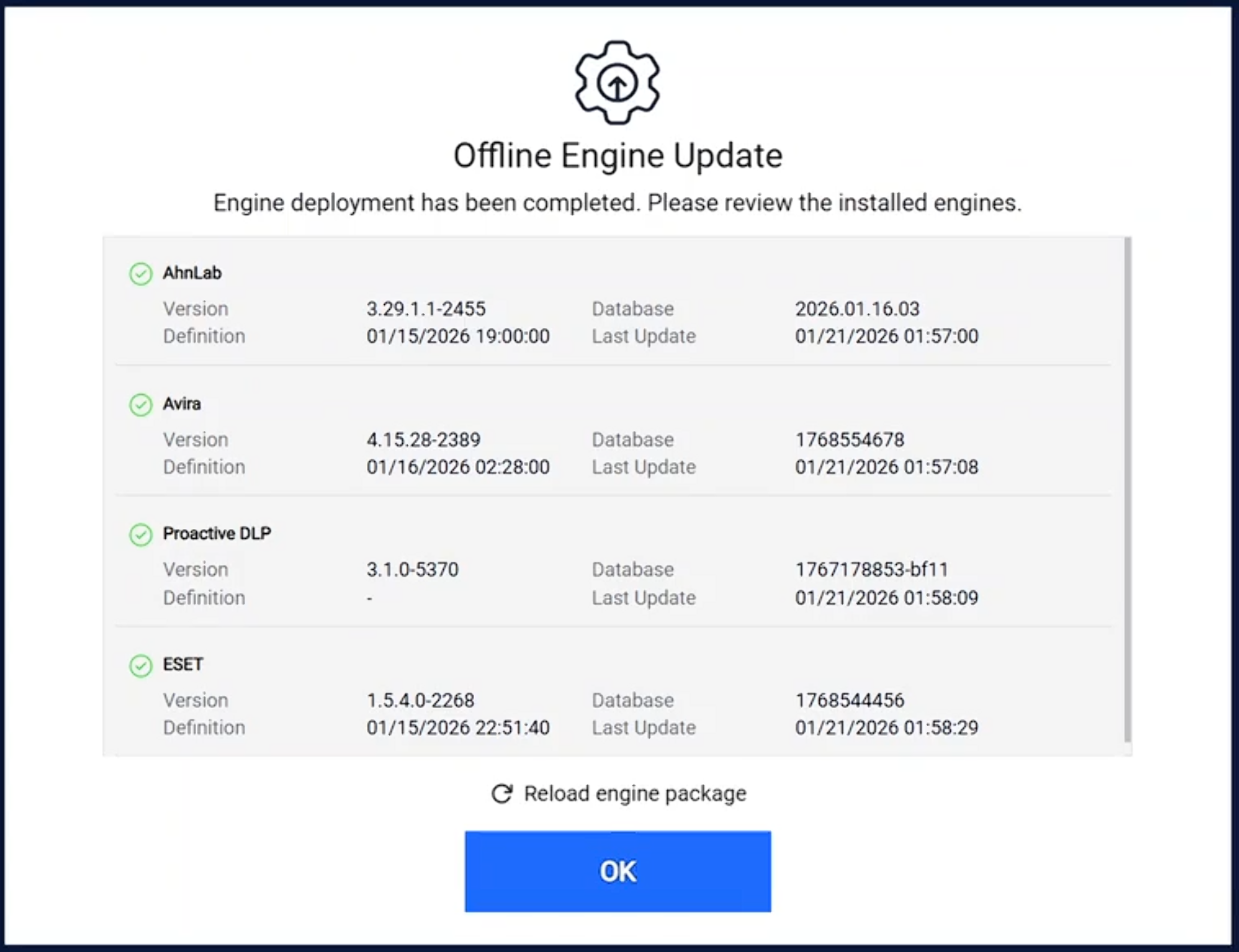
Review engine deployment | Once the engine deployment complete, review and click OK to close the windows
|
Offline engine update via Kiosk UI support only the local MetaDefender Core instance installed on the same Kiosk machine. When Kiosk integrates with a remote Core, this option cannot be used.