Overview
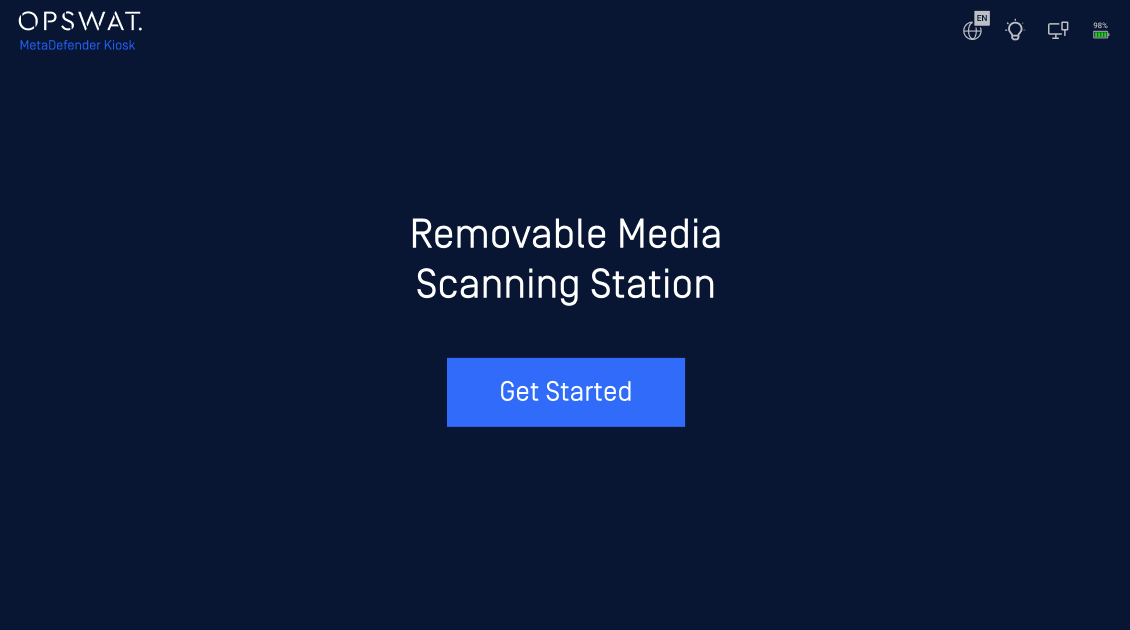
The Out-of-box Experience (OOBE) initial setup is available on the latest MetaDefender Kiosk Hardened Image (25.02.0) to streamline the configuration process. This step-by-step setup wizard guides users through essential settings, enabling quick and effortless setup without requiring advanced technical expertise.
Scope of support
Kiosk Hardened Image (25.02.0 or later)
Local MetaDefeder Core with bundled license
Activation online or via My OPSWAT
Kiosk Initial Setup
Step 1. Power on the Kiosk devices. Kiosk should automatically login and launch the OOBE wizard
Alt+S can be used to exit the OOBE Wizard to setup and configure Kiosk and Core manually. If you exit the Kiosk OOBE before an administrator account was created (step 2), Kiosk will automatically reopen the OOBE at the next Windows startup.
If for some reason, Kiosk device stopped at the Windows login screen, you can manually login with default credentials
Username: KioskUser
Password: Contact the Customer Support to get the default password
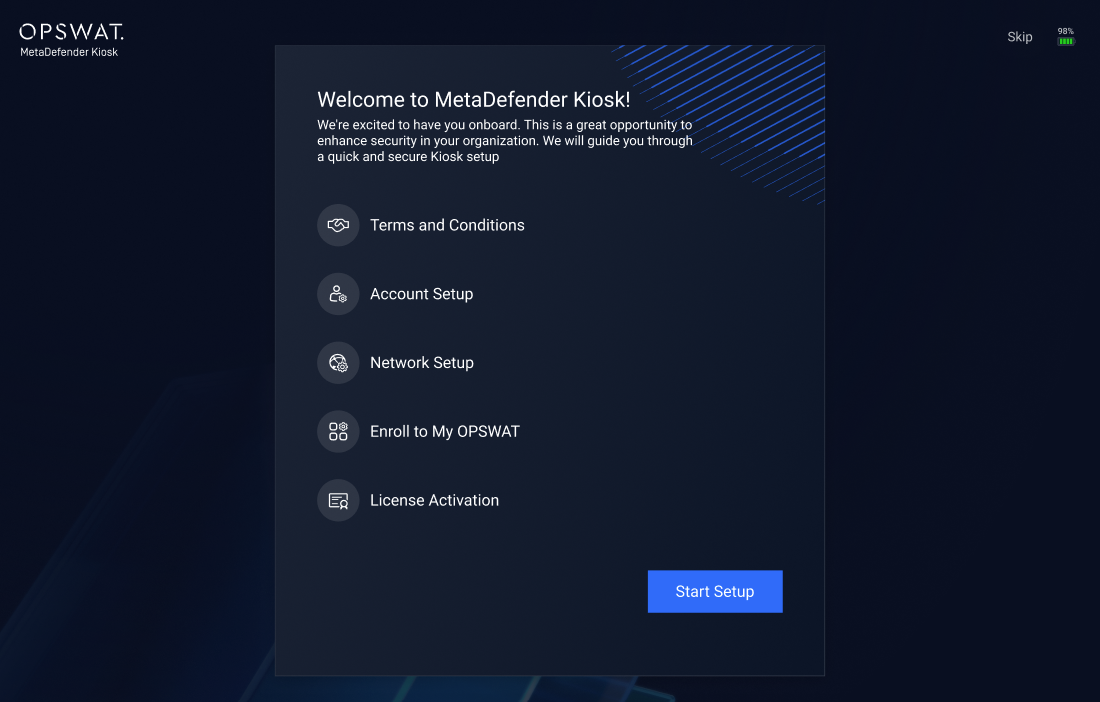
Step 2. Review and accept the End-User License Agreement by ticking the checkbox, then Continue
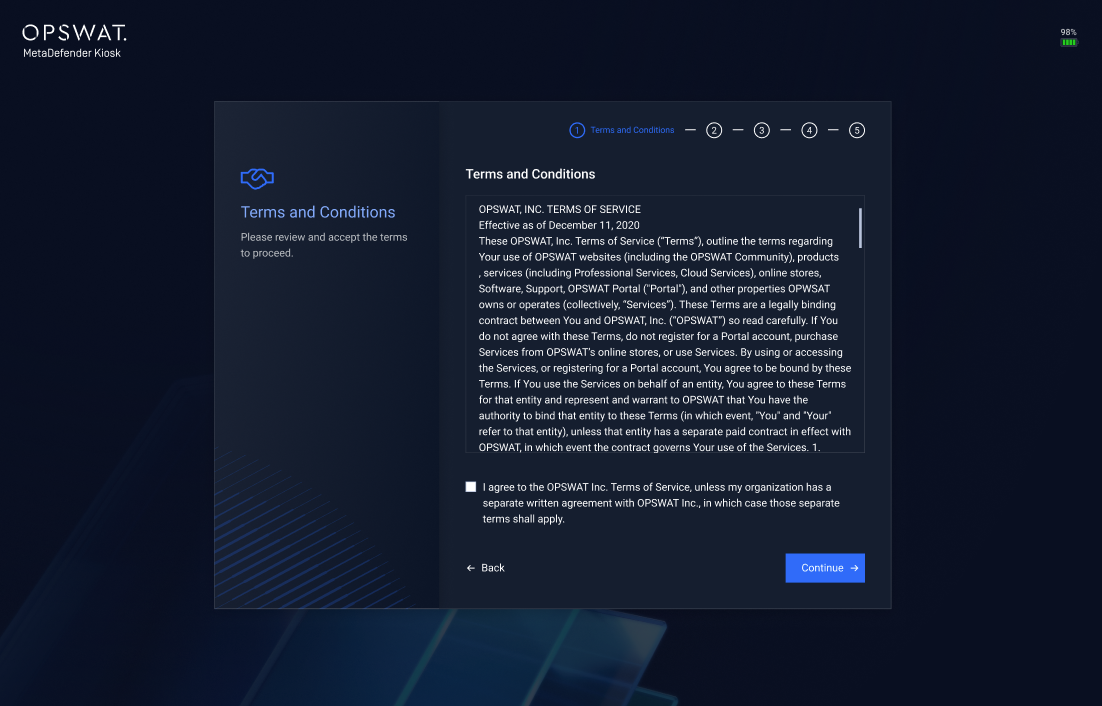
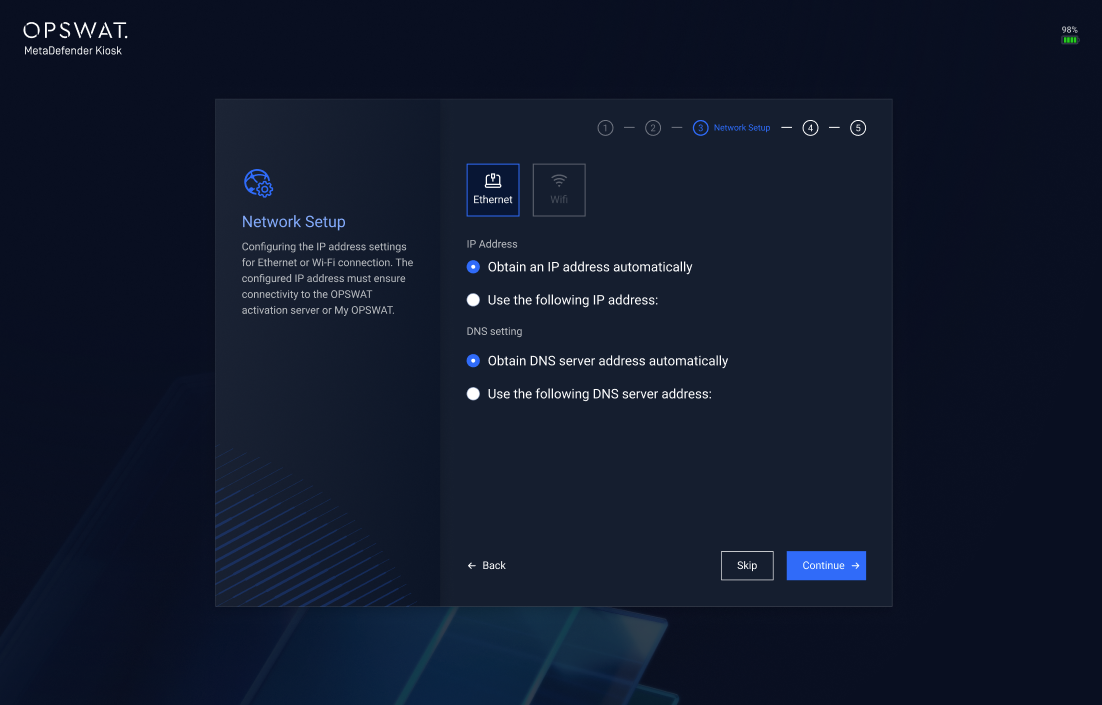
Step 3. Configure the network settings to connect to the internet
Step 4. Provide details to create an administrator account for MetaDefender Kiosk and Core applications
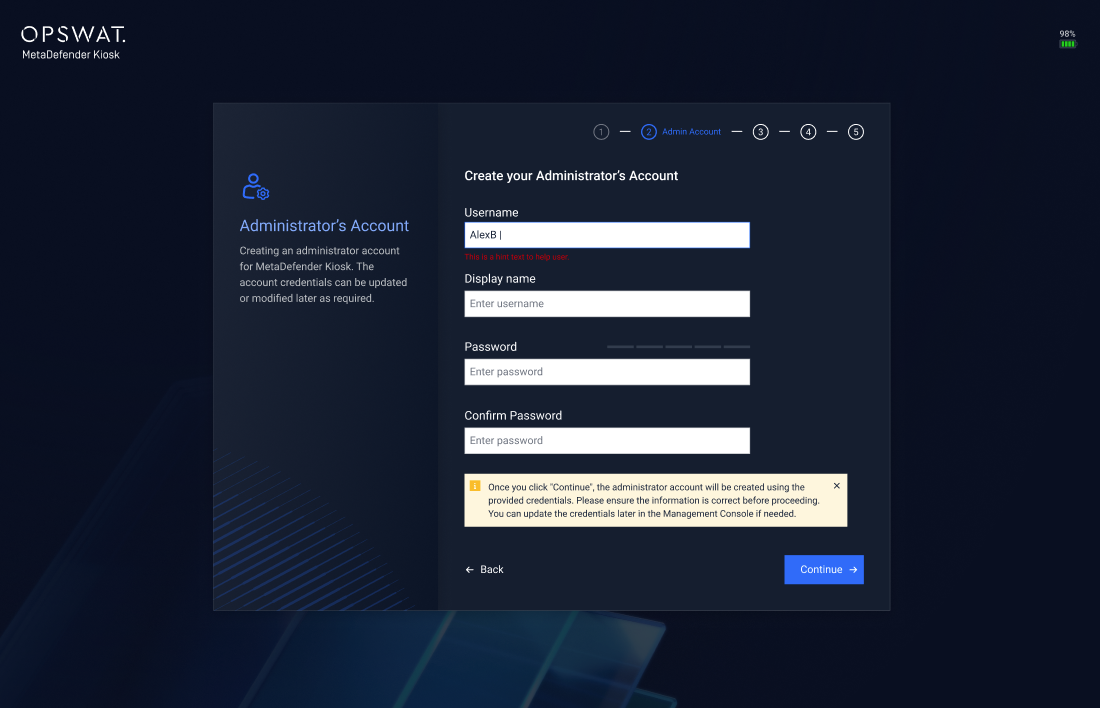
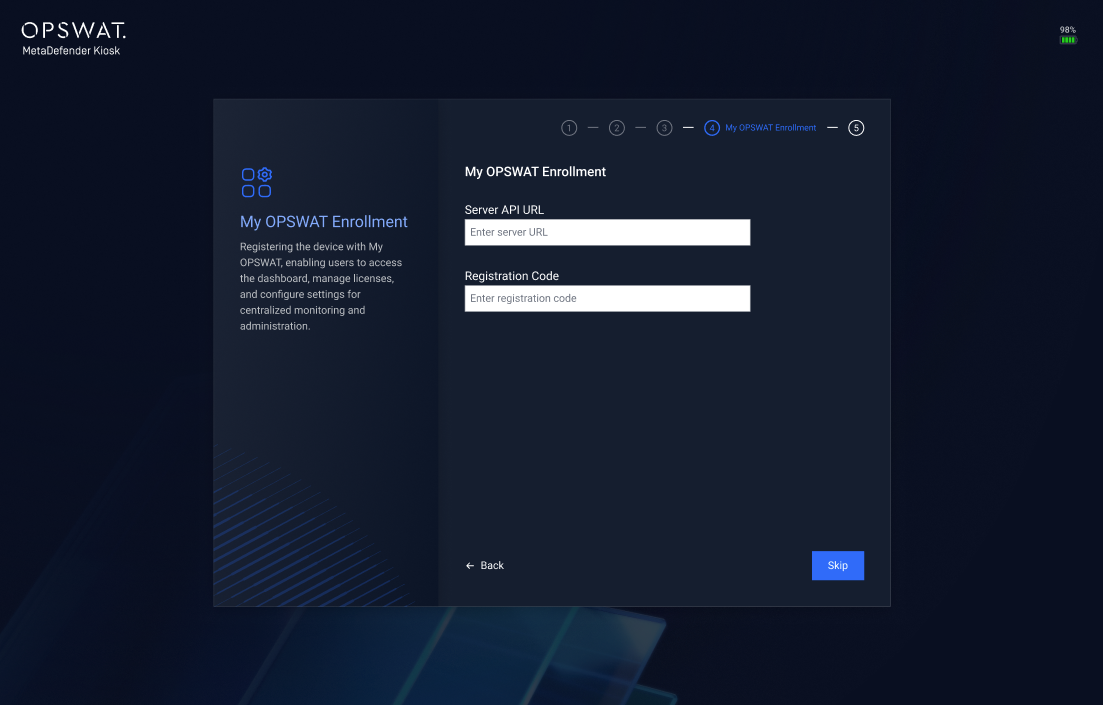
**Step 5. (**Optional) If you already have a My OPSWAT account, you can enroll the Kiosk device for streamlined license activation and management process.
If you do not have My OPSWAT account or do not want to enroll Kiosk to My OPSWAT, you can skip by clicking on Skip button.
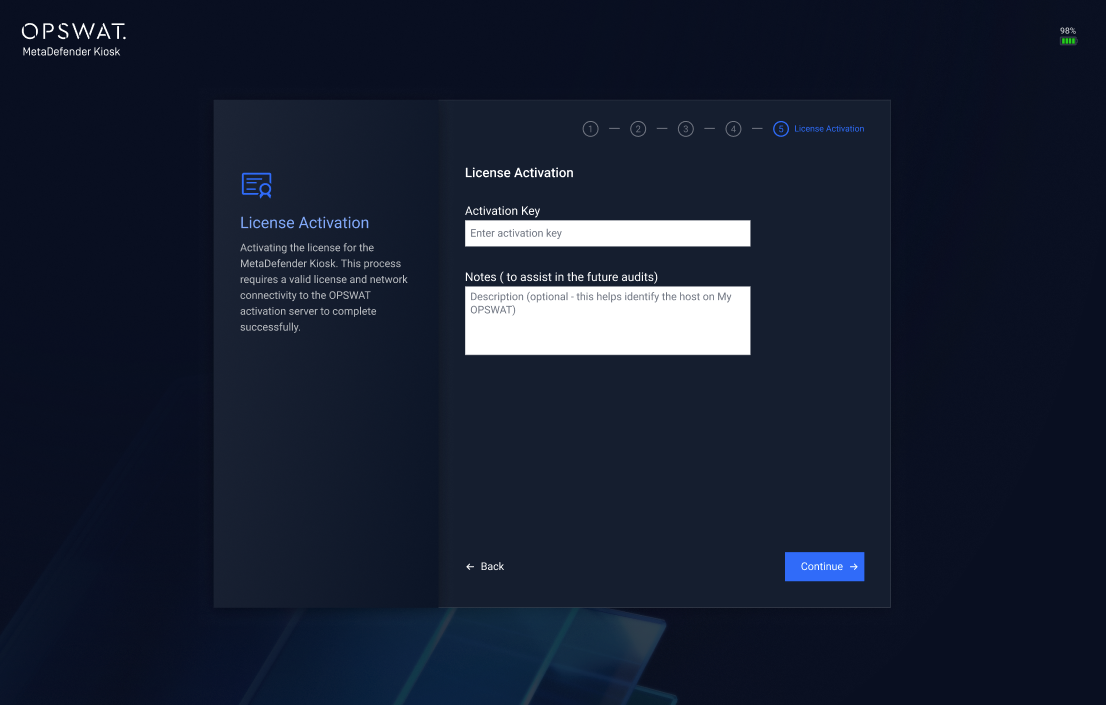
Step 6. Enter the bundled Kiosk license to activate the device
Step 7. The Kiosk will automatically download the required scanning engines based on the provided license.
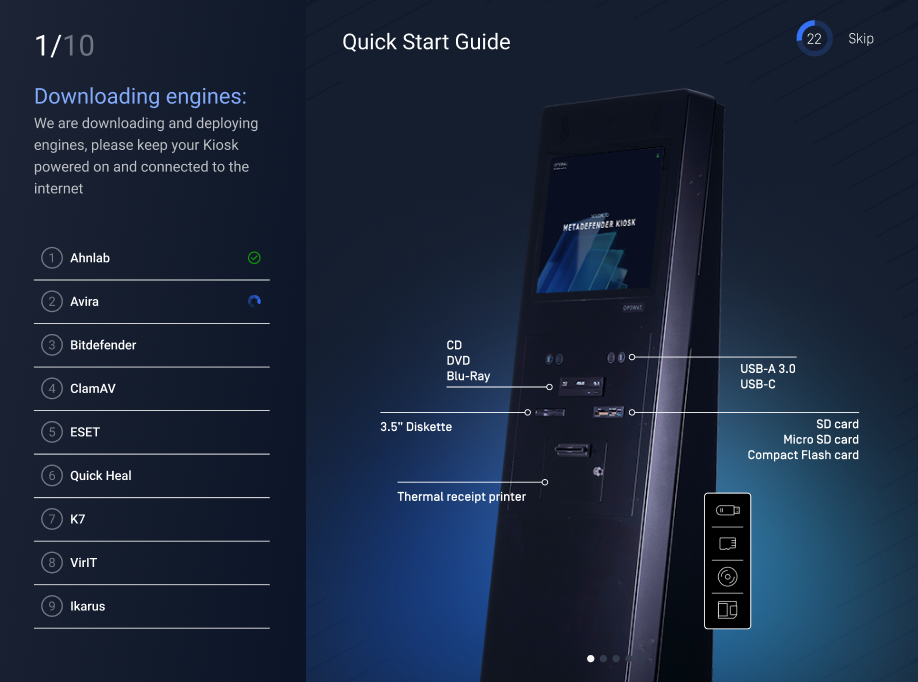
Step 8. Once the scanning engines are successfully deployed, click Finish to complete the setup
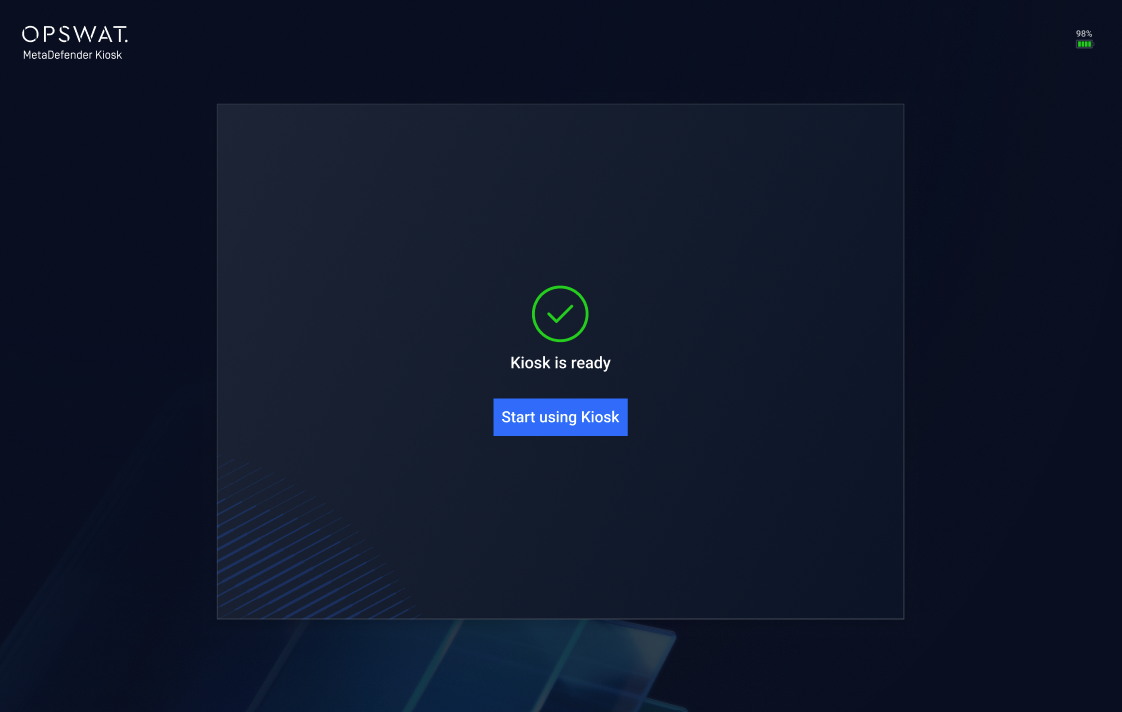
Step 9. Kiosk will automatically launch the Kiosk UI and be ready to scan your media